Auto Form Builder includes a flexible Number field designed for quantity inputs — with minimum and maximum limits, step controls, optional sliders, and validation on both the frontend and server. Build guest counts, item quantities, ticket numbers, and any whole-number field your forms need. Last updated: Last update 18 August A quantity field must accept only valid numbers within a sensible range. Auto Form Builder’s Number field enforces this automatically: Submitted quantities are stored as numbers in your submissions inbox — ready for search, export, email notifications, and reporting. Auto Form Builder includes an Event Registration template with a pre-built quantity field you can customize: The template also includes Full Name, Email, Phone, and Special Requirements fields — a complete event signup form ready to publish. Save your form when finished. 0 since the primary registrant is captured separately. For “Party Size” where at least one person must attend, set minimum to Sets the upper limit. Match this to your real-world capacity — table seats, ticket inventory, workshop spots, or per-order limits. If someone enters a value above the maximum, they see a clear error: “Value must be no more than 10.” Controls how much the value changes when using keyboard arrows or a slider. For quantity fields, use Pre-fills the field when the form loads. Setting a starting value of For quantity fields, choose Plain Number. Currency and percentage formats are available for price and survey fields but are not needed for guest counts or item quantities. Add placeholder text like “Enter number of guests” to guide respondents. Use help text below the field for extra context — for example, “Including yourself. Maximum 10 guests per registration.” When your quantity range is small and fixed — for example, 1 to 10 guests — a slider can be faster than typing. Enable Show as Slider in the Number field settings: Sliders work well for guest counts, star ratings on a numeric scale, and any quantity between roughly 1 and 20. For larger ranges (1–500 items), a standard number input is more practical. Auto Form Builder validates quantity fields on both the frontend (before submission) and the server (when the form is processed): The value Not every respondent needs a quantity field. Use conditional logic to show it only when relevant: Enable Conditional Logic on the Number field, add your conditions, and choose AND or OR logic. Hidden quantity fields are disabled automatically and do not block form submission — even if marked as required. Forms often need more than one quantity input. Add a separate Number field for each item or category: Each field validates independently. All values appear in your submissions inbox, email notifications (via When respondents submit the form, quantity values are saved as numbers in Auto Form Builder → Submissions. You can: Number fields with min/max validation, step controls, sliders, conditional logic, and the Event Registration template are all included in the free Auto Form Builder plugin. Install from WordPress.org: https://wordpress.org/plugins/auto-form-builder/ Last updated: Last update 18 August Auto Form Builder lets you create multi-step forms, calculators, and lead capture forms in WordPress, then embed them on any site with a single line of code. Use the Number field from the Basic category in Auto Form Builder. Configure min, max, and step settings to enforce valid quantity ranges for guests, items, tickets, and more. The Event Registration template includes a pre-built Number of Guests field with min 0 and max 10. You can customize the label, limits, and required setting, or add your own Number field to any form. Yes. Set Step Size to 1. Both client-side and server-side validation enforce whole-number increments only. Yes. Use Lowest Allowed Value and Highest Allowed Value in the Number field settings. Respondents cannot submit values outside your defined range. Yes. Enable Show as Slider on a Number field with min, max, and step set. Optionally show the current value next to the slider as users drag. Yes, when your minimum is set to 0. This is useful for additional guests fields where the respondent may not bring anyone extra. Yes. Enable Conditional Logic on the Number field to show or hide it based on other field values — for example, only when “Will you attend?” equals “Yes.” Yes. Number fields with full validation, the Event Registration template, conditional logic, and submission management are included in the free Auto Form Builder plugin.Building Quantity Fields: Number of Guests, Items, etc.
Why Use a Number Field for Quantities?
Quick Start: Event Registration Template
010Step-by-Step: Add a Quantity Field from Scratch
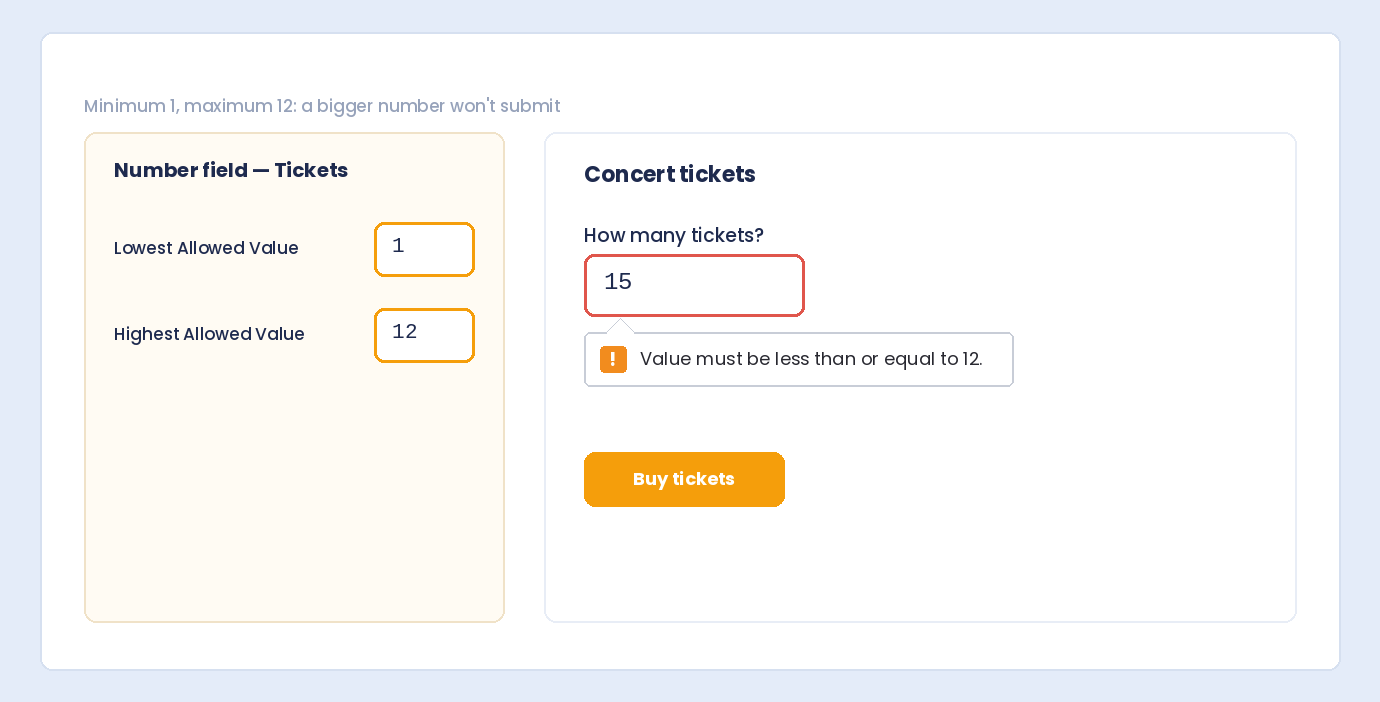
Recommended Settings for Quantity Fields
Setting
Guests Example
Items Example
Lowest Allowed Value
0 (additional guests) or 1 (minimum party size)1 (must order at least one)
Highest Allowed Value
10 (venue limit per registration)100 (stock limit)
Step Size
1 (whole guests only)1 (whole items only)
How to Display
Plain Number
Plain Number
Starting Value
1 (optional pre-fill)1 (optional pre-fill)
Required
Enable if quantity must be entered
Enable for order forms
Quantity Field Settings Explained
Lowest Allowed Value (Minimum)
1.Highest Allowed Value (Maximum)
Step Size
1 so only whole numbers are accepted — no 2.5 guests or 3.7 items. Step validation also runs on the server with the message “Please enter a value in increments of 1.”Starting Value
1 saves respondents a click on order forms where most people order one item. Leave empty if you want the field blank by default.How to Display
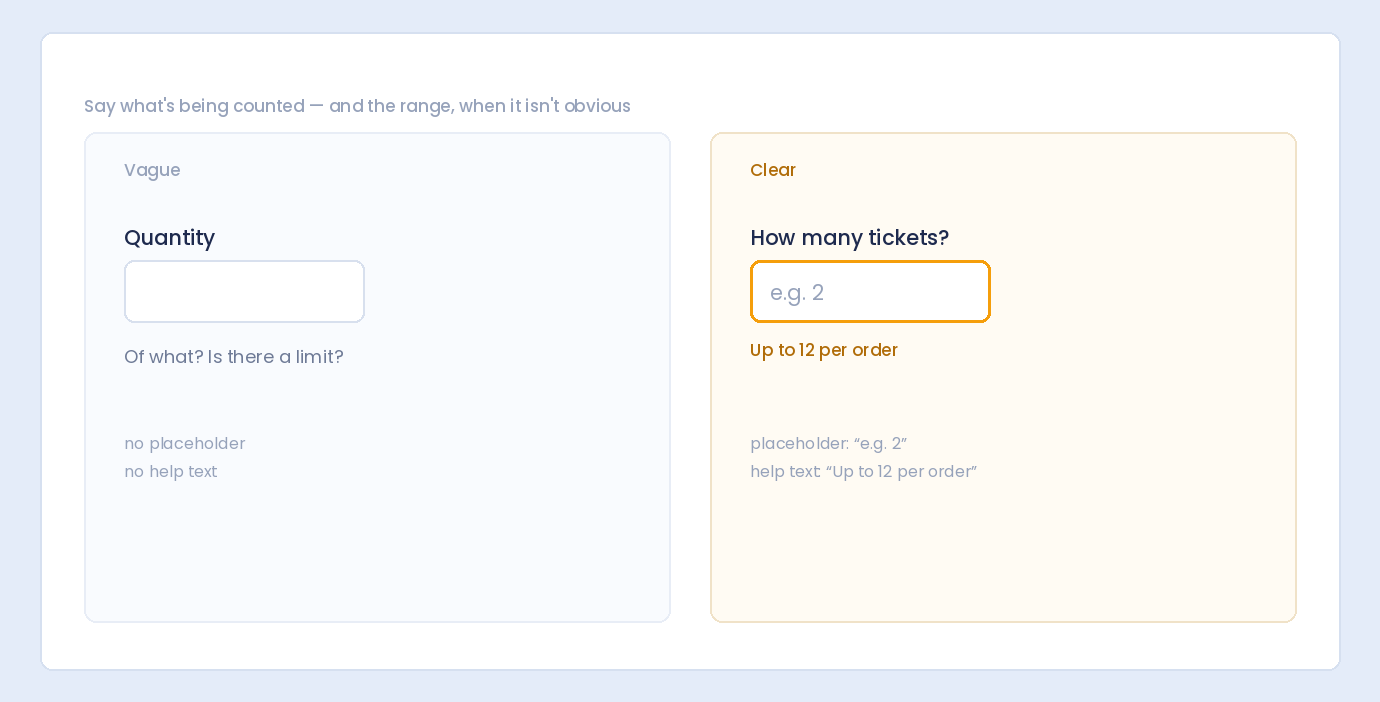
Placeholder and Help Text
Optional: Quantity Slider for Small Ranges
1.Validation Keeps Quantity Data Clean
0 is treated as a valid number when your minimum allows it — useful for “additional guests” fields where zero is a legitimate answer.Practical Quantity Field Examples
Event RSVP — Number of Guests
Product Order — Item Quantity
Restaurant Booking — Party Size
Workshop Registration — Number of Tickets
Volunteer Signup — Hours Available
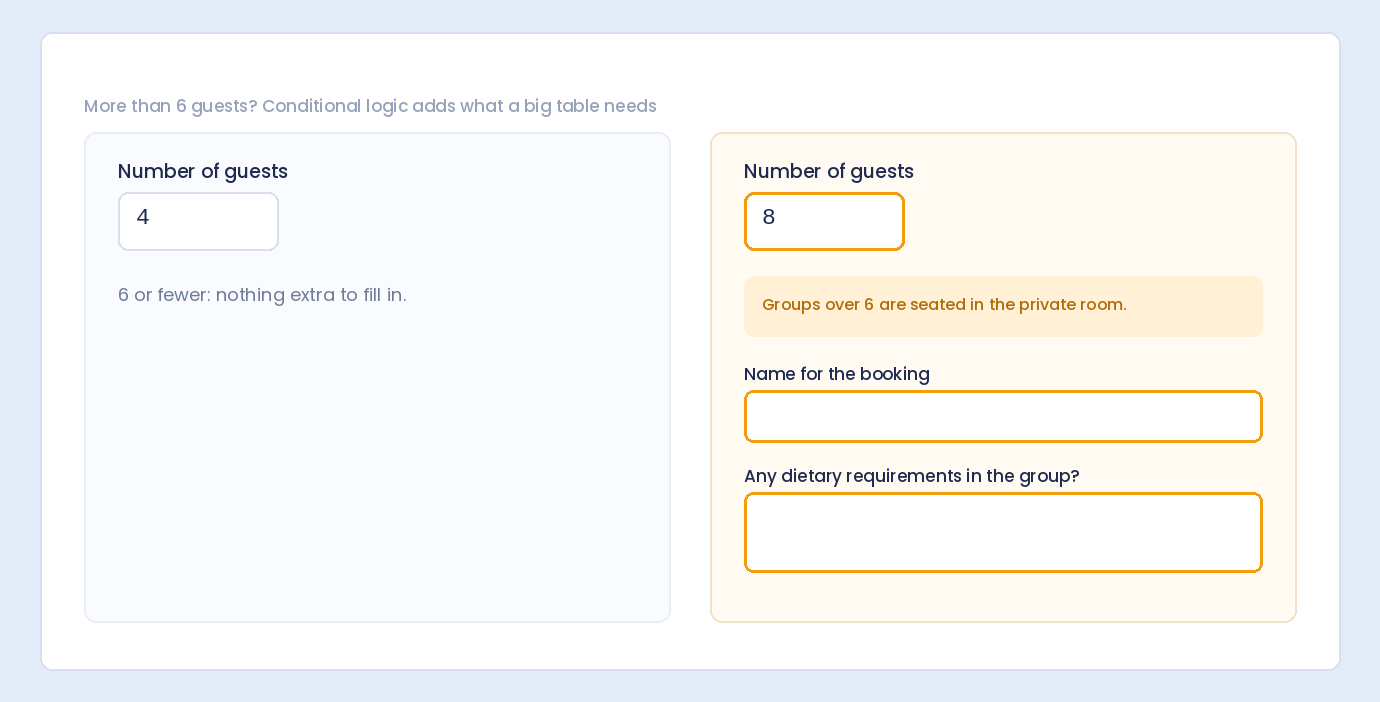
Combine Quantity Fields with Conditional Logic
Multiple Quantity Fields on One Form
{submission_data} or field placeholders), and CSV exports as separate columns.Viewing and Exporting Quantity Submissions
Tips for Better Quantity Fields
Get Started with Free Quantity Fields
Build forms that embed anywhere — free
Frequently Asked Questions
What field type should I use for quantity inputs?
Does Auto Form Builder have a number of guests field?
Can I restrict quantities to whole numbers only?
Can I set a minimum and maximum quantity?
Can I use a slider for quantity selection?
Is zero a valid quantity?
Can I show a quantity field only for certain answers?
Are quantity fields included in the free plugin?
Table of Contents
Table of Contents
Learn how to bulk delete form submissions in WordPress. Remove multiple entries at once to clean up spam, test data, and old submissions efficiently.
Master WordPress form submission management. Learn to view, filter, search, star, export, and organize form entries like a pro with this complete guide.
Learn how to search and find form submissions in WordPress. Filter by date, form, status, and search across all submission data.
Learn how to set character limits on WordPress form fields. Configure minimum and maximum length validation for text fields and textareas.
Comparing Auto Form Builder and Contact Form 7 for WordPress. See which form plugin offers better ease of use, features, and value for your website.
Learn how to view, organize, search, filter, and export your WordPress form submissions. Complete guide to submission management.
Learn why storing form data on your own server helps with GDPR compliance. Choose form plugins that keep your user data local and under your control.
Learn the best practices for email collection forms in WordPress. Reduce bounces, prevent typos, and build a quality email list with proper form design.
Learn how to filter WordPress form submissions by date. Find entries from specific time periods quickly using date range filters.
Learn how to bulk edit, delete, and manage form submissions in WordPress. Save time with mass actions on multiple entries at once.
Learn how to restrict date fields to future dates only for event registration forms. Block past dates and set booking windows in WordPress.
Learn how to star and flag important form submissions in WordPress. Prioritize leads, mark urgent requests, and organize your form entries effectively.