How to Add Range Sliders to WordPress Forms
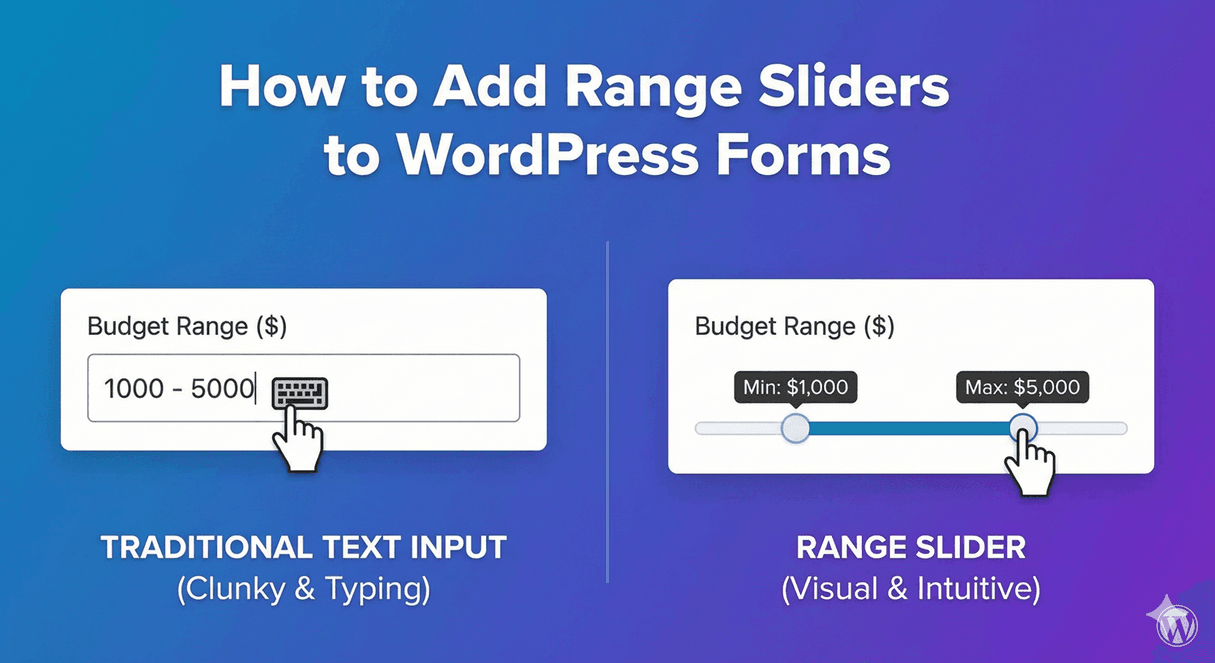
Sometimes a text input isn’t the best way to collect a number. When users need to select a budget range, rate satisfaction, or choose quantity, a visual slider is more intuitive and engaging. Drag a handle, see the value change—it’s interactive, it’s visual, and it’s easier than typing.
In this guide, you’ll learn how to add range sliders to your WordPress forms for better user experience.
Why Use Range Sliders?
Benefits Over Text Input
- Visual feedback: See the value as you drag
- Bounded range: Can’t enter invalid numbers
- Faster selection: Drag is quicker than typing
- Mobile-friendly: Touch-optimized interaction
- Engaging: Interactive element increases form engagement
Best Use Cases for Sliders
- Budget/price ranges
- Satisfaction ratings (1-10)
- Quantity selection
- Age ranges
- Importance/priority scales
- Skill level ratings
- Time estimates
- Distance/size ranges
When NOT to Use Sliders
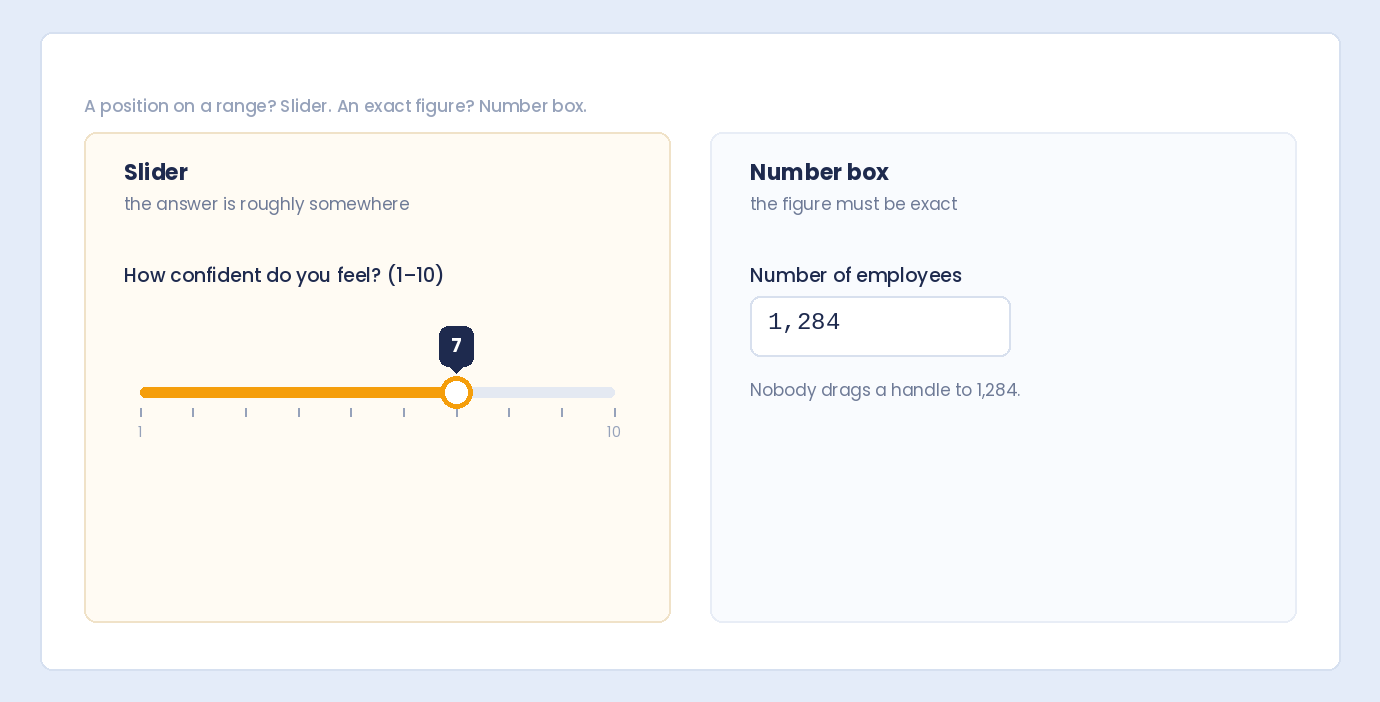
- Precise numbers needed (exact price, phone number)
- Very large ranges (1 to 1,000,000)
- No natural bounds
- Text input is faster (simple quantities)
Creating a Range Slider in Auto Form Builder
Step 1: Add Number Field
- Create or edit your form in AFB
- Drag the Number field onto your form
- Click to open settings
Step 2: Enable Slider Mode
- Find the Slider Mode option in settings
- Toggle it ON
- The field transforms into a slider
Step 3: Set Minimum Value
Define the lowest selectable value:
- Budget: 0 or 1000
- Rating: 1
- Quantity: 1
- Percentage: 0
Step 4: Set Maximum Value
Define the highest selectable value:
- Budget: 10000 or 100000
- Rating: 10
- Quantity: 100
- Percentage: 100
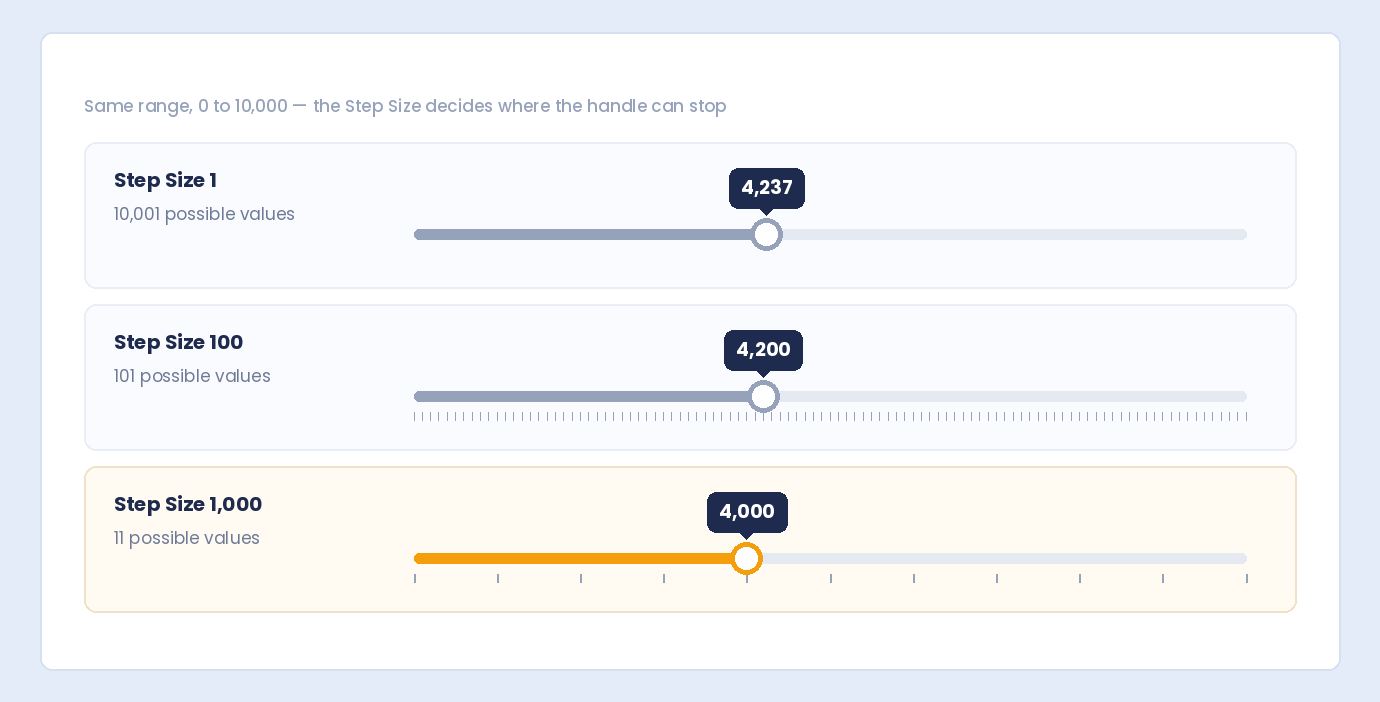
Step 5: Set Step Size
Define increment between values:
| Step | Example Values | Use Case |
|---|---|---|
| 1 | 1, 2, 3, 4, 5… | Ratings, small quantities |
| 5 | 5, 10, 15, 20… | Percentage increments |
| 10 | 10, 20, 30, 40… | Larger ranges |
| 100 | 100, 200, 300… | Budget estimates |
| 500 | 500, 1000, 1500… | Price ranges |
| 1000 | 1000, 2000, 3000… | Large budgets |
Step 6: Configure Display Options
Show Value
Display the current value as user drags:
- Real-time feedback
- User knows exact selection
- Recommended for most cases
Slider Color
Customize the slider appearance:
- Match your brand colors
- Use theme accent color
- Ensure good contrast
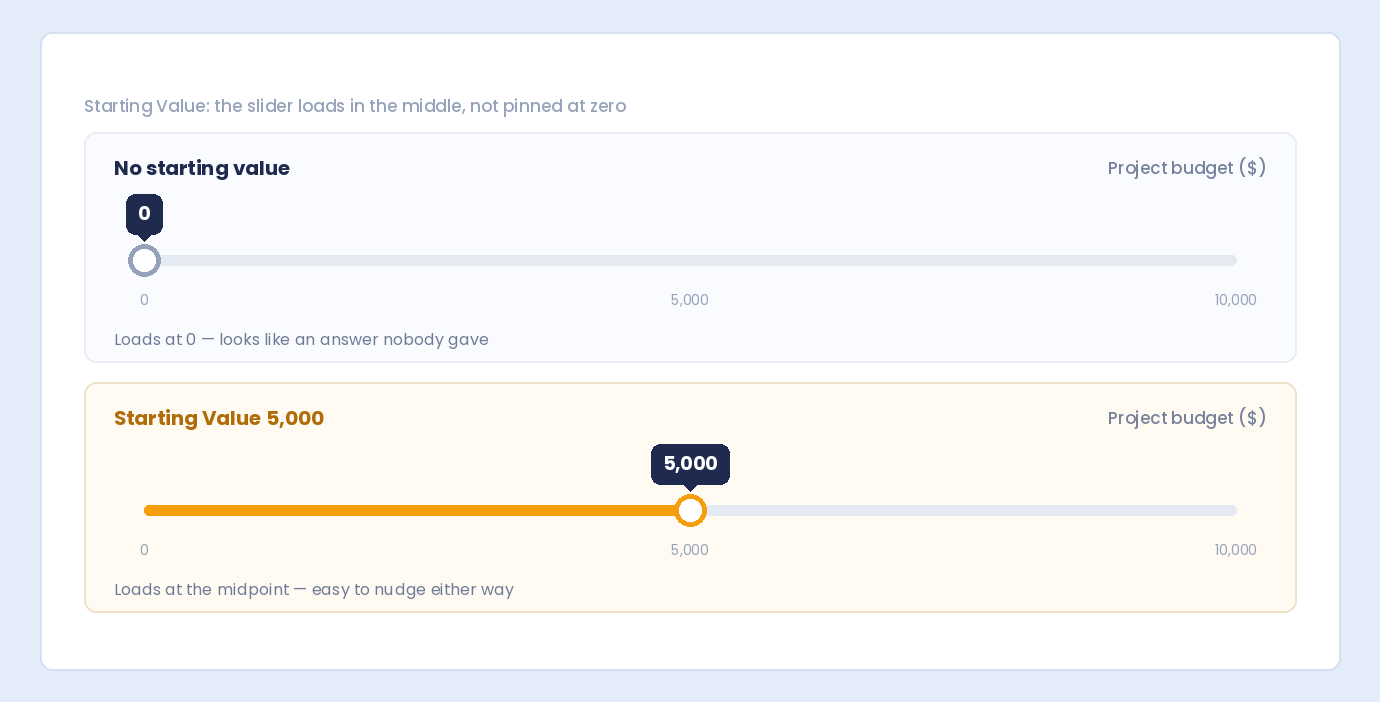
Step 7: Set Default Value (Optional)
Pre-position the slider:
- Middle of range (neutral default)
- Minimum (user must actively choose)
- Common/expected value
Step 8: Add Label and Help Text
Clear labeling is essential:
- Label: “What’s your budget?”
- Help text: “Drag the slider to select your range”
Slider Configuration Examples
Budget Range Slider
Settings:
- Label: “Project Budget”
- Minimum: 1000
- Maximum: 50000
- Step: 1000
- Default: 10000
- Format: Currency ($)
- Show value: Yes
Result: User drags to select $1,000 to $50,000 in $1,000 increments.
Satisfaction Rating (1-10)
Settings:
- Label: “How satisfied are you?”
- Minimum: 1
- Maximum: 10
- Step: 1
- Default: 5
- Show value: Yes
Result: User rates from 1 (not satisfied) to 10 (very satisfied).
Quantity Selector
Settings:
- Label: “Number of Guests”
- Minimum: 1
- Maximum: 50
- Step: 1
- Default: 2
- Show value: Yes
Result: User selects 1 to 50 guests.
Percentage Slider
Settings:
- Label: “Completion Level”
- Minimum: 0
- Maximum: 100
- Step: 5
- Default: 0
- Format: Percentage (%)
- Show value: Yes
Result: User selects 0% to 100% in 5% increments.
Priority Scale (1-5)
Settings:
- Label: “How important is this feature?”
- Minimum: 1
- Maximum: 5
- Step: 1
- Default: 3
- Help text: “1 = Not important, 5 = Critical”
Result: User rates importance on 5-point scale.
Years of Experience
Settings:
- Label: “Years of Experience”
- Minimum: 0
- Maximum: 30
- Step: 1
- Default: 0
- Show value: Yes
Result: User selects 0 to 30 years.
Price Range (Real Estate)
Settings:
- Label: “Maximum Home Price”
- Minimum: 100000
- Maximum: 1000000
- Step: 25000
- Default: 300000
- Format: Currency ($)
Result: User selects $100K to $1M in $25K increments.
Formatting Slider Values
Available Formats
| Format | Display Example | Use Case |
|---|---|---|
| Plain | 5000 | Generic numbers |
| Currency ($) | $5,000 | Budgets, prices |
| Currency (€) | €5,000 | European prices |
| Currency (£) | £5,000 | UK prices |
| Percentage | 50% | Rates, completion |
| Decimal | 5,000.00 | Precise values |
Choosing the Right Format
- Budget/price: Currency with appropriate symbol
- Ratings: Plain number
- Percentages: Percentage format
- Quantities: Plain number
Slider Design Best Practices
1. Choose Appropriate Range
Range should be meaningful:
- Not too narrow (user can’t express preference)
- Not too wide (too many options)
- Realistic for the question
2. Use Sensible Steps
Step size affects usability:
- Too small = tedious to drag
- Too large = can’t hit desired value
- Match expected precision
3. Always Show Current Value
Display the value as user drags:
- Essential feedback
- Confirms selection
- Prevents uncertainty
4. Add Context with Labels
Help users understand the scale:
- “1 = Poor, 10 = Excellent”
- “Budget range in USD”
- Show min/max labels
5. Consider Default Position
Strategic default placement:
- Middle: Neutral, no bias
- Minimum: User must actively choose
- Expected value: Faster for typical users
6. Ensure Touch-Friendly Size
For mobile users:
- Large enough drag handle
- Adequate track width
- Test on actual devices
Use Case Examples
Quote Request Form
Collecting budget expectations:
- Name (required)
- Email (required)
- Project Type (dropdown)
- Budget Range (slider: $1K – $50K)
- Timeline (dropdown)
- Project Details (textarea)
Survey Form
Multiple rating questions:
- Overall satisfaction (slider: 1-10)
- Ease of use (slider: 1-10)
- Value for money (slider: 1-10)
- Likelihood to recommend (slider: 0-10, NPS)
- Comments (textarea)
Event Registration
Attendance details:
- Name (required)
- Email (required)
- Number of Attendees (slider: 1-10)
- Dietary requirements (checkboxes)
- Special requests (textarea)
Job Application
Experience and expectations:
- Name
- Years of Experience (slider: 0-20)
- Expected Salary (slider: $40K – $150K)
- Resume (file upload)
Slider vs. Other Input Types
Slider vs. Text Input
| Slider | Text Input |
|---|---|
| Visual, interactive | Direct entry |
| Bounded range | Any value possible |
| Approximate values | Exact values |
| Better for ranges | Better for precision |
Slider vs. Dropdown
| Slider | Dropdown |
|---|---|
| Continuous visual scale | Discrete options |
| Many possible values | Limited options |
| Interactive | Click to select |
| Shows range context | Shows exact options |
Slider vs. Radio Buttons
| Slider | Radio Buttons |
|---|---|
| Compact single element | Multiple visible options |
| Many values | Few options (3-5) |
| Numeric scale | Labeled options |
| Interactive drag | Click selection |
Mobile Considerations
Touch Interaction
- Sliders work well with touch
- Drag gesture is natural
- Ensure handle is large enough
Testing on Mobile
- Test on actual phones/tablets
- Verify value displays correctly
- Check responsiveness
- Ensure no scrolling conflicts
Troubleshooting Sliders
Slider Not Dragging
- Check for JavaScript conflicts
- Clear browser cache
- Test in incognito mode
Value Not Displaying
- Verify “Show Value” is enabled
- Check CSS isn’t hiding element
- Refresh and re-test
Wrong Increment Steps
- Re-check step size setting
- Ensure min/max are compatible with step
- Save and refresh
Frequently Asked Questions
Can I have multiple sliders in one form?
Yes. Add multiple number fields with slider mode enabled. Each operates independently. Common for surveys with multiple rating questions.
Can users type a value instead of dragging?
Depends on implementation. Some sliders are drag-only; others allow clicking the value to type. Slider ensures values stay within bounds.
What’s the best step size to use?
Depends on range and precision needed. For 1-10 ratings, use 1. For budgets $1K-$50K, use $1K or $5K. Fewer steps = faster selection.
Do sliders work on mobile?
Yes, sliders work well with touch. The drag gesture is natural on touchscreens. Ensure the handle is large enough for fingers.
Can I style the slider colors?
Yes. Auto Form Builder allows slider color customization. Match your brand or theme colors for consistent design.
Summary
Adding range sliders to WordPress forms:
- Add Number field – Drag to form
- Enable Slider Mode – Toggle on
- Set min/max values – Define the range
- Choose step size – Set increment
- Enable Show Value – Display current selection
- Format appropriately – Currency, percentage, plain
- Add clear labels – Help users understand scale
Conclusion
Range sliders transform number input from typing to interactive selection. For budgets, ratings, quantities, and scales, sliders provide a visual, engaging experience that users prefer over text fields.
Auto Form Builder’s number field includes slider mode with customizable range, step size, value display, and color options. Create professional, interactive sliders in minutes.
Ready to add sliders to your forms? Download Auto Form Builder and create engaging, interactive number inputs.