How to Build a US-Only Address Form with State Dropdown
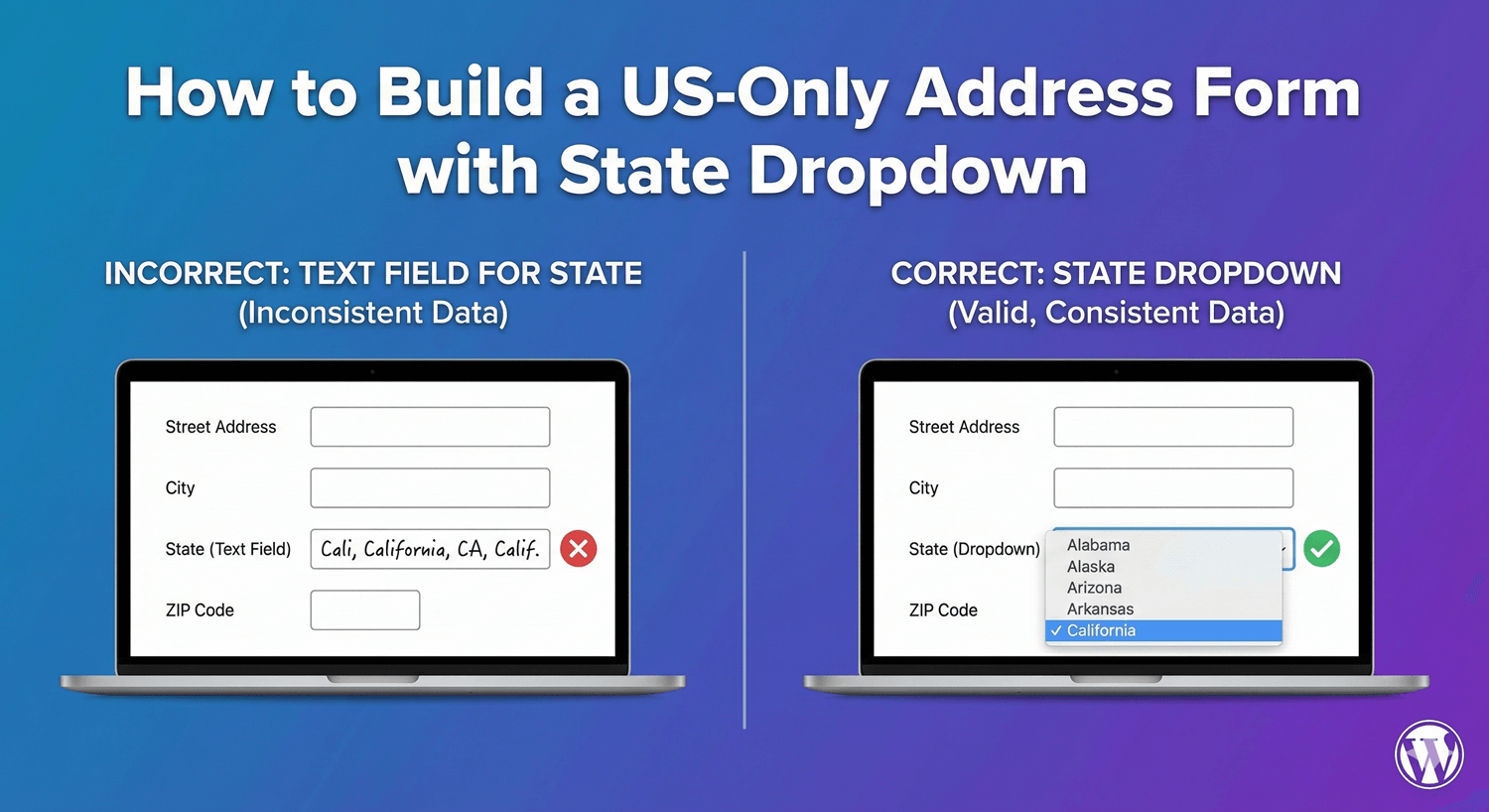
Collecting US addresses requires specific formatting: street address, city, state (from 50 options plus territories), and ZIP code. A properly configured US address form uses a state dropdown—not a text field—ensuring valid state entries and consistent data. No more “California” vs “CA” vs “Cali” variations.
In this guide, you’ll learn how to build a US-specific address form with all the right components.
Why Use a US-Specific Address Form?
Problems with Generic Address Fields
- State entered as free text (inconsistent formatting)
- Missing or wrong ZIP codes
- International addresses mixed with US
- Data cleanup required before use
- Integration issues with shipping/CRM systems
Benefits of US-Optimized Forms
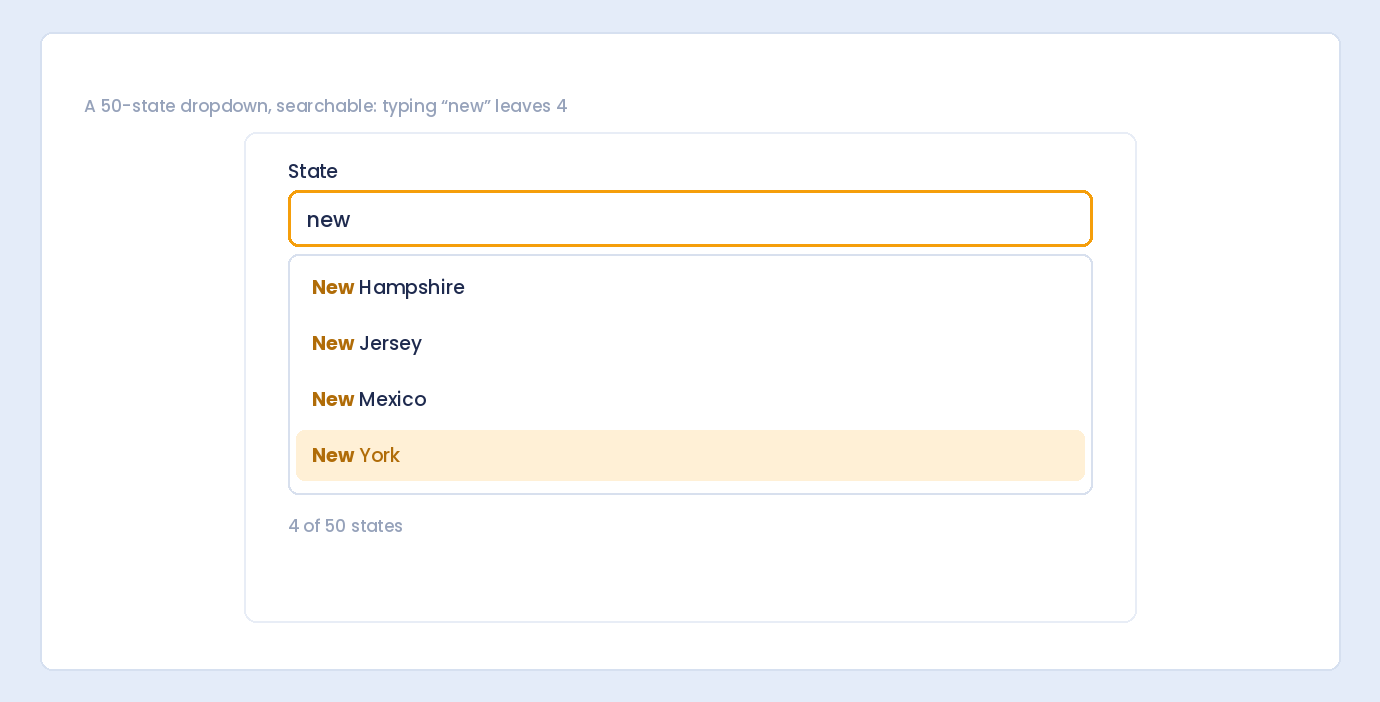
- State dropdown: Only valid US states/territories
- Proper labels: “ZIP Code” not “Postal Code”
- Consistent format: Clean data for shipping and CRM
- Validation: Appropriate for US address structure
- User experience: Familiar format for US users
US Address Structure
Standard US Address Components
| Component | Description | Example |
|---|---|---|
| Address Line 1 | Street address | 123 Main Street |
| Address Line 2 | Apt, Suite, Unit (optional) | Apt 4B |
| City | City name | New York |
| State | US State (dropdown) | NY |
| ZIP Code | 5-digit or ZIP+4 | 10001 or 10001-1234 |
US States and Territories
A complete US state dropdown includes:
- 50 States: Alabama through Wyoming
- District: Washington D.C.
- Territories: Puerto Rico, Guam, US Virgin Islands, American Samoa, Northern Mariana Islands
- Military: AA (Armed Forces Americas), AE (Armed Forces Europe), AP (Armed Forces Pacific)
Creating a US Address Form in Auto Form Builder
Step 1: Add Address Field
- Create or edit your form in AFB
- Find the Address field in the sidebar
- Drag it onto your form canvas
- Click to open settings
Step 2: Select US Preset
- Find the Address Preset setting
- Select United States
- The field automatically configures for US addresses
What the US Preset Includes
When you select the US preset:
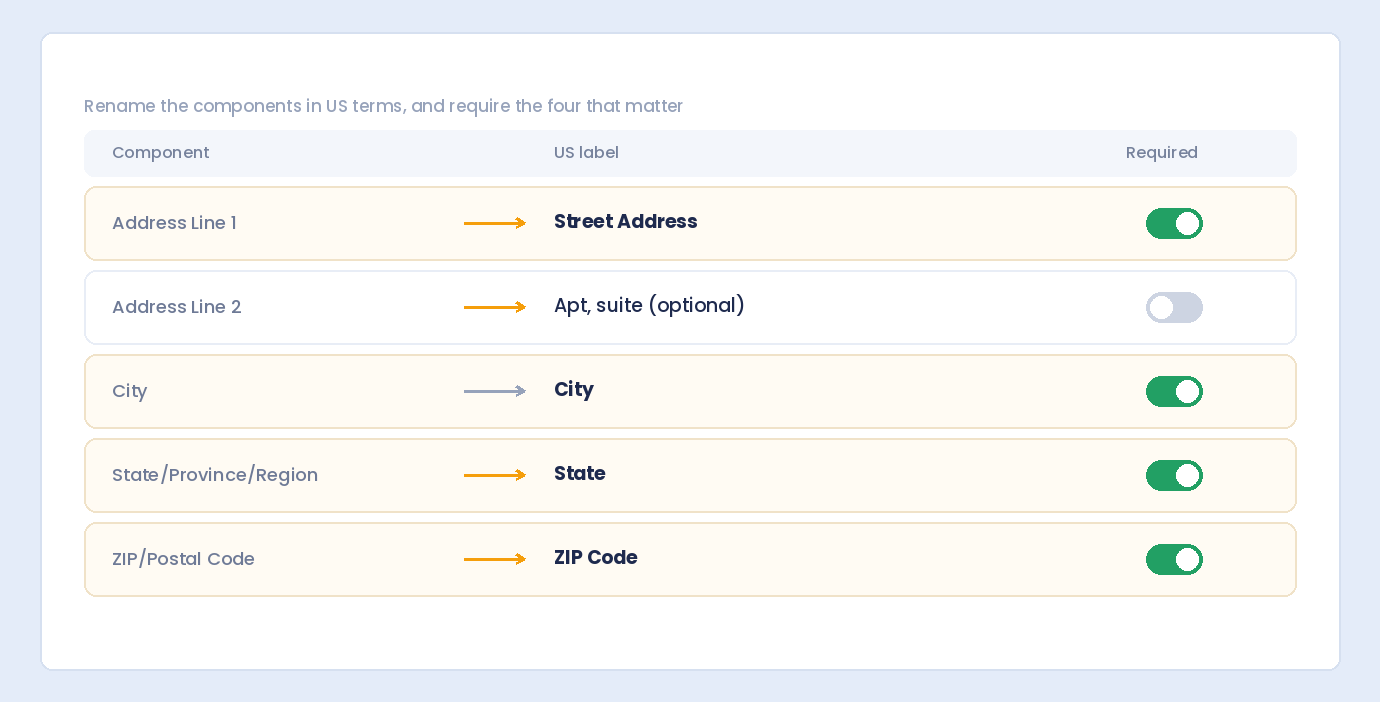
- Address Line 1: Enabled, labeled “Street Address”
- Address Line 2: Enabled, labeled “Apt, Suite, etc.” (optional)
- City: Enabled, labeled “City”
- State: Dropdown with all US states and territories
- ZIP Code: Enabled, labeled “ZIP Code”
- Country: Hidden (US assumed)
Step 3: Configure Required Fields
Set which components are mandatory:
- Address Line 1: Usually required
- Address Line 2: Usually optional
- City: Usually required
- State: Usually required
- ZIP Code: Usually required
Step 4: Customize Labels (Optional)
Adjust labels if needed:
- “Street Address” → “Address”
- “Apt, Suite, etc.” → “Address Line 2”
- “ZIP Code” → “Zip/Postal Code”
Step 5: Save and Test
- Save your form
- Preview on frontend
- Test the state dropdown
- Submit a test entry
US State Dropdown Options
Full List of US States
The state dropdown includes all 50 states:
| Abbreviation | State Name |
|---|---|
| AL | Alabama |
| AK | Alaska |
| AZ | Arizona |
| AR | Arkansas |
| CA | California |
| CO | Colorado |
| CT | Connecticut |
| DE | Delaware |
| FL | Florida |
| GA | Georgia |
| HI | Hawaii |
| ID | Idaho |
| IL | Illinois |
| IN | Indiana |
| IA | Iowa |
| KS | Kansas |
| KY | Kentucky |
| LA | Louisiana |
| ME | Maine |
| MD | Maryland |
| MA | Massachusetts |
| MI | Michigan |
| MN | Minnesota |
| MS | Mississippi |
| MO | Missouri |
| MT | Montana |
| NE | Nebraska |
| NV | Nevada |
| NH | New Hampshire |
| NJ | New Jersey |
| NM | New Mexico |
| NY | New York |
| NC | North Carolina |
| ND | North Dakota |
| OH | Ohio |
| OK | Oklahoma |
| OR | Oregon |
| PA | Pennsylvania |
| RI | Rhode Island |
| SC | South Carolina |
| SD | South Dakota |
| TN | Tennessee |
| TX | Texas |
| UT | Utah |
| VT | Vermont |
| VA | Virginia |
| WA | Washington |
| WV | West Virginia |
| WI | Wisconsin |
| WY | Wyoming |
Additional US Territories
| Abbreviation | Territory |
|---|---|
| DC | District of Columbia |
| PR | Puerto Rico |
| GU | Guam |
| VI | U.S. Virgin Islands |
| AS | American Samoa |
| MP | Northern Mariana Islands |
Military Addresses
| Abbreviation | Description |
|---|---|
| AA | Armed Forces Americas |
| AE | Armed Forces Europe/Middle East/Africa |
| AP | Armed Forces Pacific |
Use Cases for US-Only Address Forms
E-commerce Shipping
Why US-only:
- Only ship domestically
- Shipping rates based on US zones
- Integration with USPS, UPS, FedEx
Configuration:
- All address components required
- ZIP code validation
- No country field (US assumed)
Service Area Business
Why US-only:
- Only serve certain states/regions
- Local service business
- Regulatory restrictions by state
Configuration:
- May limit state dropdown to service area
- City and ZIP for service scheduling
Event Registration
Why US-only:
- US-based event
- Name badges, materials shipping
- Attendee demographics
Lead Generation
Why US-only:
- Sales team covers US only
- Qualify leads by region
- Route to regional sales reps
Warranty Registration
Why US-only:
- Product only sold in US
- Service centers US-based
- Legal warranty terms by state
ZIP Code Considerations
ZIP Code Format
US ZIP codes can be:
- 5 digits: 10001
- ZIP+4: 10001-1234
Validation Options
- Basic: 5 digits required
- Extended: Accept 5 or 9 digits
- Flexible: Accept with or without hyphen
ZIP Code and State Correlation
ZIP codes correspond to states:
- 10001 = New York, NY
- 90210 = Beverly Hills, CA
- 33101 = Miami, FL
Note: Advanced validation could verify ZIP matches state, but basic forms typically validate format only.
Layout Options
Standard Layout (Stacked)
Each component on its own line:
- Street Address: [________________________]
- Address Line 2: [________________________]
- City: [________________________]
- State: [Dropdown____▼]
- ZIP Code: [________]
Compact Layout (Inline)
City, State, ZIP on same row:
- Street Address: [________________________]
- Address Line 2: [________________________]
- City: [________] State: [▼] ZIP: [____]
Which Layout to Choose?
| Stacked | Inline |
|---|---|
| Better for mobile | More compact on desktop |
| Clearer labels | Familiar postal format |
| Easier to fill | Fewer vertical space |
Mobile Optimization
Mobile Considerations
- State dropdown easy to tap
- ZIP code uses numeric keyboard
- Address fields don’t require tiny typing
- Labels visible above fields
Testing on Mobile
- Test state dropdown scrolling
- Verify keyboard types (text vs numeric)
- Check field widths on small screens
Data Quality Best Practices
1. Use Dropdown for State
Never use a text field for state:
- Prevents typos
- Ensures valid entries
- Consistent abbreviations (CA not California)
2. Make Address Line 2 Optional
Not everyone has an apartment/suite:
- Mark as optional
- Clear label: “Apt, Suite, Unit (optional)”
3. Require ZIP Code
ZIP is essential for:
- Shipping calculations
- Tax calculations
- Service area verification
- Data verification
4. Consider Address Verification
For critical applications (shipping, legal), consider:
- Address autocomplete (Google, etc.)
- USPS address verification
- Real-time validation
Example US Address Form
Complete Form Layout
- Full Name (required)
- Email (required)
- Phone (optional)
- Address
- Street Address (required)
- Apt, Suite, etc. (optional)
- City (required)
- State (dropdown, required)
- ZIP Code (required)
- Submit Button
Confirmation Message
After submission, show:
- “Thank you! We’ve received your information.”
- Summary of submitted address (optional)
Frequently Asked Questions
Can I limit the state dropdown to specific states?
The US preset includes all states. For limited service areas, you could use a custom dropdown field with only your served states, though you’d build the address manually.
How do I handle Puerto Rico and territories?
US territories use the same format as states. They’re included in the US preset dropdown and use standard ZIP codes.
Should I store state as abbreviation or full name?
Abbreviations (CA, NY, TX) are standard for data storage. Dropdowns typically display full names but store abbreviations.
Do I need country field for US-only forms?
No. If you only serve US customers, hide the country field. It’s assumed to be United States.
What about PO Boxes?
PO Boxes are valid US addresses. Address Line 1 accepts “PO Box 123” format. Some shipping services don’t deliver to PO Boxes—note this if relevant.
Summary
Building a US-only address form:
- Add Address field – Drag to form
- Select US preset – Auto-configures for American addresses
- State dropdown – All 50 states plus territories
- ZIP Code field – 5 or 9 digit format
- Hide country – Not needed for US-only
- Set required fields – Typically all except Address Line 2
- Test thoroughly – Desktop and mobile
Conclusion
A US-specific address form collects clean, consistent American addresses. The state dropdown eliminates variations and errors, while proper labeling (ZIP Code, not Postal Code) creates a familiar experience for US users.
Auto Form Builder‘s US address preset configures everything automatically: street address fields, city, state dropdown with all 50 states plus territories, and ZIP code. No manual setup required—just select the preset and you’re ready.
Ready to collect US addresses? Download Auto Form Builder and create professional US address forms in minutes.