How to Set Up Canadian Address Forms with Province Dropdown
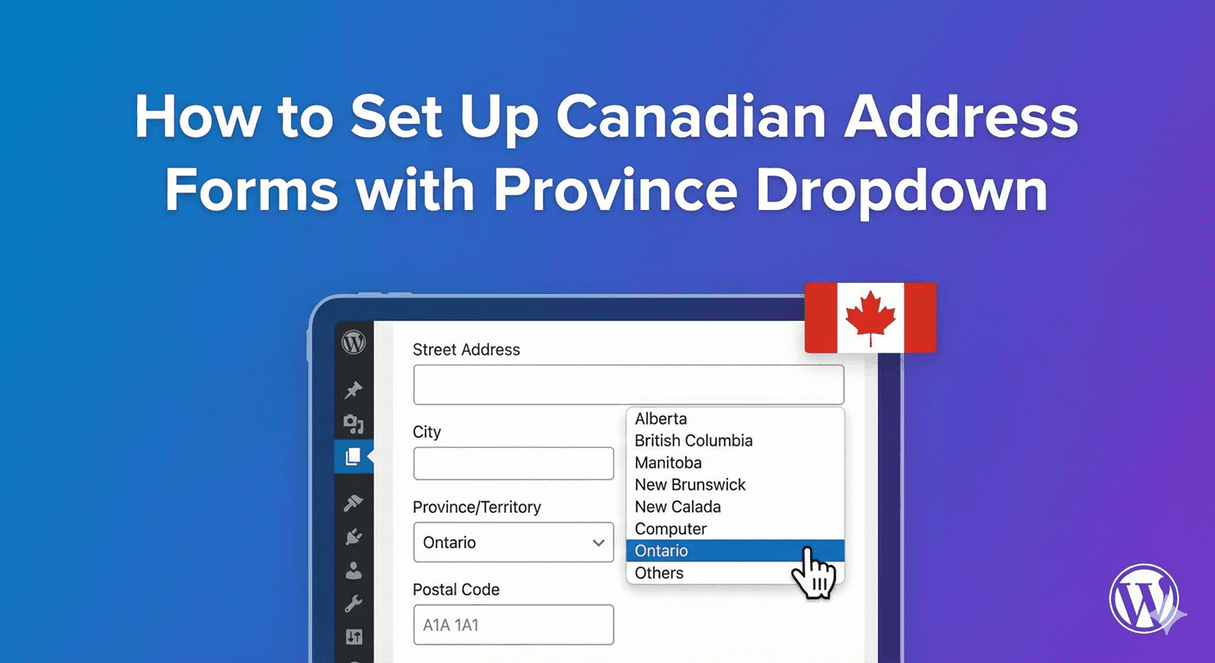
If your business serves Canadian customers, your address forms need to speak their language. That means Province instead of State, Postal Code instead of ZIP, and a dropdown with all 13 provinces and territories.
In this guide, you’ll learn how to set up Canadian-friendly address forms in WordPress—complete with proper labels, province selection, and postal code formatting.
Why Canadian Address Forms Matter
Generic address forms create problems for Canadian users:
- “State” field confusion – Canadians have provinces, not states
- ZIP Code validation fails – Canadian postal codes are alphanumeric (A1A 1A1)
- Missing provinces – US-focused dropdowns don’t include Canadian options
- Poor user experience – Canadians abandon forms that don’t accommodate them
A properly configured Canadian address form shows you understand your audience.
Canadian Address Format
Understanding the Canadian address structure:
Standard Format
John Smith 123 Main Street Suite 456 Toronto, ON M5V 2T6 Canada
Components
| Component | Canadian Term | Example |
|---|---|---|
| Street Address | Address / Street | 123 Main Street |
| Address Line 2 | Unit / Suite / Apt | Suite 456 |
| City | City | Toronto |
| State/Region | Province | Ontario (ON) |
| ZIP/Postal | Postal Code | M5V 2T6 |
| Country | Country | Canada |
Canadian Provinces and Territories
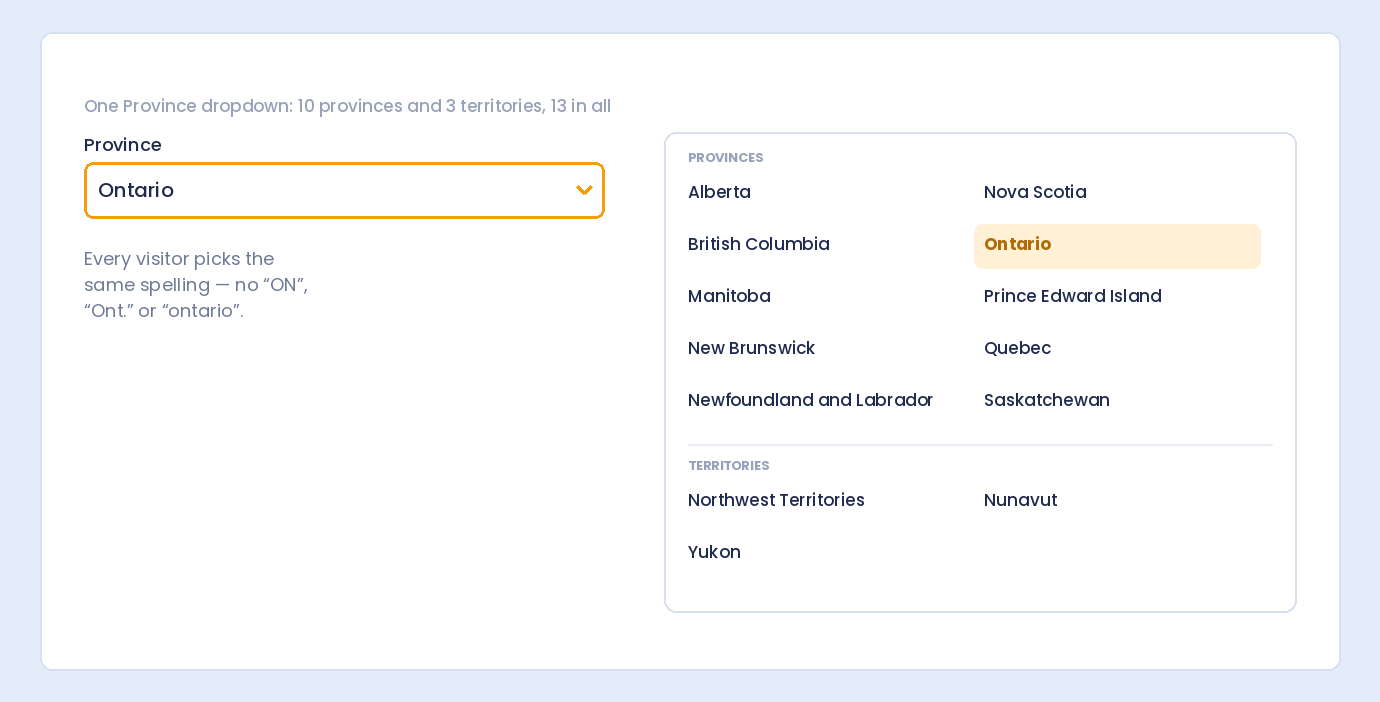
Canada has 13 provinces and territories. Your dropdown should include all of them:
10 Provinces
| Province | Abbreviation |
|---|---|
| Alberta | AB |
| British Columbia | BC |
| Manitoba | MB |
| New Brunswick | NB |
| Newfoundland and Labrador | NL |
| Nova Scotia | NS |
| Ontario | ON |
| Prince Edward Island | PE |
| Quebec | QC |
| Saskatchewan | SK |
3 Territories
| Territory | Abbreviation |
|---|---|
| Northwest Territories | NT |
| Nunavut | NU |
| Yukon | YT |
Canadian Postal Code Format
Unlike US ZIP codes (5 digits), Canadian postal codes follow an alphanumeric pattern:
Format: A1A 1A1
- Letter-Number-Letter (space) Number-Letter-Number
- Always 6 characters plus optional space
- Letters are always uppercase
- Letters D, F, I, O, Q, U are never used
Examples
- M5V 2T6 (Toronto)
- V6B 1A1 (Vancouver)
- H2X 1Y4 (Montreal)
- T2P 3G5 (Calgary)
- K1A 0A6 (Ottawa – Parliament Hill)
First Letter = Province/Region
The first letter indicates the province or region:
- A – Newfoundland and Labrador
- B – Nova Scotia
- C – Prince Edward Island
- E – New Brunswick
- G, H, J – Quebec
- K, L, M, N, P – Ontario
- R – Manitoba
- S – Saskatchewan
- T – Alberta
- V – British Columbia
- X – Northwest Territories, Nunavut
- Y – Yukon
Setting Up Canadian Address Forms
Here’s how to create Canadian-friendly address forms with Auto Form Builder:
Step 1: Install Auto Form Builder
- Go to Plugins → Add New
- Search for “AFB” (the short name for Auto Form Builder)
- Find “AFB – Auto Form Builder – Drag & Drop Form Creator“
- Click Install Now, then Activate
Step 2: Add an Address Field
- Create a new form or edit an existing one
- Drag the Address field from the sidebar onto your form
- Click the field to open settings
Step 3: Select Canadian Preset
In the Address Field settings, find the Address Preset option and select Canada.
This automatically configures:
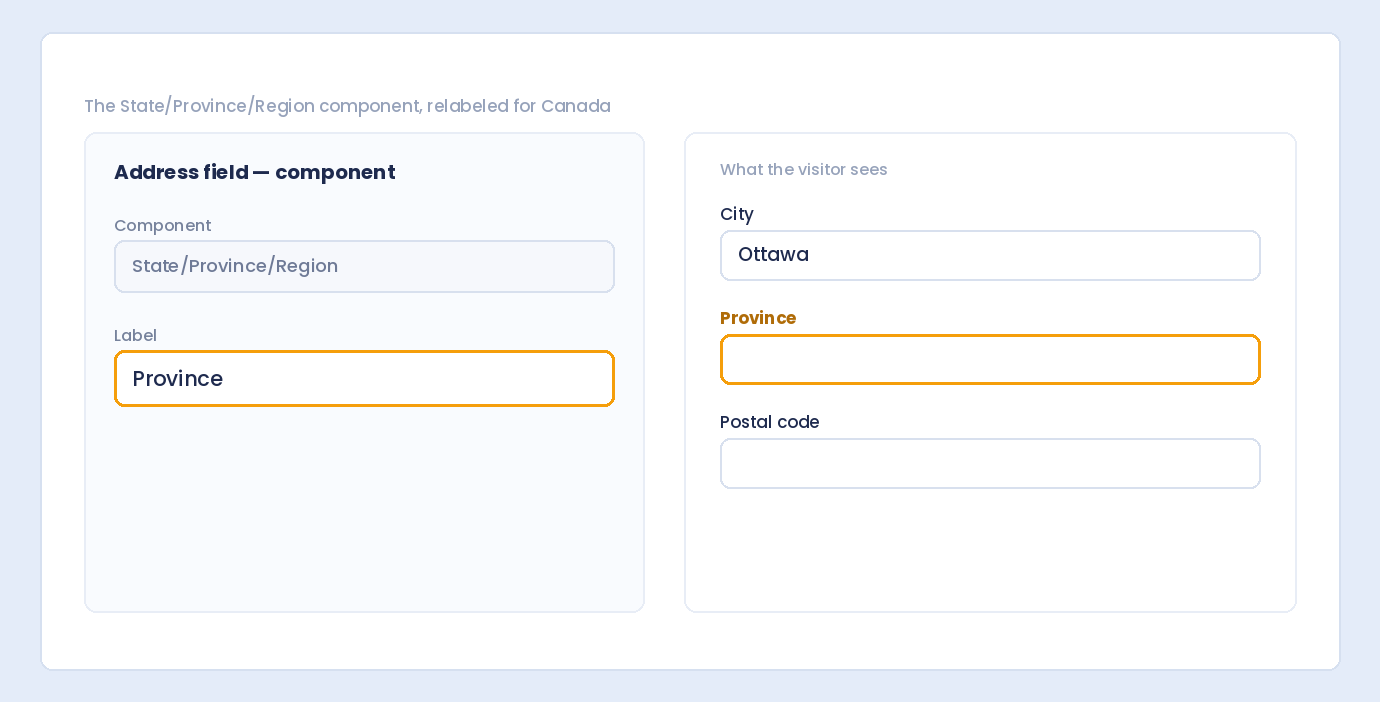
- Province label (instead of State)
- Postal Code label (instead of ZIP)
- Province dropdown with all 13 provinces and territories
- Appropriate field order for Canadian format
Step 4: Configure Address Components
Choose which components to include:
Recommended for Most Forms
- ✅ Address Line 1 (required)
- ✅ Address Line 2 (optional – for unit/suite)
- ✅ City (required)
- ✅ Province (required)
- ✅ Postal Code (required)
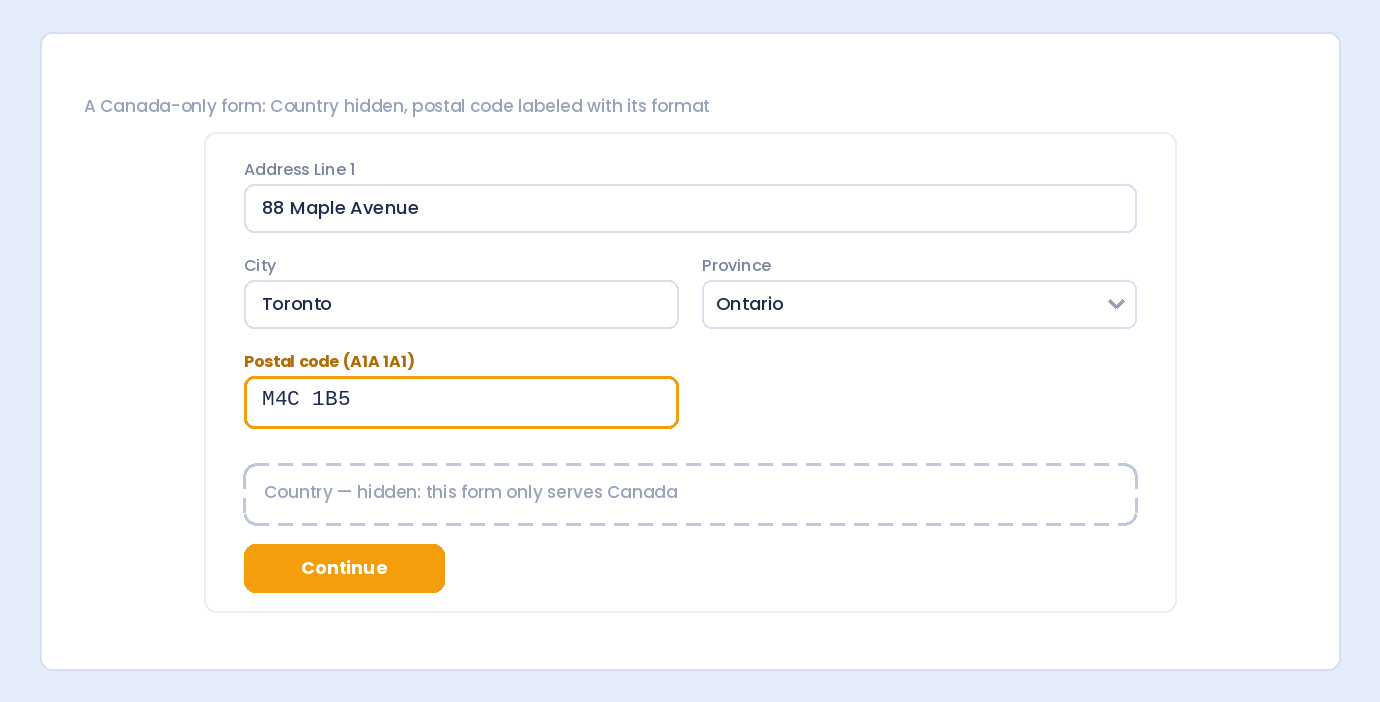
- ❌ Country (skip if Canada-only)
For Shipping Forms
- ✅ All above components
- ✅ Country (if you also ship internationally)
For Business Forms
- ✅ Organization/Company Name
- ✅ All address components
Step 5: Set Required Fields
Toggle required status for each component:
- Address Line 1: Required
- Address Line 2: Optional (not everyone has a unit number)
- City: Required
- Province: Required
- Postal Code: Required (for shipping/delivery)
Step 6: Customize Labels (Optional)
The Canadian preset sets appropriate labels, but you can customize further:
- Address Line 1: “Street Address” or “Address”
- Address Line 2: “Apartment, suite, unit, etc.” or “Unit/Suite (optional)”
- City: “City” or “City/Town”
- Province: “Province” or “Province/Territory”
- Postal Code: “Postal Code”
Step 7: Add Placeholder Text
Help users with example formats:
- Address Line 1: “123 Main Street”
- Address Line 2: “Suite 456”
- City: “Toronto”
- Province: “Select province…”
- Postal Code: “M5V 2T6”
Building a Complete Canadian Shipping Form
Here’s a full shipping address form setup:
Form Fields
- Name Field
- Separate fields: First Name, Last Name
- Both required
- Email Field
- Required
- For shipping confirmation
- Phone Field
- Canadian format or International
- For delivery contact
- Address Field (Canadian Preset)
- Address Line 1 (required)
- Address Line 2 (optional)
- City (required)
- Province dropdown (required)
- Postal Code (required)
- Delivery Instructions (Textarea)
- Optional
- Placeholder: “e.g., Leave at door, buzz code 123”
Handling Both Canadian and US Addresses
If you serve both Canadian and American customers:
Option 1: Country Selection First
- Add a Country dropdown (Canada, United States)
- Use Conditional Logic (Pro) to show appropriate fields
- Canada selection shows Province + Postal Code
- US selection shows State + ZIP Code
Option 2: International Address Format
- Use the International address preset
- Generic labels work for both countries
- Include Country dropdown with Canada and US at top
Option 3: Separate Forms
- Create two forms: Canadian Address, US Address
- Let users choose which form to use
- Or display based on user location
Postal Code Validation Tips
Accept Multiple Formats
Canadians enter postal codes differently:
- M5V 2T6 – With space (standard)
- M5V2T6 – Without space
- m5v 2t6 – Lowercase
Your form should accept all variations.
Don’t Over-Validate
Strict postal code validation can reject valid codes. It’s better to accept the entry and verify during shipping if needed.
Format on Display
When displaying submitted postal codes, normalize to standard format: uppercase with space (M5V 2T6).
Canadian Phone Numbers
If your form includes phone, configure for Canadian format:
Canadian Phone Format
- Format: (XXX) XXX-XXXX
- Country code: +1 (same as US)
- Example: (416) 555-1234
Area Code Reference
Common Canadian area codes by province:
- Ontario: 416, 647, 437 (Toronto), 905, 289, 365 (GTA), 613, 343 (Ottawa)
- Quebec: 514, 438 (Montreal), 418, 581 (Quebec City)
- British Columbia: 604, 778, 236 (Vancouver), 250 (rest of BC)
- Alberta: 403, 587 (Calgary), 780, 825 (Edmonton)
- Manitoba: 204, 431
- Saskatchewan: 306, 639
Bilingual Considerations
Canada is officially bilingual (English and French). For Quebec customers or bilingual audiences:
French Labels
| English | French |
|---|---|
| Address | Adresse |
| City | Ville |
| Province | Province |
| Postal Code | Code postal |
| Country | Pays |
Options
- Create separate English and French forms
- Use bilingual labels: “City / Ville”
- Use WordPress multilingual plugins for automatic translation
Common Use Cases
E-commerce Shipping
Collect complete shipping address for Canadian deliveries.
- All address fields required
- Phone for delivery contact
- Delivery instructions optional
Service Area Verification
Confirm users are in your service area.
- Province dropdown (to verify coverage)
- Postal Code (for local service radius)
- Skip full address if not needed
Business Registration
Collect business addresses.
- Organization name field
- Full address
- Consider adding “Business Number” field for CRA purposes
Event Registration
Know where attendees are coming from.
- City and Province only (no full address needed)
- For travel/accommodation planning
Frequently Asked Questions
Should I include “Canada” as the country?
If you only serve Canadian customers, you can omit the country field—it’s implied. If you serve multiple countries, include it.
How do I validate Canadian postal codes?
Basic validation checks for the A1A 1A1 pattern. For strict validation, verify the first letter matches the selected province. Most forms don’t need this level of strictness.
What about PO Boxes?
Canadians can receive mail at PO Boxes (format: “PO Box 123”). Your Address Line 1 should accept this. Note: Some couriers don’t deliver to PO Boxes.
Should provinces show full names or abbreviations?
Full names are clearer for users: “Ontario” is more recognizable than “ON”. Store the abbreviation in the background if needed for shipping labels.
How do I handle rural routes?
Rural addresses may use RR (Rural Route) format: “RR 1, Site 2, Box 3”. Your address field should accept these formats without strict validation.
Summary
Setting up Canadian address forms:
- Use the Canada preset in Auto Form Builder’s address field
- Include proper components: Address, City, Province, Postal Code
- Province dropdown with all 13 provinces and territories
- Postal Code accepts A1A 1A1 format
- Canadian-appropriate labels (Province not State, Postal Code not ZIP)
- Test with real Canadian addresses before launch
Conclusion
Canadian customers expect forms that understand their address format. Using “Province” instead of “State” and “Postal Code” instead of “ZIP” shows attention to detail and builds trust.
Auto Form Builder’s Canadian address preset makes this easy—select the preset, configure your components, and you have a professional Canadian-ready address form in minutes.
Ready to serve your Canadian customers better? Download Auto Form Builder and set up Canadian address forms today.