Event registration forms need dates that make sense — attendees should not pick yesterday for a workshop, and registrations should close before the event ends. Without date restrictions, you get invalid signups, scheduling conflicts, and manual cleanup in your inbox.

Auto Form Builder includes a full-featured Date field with Block Past Dates, custom min/max ranges, weekend blocking, and server-side validation — so respondents can only select valid future dates for event registration, appointments, and bookings.

Last updated: Last update 18 August

Why Restrict Dates on Event Registration Forms?

Event and registration forms commonly need these date rules:

  • Future dates only — attendees cannot register for dates that have already passed
  • Registration window — signups open on a specific date and close before the event
  • Weekdays only — workshops and appointments available Monday through Friday
  • Consistent formatting — dates displayed in a format your audience understands (US, UK, or ISO)

Auto Form Builder enforces these rules in the browser (via HTML5 date constraints) and on the server when the form is submitted — so manipulated requests cannot bypass your restrictions.

Step-by-Step: Add a Future-Only Date Field

  1. Open your form in Auto Form Builder → Forms (or start from the Event Registration template and add a date field).
  2. From the field sidebar, drag a Date field onto your form.
  3. Set the Field Label — for example, “Preferred Event Date,” “Registration Date,” or “Appointment Date.”
  4. In Date Field Options, configure the restrictions below.
  5. Mark the field as Required if a date must be selected to submit.
  6. Save the form and embed it on your site.

Block Past Dates — The Simplest Future-Only Setting

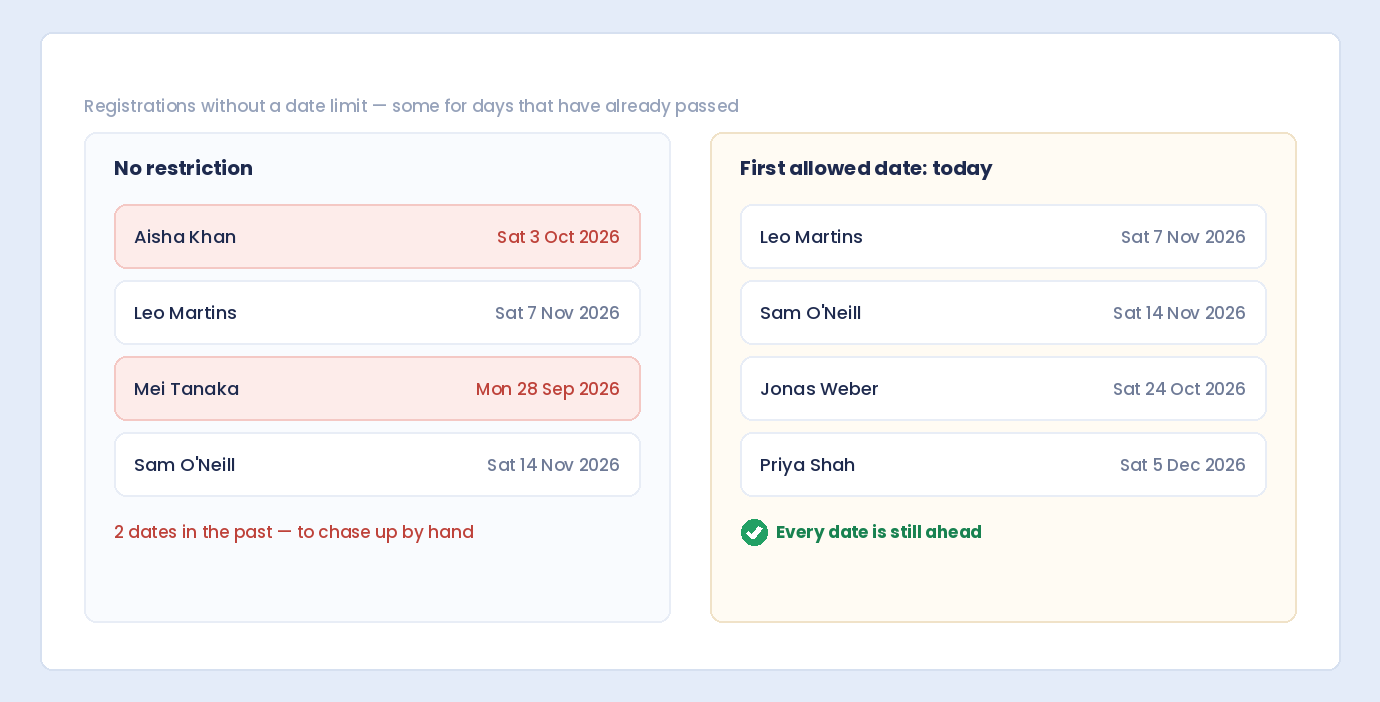
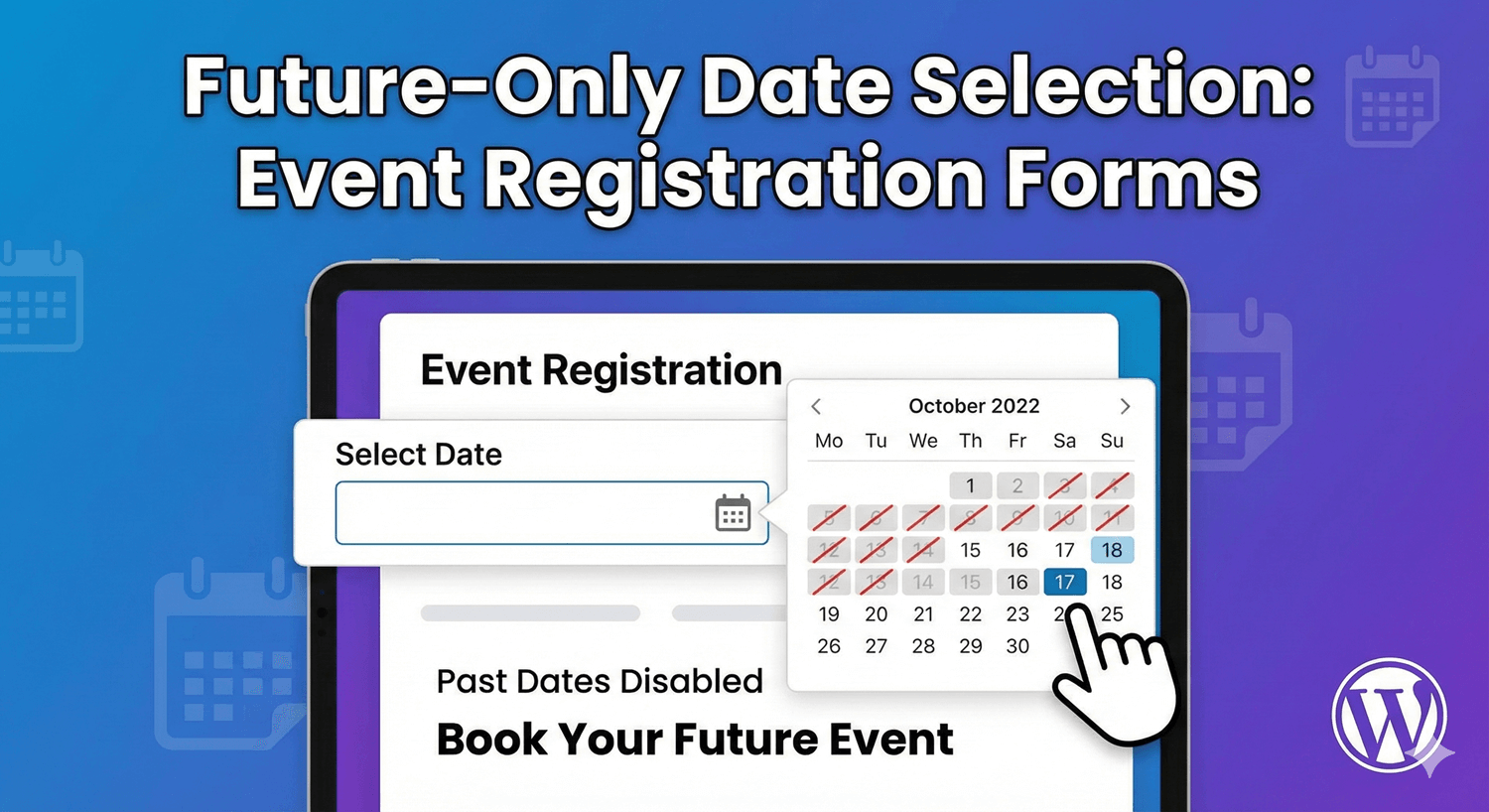
The fastest way to allow only today and future dates is to enable Block Past Dates in the Date field settings.

When checked:

  • The date picker’s minimum selectable date is set to today (based on your WordPress site timezone)
  • Respondents cannot choose any date before today in the calendar
  • Server-side validation rejects past dates with the message: “Past dates are not allowed. Please select today or a future date.”

This setting updates automatically each day — “today” is always calculated at render and submission time, so yesterday’s date becomes blocked without you editing the form.

Best for: open-ended event registration where any future date is valid — workshops, consultations, volunteer signups, and general RSVP forms.

Set a Registration Window with Min and Max Dates

For events with a defined registration period, use First Allowed Date and Last Allowed Date alongside or instead of Block Past Dates.

First Allowed Date

Click the Today button in settings to quickly set the minimum to today’s date, or pick any specific date from the calendar.

Last Allowed Date

Sets the latest date respondents can select. Use this as a registration deadline or to limit selections to dates before your event ends.

Example: Workshop Registration Window

  • First Allowed Date: 2026-04-01 (registration opens April 1)
  • Last Allowed Date: 2026-06-30 (last workshop date)
  • Block Past Dates: Enabled (prevents dates before today within the window)

When both Block Past Dates and First Allowed Date are set, Block Past Dates takes priority for the minimum — the effective minimum is whichever is later: today or your First Allowed Date.

Validation messages for out-of-range dates:

  • “Date must be on or after [date].”
  • “Date must be on or before [date].”

Block Weekends for Weekday-Only Events

Running weekday workshops or business-hour appointments? Enable No Weekend Selection in the Date field settings.

When a respondent selects a Saturday or Sunday:

  • The date automatically adjusts to the next Monday on the frontend
  • A visual note indicates that weekends are not available
  • Server-side validation rejects weekend dates with: “Weekends are not allowed. Please select a weekday.”

If a default starting date falls on a weekend, the field automatically moves it to the next Monday.

Combine with Block Past Dates for business event registration — future weekdays only.

Date Display and Format Options

How to Display Dates

Choose the date format your audience expects:

  • Year first: 2024-03-25 (ISO style)
  • US style: 03/25/2024 (Month/Day/Year)
  • UK style: 25/03/2024 (Day/Month/Year)
  • European with dashes: 25-03-2024

The selected format controls how dates appear in the preview chip below the input. Submitted dates are stored consistently and formatted in email notifications and the submissions inbox according to your field settings.

Starting Date Selection

Pre-select a default date when the form loads:

  • No pre-selected date (blank) — respondent chooses from scratch
  • Today’s date — pre-fills with today (must pass your restrictions)
  • Tomorrow’s date — pre-fills with the next day
  • Specific date (you choose) — set a custom default date

Date Preview Chip

By default, a human-readable preview (e.g., “Apr 16, 2026”) appears next to the date input as respondents select a date. Disable Show date preview chip if you prefer a cleaner layout.

Building a Complete Event Registration Form

Auto Form Builder’s Event Registration template provides a solid starting point with Full Name, Email, Phone, Number of Guests, and Special Requirements fields. Add a Date field for event date selection:

  1. Create a form from the Event Registration template.
  2. Add a Date field labeled “Preferred Event Date” or “Workshop Date.”
  3. Enable Block Past Dates.
  4. Set Last Allowed Date to your final event date.
  5. Enable No Weekend Selection if events run weekdays only.
  6. Mark the date field as Required.
  7. Add help text: “Select your preferred workshop date. Registration closes June 30.”

Combine with a Time field if attendees also choose a session time slot.

Server-Side Validation You Can Trust

Date restrictions are enforced twice — in the browser and on the server:

  • HTML5 min/max attributes limit what the native date picker shows
  • JavaScript date handler manages the preview overlay, weekend auto-adjustment, and cross-browser picker behavior
  • Server validation re-checks every submitted date against Block Past Dates, Block Future Dates, min/max range, and weekend rules using your WordPress site timezone

Even if someone bypasses the browser picker and submits a manipulated date value, the server rejects it with a clear error message before the submission is saved.

Practical Event Registration Examples

Open Workshop Registration (Any Future Date)

  • Block Past Dates: Enabled
  • First/Last Allowed Date: Empty
  • Weekends: Allowed

Conference with Registration Deadline

  • Block Past Dates: Enabled
  • Last Allowed Date: Conference end date
  • Required: Yes

Weekday Appointment Booking

  • Block Past Dates: Enabled
  • No Weekend Selection: Enabled
  • Starting Date: Tomorrow

Ticket Sales Opening on a Future Date

  • First Allowed Date: Ticket sale start date
  • Last Allowed Date: Event date
  • Block Past Dates: Enabled

Combine with Conditional Logic

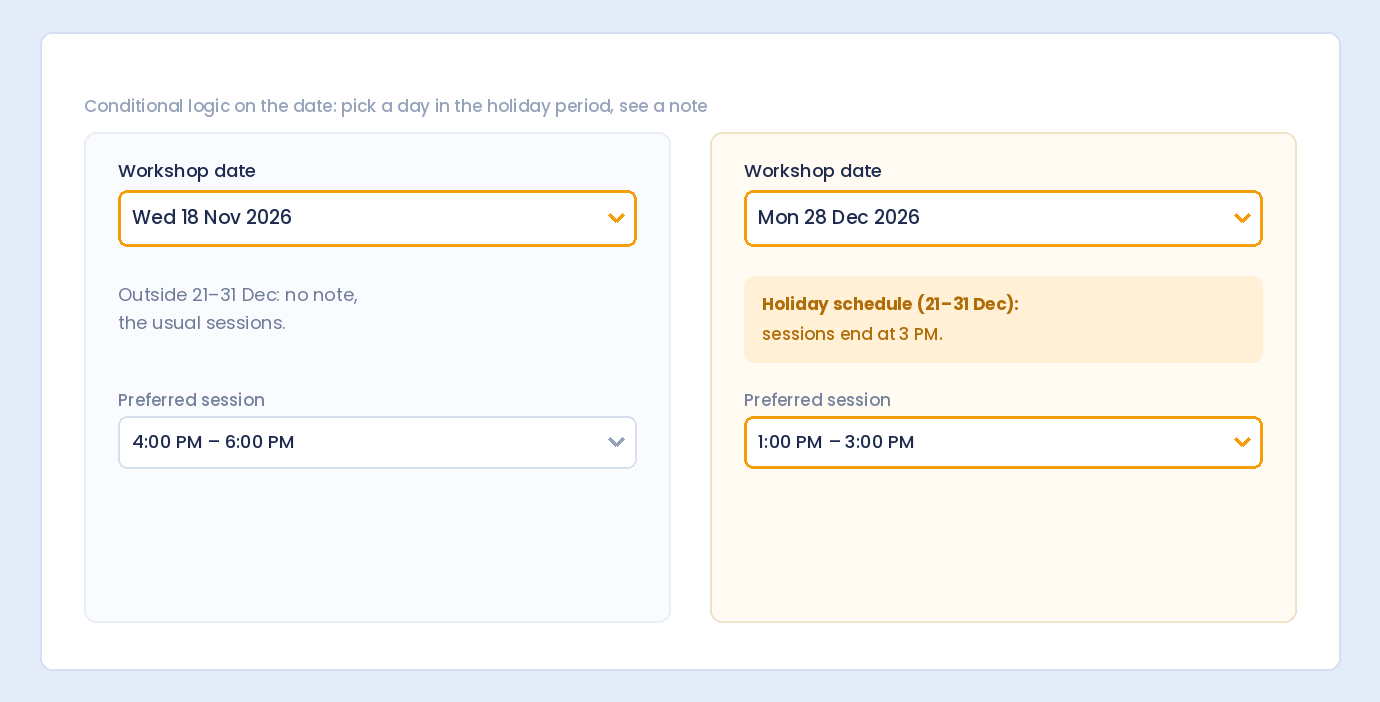
Not every registrant needs to pick a date. Use conditional logic to show the date field only when relevant:

  • Show “Preferred Date” only when Will you attend? equals Yes
  • Show “Alternative Date” only when the first choice is unavailable
  • Show date fields for in-person events but hide them for virtual-only registration

Enable Conditional Logic on the Date field and set your conditions with AND or OR logic.

Tips for Event Date Fields

  • Use Block Past Dates on every event registration form — it is the one setting that prevents the most invalid submissions.
  • Set Last Allowed Date to your registration deadline so signups stop automatically on that date.
  • Match date format to your audience — US visitors expect MM/DD/YYYY; UK and European visitors expect DD/MM/YYYY.
  • Add help text explaining available dates — “Select a weekday between April 1 and June 30, 2026.”
  • Test timezone behavior — “today” is based on your WordPress site timezone setting under Settings → General.
  • Mark as required when the event date is essential for processing the registration.
  • Pair with email notifications so you receive the selected date instantly when someone registers.

Get Started with Free Date Fields

Date fields with Block Past Dates, min/max ranges, weekend blocking, format options, and server-side validation are all included in the free Auto Form Builder plugin — along with the Event Registration template and full submissions management.

Install from WordPress.org:

https://wordpress.org/plugins/auto-form-builder/

Last updated: Last update 18 August

Build forms that embed anywhere — free

Auto Form Builder lets you create multi-step forms, calculators, and lead capture forms in WordPress, then embed them on any site with a single line of code.

Install the free plugin

Frequently Asked Questions

How do I restrict a date field to future dates only?

Add a Date field and enable Block Past Dates in the Date Field Options. Respondents can only select today or future dates. Server-side validation enforces the same rule on submission.

Can I set a registration deadline on a date field?

Yes. Set Last Allowed Date to your registration or event end date. Dates after that limit are blocked in the picker and rejected on the server.

Can I prevent weekend date selection?

Yes. Enable No Weekend Selection. Saturday and Sunday dates are auto-adjusted to the next Monday on the frontend and rejected by server validation if submitted manually.

Does Block Past Dates update automatically each day?

Yes. The minimum date is calculated as today using your WordPress site timezone at render and submission time — no manual form updates needed.

What date formats are supported?

ISO (YYYY-MM-DD), US (MM/DD/YYYY), UK (DD/MM/YYYY), and European with dashes (DD-MM-YYYY). Choose the format in How to Display Dates in the field settings.

Is date validation enforced on the server?

Yes. Past dates, future dates, min/max ranges, and weekend restrictions are all re-validated server-side when the form is submitted.

Does the Event Registration template include a date field?

The Event Registration template includes name, email, phone, number of guests, and special requirements fields. Add a Date field to the template and configure future-only restrictions for event date selection.

Are date restriction features included in the free plugin?

Yes. Block Past Dates, min/max ranges, weekend blocking, format options, and server validation are included in the free Auto Form Builder plugin.


Leave a Reply

Your email address will not be published. Required fields are marked *