
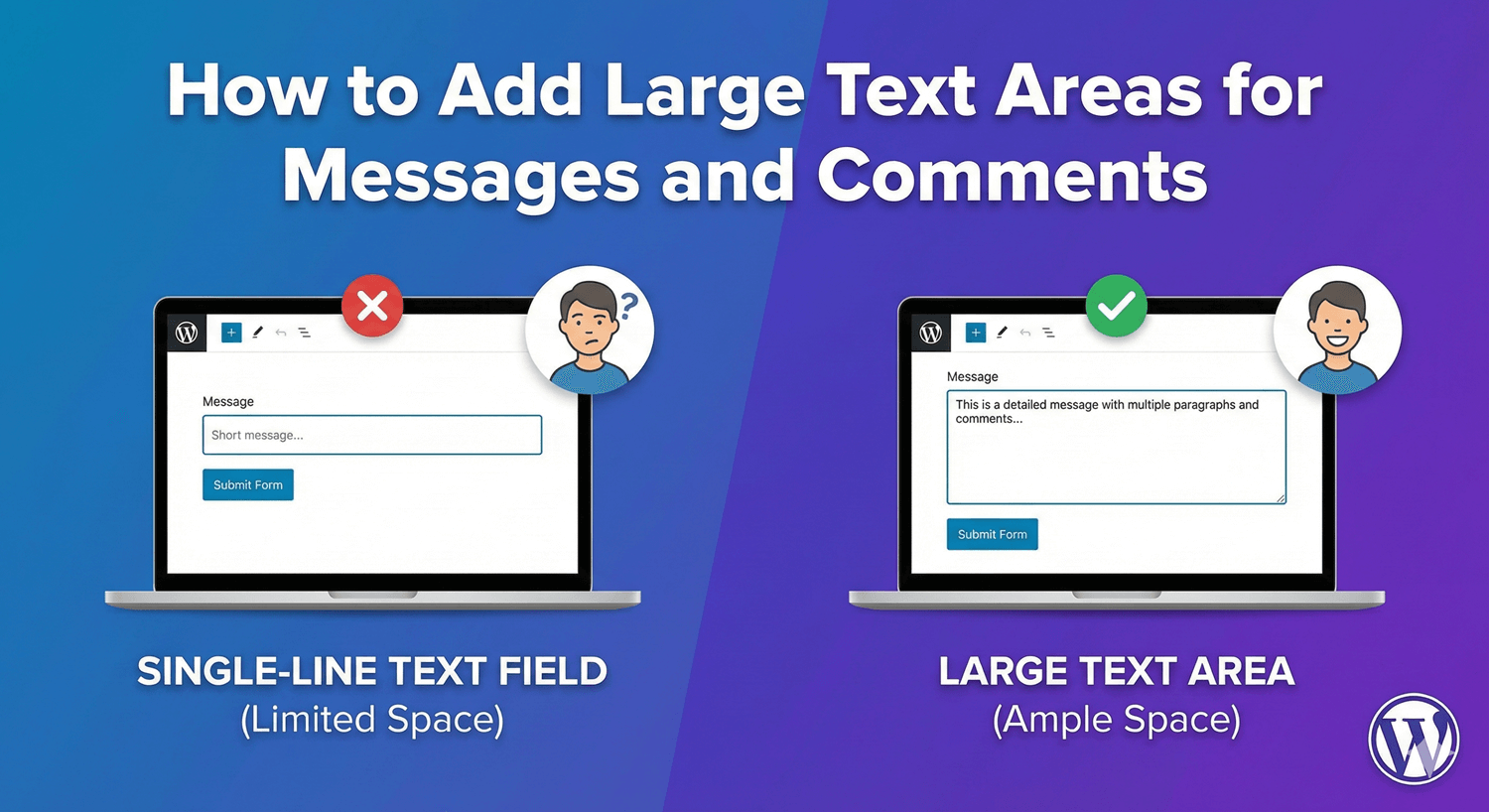
How to Add Large Text Areas for Messages and Comments

How to Add Large Text Areas for Messages and Comments

Single-line text fields work for names and emails, but what about detailed messages, feedback comments, or project descriptions? You need a textarea—a multi-line input field that gives users room to write. Whether it’s a contact form message, support ticket details, or job application cover letter, textareas handle longer content gracefully.

In this guide, you’ll learn how to add and configure textarea fields for collecting messages, comments, and other extended text in your WordPress forms.

When to Use Textarea Fields

Perfect For

  • Contact messages: “How can we help you?”
  • Support details: “Describe your issue”
  • Feedback/comments: “Share your thoughts”
  • Project descriptions: “Tell us about your project”
  • Cover letters: “Why are you interested?”
  • Additional notes: “Anything else we should know?”
  • Reviews: “Write your review”
  • Bios/introductions: “Tell us about yourself”

Text Field vs. Textarea

Text Field Textarea
Single line Multiple lines
Short answers Long responses
Names, emails, phone Messages, descriptions, comments
Fixed height Configurable height (rows)
No line breaks Supports line breaks

Adding a Textarea in Auto Form Builder

Step 1: Add Textarea Field

  1. Open your form in AFB
  2. Find Textarea in the field list (or Text field with textarea option)
  3. Drag it onto your form canvas
  4. Click to configure settings

Step 2: Set Label and Placeholder

  • Label: “Your Message”, “Comments”, “Project Details”
  • Placeholder: Example text that disappears when typing
  • Help text: Additional instructions if needed

Step 3: Configure Size (Rows)

Set number of visible rows:

  • 3-4 rows: Short comments, brief notes
  • 5-6 rows: Standard messages (recommended default)
  • 8-10 rows: Detailed descriptions, support tickets
  • 12+ rows: Long-form content, cover letters

Step 4: Set Character Limits (Optional)

  • Minimum length: Ensure meaningful responses
  • Maximum length: Prevent extremely long submissions

Step 5: Make Required (If Needed)

Toggle required on for essential fields like “Message” in contact forms.

Textarea Configuration Examples

Contact Form Message

Label: “Your Message”

Placeholder: “How can we help you today?”

Rows: 5

Required: Yes

Min length: 20 characters

Max length: 2000 characters

Support Ticket Details

Label: “Describe Your Issue”

Placeholder: “Please provide as much detail as possible including steps to reproduce the problem…”

Rows: 8

Required: Yes

Min length: 50 characters

Max length: 5000 characters

Help text: “The more detail you provide, the faster we can help.”

Feedback Comments

Label: “Your Feedback”

Placeholder: “Share your thoughts, suggestions, or concerns…”

Rows: 6

Required: No

Max length: 1000 characters

Project Description

Label: “Project Details”

Placeholder: “Describe your project, goals, timeline, and any specific requirements…”

Rows: 10

Required: Yes

Min length: 100 characters

Max length: 10000 characters

Job Application Cover Letter

Label: “Cover Letter”

Placeholder: “Tell us why you’re interested in this position and what makes you a great fit…”

Rows: 12

Required: Yes

Min length: 200 characters

Max length: 5000 characters

Additional Notes (Optional)

Label: “Additional Notes”

Placeholder: “Anything else you’d like us to know? (Optional)”

Rows: 4

Required: No

Max length: 500 characters

Product Review

Label: “Your Review”

Placeholder: “Share your experience with this product…”

Rows: 6

Required: Yes

Min length: 50 characters

Max length: 2000 characters

Choosing the Right Number of Rows

Visual Guide

3 Rows (Compact)

┌─────────────────────────────┐
│                             │
│                             │
│                             │
└─────────────────────────────┘

Use for: Brief notes, short comments, optional fields

5-6 Rows (Standard)

┌─────────────────────────────┐
│                             │
│                             │
│                             │
│                             │
│                             │
└─────────────────────────────┘

Use for: Contact messages, feedback, general inquiries

8-10 Rows (Large)

┌─────────────────────────────┐
│                             │
│                             │
│                             │
│                             │
│                             │
│                             │
│                             │
│                             │
└─────────────────────────────┘

Use for: Detailed descriptions, support tickets, project briefs

12+ Rows (Extra Large)

Use for: Cover letters, essays, comprehensive explanations

Row Selection Tips

  • Match expected content length
  • Too small feels cramped
  • Too large looks intimidating
  • 5-6 rows works for most messages
  • Users can usually scroll if needed

Character Limits: When and Why

Minimum Length

Why use it:

  • Encourage meaningful responses
  • Prevent “test” or “asdf” submissions
  • Ensure enough detail for support

Recommended minimums:

  • Contact message: 20-50 characters
  • Support ticket: 50-100 characters
  • Cover letter: 200-500 characters
  • Review: 50-100 characters

Maximum Length

Why use it:

  • Prevent database bloat
  • Keep responses manageable
  • Ensure email notifications aren’t too long
  • Maintain consistent user experience

Recommended maximums:

  • Short comments: 500-1000 characters
  • Standard messages: 2000-3000 characters
  • Detailed descriptions: 5000-10000 characters

Character Counter

Show remaining characters to help users:

  • “1847 / 2000 characters”
  • Prevents frustration at limit
  • Helps users plan their response

Placeholder Text Best Practices

Good Placeholders

  • Guiding: “Describe your issue in detail…”
  • Example-based: “e.g., I’d like to inquire about…”
  • Encouraging: “Share your thoughts—we’d love to hear from you”

Bad Placeholders

  • Too vague: “Enter text here”
  • Redundant: “Message” (same as label)
  • Too long: (Paragraphs of instruction)

Placeholder vs. Help Text

Placeholder Help Text
Inside the field Below the field
Disappears when typing Always visible
Brief hint or example Detailed instructions
Optional Use when needed

Common Use Cases by Form Type

Contact Forms

Typical fields:

  • Name (text field)
  • Email (email field)
  • Message (textarea) ← Main content

Message textarea settings:

  • Rows: 5-6
  • Required: Yes
  • Min: 20 chars
  • Max: 2000 chars

Support/Help Desk Forms

Typical fields:

  • Name, Email
  • Subject/Category
  • Issue Description (textarea)
  • Steps to Reproduce (textarea)

Description textarea settings:

  • Rows: 8-10
  • Required: Yes
  • Min: 50 chars
  • Max: 5000 chars
  • Help text: “Include error messages, browser info, and steps to reproduce”

Feedback/Survey Forms

Typical fields:

  • Rating (radio/dropdown)
  • Comments (textarea)
  • Suggestions (textarea)

Comments textarea settings:

  • Rows: 4-6
  • Required: No (often optional)
  • Max: 1000 chars

Quote/Estimate Request Forms

Typical fields:

  • Contact info
  • Service type
  • Project Details (textarea)
  • Budget range
  • Timeline

Project details textarea settings:

  • Rows: 8-10
  • Required: Yes
  • Min: 100 chars
  • Max: 5000 chars

Job Application Forms

Typical fields:

  • Personal info
  • Resume upload
  • Cover Letter (textarea)
  • Why interested (textarea)

Cover letter textarea settings:

  • Rows: 12
  • Required: Yes
  • Min: 200 chars
  • Max: 5000 chars

Mobile Considerations

Responsive Textareas

  • Width should adapt to screen size
  • Touch-friendly size
  • Easy to scroll within field

Row Adjustments

  • Same rows work on mobile
  • Users can scroll within textarea
  • Don’t need separate mobile settings

Virtual Keyboard

  • Textarea triggers text keyboard
  • Easy access to line breaks
  • Comfortable typing experience

Accessibility Features

Proper Labeling

  • Every textarea needs a visible label
  • Label linked to field for screen readers
  • Don’t rely on placeholder alone

Error Messages

  • Clear validation feedback
  • “Please enter at least 50 characters”
  • “Maximum 2000 characters exceeded”

Focus Indicators

  • Visible border/outline when focused
  • Helps keyboard navigation users

Styling Your Textarea

Consistent Design

  • Match other form fields
  • Same border style, colors
  • Consistent padding

Resize Behavior

  • Vertical only: Users can make taller (recommended)
  • Both: Resize width and height
  • None: Fixed size

Focus States

  • Highlight border on focus
  • Subtle shadow or color change
  • Clear visual feedback

Troubleshooting

Textarea Too Small

  • Increase rows setting
  • Check CSS for height restrictions
  • Ensure theme isn’t overriding

Line Breaks Not Preserved

  • Check how data is displayed (HTML needs <br> or pre)
  • Submissions store line breaks
  • Email templates may need formatting

Character Count Not Showing

  • Check if feature is enabled
  • May need max length set first
  • Check field settings

Validation Not Working

  • Verify min/max values are set
  • Check required toggle
  • Test in preview mode

Frequently Asked Questions

What’s the difference between text field and textarea?

Text field is single-line for short inputs (names, emails). Textarea is multi-line for longer content (messages, descriptions). Use textarea when users need to write paragraphs.

How many rows should my textarea have?

5-6 rows works for most contact form messages. Use 8-10 for detailed descriptions, 3-4 for optional brief notes. Match the expected response length.

Should I set a maximum character limit?

Yes, usually. It prevents extremely long submissions and keeps data manageable. 2000-3000 characters is good for typical messages, 5000+ for detailed content.

Can users resize the textarea?

By default, most textareas can be resized vertically by dragging the corner. This is helpful—users can adjust to their needs.

Should the message field be required?

For contact forms, yes—it’s the main content. For feedback forms, it’s often optional alongside a rating. Match your form’s purpose.

Summary

Adding textarea fields:

  1. Add Textarea field – Drag to form
  2. Set clear label – “Your Message”, “Project Details”
  3. Add helpful placeholder – Guide users on what to write
  4. Configure rows – Match expected content length
  5. Set character limits – Min for quality, max for manageability
  6. Make required if essential – Usually yes for main message
  7. Add help text if needed – Extra guidance below field

Conclusion

Textarea fields are essential for collecting detailed responses. Contact messages, support tickets, project descriptions, feedback comments—anywhere users need more than a single line, textareas deliver. Configure the right size, set appropriate limits, and add guiding placeholder text to help users provide the information you need.

Auto Form Builder includes flexible textarea fields with configurable rows, character limits, and placeholder text. Create professional message fields that encourage quality responses.

Ready to add message fields? Download Auto Form Builder and build forms with proper textarea fields.

Leave a Reply

Your email address will not be published. Required fields are marked *