Character Limits: Minimum and Maximum Length Validation

Character Limits

How long should a “message” field be? How short is too short for a name? Character limits help you collect the right amount of information—not too little, not too much.

In this guide, you’ll learn how to set minimum and maximum character limits on your WordPress form fields and when to use each type of validation.

Why Use Character Limits?

Minimum Length Benefits

  • Prevents empty-ish submissions – Stop users from entering “.” or “asdf”
  • Ensures useful responses – “Hi” isn’t helpful feedback
  • Improves data quality – Get substantive answers
  • Reduces spam – Spammers often use short, meaningless entries

Maximum Length Benefits

  • Prevents database issues – Extremely long entries can cause problems
  • Keeps responses focused – Encourages concise answers
  • Improves readability – Easier to review submissions
  • Controls storage – Limits data size
  • Matches display constraints – Fits content in designated spaces

Common Character Limit Scenarios

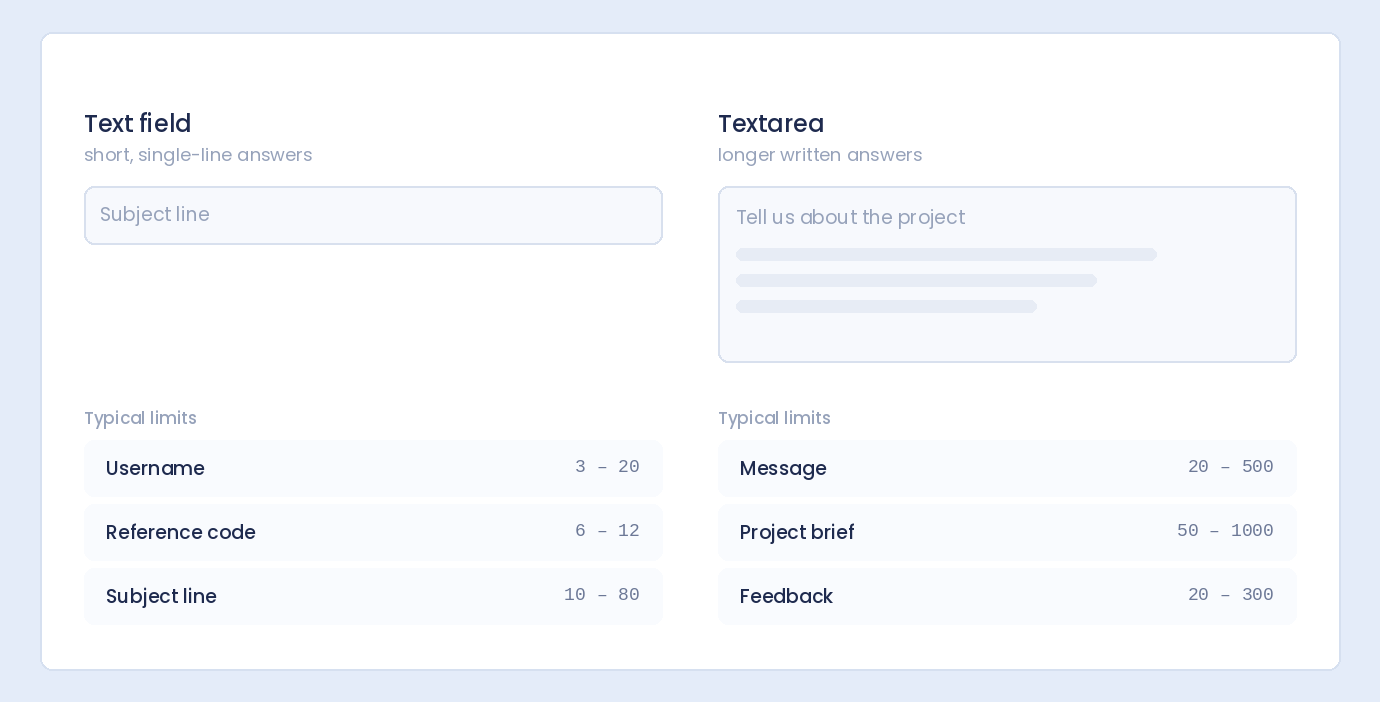
Field Type Suggested Min Suggested Max Reasoning
Name 2 100 Real names are at least 2 characters
Email subject 5 100 Meaningful subjects, fits in inbox
Short message 10 500 Quick inquiries
Detailed message 50 2000 Thorough descriptions
Review/Feedback 25 1000 Meaningful reviews
Bio/About 20 500 Brief introductions
Username 3 30 Short, memorable identifiers
Password 8 128 Security requirements
Phone 7 20 Valid phone number range
ZIP/Postal Code 3 10 International postal formats
Tweet-style input 1 280 Twitter-length limit
SMS message 1 160 Single SMS segment

Setting Character Limits in WordPress

Here’s how to configure character limits with Auto Form Builder:

Step 1: Install Auto Form Builder

  1. Go to Plugins → Add New
  2. Search for “AFB” (the short name for Auto Form Builder)
  3. Find “AFB – Auto Form Builder – Drag & Drop Form Creator
  4. Click Install Now, then Activate

Step 2: Add a Text or Textarea Field

  1. Create or edit your form
  2. Drag a Text or Textarea field onto your form
  3. Click the field to open settings

Step 3: Set Minimum Length

  1. Find the Minimum Length option
  2. Enter the minimum number of characters required
  3. Example: 10 means users must enter at least 10 characters

Step 4: Set Maximum Length

  1. Find the Maximum Length option
  2. Enter the maximum number of characters allowed
  3. Example: 500 means users cannot exceed 500 characters

Step 5: Add Help Text (Recommended)

Tell users about the limits:

  • “Please enter at least 50 characters”
  • “Maximum 500 characters”
  • “Between 50-500 characters”

Minimum Length Validation

When to Use Minimum Length

Preventing Meaningless Submissions

Without minimums, you’ll get:

  • Message: “hi”
  • Feedback: “good”
  • Description: “.”

A 20-character minimum forces users to write something meaningful.

Ensuring Completeness

For fields that require detail:

  • Bug reports need enough info to reproduce
  • Support requests need context
  • Reviews need substance

Security Requirements

Passwords should have minimums for security:

  • 8 characters minimum (standard)
  • 12+ characters (stronger security)

When NOT to Use Minimum Length

  • Name fields – Some names are short (Li, Al, Jo)
  • Optional fields – Let users skip if they want
  • Simple inputs – Yes/No, dropdown values
  • Short codes – PINs, verification codes

Minimum Length Examples

Contact Form Message

  • Minimum: 20 characters
  • Rationale: “What can I help you with?” needs a real answer

Product Review

  • Minimum: 50 characters
  • Rationale: “Great product, fast shipping, will buy again” = ~45 characters. Push for more detail.

Support Ticket Description

  • Minimum: 30 characters
  • Rationale: Need enough context to help

Maximum Length Validation

When to Use Maximum Length

Database Protection

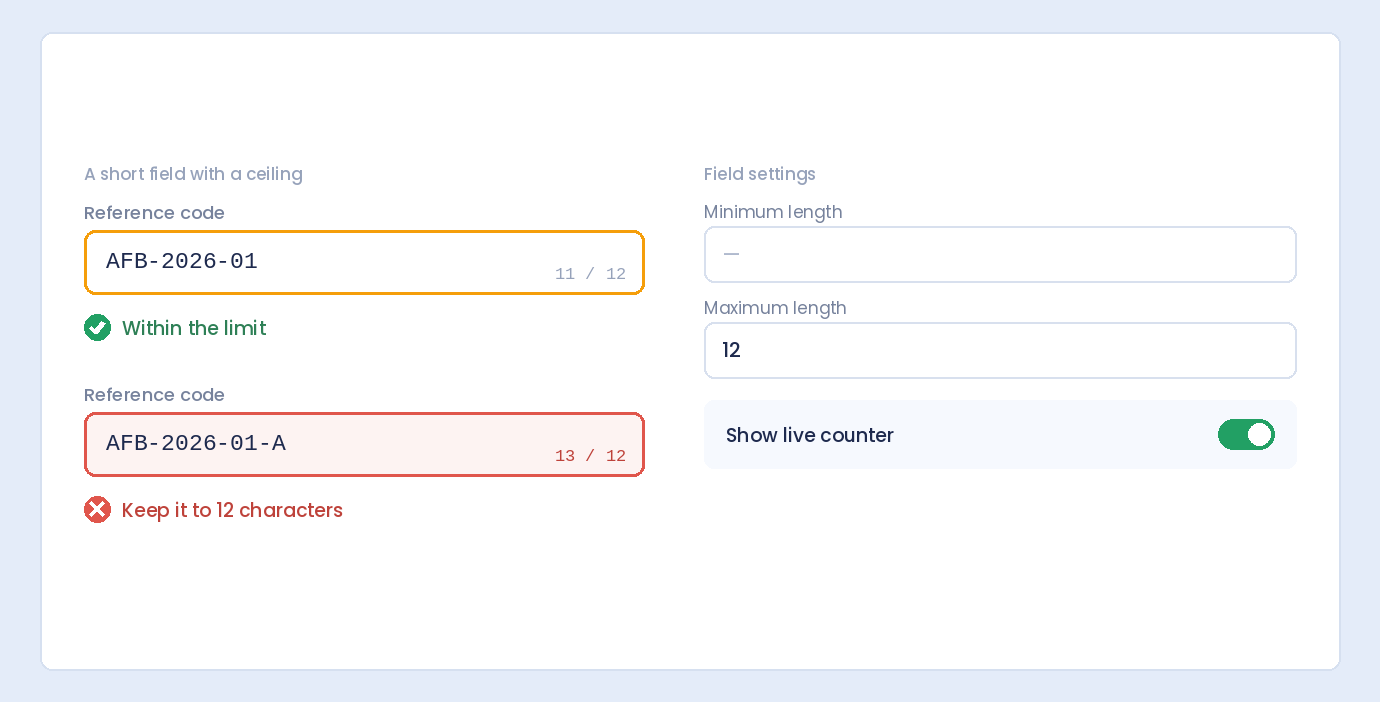
Database fields have limits. A VARCHAR(255) column can’t store 10,000 characters. Set form limits to match storage.

Display Constraints

If content will display in a fixed space:

  • Testimonial boxes
  • Bio sections
  • Card descriptions
  • Preview snippets

Limit input to what fits.

Email Subject Lines

Email subjects truncate around 50-60 characters. Limit your subject field accordingly.

Username/Handle

Keep usernames short and memorable. 20-30 character limit is standard.

Preventing Abuse

Without limits, users might paste entire documents, spam content, or submit megabytes of text.

When NOT to Use Maximum Length

  • Open-ended feedback – Let users write freely
  • Detailed descriptions – Don’t cut off important info
  • Legal/compliance forms – May need lengthy responses

When in doubt, set a high maximum (5000+) rather than no maximum.

Maximum Length Examples

Short Bio

  • Maximum: 250 characters
  • Rationale: Twitter-style brevity, fits in profile cards

Email Subject

  • Maximum: 100 characters
  • Rationale: Fits in email inbox preview

Comment

  • Maximum: 1000 characters
  • Rationale: Readable length, prevents spam novels

Full Message/Essay

  • Maximum: 5000 characters
  • Rationale: Room for detail, but not unlimited

Combining Minimum and Maximum

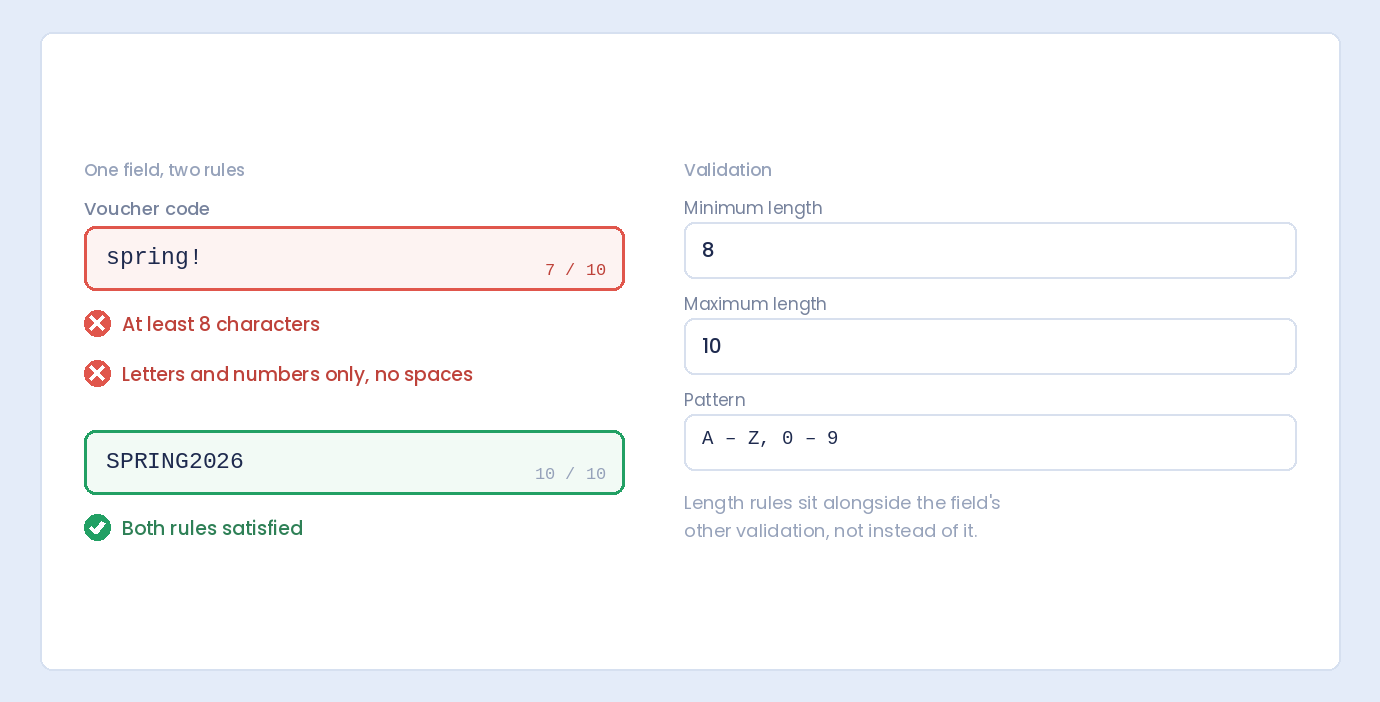
Most fields benefit from both limits:

Example: Feedback Comment

  • Minimum: 25 characters
  • Maximum: 500 characters
  • Help text: “Share your thoughts (25-500 characters)”

Example: Product Description

  • Minimum: 100 characters
  • Maximum: 2000 characters
  • Help text: “Describe your product in detail”

Example: Username

  • Minimum: 3 characters
  • Maximum: 20 characters
  • Help text: “Choose a username (3-20 characters)”

User Experience Tips

1. Show Character Count

Display remaining/used characters as users type:

[                                    ]
                           42/500 characters

This prevents surprise validation errors at submission.

2. Communicate Limits Clearly

Don’t surprise users with limits. Show them:

  • In placeholder: “Your message (max 500 characters)”
  • In help text: “Please provide at least 50 characters”
  • In label: “Message (50-500 characters)”

3. Use Reasonable Limits

Don’t frustrate users with extreme limits:

  • ❌ Name minimum 10 characters (excludes short names)
  • ❌ Message maximum 50 characters (too restrictive)
  • ✅ Name minimum 2 characters (reasonable)
  • ✅ Message maximum 2000 characters (generous)

4. Helpful Error Messages

When validation fails, be specific:

  • ✅ “Please enter at least 20 characters (currently 8)”
  • ✅ “Maximum 500 characters exceeded (currently 523)”
  • ❌ “Invalid input” (not helpful)

5. Consider Mobile Users

Typing on mobile is slower. Long minimums increase friction on mobile devices.

Character Count vs. Word Count

Character Count

  • Counts every letter, space, and punctuation
  • “Hello world” = 11 characters
  • More precise, standard in form validation

Word Count

  • Counts words (spaces separate words)
  • “Hello world” = 2 words
  • More intuitive for essays/articles

Most form builders use character count. If you need word count validation, you may need custom solutions.

Converting Between Them

Rough conversion (English):

  • Average word ≈ 5 characters + 1 space = 6 characters
  • 100 words ≈ 600 characters
  • 500 characters ≈ 80-100 words

Field-Specific Recommendations

Text Fields

Name

  • Min: 1-2 (accommodate short names)
  • Max: 100 (accommodate long names)

Email Subject

  • Min: 3-5
  • Max: 100-150

Username

  • Min: 3
  • Max: 20-30

URL/Website

  • Min: 10 (http://a.co)
  • Max: 2000 (very long URLs exist)

Textarea Fields

Short Comment

  • Min: 10-20
  • Max: 500-1000

Detailed Message

  • Min: 25-50
  • Max: 2000-5000

Essay/Long Form

  • Min: 100+ (if substance required)
  • Max: 10000+ (generous limit)

Review

  • Min: 50 (encourage detail)
  • Max: 2000

Number Fields

Number fields use min/max value, not length. For character length on number-as-text:

Phone Number

  • Min: 7 (shortest valid numbers)
  • Max: 20 (international with extensions)

ZIP Code

  • Min: 3 (some countries)
  • Max: 10 (international formats)

Handling Validation Errors

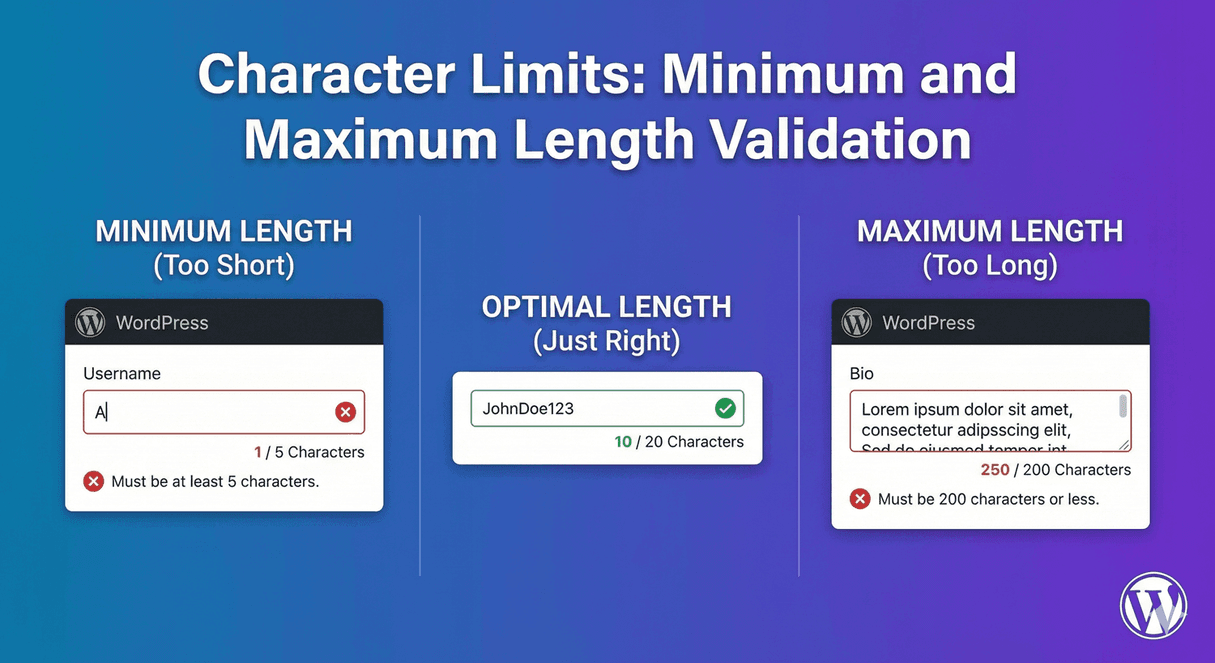
Minimum Length Error

Trigger: User enters fewer characters than required

Message: “Please enter at least [X] characters”

User action: Add more content

Maximum Length Error

Trigger: User exceeds character limit

Message: “Please limit your response to [X] characters”

User action: Shorten content

Preventing Errors

Better than error messages: prevent the problem

  • Show character counter while typing
  • Stop input at max length (HTML maxlength attribute)
  • Warn as user approaches limit

Advanced: Dynamic Limits

Some scenarios need flexible limits:

Conditional Limits

Different limits based on selection:

  • If “Quick Question” → Max 200 characters
  • If “Detailed Inquiry” → Max 2000 characters

Requires Conditional Logic (Pro feature)

Role-Based Limits

Different limits for different users:

  • Free users → 500 character limit
  • Premium users → 5000 character limit

Requires custom development

Frequently Asked Questions

Do spaces count toward character limit?

Yes, spaces are characters. “Hello World” is 11 characters (including the space).

What about special characters and emojis?

Special characters count as 1 character each. Emojis may count as 1-4 characters depending on the emoji and system.

Should I use min length on required fields?

“Required” means not empty. Min length adds a specific threshold. Use both when you need substance, not just presence.

What’s a good default maximum?

For general text fields: 255-500. For message/textarea: 2000-5000. Set based on your actual needs.

Can users see the character count as they type?

This depends on your form builder’s features. Some show counters automatically, others require configuration or custom code.

Summary

Setting character limits:

  1. Minimum length ensures meaningful responses
  2. Maximum length prevents abuse and fits constraints
  3. Communicate limits clearly to users
  4. Use reasonable values that don’t frustrate
  5. Show character counts when possible
  6. Provide helpful error messages when limits are exceeded

Conclusion

Character limits are simple but powerful validation tools. Minimum lengths ensure you get useful data. Maximum lengths keep responses manageable and protect your systems.

Auto Form Builder lets you set min and max character limits on text and textarea fields with just a few clicks. Configure your limits, add clear help text, and collect better quality form submissions.

Ready to improve your form data quality? Download Auto Form Builder and start setting character limits today.

Leave a Reply

Your email address will not be published. Required fields are marked *