
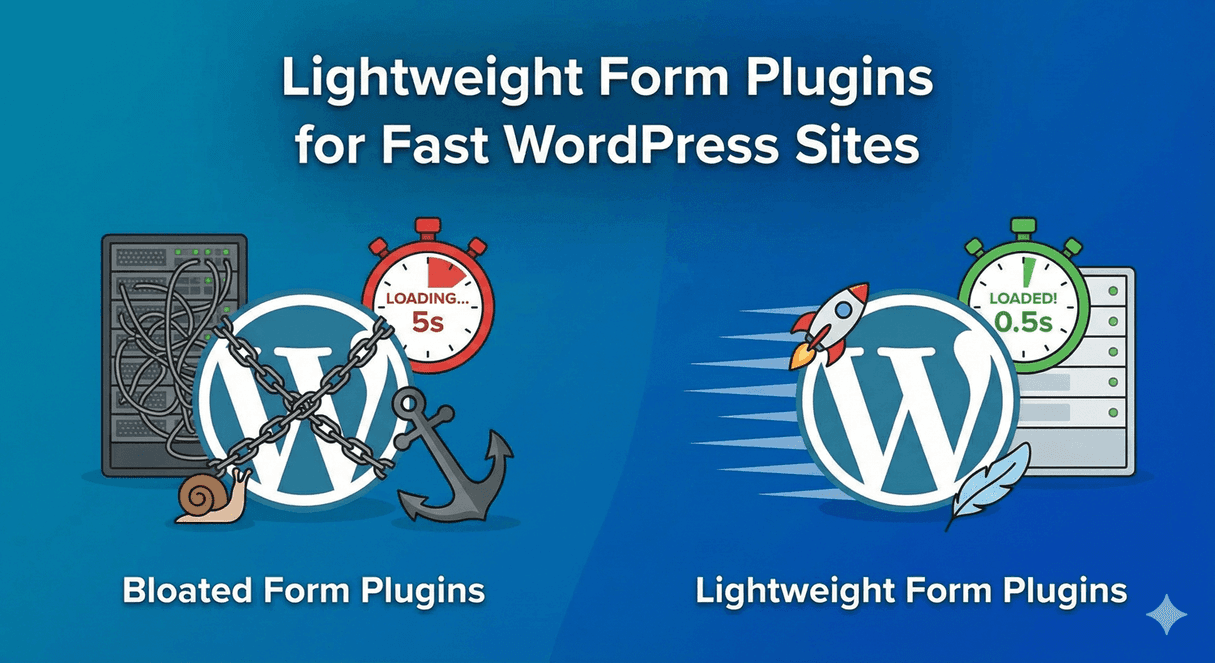
Lightweight Form Plugins for Fast WordPress Sites
Your beautiful, fast WordPress site loads in under 2 seconds. Then you add a form plugin, and suddenly it’s crawling. Sound familiar?
Form plugins can be notorious resource hogs—loading scripts on every page, adding database bloat, and slowing down your site. But they don’t have to.
In this guide, you’ll learn what makes form plugins slow and how to choose a lightweight form plugin that won’t hurt your site speed.
Why Form Plugin Speed Matters
User Experience
- 53% of visitors abandon sites that take over 3 seconds to load
- Slow forms frustrate users before they even submit
- Mobile users are especially affected
SEO Impact
- Google uses page speed as a ranking factor
- Core Web Vitals affect search rankings
- Slow pages rank lower than fast ones
Conversion Rates
- Every second of delay reduces conversions
- Fast forms get more submissions
- Speed builds trust
Server Resources
- Heavy plugins consume hosting resources
- Can slow down entire site, not just form pages
- May require upgraded hosting
What Makes Form Plugins Slow
Loading Scripts Everywhere
The biggest culprit: loading JavaScript and CSS on every page, even pages without forms.
- Bad: 200KB of scripts loaded on homepage (no form)
- Good: Scripts only load on pages with forms
If your contact form is only on the Contact page, why load form scripts on your homepage, blog posts, and product pages?
Bloated Feature Sets
Some plugins include everything:
- Payment processing
- User registration
- Quiz builders
- Calculators
- Surveys
- And more…
If you just need a contact form, all that extra code still loads and slows things down.
Excessive Database Queries
Every page load, some plugins:
- Query the database multiple times
- Load form configurations
- Check licenses and updates
- Run unnecessary background processes
Third-Party Dependencies
Heavy reliance on external libraries:
- jQuery (if your theme doesn’t use it)
- jQuery UI
- Large icon libraries
- Multiple JavaScript frameworks
Unoptimized Assets
- Non-minified CSS and JavaScript
- Multiple separate files instead of combined
- Large image assets
- Unused CSS rules
Admin Overhead
Even when visitors see a fast front-end:
- Admin dashboard becomes slow
- Form builder interface lags
- Database fills with unnecessary data

What Makes Form Plugins Slow
What Makes a Form Plugin Lightweight
Conditional Asset Loading
The most important factor: only load scripts and styles on pages that actually have forms.
- Detects if form shortcode exists on page
- Loads assets only when needed
- Zero impact on pages without forms
Minimal Dependencies
- No unnecessary JavaScript libraries
- Modern vanilla JavaScript where possible
- Small, focused codebase
Optimized Code
- Minified CSS and JavaScript
- Combined files to reduce HTTP requests
- Efficient database queries
- Clean, well-written code
Modular Architecture
- Core plugin is lean
- Advanced features as optional add-ons
- Only install what you need
Efficient Database Usage
- Minimal database tables
- Indexed queries
- No unnecessary data storage
- Easy cleanup options

What Makes a Form Plugin Lightweight
Auto Form Builder: Built for Speed
Auto Form Builder is designed with performance in mind:
Smart Asset Loading
- CSS and JavaScript load only on pages with forms
- No impact on your homepage or blog posts
- Automatic detection—no configuration needed
Minimal Footprint
- Small plugin file size
- Efficient codebase
- No bloated feature set
Optimized Front-End
- Minified assets in production
- Modern JavaScript (no jQuery dependency for core features)
- Lightweight CSS
Modular Add-Ons
- Core plugin handles essential form features
- Pro features available as separate add-ons
- Install only the add-ons you need
Efficient Backend
- Fast form builder interface
- Quick submission management
- Optimized database structure
Measuring Form Plugin Impact
Before and After Testing
Measure your site speed before and after installing a form plugin:
- Test page speed (use GTmetrix, PageSpeed Insights, or Pingdom)
- Install form plugin
- Test the same page again
- Compare results
What to Measure
Page Load Time
Total time to fully load the page. Should not increase significantly.
Total Page Size
Combined size of all resources. Forms shouldn’t add more than 50-100KB on form pages.
Number of Requests
HTTP requests for scripts, styles, fonts. Fewer is better.
Core Web Vitals
- LCP (Largest Contentful Paint): How fast main content loads
- FID (First Input Delay): How fast page responds to interaction
- CLS (Cumulative Layout Shift): Visual stability
Test Multiple Pages
Check impact on:
- Homepage (should be zero if no form)
- Blog posts (should be zero if no form)
- Contact page (where form exists)
Speed Comparison: Plugin Types
| Plugin Type | Typical Impact | Notes |
|---|---|---|
| All-in-one suites | High (200KB+) | Lots of features, lots of code |
| Page builder forms | High | Part of larger builder overhead |
| Legacy plugins | Medium-High | Old code, often unoptimized |
| Modern lightweight plugins | Low (50-100KB) | Built for performance |
| Code-based solutions | Lowest | Custom, but requires developer |
Tips for Keeping Forms Fast
1. Choose a Lightweight Plugin
Start with the right foundation. A well-optimized plugin beats trying to speed up a slow one.
2. Only Install Needed Add-Ons
Don’t install features you won’t use:
- Need payment processing? Install the add-on
- Don’t need it? Don’t install it
3. Keep Forms Simple
Complex forms with many fields take longer to render:
- Use only necessary fields
- Avoid excessive conditional logic
- Split long forms into multiple pages if needed
4. Optimize Images
If your form includes images (backgrounds, logos):
- Compress images
- Use appropriate formats (WebP)
- Size images correctly
5. Limit External Resources
Third-party resources add latency:
- Custom fonts from Google Fonts
- External validation services
- Third-party integrations
Use only what’s necessary.
6. Enable Caching
Use a caching plugin to serve static versions:
- WP Super Cache
- W3 Total Cache
- LiteSpeed Cache
Form submissions still work; cached pages load faster.
7. Use a CDN
Content Delivery Networks speed up asset delivery:
- Cloudflare
- StackPath
- KeyCDN
8. Regular Cleanup
Maintain your form plugin:
- Delete old test submissions
- Remove unused forms
- Clean up spam entries
Common Performance Mistakes
❌ Installing Multiple Form Plugins
Using Contact Form 7 for one form and another plugin for surveys? That’s double the overhead. Consolidate to one plugin.
❌ Not Testing After Installation
Always check site speed after installing any plugin. Catch problems early.
❌ Ignoring Mobile Performance
Mobile connections are slower. Test on real mobile devices, not just desktop.
❌ Too Many Form Instances
Placing the same form multiple times on one page multiplies the rendering overhead.
❌ Heavy Styling/Animations
Complex CSS animations and effects can cause jank and slow rendering.
Signs Your Form Plugin Is Too Heavy
Watch for these warning signs:
- Site-wide slowdown: All pages slower, not just form pages
- High server resource usage: Hosting warnings about CPU/memory
- Slow admin dashboard: WordPress backend becomes sluggish
- Large database size: Plugin tables taking gigabytes
- Mobile performance issues: Forms unusable on phones
- PageSpeed warnings: Specific scripts flagged as blocking
Switching to a Lighter Plugin
If your current form plugin is too heavy:
Step 1: Export Your Data
Export all submissions from your current plugin before switching.
Step 2: Document Your Forms
Note all forms, fields, and settings you need to recreate.
Step 3: Install New Plugin
Install Auto Form Builder or another lightweight option.
Step 4: Recreate Forms
Build your forms in the new plugin. With drag-and-drop, this is quick.
Step 5: Update Embeds
Replace old shortcodes with new ones on your pages.
Step 6: Test Everything
Submit test entries, verify notifications work.
Step 7: Deactivate Old Plugin
Once everything works, deactivate and delete the old plugin.
Step 8: Measure Improvement
Run speed tests again to confirm improvement.
Frequently Asked Questions
How much should a form plugin slow down my site?
On pages with forms: 50-150ms and 50-100KB is reasonable. On pages without forms: zero impact is ideal.
Do all form plugins load on every page?
Many do by default. Well-optimized plugins only load where forms exist. Check your plugin’s documentation or test with developer tools.
Is lightweight the same as limited features?
Not necessarily. Smart architecture can deliver features without bloat. Modular add-ons let you add features only when needed.
How do I check what a plugin loads?
Use browser developer tools (F12) → Network tab. Load a page and see what scripts/styles load. Look for your form plugin’s files.
Will caching plugins help with slow form plugins?
Caching helps overall, but a heavy plugin still impacts uncached page loads (first visits, logged-in users). Starting lightweight is better.
Summary
Choosing a lightweight form plugin:
- Look for conditional loading – Assets only on form pages
- Avoid bloated all-in-one solutions – Unless you need all features
- Test before and after – Measure actual impact
- Use modular add-ons – Install only what you need
- Keep forms simple – Fewer fields, less overhead
- Maintain regularly – Clean up old data
Conclusion
Forms are essential, but they shouldn’t tank your site speed. A lightweight form plugin delivers the functionality you need without the performance penalty.
Auto Form Builder is built with speed in mind—smart asset loading, minimal footprint, and modular architecture. Your contact form loads fast on the Contact page and doesn’t slow down the rest of your site.
Want a fast form solution? Download Auto Form Builder—the lightweight form plugin that won’t slow you down.