One file isn’t always enough. Job applicants need to submit resumes AND cover letters. Support tickets need multiple screenshots. Project requests need several reference images. Multiple file uploads let users attach several files in a single form submission—no more emailing attachments separately. In this guide, you’ll learn how to configure multiple file uploads in your WordPress forms. Here’s how to configure multiple file uploads with Auto Form Builder: The field now accepts multiple file selections. Require a certain number of uploads: Cap the number of uploads: Specify allowed file types: Enable only what you need for the use case. Define maximum file size: Show users what they’ve selected: For large uploads, show: File Upload Configuration: File Upload Configuration: File Upload Configuration: File Upload Configuration: In submission details, you’ll see: Depending on configuration: Note: Large/multiple files may exceed email attachment limits. Links are safer. File fields typically export as: Multiple file uploads consume more storage: Server settings may restrict uploads: Media settings may also limit uploads. Shared hosting often has stricter limits than VPS or dedicated servers. Large multi-file uploads may timeout: Tell users upfront: Example help text: Makes multi-file selection much easier than click-and-Ctrl. Let users see what they’ve uploaded: Users should be able to: Before launch: Check: Possible causes: Solutions: Check: Check: For high-security applications: You control this with the maximum files setting. Server settings (max_file_uploads) also impose limits—typically 20 by default. Yes, most implementations allow clicking again to add more files until the limit is reached. Typically, the invalid file is rejected with an error message, but valid files may still be accepted. Behavior varies by implementation. Yes, set the minimum files option. Users can’t submit until they upload at least that many files. Yes, all uploaded files consume server storage. Monitor usage and implement cleanup policies. Configuring multiple file uploads: Multiple file uploads transform your forms from simple data collection to comprehensive document gathering. Job applications, support tickets, insurance claims—any scenario where one file isn’t enough. Auto Form Builder makes multiple file uploads easy to configure. Enable the option, set your limits, choose allowed file types, and you’re ready to accept document packages, photo sets, and multi-file submissions. Ready to accept multiple files? Download Auto Form Builder and configure multiple file uploads today.How to Accept Multiple File Uploads in WordPress Forms
When You Need Multiple File Uploads
Common Use Cases
Job Applications
Support Tickets
Insurance Claims
Design Requests
Contest Entries
Client Onboarding
Real Estate
Single vs. Multiple File Uploads
Feature
Single File
Multiple Files
Files per field
1
2+
Use case
Profile photo, single document
Portfolios, documentation sets
User selection
Click, choose one
Click, choose multiple (Ctrl/Cmd+click)
Drag and drop
Drop one file
Drop multiple files at once
Complexity
Simple
Requires min/max limits
Setting Up Multiple File Uploads
Step 1: Install Auto Form Builder
Step 2: Add a File Upload Field
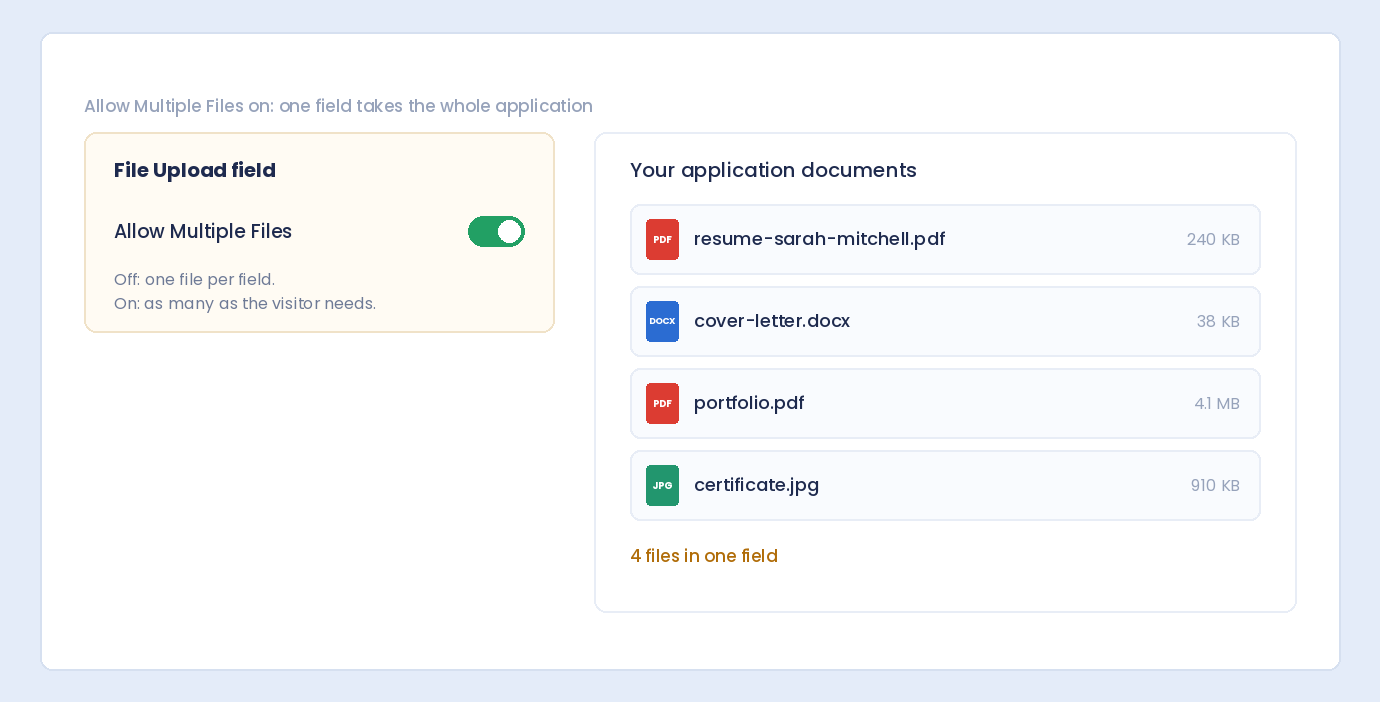
Step 3: Enable Multiple Files
Step 4: Set File Limits
Minimum Files
Maximum Files
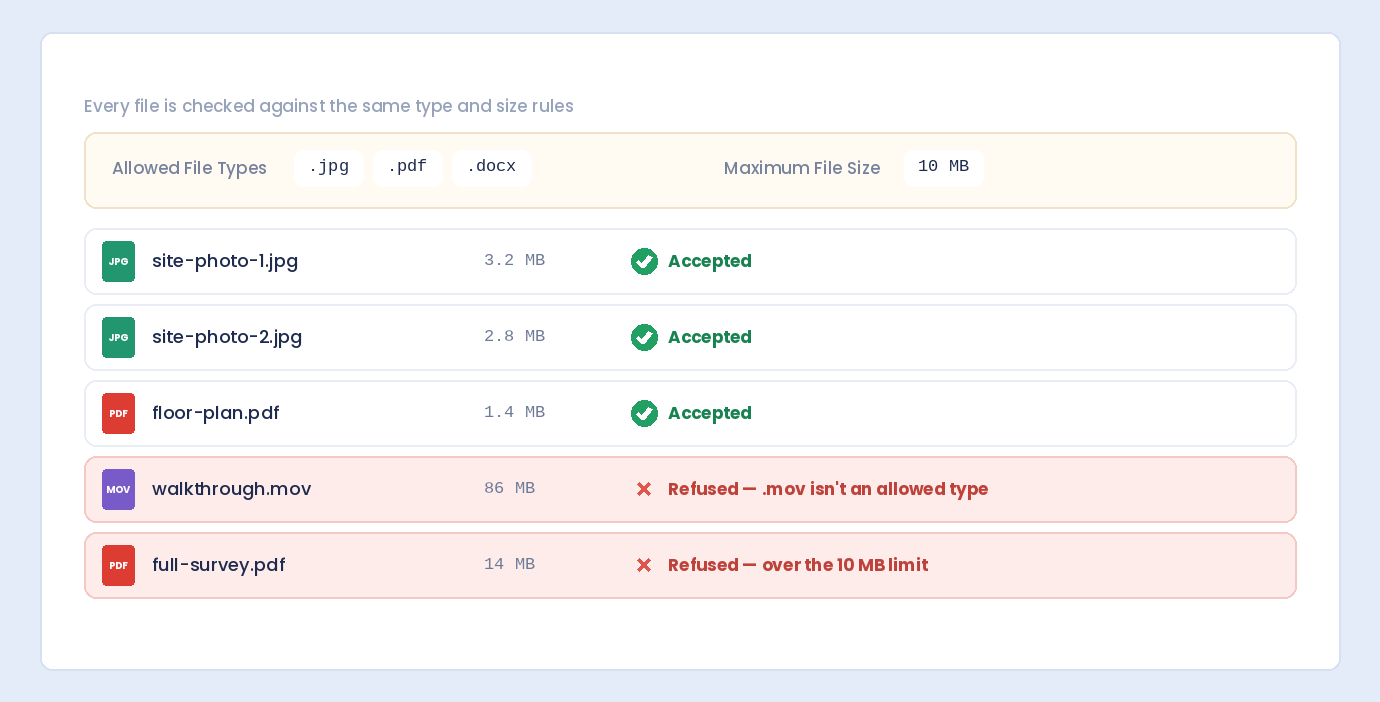
Step 5: Configure File Types
Step 6: Set Size Limits
Step 7: Customize Labels
User Experience for Multiple Uploads
How Users Select Multiple Files
Click Method
Drag and Drop
Multiple Selections
File Preview
Progress Indicators
Setting Appropriate Limits
Minimum Files
Scenario
Suggested Minimum
General attachments
0 (optional)
Photo contest
1-3
Insurance claim photos
2-3
Portfolio submission
3-5
Maximum Files
Scenario
Suggested Maximum
Support screenshots
5
Job application docs
5
Photo gallery submission
10-20
Project files
10
Document package
10-15
File Size Limits
Content Type
Suggested Per-File Limit
Documents (PDF, DOC)
5-10 MB
Images (JPG, PNG)
5-10 MB
High-res photos
15-25 MB
Videos
50-100 MB
Archives (ZIP)
25-50 MB
Multiple Upload Form Examples
Job Application Form
Support Ticket Form
Photo Contest Entry
Insurance Claim Form
Managing Multiple File Submissions
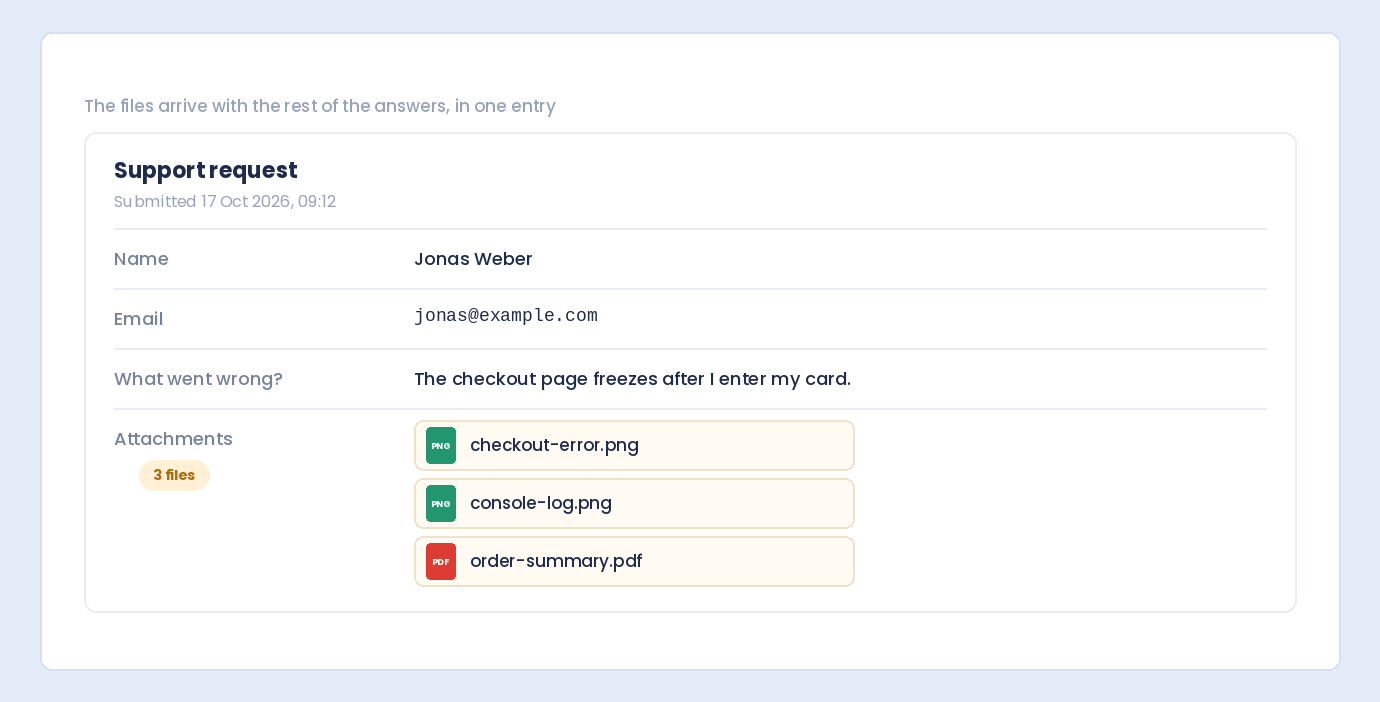
Viewing Uploads
Downloading Files
In Email Notifications
In CSV Export
Server Considerations
Storage Space
Upload Limits
PHP Settings
upload_max_filesize – Maximum single file sizepost_max_size – Maximum total POST datamax_file_uploads – Maximum files per requestWordPress Settings
Hosting Limits
Timeout Issues
max_execution_time if possibleBest Practices
1. Set Clear Expectations
“Upload up to 5 files. Accepted formats: PDF, JPG, PNG. Maximum 10MB per file.”2. Use Appropriate Limits
3. Enable Drag and Drop
4. Show File Previews
5. Provide Remove Option
6. Test with Real Files
7. Plan for Storage
Troubleshooting Multiple Uploads
Only One File Uploads
Upload Fails Partway
Files Missing from Submission
Can’t Download Uploaded Files
Security Considerations
File Type Validation
Storage Location
Malware Scanning
Frequently Asked Questions
How many files can users upload at once?
Can users add files after initial selection?
What happens if one file fails validation?
Can I require at least X files?
Do multiple files count against my hosting storage?
Summary
Conclusion
Table of Contents
Table of Contents
Learn how to set character limits on WordPress form fields. Configure minimum and maximum length validation for text fields and textareas.
Should you use one field or multiple fields for names? Learn the pros and cons of each approach and how to set up name fields in WordPress.
Learn how to add email confirmation fields to your WordPress forms. Prevent typos and ensure you collect valid email addresses every time.
Should you rely on email notifications or store form submissions in your database? Compare both approaches and learn when to use each.
Learn how to create a resume submission form in WordPress. Accept job applications with file uploads, contact info, and candidate details using AFB.
Learn how to add password fields to your WordPress forms. Create secure registration forms with masked input and password confirmation.
Learn how to secure file uploads in WordPress forms by restricting file types. Protect your site from malicious uploads while accepting needed files.
Learn how to create searchable dropdown fields in WordPress forms. Help users quickly find options in long lists with type-to-search functionality.
Learn how to create WordPress forms with Canadian address fields including province dropdown and postal code. Perfect for Canadian businesses.
Learn how to add drag and drop file upload functionality to your WordPress forms. Make file uploading easier and more intuitive for users.
Learn how to add file upload functionality to your WordPress forms. Accept documents, images, and other files from users easily.
Learn how to add file upload fields to your WordPress forms. Accept documents, images, and other files from users with drag-and-drop functionality.