How to Build a Photo Gallery Submission Form
User-submitted photos power contests, community galleries, portfolios, and testimonials. But collecting images through email is messy—files get lost, formats vary, and organization is a nightmare. A dedicated photo submission form keeps everything organized and makes uploading easy for users.
In this guide, you’ll learn how to build a photo gallery submission form that collects images professionally.
Use Cases for Photo Submission Forms
Photo Contests
- Photography competitions
- Best pet photo contest
- Holiday photo contest
- Before/after transformations
Community Galleries
- Customer photo galleries
- Fan art submissions
- Travel photo collections
- Event photo sharing
Portfolio Submissions
- Artist/photographer portfolios
- Design work samples
- Creative project submissions
Testimonials & Reviews
- Customer photos with products
- Before/after results
- User-generated content
Event Documentation
- Wedding guest photos
- Conference attendee submissions
- Team event photos
Real Estate & Rentals
- Property photo submissions
- Damage documentation
- Inspection photos
Essential Form Components
Contact Information
- Name – Who’s submitting
- Email – For follow-up and notifications
- Phone – Optional, for contests with prizes
Photo Upload Field
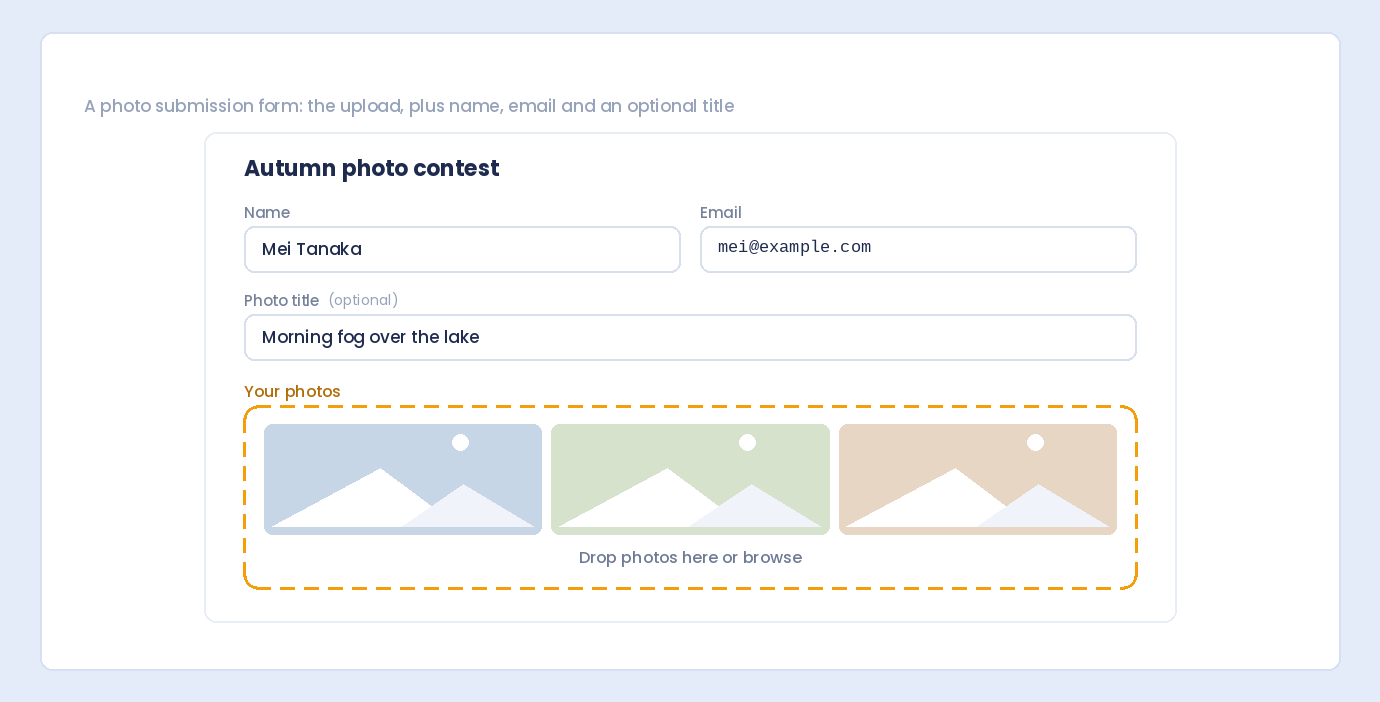
- Multiple files enabled – Accept several photos
- Image types only – JPG, PNG, etc.
- Size limits – Prevent massive uploads
- Min/max file count – Control submission size
Photo Details
- Photo title/caption – What’s in the image
- Description – Story behind the photo
- Category – For organized galleries
- Location/date taken – Context information
Permissions & Terms
- Rights checkbox – Confirm they own the photo
- Usage permission – Allow you to use/display
- Terms acceptance – Contest rules, etc.
Building the Photo Submission Form
Here’s how to create a photo gallery form with Auto Form Builder:
Step 1: Install Auto Form Builder
- Go to Plugins → Add New
- Search for “AFB” (the short name for Auto Form Builder)
- Find “AFB – Auto Form Builder – Drag & Drop Form Creator“
- Click Install Now, then Activate
Step 2: Create a New Form
- Go to Auto Form Builder → Add New
- Start from blank or choose a template
- Name your form (e.g., “Photo Contest Submission”)
Step 3: Add Contact Fields
Drag these fields onto your form:
Name Field
- Label: “Your Name”
- Required: Yes
Email Field
- Label: “Email Address”
- Required: Yes
- Consider enabling confirmation field
Step 4: Configure the Photo Upload Field
This is the key field—configure it properly:
Add File Upload Field
- Drag File Upload field to form
- Click to open settings
Enable Multiple Files
- Toggle Allow Multiple Files ON
- Set Minimum files: 1 (at least one photo required)
- Set Maximum files: 5-10 (reasonable limit)
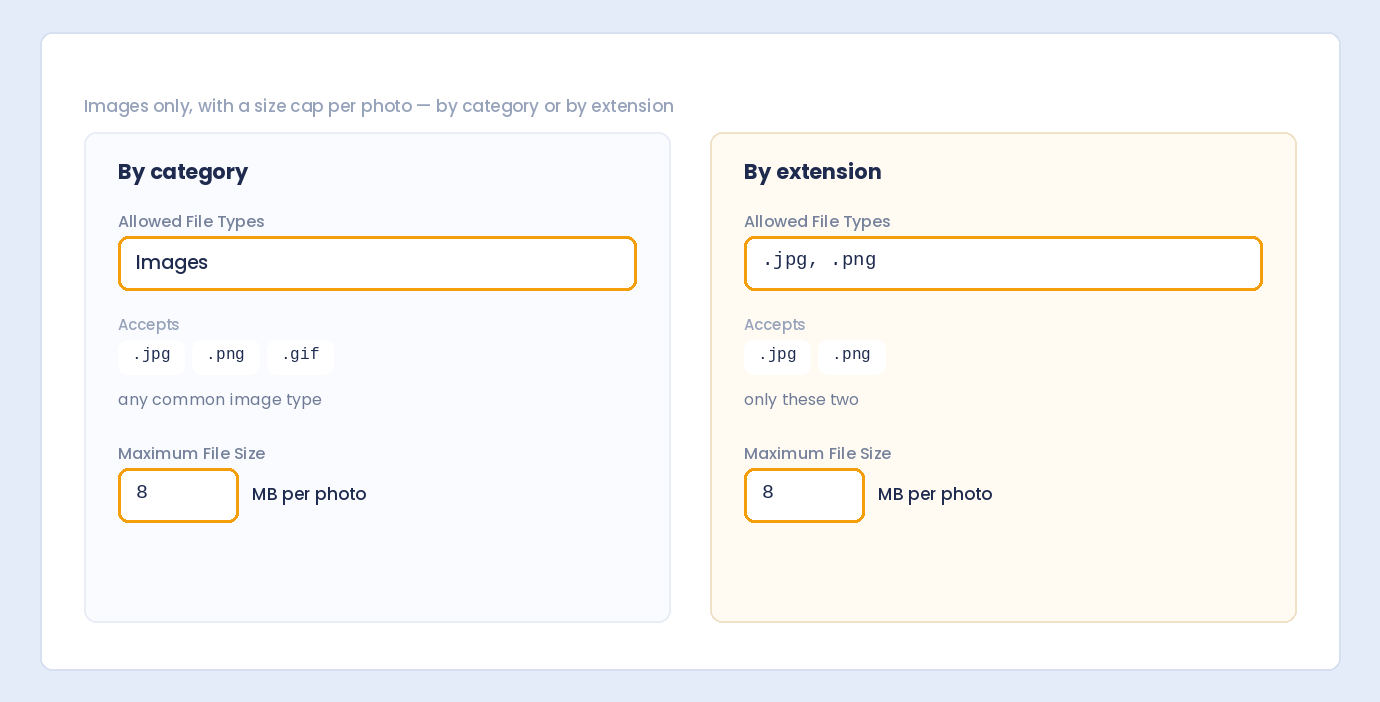
Restrict to Images Only
- Enable Images category
- Disable all other file types (documents, spreadsheets, etc.)
- Allowed formats: JPG, JPEG, PNG, GIF, WebP
Set Size Limits
- Maximum file size: 5-15 MB per image
- Balance quality needs vs. server capacity
- Consider: 10 photos × 10MB = 100MB per submission
Customize Labels
- Field label: “Upload Your Photos”
- Button text: “Choose Photos” or “Add Images”
- Help text: “Upload 1-5 photos. JPG or PNG format. Max 10MB each.”
Step 5: Add Photo Detail Fields
Photo Title/Caption
- Field type: Text
- Label: “Photo Title” or “Caption”
- Required: Optional (depends on use case)
Photo Description
- Field type: Textarea
- Label: “Tell us about this photo”
- Help text: “Share the story behind your submission”
Category (For Organized Galleries)
- Field type: Dropdown or Radio
- Label: “Photo Category”
- Options: Landscape, Portrait, Wildlife, Urban, etc.
Step 6: Add Permission Checkboxes
Ownership Confirmation
- Field type: Checkbox
- Label: “Photo Rights”
- Option: “I confirm I took this photo and own the rights to it”
- Required: Yes
Usage Permission
- Field type: Checkbox
- Label: “Usage Permission”
- Option: “I grant permission to display my photo in the gallery/contest”
- Required: Yes
Contest Rules (If Applicable)
- Field type: Checkbox
- Label: “Contest Rules”
- Option: “I have read and agree to the contest rules”
- Add link to rules page
Step 7: Configure Form Settings
Success Message
“Thank you for your submission! We’ve received your photos and will review them shortly.”
Email Notifications
- Enable notifications to receive submissions
- Include submitted data in email
- Note: Large images may not attach to email—view in dashboard
Step 8: Style the Form (Optional)
Make it visually appealing:
- Match your site’s design
- Clear, readable fonts
- Prominent upload area
- Visible submit button
Photo Submission Form Examples
Photo Contest Form
| Field | Type | Required | Settings |
|---|---|---|---|
| Full Name | Name | Yes | – |
| Yes | Confirmation enabled | ||
| Phone | Phone | No | For prize notification |
| Contest Category | Dropdown | Yes | Landscape, Portrait, etc. |
| Photo Upload | File Upload | Yes | 3-5 images, JPG/PNG, 10MB max |
| Photo Title | Text | Yes | – |
| Photo Description | Textarea | No | – |
| I own this photo | Checkbox | Yes | – |
| Accept contest rules | Checkbox | Yes | Link to rules |
Customer Photo Gallery Form
| Field | Type | Required | Settings |
|---|---|---|---|
| Name | Text | Yes | – |
| Yes | – | ||
| Product Purchased | Dropdown | Yes | Product list |
| Your Photos | File Upload | Yes | 1-3 images, 5MB max |
| Caption | Textarea | No | Short description |
| Permission to share | Checkbox | Yes | – |
| Use my first name | Checkbox | No | Display preference |
Event Photo Submission Form
| Field | Type | Required | Settings |
|---|---|---|---|
| Your Name | Text | Yes | – |
| Yes | – | ||
| Event Attended | Dropdown | Yes | Event list |
| Event Photos | File Upload | Yes | 1-10 images, 8MB max |
| Photo Location | Text | No | Where at event |
| People in Photo | Textarea | No | Tag attendees |
| OK to publish | Checkbox | Yes | – |
Image Quality Considerations
File Size vs. Quality
| Use Case | Recommended Max Size | Reason |
|---|---|---|
| Web gallery display | 2-5 MB | Sufficient for web viewing |
| Print-quality contest | 10-20 MB | Need high resolution |
| Social media sharing | 1-3 MB | Will be compressed anyway |
| Product testimonials | 2-5 MB | Clear but not excessive |
Accepted Formats
| Format | Best For | Notes |
|---|---|---|
| JPEG/JPG | Photos | Most common, good compression |
| PNG | Graphics, screenshots | Larger files, supports transparency |
| WebP | Web optimized | Smaller files, modern format |
| GIF | Animated images | Limited colors |
| HEIC | iPhone photos | May need conversion—consider excluding |
Minimum Resolution
For quality galleries, suggest minimum dimensions:
- Web display: 1200px on longest side
- Print contests: 2400px+ on longest side
- Social sharing: 1080px minimum
Include in help text: “For best results, upload images at least 1200px wide.”
Managing Photo Submissions
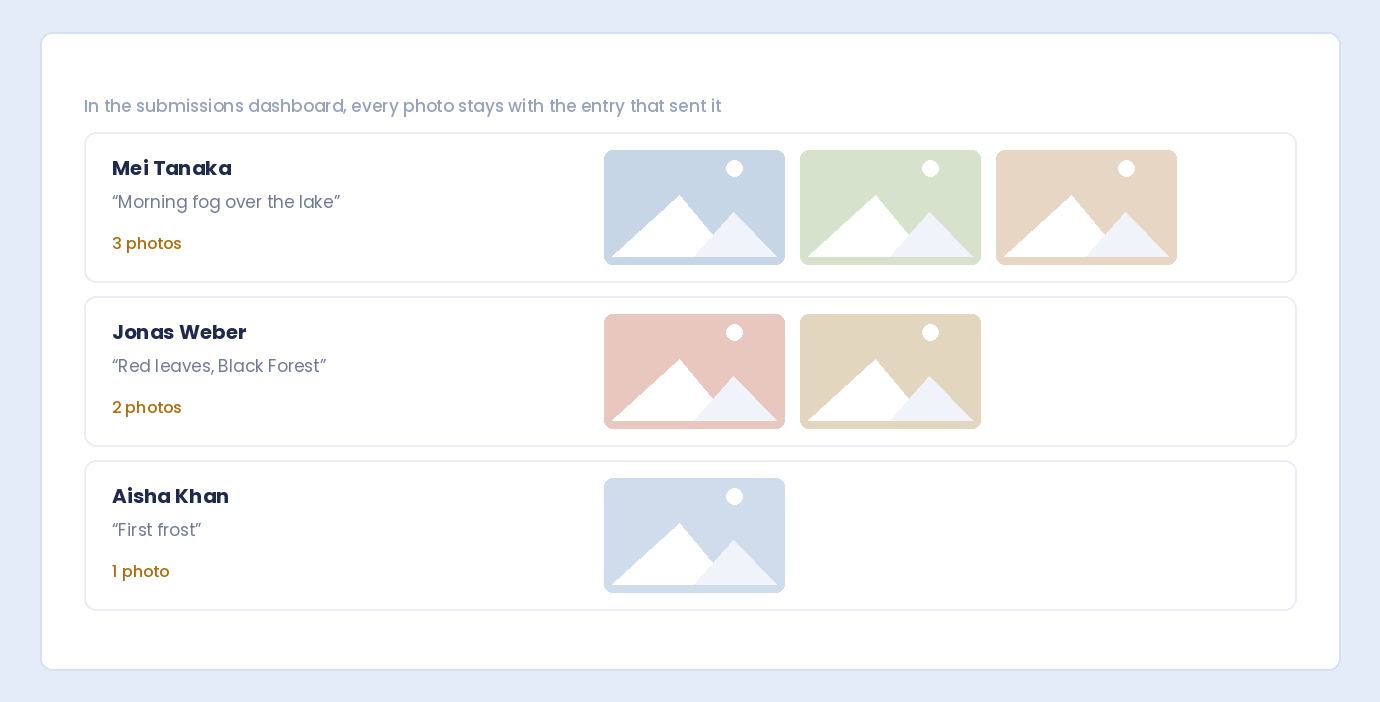
Viewing Submissions
- Go to Auto Form Builder → Submissions
- Filter by your photo submission form
- Click individual entries to view details
- Download/view uploaded images
Organizing Photos
- Use form categories to sort submissions
- Export data to track entries
- Create folders on server for organization
Judging (For Contests)
- Export submission list with image links
- Share with judges via secure method
- Track scores/rankings separately
Best Practices
1. Be Clear About Requirements
Tell users exactly what you need:
- Number of photos allowed
- Accepted file types
- Size limits
- Resolution recommendations
2. Use Drag and Drop
Make uploading easy:
- Large, visible drop zone
- Clear “drag files here” message
- Also allow click to browse
3. Show Upload Progress
Large images take time:
- Progress bar during upload
- Thumbnail preview after upload
- Clear success/failure indication
4. Allow Removal Before Submit
Users should be able to:
- Remove wrong images
- Replace with better ones
- Reorder if relevant
5. Get Proper Permissions
Protect yourself legally:
- Ownership confirmation checkbox
- Usage rights agreement
- Clear terms and conditions
6. Set Realistic Limits
Balance user needs with server capacity:
- Don’t allow 100 photos if you only need 5
- Size limits prevent server overload
- Consider total submission size
7. Test Before Launch
Upload test images:
- Various sizes and formats
- At limit boundaries
- On mobile devices
- Verify files arrive correctly
Troubleshooting Common Issues
Upload Fails
Possible causes:
- File too large
- Wrong file type
- Server timeout
- PHP upload limits
Solutions:
- Check server’s max upload size
- Reduce max file size in form settings
- Verify allowed file types
Images Look Blurry
Cause: Users uploading low-resolution images
Solution: Add help text suggesting minimum resolution
Wrong File Types Submitted
Cause: File type restrictions not configured
Solution: Enable only image file types, disable others
Server Storage Filling Up
Cause: Many large image submissions
Solutions:
- Set reasonable size limits
- Periodically archive/delete old submissions
- Consider cloud storage for high-volume
Frequently Asked Questions
How many photos should I allow per submission?
Depends on purpose. Contests: 3-5 per entry. Customer galleries: 1-3. Event photos: 5-10. Balance thoroughness with server capacity.
What file size limit should I set?
5-10 MB per image works for most purposes. Print-quality contests may need 15-20 MB. Web-only galleries can use 2-5 MB.
Should I accept HEIC files from iPhones?
HEIC can cause compatibility issues. Safer to accept only JPG, PNG, and WebP. Users can convert HEIC to JPG on their device before uploading.
How do I display submitted photos on my site?
Submissions are stored in WordPress. You can download images and add to galleries manually, or use additional plugins to automate gallery creation from form uploads.
Can users edit their submission after submitting?
Typically no—form submissions are one-time. If edits are needed, users would need to submit again or contact you directly.
Summary
Building a photo gallery submission form:
- Add contact fields – Name, email for follow-up
- Configure file upload – Multiple files, images only
- Set appropriate limits – File count, size, formats
- Add photo details – Title, description, category
- Include permissions – Ownership and usage checkboxes
- Write clear help text – Requirements and recommendations
- Test thoroughly – Various images, sizes, devices
Conclusion
A well-designed photo submission form makes it easy for users to share images while keeping your collection organized. Whether you’re running a contest, building a customer gallery, or collecting event photos, the right form handles uploads smoothly and gathers the information you need.
Auto Form Builder includes everything you need for photo submissions: multiple file uploads, image-only restrictions, drag and drop, size limits, and preview functionality—all in the free version.
Ready to collect photos? Download Auto Form Builder and create your photo gallery submission form today.