Form Submissions vs Email Notifications: Which is Better?

Form Submissions vs Email Notifications

When someone submits your contact form, what happens to their data? You have two options: email notifications sent to your inbox, or submissions stored in your WordPress database.

Most form plugins offer both—but which should you use? The answer: both, but for different reasons.

Let’s break down the pros, cons, and best practices for each approach.

How Each Method Works

Email Notifications

When a user submits your form:

  1. Form data is processed
  2. An email is generated with the submission details
  3. Email is sent to your specified address(es)
  4. You receive the submission in your inbox

Database Submissions

When a user submits your form:

  1. Form data is processed
  2. Data is saved to your WordPress database
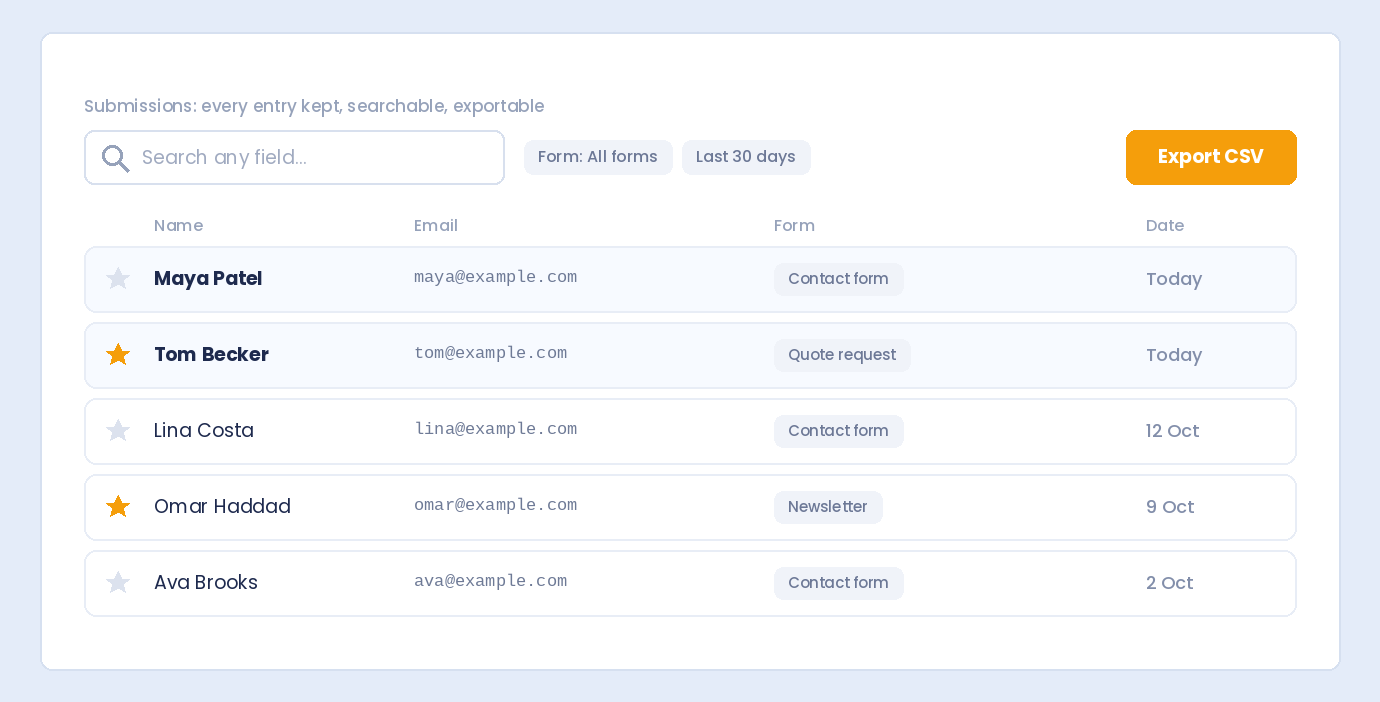
  3. Submission appears in your admin dashboard
  4. You can view, search, filter, and export anytime

Email Notifications: Pros and Cons

✅ Advantages

Instant Alerts

Email arrives seconds after submission. You know immediately when someone contacts you—no need to check your dashboard.

Works Anywhere

Check submissions from your phone, tablet, or any device with email access. No WordPress login required.

Easy to Forward

Received a lead for a colleague? Forward the email instantly. No exporting or copying required.

Familiar Interface

Everyone knows how to use email. No learning curve, no new tools to master.

Push Notifications

Most email apps send push notifications. You’ll know about submissions even when you’re not actively checking.

Quick Response

Hit reply to respond directly to the submitter (if their email is included). Fast and seamless.

❌ Disadvantages

Emails Can Fail

Email delivery isn’t guaranteed:

  • Server issues
  • Spam filters blocking messages
  • Incorrect email configuration
  • Hosting limitations

If email fails, you lose the submission.

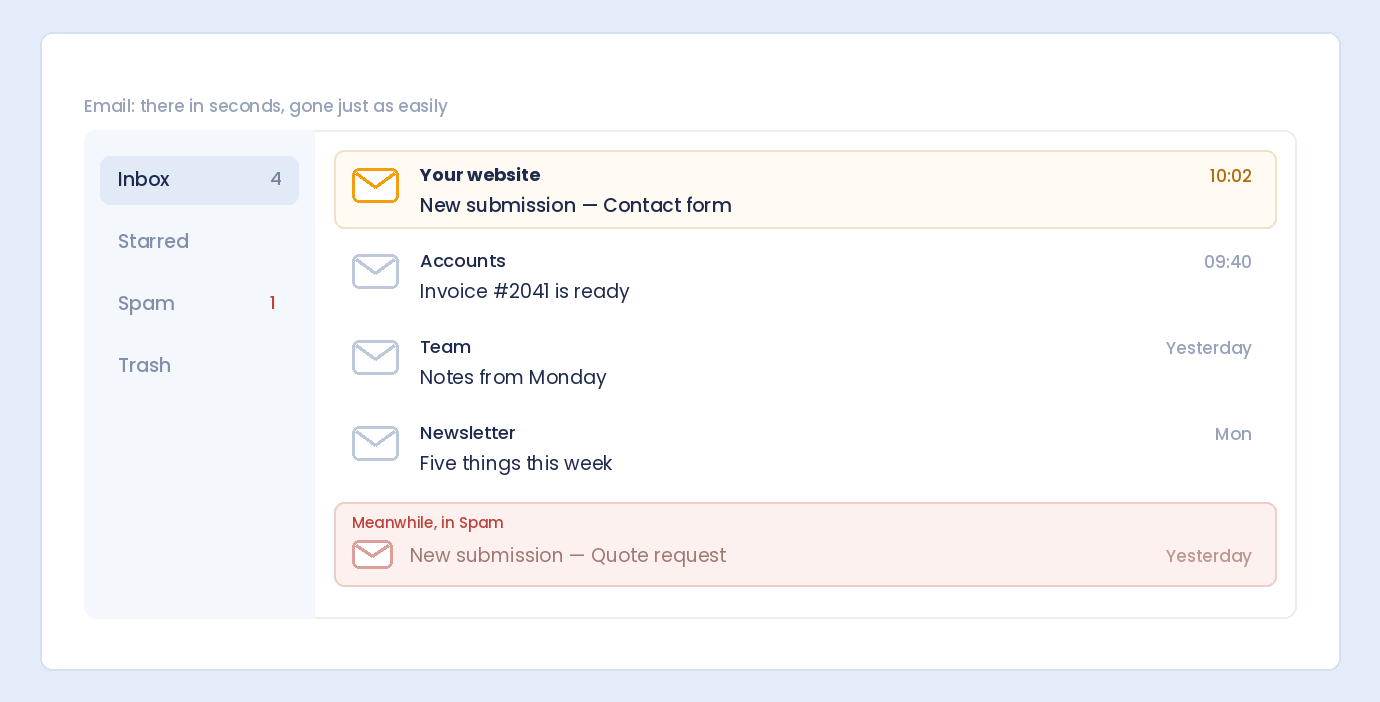
Gets Buried in Inbox

High email volume? Form submissions can get lost among newsletters, spam, and other messages.

No Organization

Email wasn’t designed for data management:

  • Can’t filter by form type easily
  • No submission status tracking
  • Hard to search across submissions
  • No analytics or reporting

Can’t Export

Need all submissions in a spreadsheet? You’d have to manually copy each email. Painful.

No Attachments (Sometimes)

File uploads may not work well via email—large files exceed limits, and some email providers strip attachments.

Privacy Concerns

Email passes through multiple servers. Sensitive data (health info, financial details) may not be appropriate for email transmission.

Database Submissions: Pros and Cons

✅ Advantages

Reliable Storage

Data goes directly to your database—no email servers, no delivery issues. If the form submitted successfully, the data is saved.

Never Lose Data

Even if email notifications fail, submissions are safe in your database. This is your backup.

Powerful Organization

Dashboard features that email can’t match:

  • Filter by form, date, status
  • Search across all submissions
  • Mark as read/unread
  • Tag and categorize entries
  • Sort by any field

Export Capabilities

Download submissions as CSV, JSON, or XML:

  • Import into spreadsheets
  • Feed into CRM systems
  • Create reports and analytics
  • Backup your data

File Attachments

Uploaded files are stored on your server with no size restrictions (beyond your hosting limits). View and download anytime.

Bulk Actions

Handle multiple submissions at once—mark as read, delete spam, export selected entries.

Analytics Potential

With stored data, you can analyze:

  • Submission volume over time
  • Popular form fields
  • Conversion rates
  • Peak submission times

GDPR Compliance

Stored submissions make it easier to:

  • Find a user’s data on request
  • Delete specific submissions
  • Export data for portability
  • Prove compliance

❌ Disadvantages

No Instant Alerts

Database storage doesn’t notify you. Without email notifications, you’d have to check the dashboard constantly.

Requires WordPress Access

You must log into WordPress to view submissions. Not convenient when you’re away from your computer.

Database Growth

Large volumes of submissions increase database size. May need periodic cleanup.

Learning Curve

Dashboard features require some familiarity. Email is more universally understood.

Side-by-Side Comparison

Feature Email Notifications Database Submissions
Instant alerts ✅ Yes ❌ No
Reliability ⚠️ Can fail ✅ Very reliable
Access anywhere ✅ Any email app ⚠️ Requires WP login
Organization ❌ Limited ✅ Powerful filters
Search ⚠️ Basic email search ✅ Advanced search
Export to CSV ❌ No ✅ Yes
File attachments ⚠️ Size limits ✅ Full files stored
Bulk actions ❌ No ✅ Yes
Data backup ❌ In email only ✅ Database backup
Quick reply ✅ Hit reply ⚠️ Copy email, compose
Analytics ❌ No ✅ Possible
Learning curve ✅ None ⚠️ Some

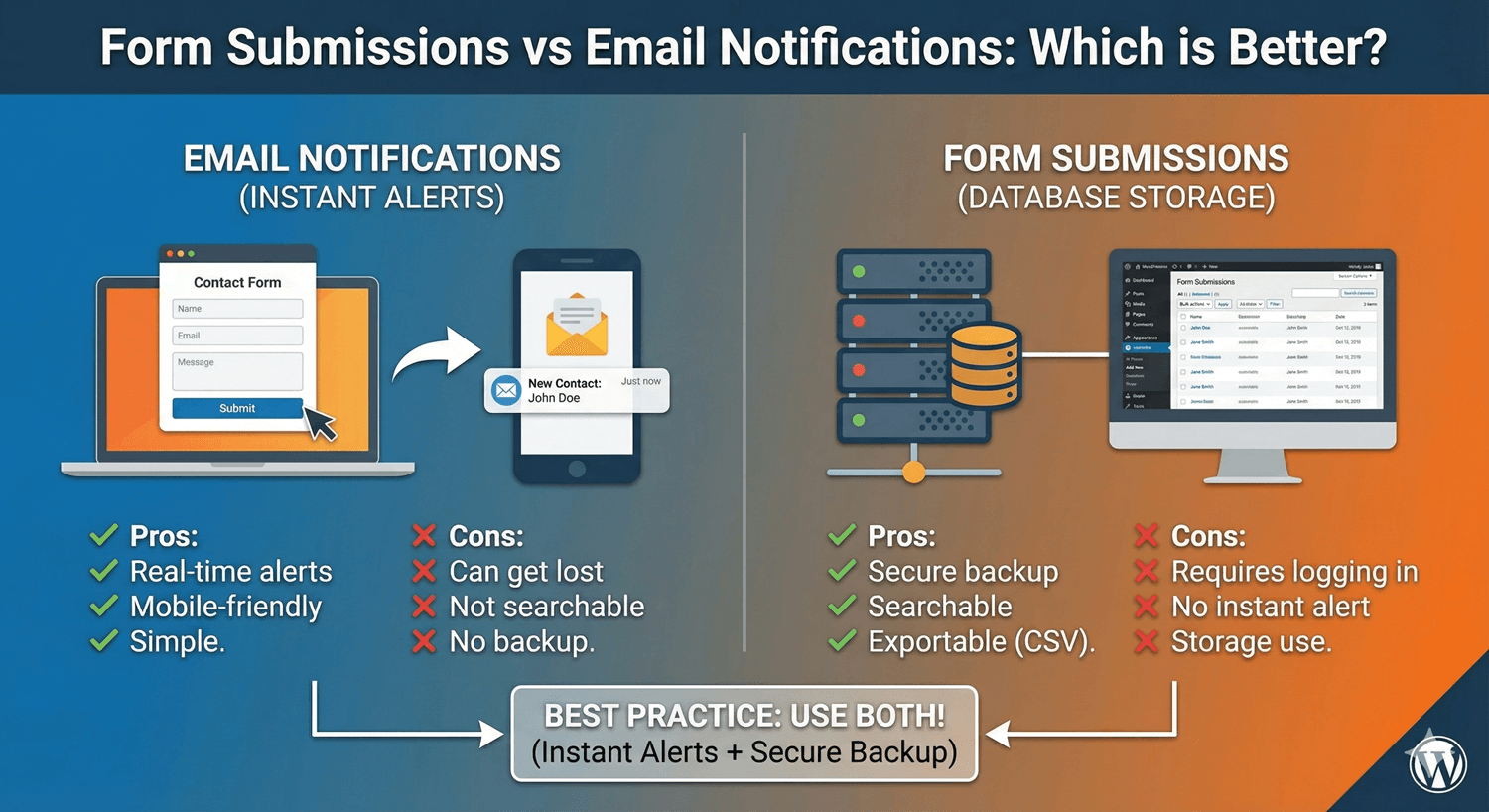
The Best Approach: Use Both

Here’s the secret: you don’t have to choose. Use both methods together:

Email for Alerts

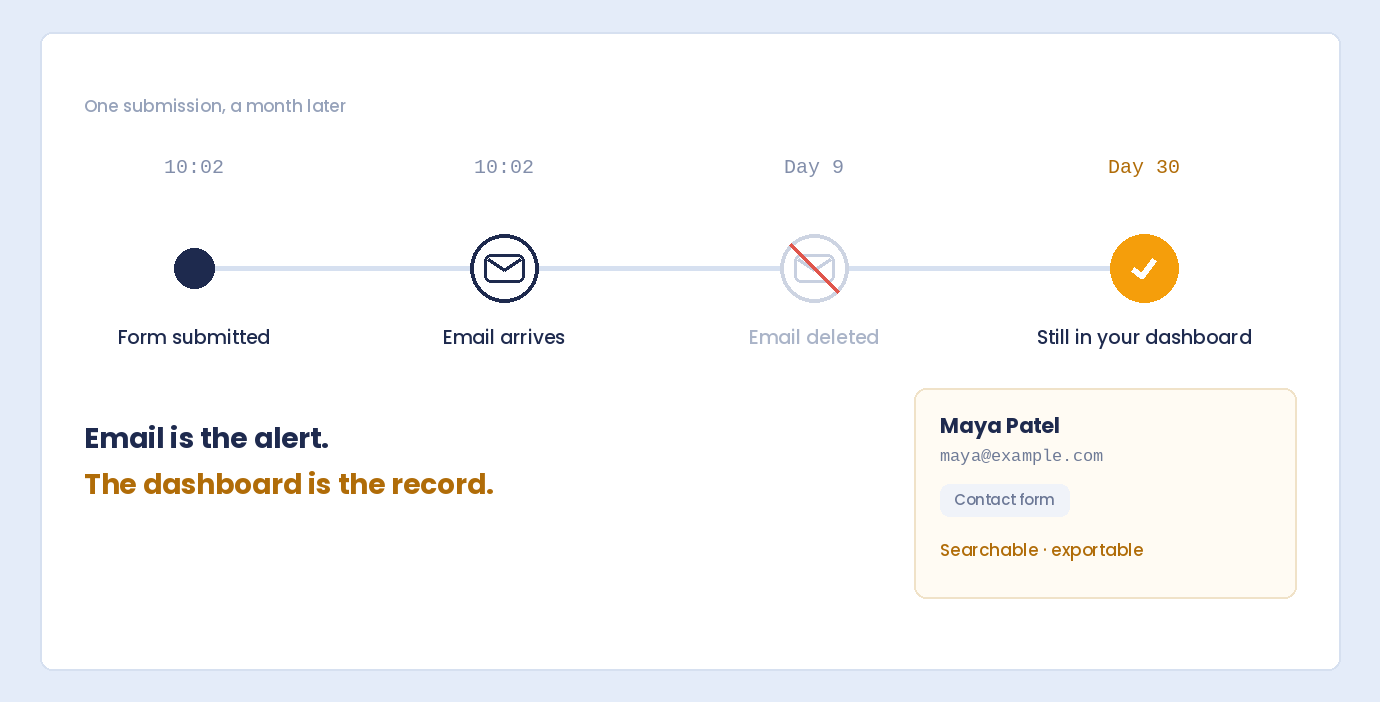
Enable email notifications to know immediately when submissions arrive. This is your alert system.

Database for Records

Store all submissions in your database. This is your permanent record, backup, and management system.

How It Works Together

  1. User submits form
  2. Data saves to database (permanent record)
  3. Email notification sent (instant alert)
  4. You receive email, respond quickly
  5. If you need to find it later, search the dashboard
  6. Monthly: export data for reporting

This gives you the best of both worlds: instant awareness plus reliable storage.

Setting Up Both in Auto Form Builder

Step 1: Install Auto Form Builder

  1. Go to Plugins → Add New
  2. Search for “AFB” (the short name for Auto Form Builder)
  3. Find “AFB – Auto Form Builder – Drag & Drop Form Creator
  4. Click Install Now, then Activate

Step 2: Submissions Are Automatic

Auto Form Builder stores all submissions in your database by default. No configuration needed—submissions are saved automatically.

Step 3: Enable Email Notifications

  1. Edit your form
  2. Go to Form Settings
  3. Find Email Notifications
  4. Toggle Enable Email Notifications ON
  5. Enter recipient email address
  6. Customize subject line (optional)
  7. Save your form

Now every submission is both saved to your database AND emailed to you.

When to Rely More on Email

Email notifications are more critical when:

Time-Sensitive Inquiries

Support requests, urgent quotes, live chat alternatives—when fast response matters, email alerts are essential.

Small Volume

If you get 5-10 submissions per week, email is easy to manage. Dashboard features shine at higher volumes.

Mobile-First Workflow

If you’re rarely at a computer, email lets you see submissions from your phone instantly.

Simple Forms

Basic contact forms with name, email, message—email gives you everything you need.

When to Rely More on Database

Database storage becomes essential when:

High Volume

Hundreds of submissions per month? Email becomes unmanageable. Dashboard filters and search are necessary.

Multiple Forms

Running several forms (contact, support, quotes, applications)? Database filtering by form type keeps things organized.

Team Collaboration

Multiple people handling submissions? The dashboard provides a shared view. Email goes to one inbox.

Reporting Requirements

Need to report on submissions, track trends, or analyze data? Export from database, not email.

File Uploads

Collecting resumes, documents, or images? Database storage handles files reliably.

Compliance Needs

GDPR, data retention policies, audit trails—database storage provides the control you need.

Common Scenarios

Scenario 1: Small Business Contact Form

Situation: 20-30 submissions per month, one person handles inquiries

Recommendation: Email notifications primary, database as backup

Workflow: Respond from email, use dashboard only if email is lost

Scenario 2: E-commerce Support

Situation: 200+ tickets per month, support team of 3

Recommendation: Database primary, email for alerts only

Workflow: Team works from dashboard, email just notifies of new tickets

Scenario 3: Job Applications

Situation: Collecting resumes with file uploads, periodic hiring

Recommendation: Database primary (for files and search), email for awareness

Workflow: Export applicants to spreadsheet for review, email alerts HR

Scenario 4: Lead Generation

Situation: Capturing leads to import into CRM

Recommendation: Database essential (for export), email for sales alerts

Workflow: Weekly export to CRM, immediate email notification to sales rep

Scenario 5: Event Registration

Situation: Collecting registrations for upcoming event

Recommendation: Database essential (attendee list), email for confirmation

Workflow: Export attendee list, email just confirms new signups

Fixing Email Delivery Issues

If email notifications aren’t arriving:

Check Spam Folder

Form notification emails often land in spam. Check there first.

Verify Email Address

Typo in the notification email? Double-check settings.

Use SMTP Plugin

Default WordPress email is unreliable. Install an SMTP plugin:

  • WP Mail SMTP
  • Post SMTP
  • FluentSMTP

Configure with Gmail, SendGrid, Mailgun, or your email provider.

Test Email Delivery

Send a test submission to verify emails are working before relying on them.

Don’t Panic—Check Database

If email fails, your submission is still safe in the database. This is why both methods matter.

Frequently Asked Questions

Can I use email notifications without storing submissions?

Technically possible with some plugins, but not recommended. If email fails, you lose the data forever.

Do submissions count against my database storage?

Submissions use minimal database space. Thousands of text submissions are typically just a few megabytes.

Can I send notifications to multiple people?

Yes! Add multiple email addresses in notification settings. Each person receives the same alert.

What if I delete an email by accident?

If submissions are stored in the database, no problem—find it there. If you’re email-only, it’s gone.

Should I disable email to reduce spam?

No—email notifications don’t cause spam. If you’re getting spam submissions, add CAPTCHA to your form instead.

Summary

Email notifications and database submissions serve different purposes:

Method Best For
Email Notifications Instant alerts, quick response, mobile access
Database Submissions Reliable storage, organization, export, backup
Both Together Complete solution—alerts + permanent records

Conclusion

The debate isn’t really “which is better”—it’s “how do I use both effectively?”

Email notifications keep you responsive. Database submissions keep you organized. Together, they ensure you never miss a lead and always have access to your data.

Auto Form Builder automatically stores every submission in your database and lets you enable email notifications with one toggle. You get both—reliability and convenience.

Ready for the complete solution? Download Auto Form Builder and never worry about lost form submissions again.

Leave a Reply

Your email address will not be published. Required fields are marked *