How to Set Up Email Notifications for WordPress Forms
You’ve created a beautiful form on your WordPress website—but how do you know when someone fills it out? The answer is email notifications. In this guide, you’ll learn how to set up email notifications for your WordPress forms so you never miss a submission.
Whether it’s a contact form, lead generation form, or support request, getting instant email alerts ensures you can respond quickly and provide excellent customer service.
Why Email Notifications Matter
Without email notifications, you’d have to manually check your WordPress dashboard to see if anyone submitted a form. That’s not practical for most website owners. Here’s why email notifications are essential:
- Instant alerts – Know immediately when someone contacts you
- Faster response times – Respond to leads and inquiries quickly
- Better customer experience – People expect timely replies
- Never miss important messages – Emails arrive even when you’re away from your computer
- Mobile accessibility – Check form submissions from your phone
What You’ll Need
To follow this tutorial, you’ll need:
- A WordPress website
- Auto Form Builder plugin installed (free)
- A form created (or we’ll create one together)
- A valid email address
Step 1: Install Auto Form Builder
If you haven’t already installed Auto Form Builder, here’s how:
- Go to Plugins → Add New in your WordPress dashboard
- Search for “AFB” (the short name for Auto Form Builder)
- Look for “AFB – Auto Form Builder – Drag & Drop Form Creator“
- Click Install Now, then Activate
Auto Form Builder is completely free and includes email notifications out of the box—no premium upgrade required.
Step 2: Create or Edit Your Form
You can set up email notifications for any form. Either:
- Create a new form: Go to Auto Form Builder → Create New Form
- Edit an existing form: Go to Auto Form Builder → All Forms and click Edit on your form
If you’re creating a new form, you can use one of the pre-built templates (Contact Form, Feedback Form, Support Request, etc.) or start from scratch.
Step 3: Open Form Settings
Once you’re in the form builder, click the Settings tab in the top navigation. This is where you’ll configure email notifications and other form behaviors.
You’ll see several sections including:
- Submission Behavior
- Submit Button
- Email Notifications
Step 4: Enable Email Notifications
In the Settings tab, find the Email Notifications section. Here’s how to configure it:
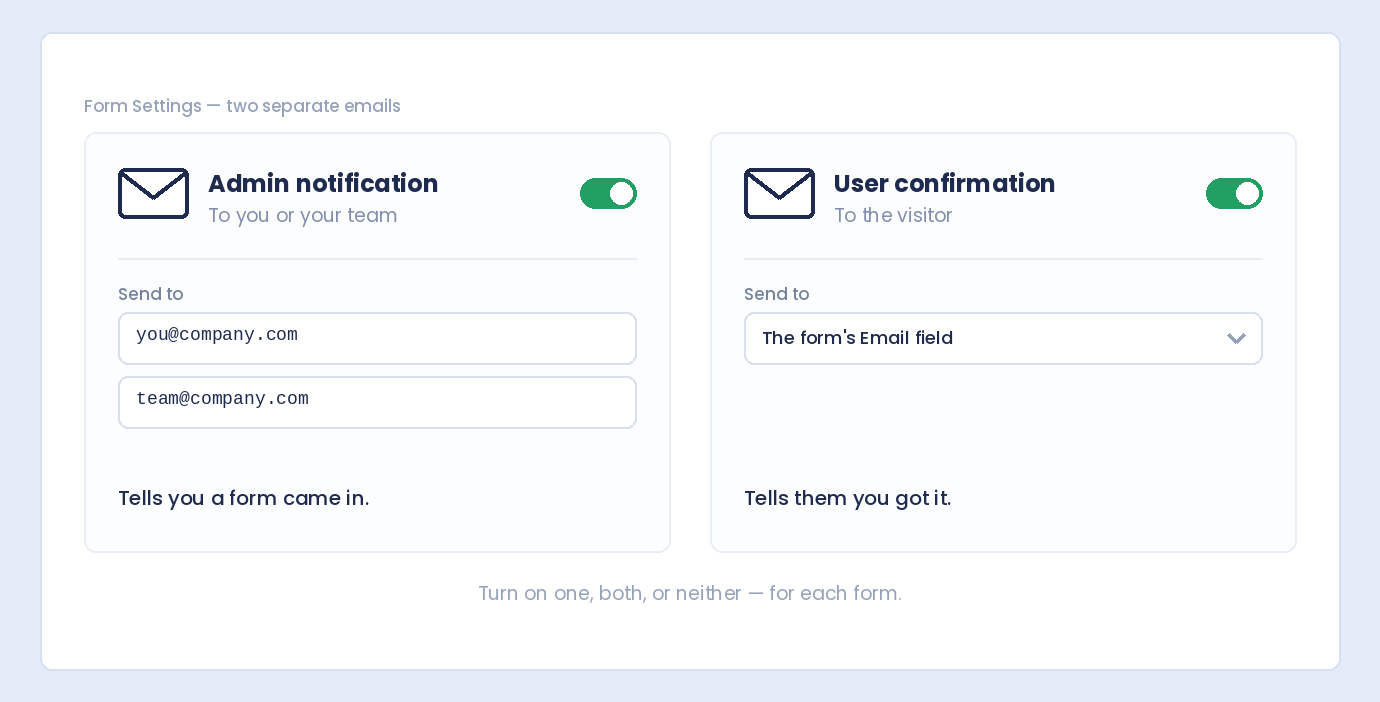
Turn On Notifications
Check the box that says “Send email notification when form is submitted”. This enables the email notification feature.
Enter Your Email Address
In the Notification Email field, enter the email address where you want to receive notifications.
💡 Pro Tip: You can enter multiple email addresses separated by commas. For example:
[email protected], [email protected], [email protected]
This is useful when:
- Multiple team members need to see submissions
- You want a backup email in case one fails
- Different departments should receive the same form data
Customize the Email Subject
In the Email Subject field, enter a subject line for your notification emails. For example:
- “New Contact Form Submission”
- “New Lead from Website”
- “Support Request Received”
- “New Quote Request”
A clear subject line helps you quickly identify form notifications in your inbox.
Step 5: Save Your Settings
After configuring email notifications:
- Click the Save Settings button
- You’ll see a confirmation message: “Settings saved successfully!”
Your email notifications are now active.
Step 6: Test Your Email Notifications
Always test your form to make sure notifications are working:
- Visit the page where your form is displayed
- Fill out the form with test data
- Click Submit
- Check your email inbox (and spam folder) for the notification
The email should arrive within seconds. If you don’t receive it, check the troubleshooting section below.
What’s Included in Notification Emails
When someone submits your form, the notification email includes:
- Form name – Which form was submitted
- All form fields – Every field the user filled out
- Field labels and values – Clearly organized data
- Submission timestamp – When the form was submitted
- File attachments – If your form has file upload fields
The email is formatted for easy reading, so you can quickly see all the submitted information.
Email Notifications + Submission Storage
One of the best things about Auto Form Builder is that email notifications work alongside submission storage—not instead of it.
This means:
- ✅ You receive instant email notifications
- ✅ All submissions are also saved in your WordPress dashboard
- ✅ You have a backup if emails fail to deliver
- ✅ You can search, filter, and export submissions later
To view stored submissions, go to Auto Form Builder → Submissions in your WordPress admin.
Setting Up Notifications for Multiple Forms
If you have multiple forms on your website, you can configure different email settings for each one:
- Contact form → Send to [email protected]
- Sales inquiry form → Send to [email protected]
- Support form → Send to [email protected]
- Job application form → Send to [email protected]
Each form has its own Settings tab where you configure notifications independently.
Troubleshooting: Email Not Arriving?
If you’re not receiving notification emails, try these solutions:
1. Check Your Spam Folder
Email providers sometimes filter automated emails as spam. Check your spam/junk folder and mark the email as “Not Spam” if you find it there.
2. Verify the Email Address
Double-check that you entered the correct email address in the notification settings. A typo will prevent delivery.
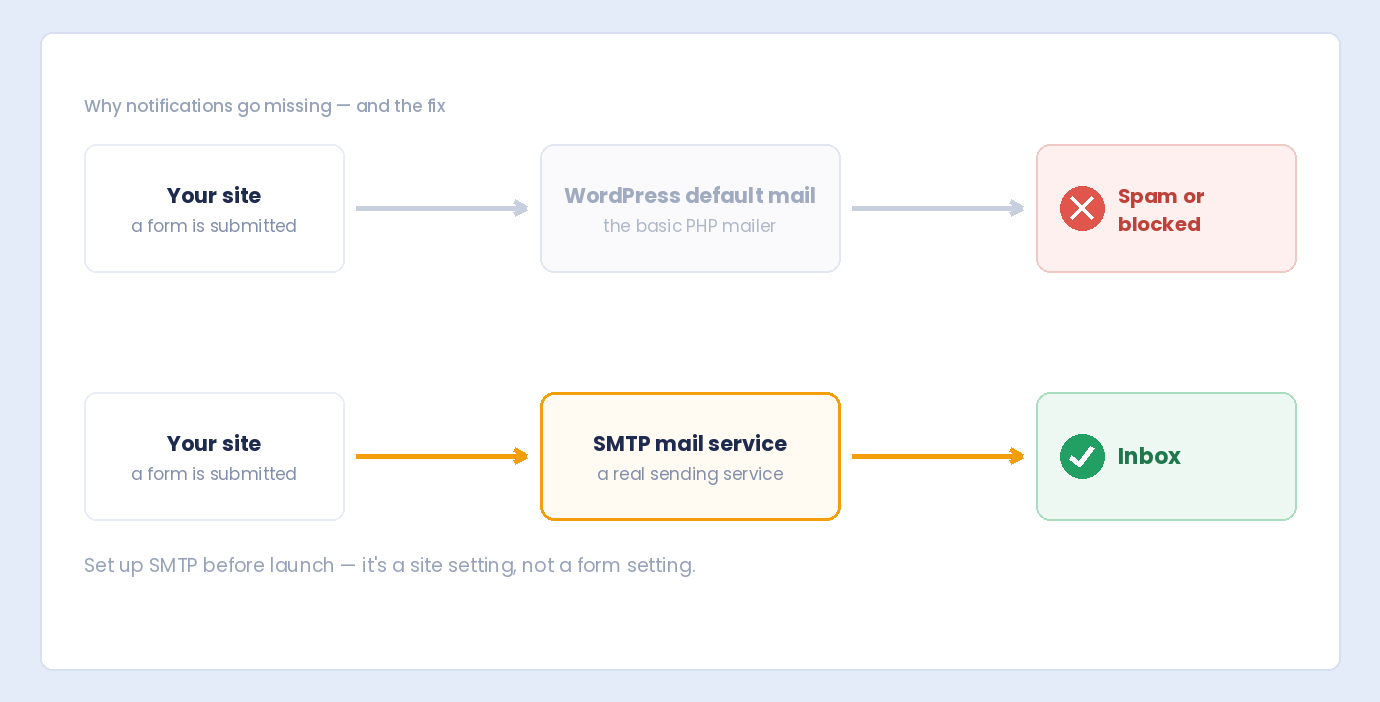
3. WordPress Email Issues
Some web hosts have restrictions on the WordPress mail function. If emails consistently fail, consider using an SMTP plugin like:
- WP Mail SMTP
- Post SMTP
- FluentSMTP
These plugins route WordPress emails through a proper mail service, improving deliverability.
4. Check Submissions Dashboard
Even if email fails, your submissions are stored in WordPress. Go to Auto Form Builder → Submissions to verify the form is working and submissions are being saved.
5. Test with a Different Email
Try sending notifications to a different email address (like a Gmail account) to rule out issues with your primary email provider.
Best Practices for Email Notifications
Follow these tips for the best experience with form notifications:
Use a Professional Email Address
Use an email address on your own domain (like [email protected]) rather than a free email service. This looks more professional and improves deliverability.
Set Clear Subject Lines
Use descriptive subject lines that help you identify the form and urgency:
- Good: “New Contact Form Submission – YourSite.com”
- Good: “🔔 New Lead from Website”
- Avoid: “Form submission” (too vague)
Send to Multiple Recipients
For important forms, send notifications to multiple email addresses. This ensures someone always sees the submission, even if one person is unavailable.
Don’t Rely Only on Email
Auto Form Builder stores all submissions in your WordPress database. Use the Submissions dashboard as your primary record, and treat emails as alerts.
Respond Quickly
Studies show that responding to leads within 5 minutes dramatically increases conversion rates. Email notifications help you achieve fast response times.
Frequently Asked Questions
Can I send notifications to multiple email addresses?
Yes! Enter multiple email addresses separated by commas in the Notification Email field. All addresses will receive the notification.
Will I receive notifications on my phone?
If you have email set up on your phone, yes. The notifications are standard emails that will appear in any email app.
Can I customize what information is included in the email?
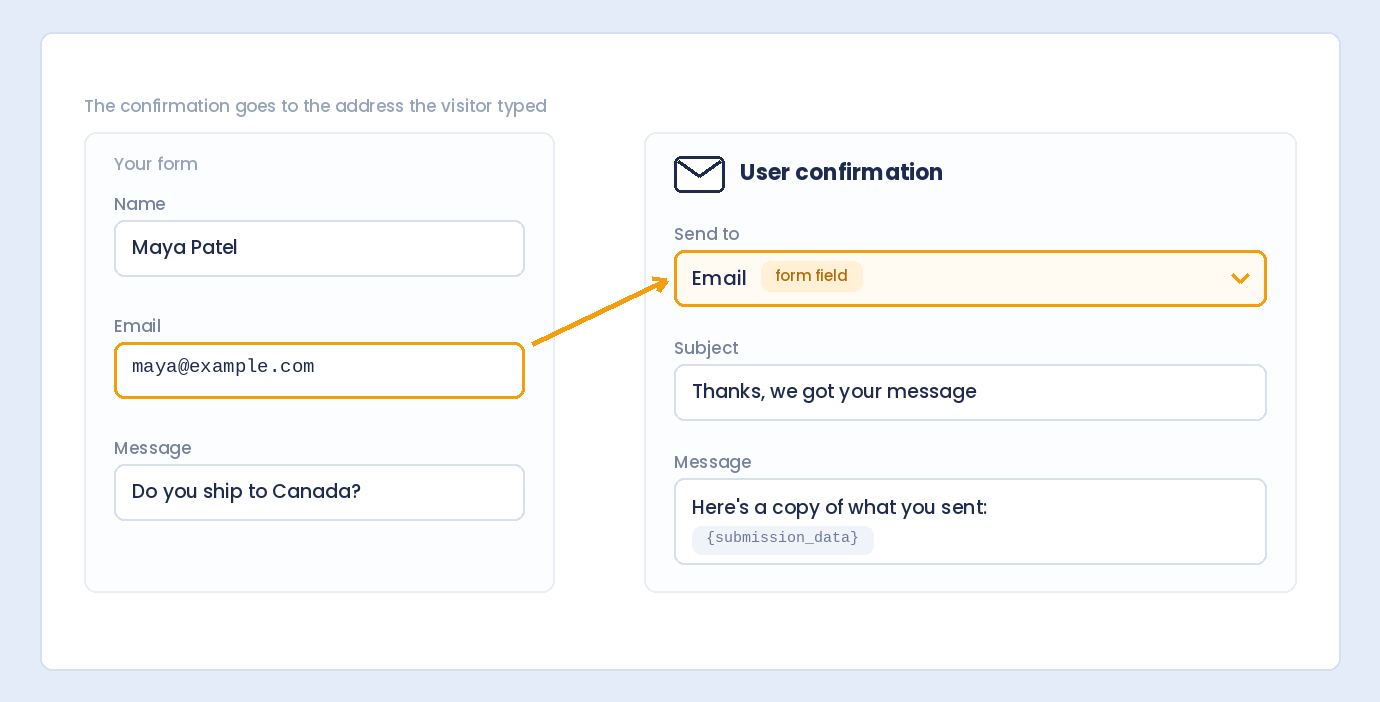
The notification email includes all form fields automatically. The email shows field labels and the values users entered.
What if my email doesn’t arrive?
First, check your spam folder. If emails consistently fail, install an SMTP plugin to improve WordPress email deliverability. Your submissions are still saved in WordPress regardless of email delivery.
Are email notifications free?
Yes! Email notifications are included in the free version of Auto Form Builder. No upgrade required.
Can I turn off email notifications but still save submissions?
Yes. Simply uncheck the email notification option. Submissions will still be saved in your WordPress dashboard—you just won’t receive email alerts.
Summary
Setting up email notifications for your WordPress forms takes just a few minutes:
- Install Auto Form Builder (search for “AFB” in Plugins)
- Create or edit your form
- Go to the Settings tab
- Enable email notifications
- Enter your email address(es)
- Customize the subject line
- Save and test
With email notifications enabled, you’ll never miss a form submission again. Combined with Auto Form Builder’s submission storage, you have a reliable system for capturing and managing all your website inquiries.
Conclusion
Email notifications are essential for any WordPress form. They ensure you can respond quickly to customer inquiries, capture leads before they go cold, and provide excellent service.
Auto Form Builder makes setting up email notifications simple—just check a box, enter your email, and you’re done. Plus, every submission is backed up in your WordPress dashboard, so you’ll never lose important data.
Ready to set up email notifications? Download Auto Form Builder for free and start receiving instant alerts for all your form submissions.