
How to Create a Contact Form in WordPress Without Coding
Almost every website needs a contact form, yet setting one up is where a lot of people get stuck. Some plugins expect you to write shortcode markup by hand; others hide spam protection or message storage behind a paid plan. You shouldn’t need either. With Auto Form Builder you can build a professional contact form in a few minutes — no code, no monthly fee — and this guide walks through it step by step.
What you’ll need
Just the free Auto Form Builder plugin, installed and activated on your WordPress site. If you haven’t installed it yet, it takes about two minutes from Plugins → Add New.
Step 1: Create a new form
Open Auto Form Builder from your admin menu and click Create New Form. You can start from the built-in Contact template to get a head start, or choose a blank canvas if you’d rather build from scratch. If you’d like the plugin to do the first draft for you, the optional Build with AI option can generate a starting form from a plain-English description — but it’s entirely optional, and the rest of this guide uses the standard drag-and-drop builder.
Step 2: Add the essential fields
A good contact form keeps things short. For most sites you only need a handful of fields:
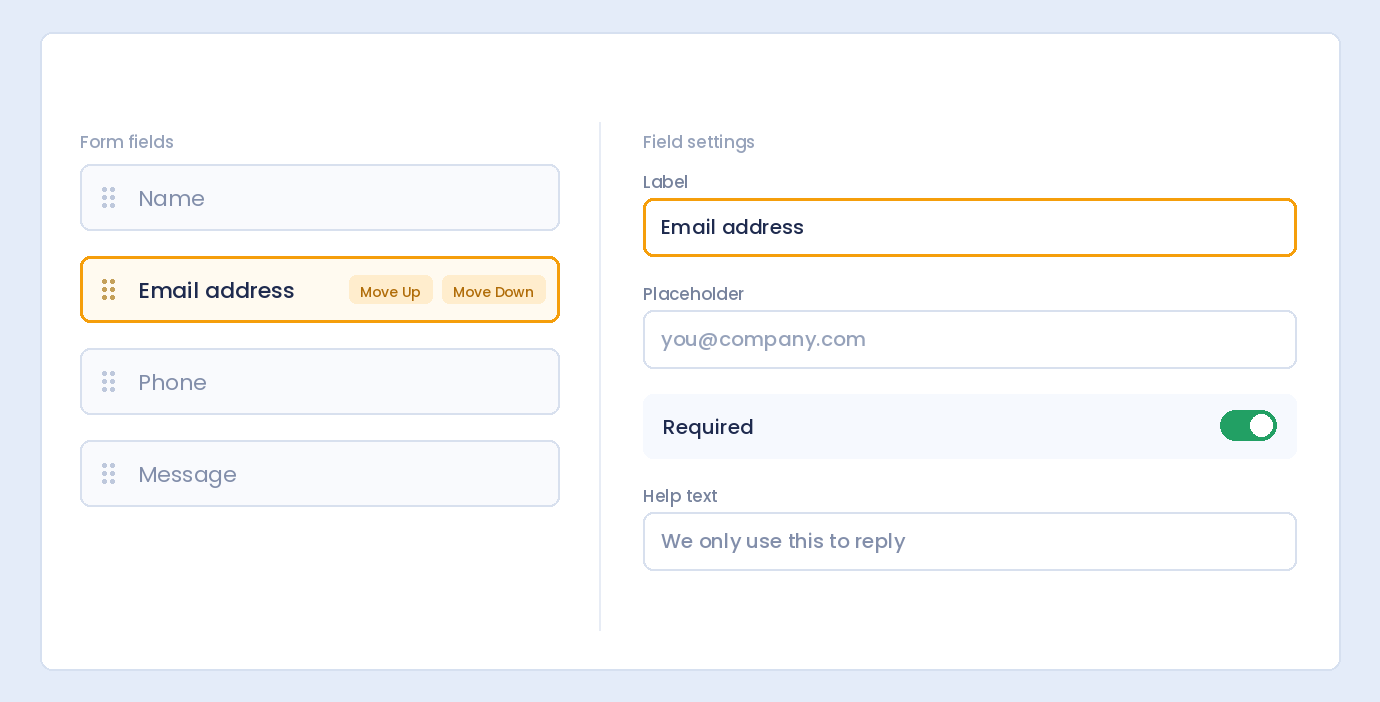
- A Name field — use a single field, or split it into first and last name.
- An Email field, so you can reply.
- An optional Phone field if you take calls.
- A Textarea field for the message itself.
Drag each field from the panel onto the canvas, then click it to set its label, placeholder, and whether it’s required. Reorder fields by dragging them or using the Move Up / Move Down buttons.
Step 3: Turn on spam protection
Nothing fills an inbox with junk faster than an unprotected contact form. Auto Form Builder includes both Google reCAPTCHA and Cloudflare Turnstile free — enable either or both from the Add-Ons screen, add your keys from the provider, and switch protection on for your form. Turnstile is the more privacy-friendly option if you’d prefer not to use Google. You can read more on the spam protection page.
Step 4: Set up email notifications
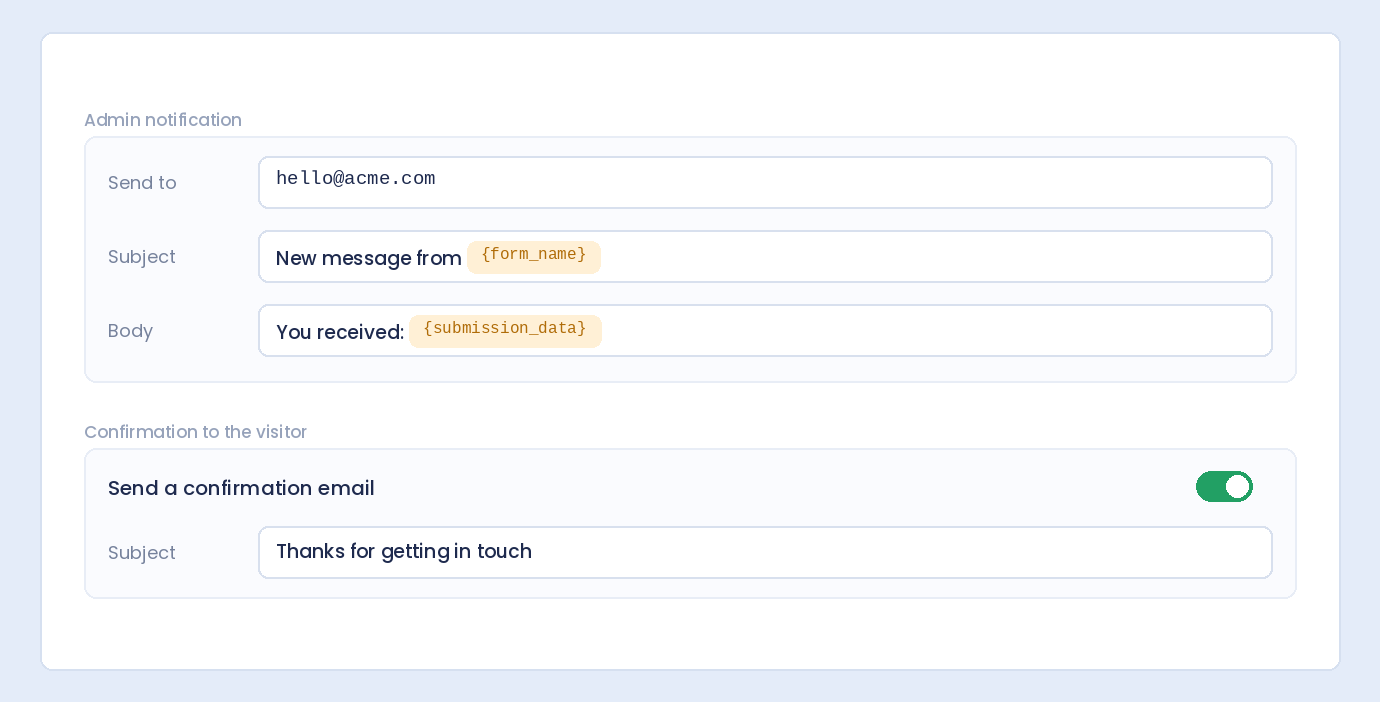
Open Form Settings to configure two kinds of email. The admin notification tells you a message arrived — set the recipient, subject, and body, using placeholders like {submission_data} and {form_name} to include the details. The user confirmation email thanks the person who wrote in. Both can be styled HTML or plain text.
One practical note: if notification emails land in spam or don’t arrive, that’s almost always your site’s email delivery, not the form. Configuring SMTP for WordPress resolves it — a standard requirement independent of any form plugin.
Step 5: Style it to match your site (optional)
In the Customize tab you can adjust colors, fonts, spacing, and buttons so the form fits your brand — no CSS. Preview it on desktop, tablet, and mobile before you publish.
Step 6: Publish it with a shortcode
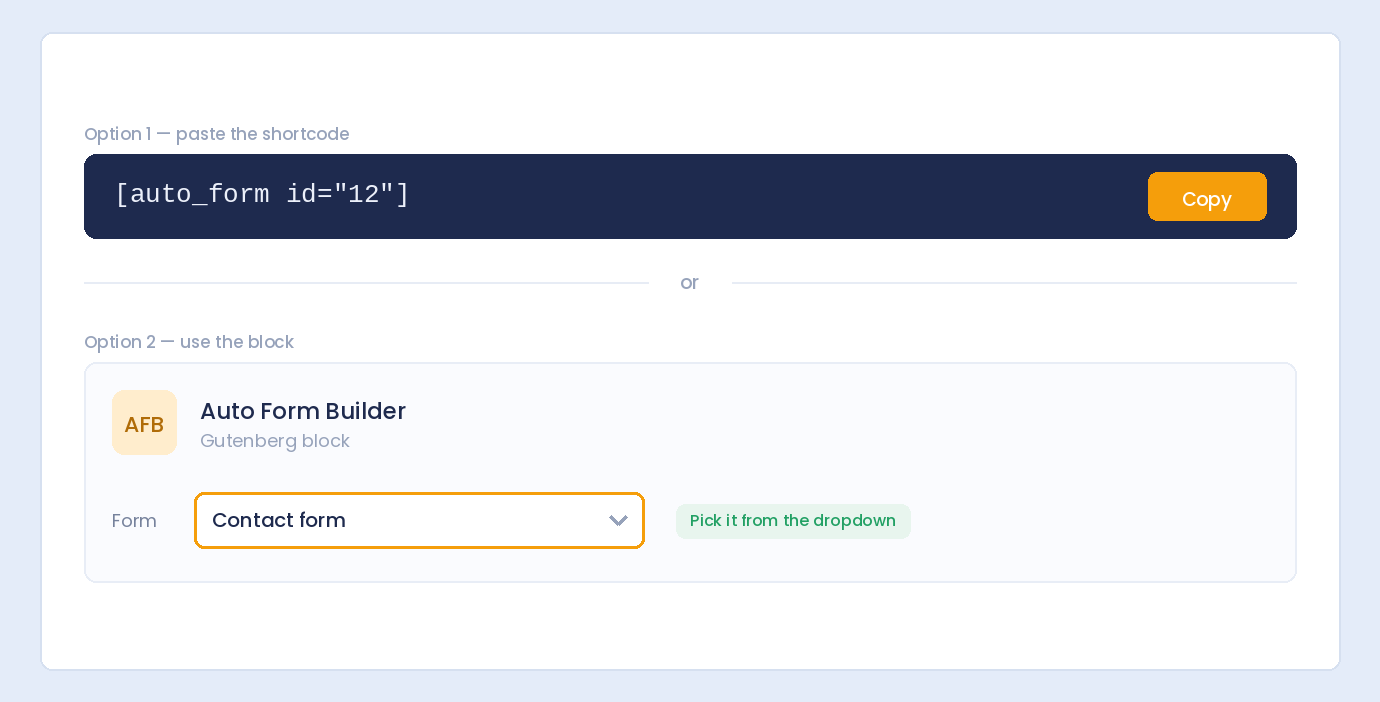
Save the form, copy its shortcode, and paste it into any page or post. Prefer the block editor? Use the Auto Form Builder Gutenberg block and pick your form from a dropdown. And if your contact page lives on a non-WordPress site, copy the embed code instead — the form keeps its design and works anywhere.
That’s it. You now have a working contact form that blocks spam, emails you on every message, and stores each one safely in your dashboard.
Going further
Once your basic form is live, you can grow it without starting over. Add conditional logic to show a “How did you hear about us?” field only when relevant, route messages to different departments, or turn a longer enquiry into a multi-step form. Everything you build is stored and searchable in your submissions dashboard.
Related reading: Managing contact form submissions in WordPress, how to set up email notifications, and adding email fields.
Ready to build yours? Install Auto Form Builder free from WordPress.org.
FAQ
Do I need to know how to code to make a contact form?
No. Auto Form Builder is fully drag-and-drop — you add fields, set options, and embed the form with a shortcode, all without touching code.
Where do contact form messages go?
Every submission is stored in your WordPress dashboard and can also be emailed to you automatically. Nothing is lost, even if an email is delayed.