How to Style WordPress Forms to Match Your Brand

How to Style WordPress Forms to Match Your Brand

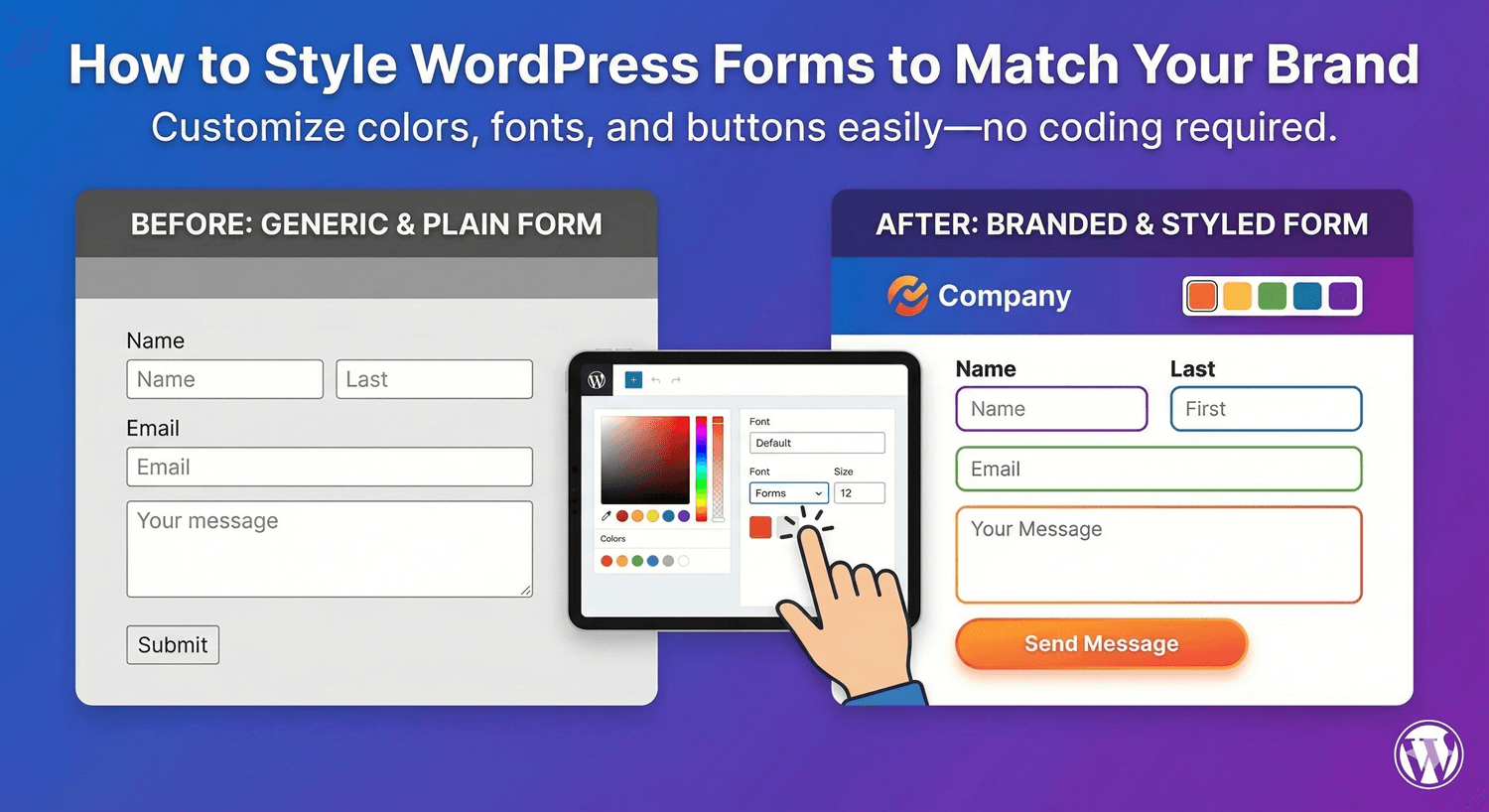
Your forms should look like they belong on your website—not like they were dropped in from somewhere else. In this guide, you’ll learn how to style your WordPress forms to match your brand perfectly, without writing any CSS code.

Whether you want to change colors, adjust fonts, customize buttons, or add backgrounds, you’ll discover how easy it is to create beautiful, on-brand forms.

Why Form Styling Matters

A well-styled form does more than look pretty. Here’s why matching your forms to your brand is important:

  • Builds trust – Consistent branding makes your site look professional
  • Improves user experience – Forms that fit your design feel natural to use
  • Increases conversions – Attractive forms get more submissions
  • Reinforces brand identity – Every element should reflect your brand
  • Reduces bounce rates – Visitors stay longer on cohesive websites

What You’ll Need

To style your WordPress forms:

  • WordPress website
  • Auto Form Builder plugin (free)
  • Your brand colors (hex codes like #2271b1)
  • 5-10 minutes

No CSS knowledge required—everything is done through a visual interface.

Step 1: Install Auto Form Builder

If you haven’t installed Auto Form Builder yet:

  1. Go to Plugins → Add New in WordPress
  2. Search for “AFB” (the short name for Auto Form Builder)
  3. Look for “AFB – Auto Form Builder – Drag & Drop Form Creator
  4. Click Install Now, then Activate

Form styling is included free—no premium upgrade needed.

Step 2: Open the Style Tab

To access the styling options:

  1. Go to Auto Form Builder in your WordPress admin
  2. Create a new form or edit an existing one
  3. Click the Customize tab in the top navigation

You’ll see a comprehensive styling panel with live preview on the right side.

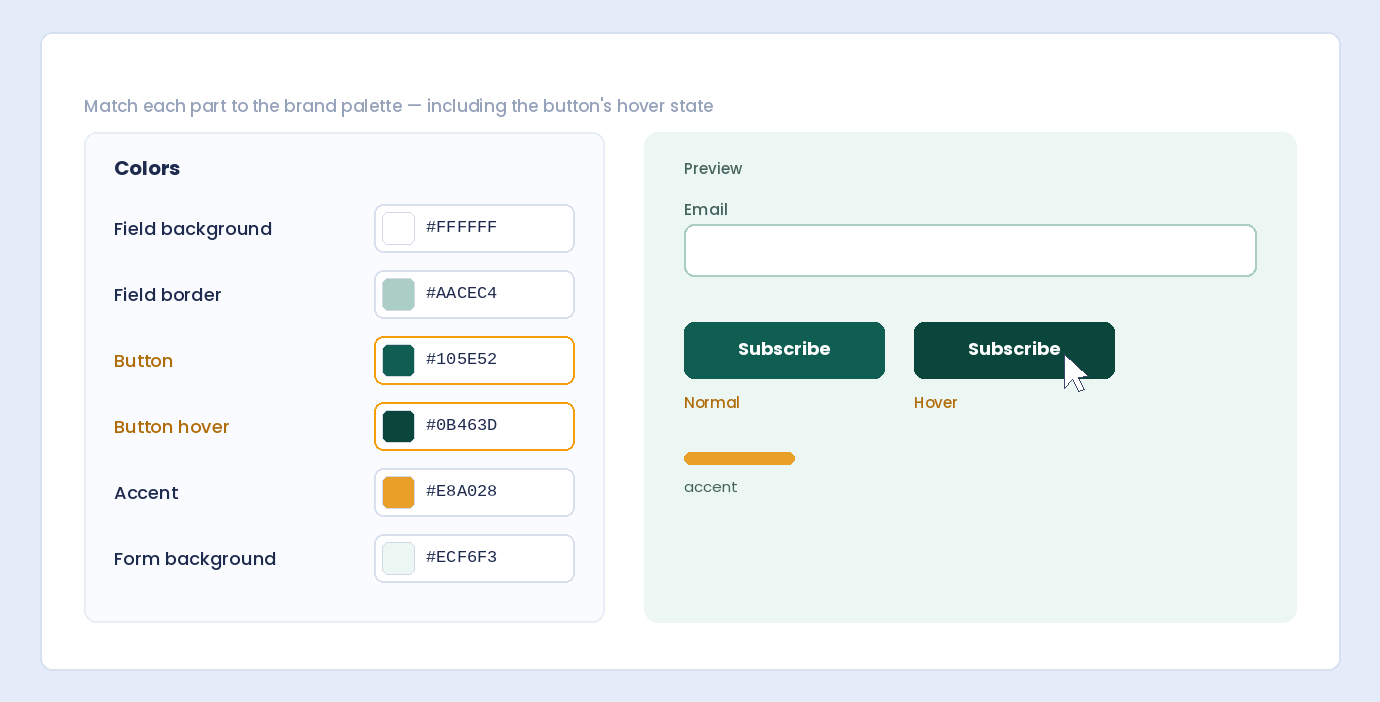
Step 3: Choose Your Colors

Colors are the foundation of your brand. Here’s what you can customize:

Primary Color

This is your main brand color. It affects:

  • Submit button background
  • Focus states on input fields
  • Active elements

Click the color picker and enter your brand’s primary color (e.g., #2271b1 for blue, #e91e63 for pink).

Background Color

Set the form’s background color. Options include:

  • Solid color – A single color (white, light gray, or your brand color)
  • Gradient – Blend two colors for a modern look
  • Image – Use a background image for visual impact

Field Colors

Customize individual form field appearance:

  • Field background – Usually white or light gray
  • Field border color – The outline around inputs
  • Focus border color – Color when user clicks into a field

Text Colors

Control how text appears:

  • Label color – Field labels above inputs
  • Input text color – What users type
  • Placeholder color – Hint text inside empty fields

Step 4: Customize the Submit Button

The submit button is one of the most important elements. Make it stand out with these options:

Button Colors

  • Button background – The button’s fill color
  • Button text color – Usually white or dark for contrast
  • Hover background – Color when users mouse over
  • Hover text color – Text color on hover

Button Shape

  • Border radius – Round the corners (0px = square, 25px = pill shape)
  • Padding – Control button size
  • Width – Auto, full width, or custom

Button Position

  • Left aligned – Traditional placement
  • Center aligned – Centered under the form
  • Right aligned – Aligned to the right
  • Full width – Spans the entire form width

Button Effects

Add subtle animations to make your button more engaging:

  • None – Simple, no effects
  • Lift – Button rises slightly on hover
  • Grow – Button gets larger on hover
  • Glow – Adds a glowing effect

Step 5: Style Form Fields

Make your input fields match your design:

Border Settings

  • Border width – Thickness of field borders (1px is subtle, 2px is bold)
  • Border color – Usually gray or matches your theme
  • Border radius – Round the field corners

Field Shadows

Add depth with shadow options:

  • None – Flat, modern look
  • Subtle – Soft shadow for depth
  • Medium – More pronounced shadow
  • Strong – Bold shadow effect

Focus Shadow

When users click into a field, a focus shadow helps them see where they’re typing. Customize its color to match your brand.

Step 6: Adjust Typography

Control how text looks throughout your form:

Font Family

Choose a font that matches your website:

  • Inherit – Uses your theme’s font (recommended)
  • System fonts – Arial, Helvetica, Georgia, etc.
  • Google Fonts – Modern options available

Label Settings

  • Font size – Size of field labels
  • Font weight – Normal, medium, semibold, or bold
  • Position – Labels above fields or inline

Input Text

  • Font size – Size of text users type
  • Input padding – Space inside fields

Step 7: Configure Layout & Spacing

Control how your form is structured:

Form Width

  • Full width – Form spans its container
  • Max width – Set a maximum width (e.g., 600px)

Form Padding

Add space around the form content. More padding creates a spacious, luxurious feel.

Field Spacing

Control the gap between form fields. Standard is 20px; increase for a more open layout.

Form Layout

  • Single column – Fields stack vertically (best for mobile)
  • Multi-column – Fields side by side (great for short fields)

Step 8: Add Visual Enhancements (Optional)

Take your form to the next level with these options:

Form Background

Beyond solid colors, you can add:

  • Gradient backgrounds – Choose start and end colors, direction
  • Background images – Upload from WordPress Media Library
  • Opacity control – Adjust transparency

Header Image

Add a banner image at the top of your form with:

  • Custom height
  • Title and subtitle text
  • Overlay for text readability

Form Border & Shadow

Add a border or shadow around the entire form for a card-like appearance.

Animations

Add entrance animations when the form loads:

  • Fade in
  • Slide up
  • Scale in

Step 9: Preview and Save

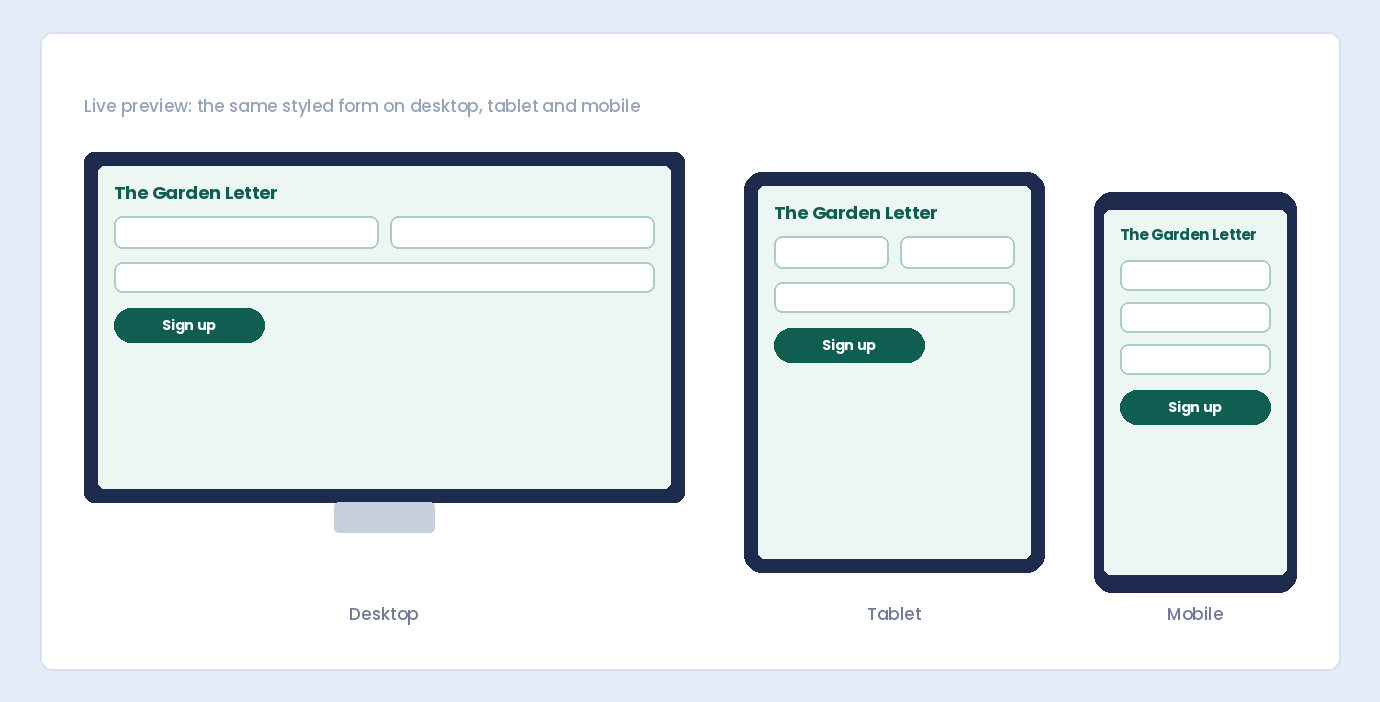
As you make changes, the live preview shows exactly how your form will look:

  1. Check the preview on the right side
  2. Switch between Desktop, Tablet, and Mobile views
  3. Once satisfied, click Save Form

Your styled form is now ready to use!

Brand Styling Examples

Here are some common brand styles and how to achieve them:

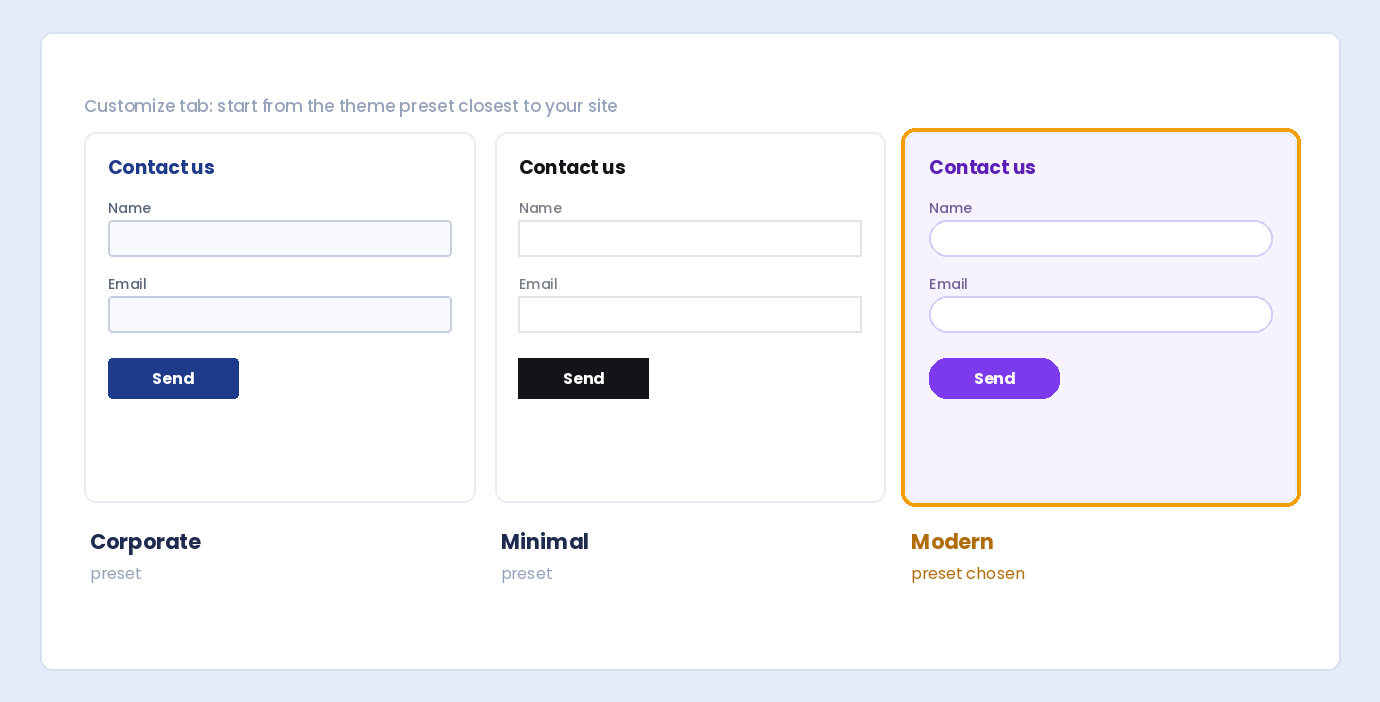
Clean & Professional

  • Background: White (#ffffff)
  • Primary color: Navy blue (#1e3a5f)
  • Border radius: 4px
  • Field borders: Light gray (#dcdcde)
  • Button: Solid, no effects

Bold & Modern

  • Background: Dark (#1a1a2e)
  • Primary color: Bright accent (#e94560)
  • Border radius: 8px
  • Field background: Slightly lighter (#2a2a3e)
  • Button: Full width with glow effect

Soft & Friendly

  • Background: Warm white (#fefefe)
  • Primary color: Coral (#ff6b6b)
  • Border radius: 12px (rounded)
  • Field shadows: Subtle
  • Button: Pill shape (border radius 25px)

Minimalist

  • Background: Pure white
  • Primary color: Black (#000000)
  • Border radius: 0px (square)
  • Field borders: Bottom only style
  • Button: Simple, no hover effects

Tips for Better Form Design

1. Match Your Website Colors

Use your website’s exact brand colors. If you don’t know them, use a color picker tool on your logo or header.

2. Ensure Readability

Make sure text contrasts well with backgrounds. Dark text on light backgrounds (or vice versa) is easiest to read.

3. Don’t Over-Design

Simple forms often convert better. Avoid too many colors, effects, or decorations that distract from the content.

4. Test on Mobile

Use the mobile preview to ensure your form looks great on phones. Most form submissions now come from mobile devices.

5. Keep Buttons Visible

Your submit button should stand out. Use a contrasting color and make it large enough to tap easily on mobile.

Frequently Asked Questions

Do I need to know CSS to style forms?

No! Auto Form Builder provides a visual interface for all styling options. Just click, choose colors, and see changes instantly in the preview.

Will my styled form work on mobile?

Yes. All forms are fully responsive. Use the mobile preview to check how your styling looks on smaller screens.

Can I use different styles for different forms?

Absolutely. Each form has its own Style tab, so you can create unique designs for your contact form, feedback form, newsletter signup, etc.

How do I find my brand’s color codes?

Check your brand guidelines, or use a color picker tool (like ColorZilla browser extension) to grab colors from your logo or website.

Is form styling free?

Yes! All styling options are included in the free version of Auto Form Builder.

Can I add custom CSS if needed?

Yes. Each field has a “CSS Class” option where you can add custom classes. You can then target these with CSS in your theme’s customizer.

Summary

Styling your WordPress forms to match your brand is simple with Auto Form Builder:

  1. Open the Style tab in the form builder
  2. Set your brand colors (primary, background, text)
  3. Customize your submit button (color, shape, effects)
  4. Style form fields (borders, shadows, radius)
  5. Adjust typography (fonts, sizes, weights)
  6. Configure layout and spacing
  7. Preview and save

Conclusion

Your forms are part of your brand identity. With Auto Form Builder, you can easily customize every aspect of your form’s appearance—colors, fonts, buttons, spacing, and more—without touching any code.

A well-styled form builds trust, improves user experience, and increases conversions. Take a few minutes to match your forms to your brand, and you’ll see the difference.

Ready to create beautiful, on-brand forms? Download Auto Form Builder for free and start customizing today.

Leave a Reply

Your email address will not be published. Required fields are marked *