Tutorials

Text Transformation: Auto-Uppercase, Lowercase, Title Case

Text Transformation

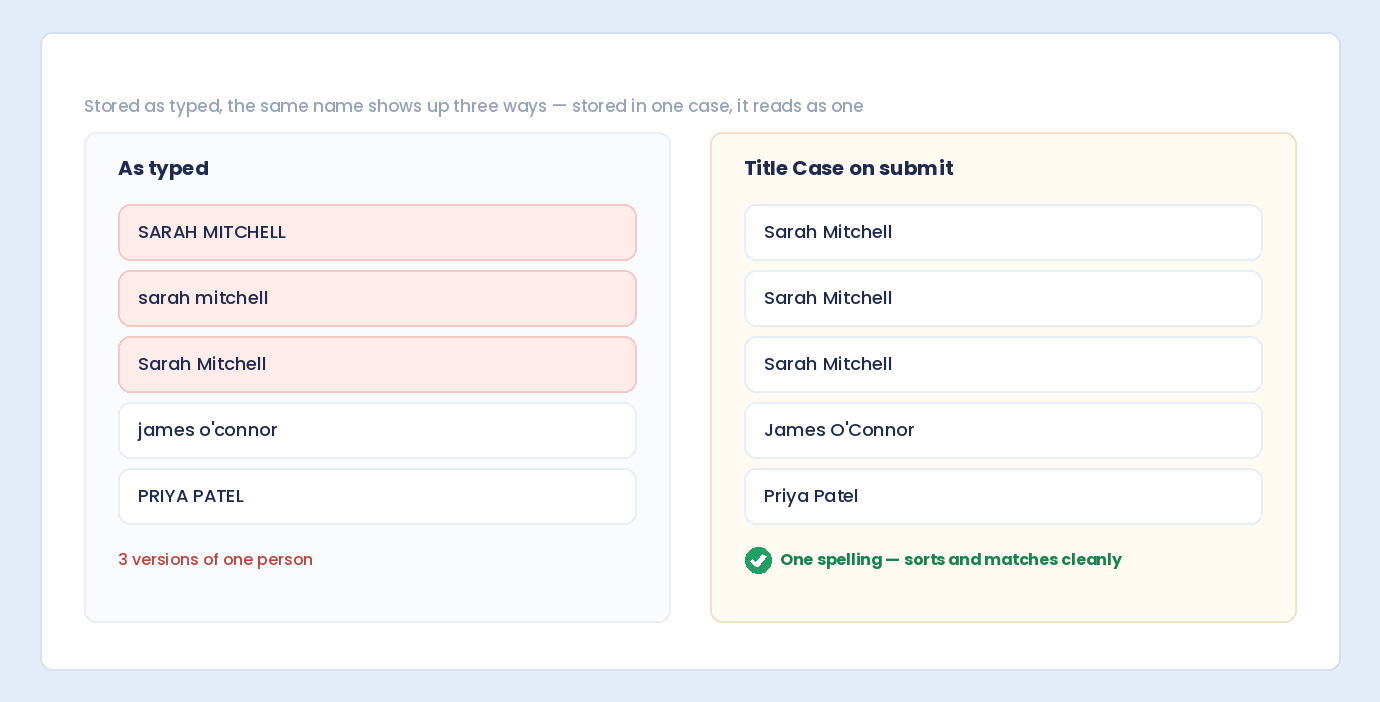
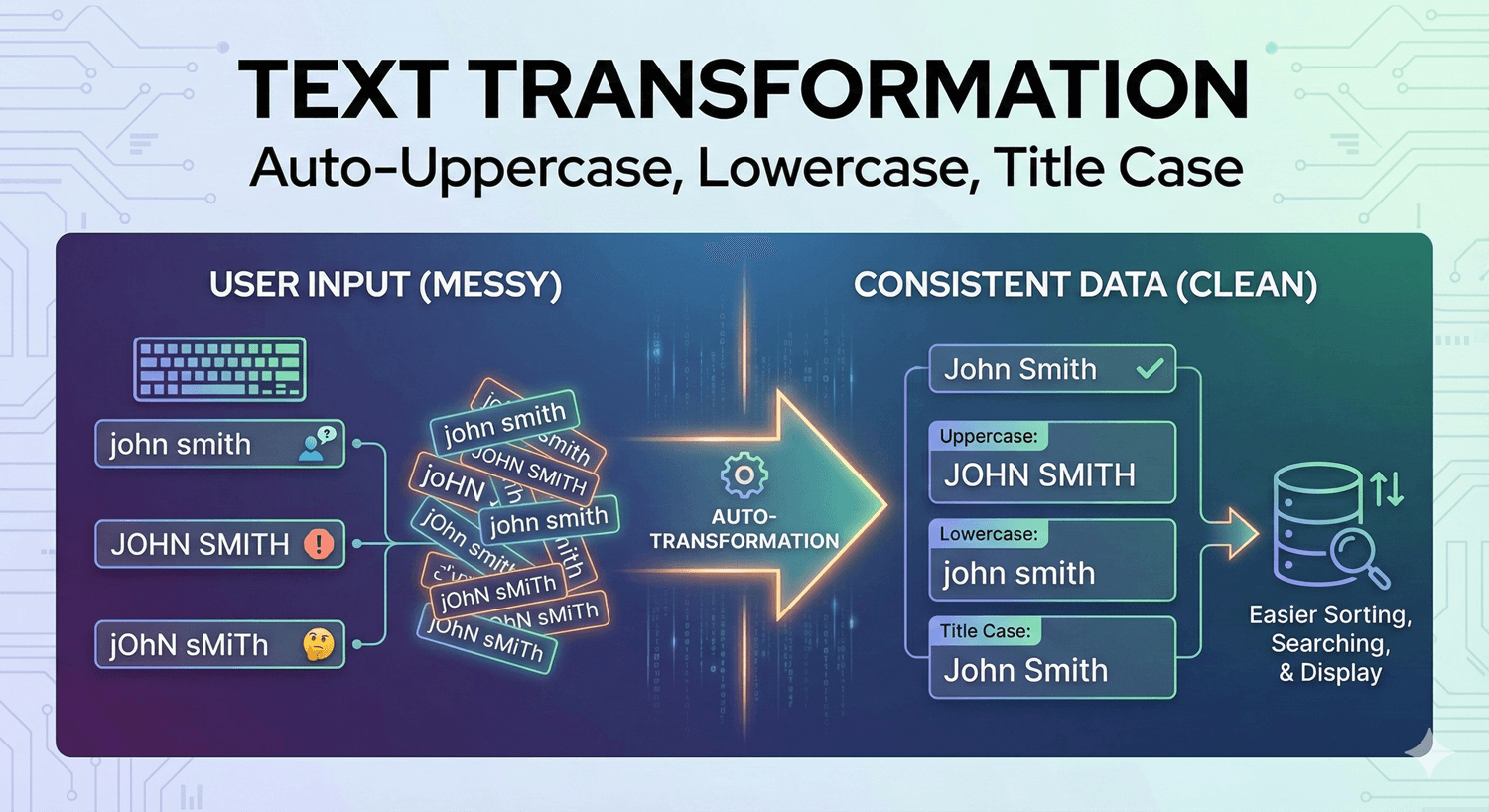
Visitors type the way they type — all caps, all lowercase, or inconsistent capitalization. That creates messy submissions: coupon codes that fail validation, city names stored three different ways, and support tickets that are hard to scan. You should not need custom JavaScript or post-processing scripts to normalize text before it reaches your inbox.

Auto Form Builder includes built-in text transformation on Text Input fields. Choose UPPERCASE, lowercase, Capitalize First Letter, or Title Case in the field settings panel. The plugin transforms text as users type and applies the same rule again on the server when the form is submitted, so stored entries stay consistent even if JavaScript is disabled.

Last updated: Last update 21 August

Why Text Transformation Matters on WordPress Forms

Without automatic formatting, every submission reflects the visitor’s keyboard habits instead of the format your workflow expects. Text transformation solves practical data problems:

  • Normalize promo and access codes — force UPPERCASE so “save20” and “SAVE20” are stored the same way
  • Standardize usernames or tags — convert input to lowercase for consistent matching and search
  • Improve readability — apply Title Case to job titles, product names, or location fields
  • Reduce manual cleanup — your team spends less time reformatting entries before export or CRM import
  • Keep submissions consistent — the same field always produces the same casing pattern across every entry

Auto Form Builder handles this inside the plugin — no code snippets, no third-party formatting libraries, and no paid add-on required.

Which Fields Support Text Transformation?

Text transformation is available on Text Input fields in Auto Form Builder. Open the field settings panel and look under Text Field Options for the Text Transform dropdown.

Supported Transform Options

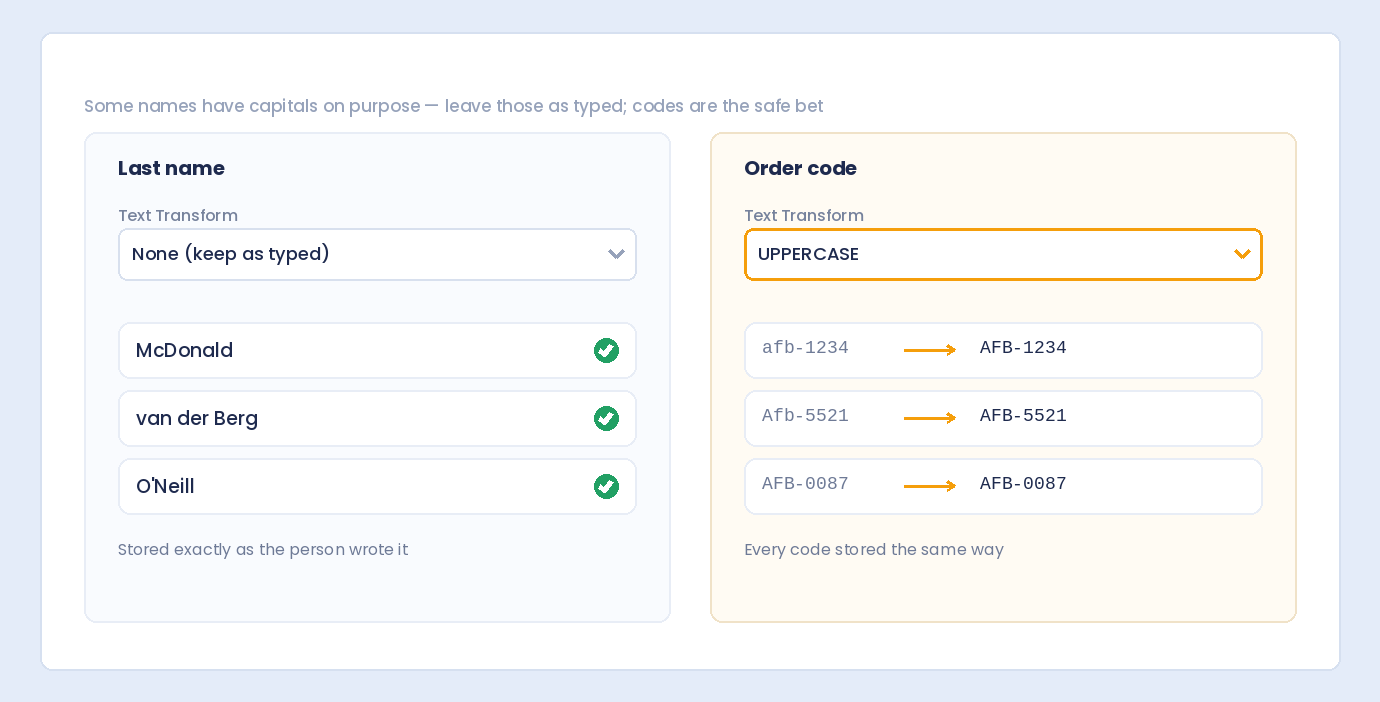
  • No transformation — default; text is stored exactly as entered
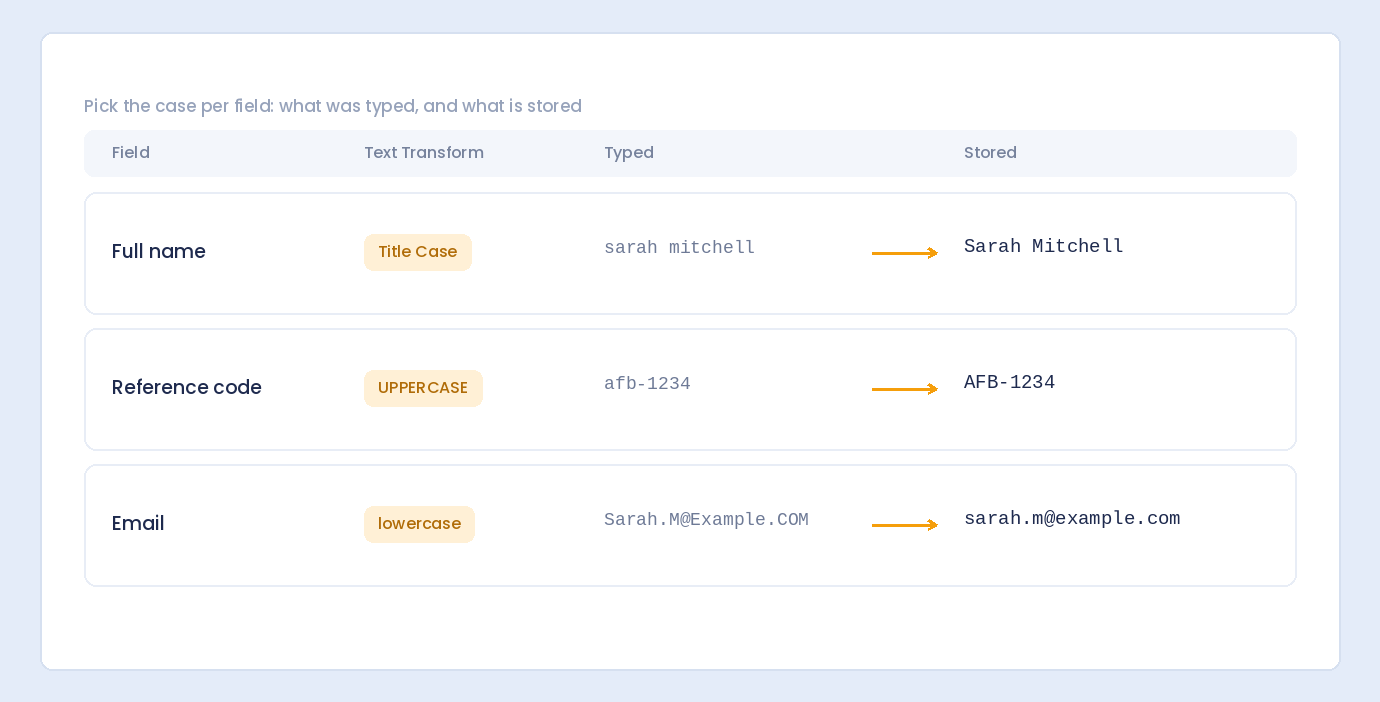
  • UPPERCASE — converts the entire value to uppercase (e.g., save20 → SAVE20)
  • lowercase — converts the entire value to lowercase (e.g., [email protected] → [email protected])
  • Capitalize First Letter — uppercases the first character and lowercases the rest (e.g., hELLO world → Hello world)
  • Title Case — capitalizes the first letter of each word (e.g., new york city → New York City)

Fields That Do Not Support Text Transform

Text transformation is not available on Email, Phone, Name, Number, or other specialized field types. It is also disabled when Password Field mode is enabled on a text input, since masking and transformation would conflict.

Tip: For email addresses, use the dedicated Email field type with its built-in validation rather than a Text Input with lowercase transformation.

How to Enable Text Transformation in the Form Builder

Setting up automatic text formatting takes less than a minute.

Step 1: Open the Form Builder

In your WordPress admin, go to Auto Form Builder → All Forms, then open the form you want to edit (or create a new one).

Step 2: Add or Select a Text Input Field

Drag a Text Input field onto the canvas, or click an existing text field to open its settings on the right.

Step 3: Choose a Text Transform Option

Under Text Field Options, find the Text Transform dropdown (next to Input Type). Select one of the transformation options:

  • UPPERCASE
  • lowercase
  • Capitalize First Letter
  • Title Case

Leave it on No transformation if you want raw user input preserved.

Step 4: Save and Preview

Save your form and use the built-in preview to test typing in the field. You should see the text reformat automatically as you type. Submit a test entry and confirm the stored value in your submissions inbox matches the selected format.

How Text Transformation Works on the Frontend and Server

Auto Form Builder applies transformations at two layers so your data stays clean regardless of how the form is accessed.

Real-Time Transformation as Users Type

When a text field has a transform enabled, the frontend outputs a data-text-transform attribute on the input. The plugin’s field behavior script listens for the input event and reformats the value immediately:

  • UPPERCASE — converts characters using toUpperCase()
  • lowercase — converts characters using toLowerCase()
  • Capitalize First Letter — uppercases the first character and lowercases the remainder
  • Title Case — capitalizes the first letter of each word boundary

Visitors get instant visual feedback, which reduces confusion when a field expects a specific format (such as an all-caps coupon code).

Server-Side Transformation on Submit

Every submission is processed through the same transformation rules on the server before the value is stored. The submission handler applies matching logic using PHP string functions — strtoupper(), strtolower(), ucfirst(), and ucwords() — so formatting cannot be bypassed by disabling JavaScript in the browser.

This dual-layer approach means your submissions inbox, exports, and email notifications all receive consistently formatted text.

Understanding Each Transform Option

Choosing the right option depends on what you are collecting. Here is how each mode behaves:

UPPERCASE

Best for coupon codes, license keys, state abbreviations, SKU fragments, or any field where every character must be uppercase. A user typing abc-123 sees and submits ABC-123.

lowercase

Best for usernames, slugs, tags, or internal identifiers where case sensitivity would cause duplicate records. A user typing MyUsername sees and submits myusername.

Capitalize First Letter

Best for single-sentence answers, short descriptions, or fields where only the opening character should be capitalized. A user typing hELLO WORLD sees and submits Hello world.

Title Case

Best for names of places, job titles, departments, or product lines where each word should start with a capital letter. A user typing director of marketing sees and submits Director Of Marketing.

Note: Title Case capitalizes each word based on word boundaries. It does not apply special rules for articles or prepositions (unlike editorial title-style rules for “the” or “of”). For most form use cases — city names, roles, labels — this produces clean, consistent results.

Combine Text Transform with Other Text Field Options

Text transformation works alongside other settings in the same field panel. Stack them for tighter input control:

Trim Whitespace

Enable Trim Whitespace to remove leading and trailing spaces before the value is validated and stored. This runs after text transformation on the server, so a value like ” SAVE20 “ becomes SAVE20 when UPPERCASE and Trim Whitespace are both enabled.

Minimum and Maximum Length

Set character limits to enforce size constraints. Length validation applies to the transformed value on submission, keeping your data both correctly formatted and within bounds.

Pattern Validation

Use the Validation dropdown (Email, URL, Letters only, Numbers only, Letters and numbers, or Custom Pattern) alongside text transform. For example, a promo code field can require UPPERCASE letters and numbers with a custom regex pattern.

Required Field and Conditional Logic

Mark the field as Required so empty submissions are blocked. Use free conditional logic to show a formatted text field only when a specific answer is selected — such as a Title Case “Other (please specify)” field that appears when a dropdown value is “Other.”

Practical Examples

Coupon or Discount Code

  • Field type: Text Input
  • Text Transform: UPPERCASE
  • Trim Whitespace: Enabled
  • Why: Codes match your database regardless of how the visitor typed them

Username or Handle

  • Field type: Text Input
  • Text Transform: lowercase
  • Validation: Letters and numbers
  • Why: Prevents duplicate accounts caused by case differences

Job Title

  • Field type: Text Input
  • Text Transform: Title Case
  • Why: Submissions look professional in your CRM and notification emails

Short Open-Ended Answer

  • Field type: Text Input
  • Text Transform: Capitalize First Letter
  • Minimum Length: 10 characters
  • Why: Ensures answers start with a capital letter without reformatting every word

Text Transformation on Embedded Forms

Forms embedded on non-WordPress sites — including Elementor, WP Bakery, Brizy pages, or any external website — use the same text transformation behavior. The data-text-transform attribute, live input formatting, and server-side processing all apply whether the form is displayed via shortcode on your WordPress site or through the embed code from the Forms screen.

Your transform rules travel with the form wherever you place it.

Text Transform vs. Other Formatting Features

Auto Form Builder includes several formatting tools. Here is how they differ:

  • Text Transform (Text Input) — changes letter casing (uppercase, lowercase, capitalize, title case)
  • Phone auto-formatting (Phone field) — inserts dashes, parentheses, or country codes as the user types
  • Number format (Number field) — formats values as currency, percentage, or plain numbers
  • Email validation (Email field) — validates email structure but does not change casing

Pick the field type and formatting option that matches the data you are collecting.

Download Auto Form Builder — Free Text Transformation

Automatic uppercase, lowercase, capitalize, and title case formatting is included in the free plugin — the same plugin that gives you conditional logic, submission management, spam protection, form styling, and import/export at no cost.

Install it from the official WordPress.org directory: https://wordpress.org/plugins/auto-form-builder/

Last updated: Last update 21 August

Build forms that embed anywhere — free

Auto Form Builder lets you create multi-step forms, calculators, and lead capture forms in WordPress, then embed them on any site with a single line of code.

Install the free plugin

Frequently Asked Questions

How do I auto-uppercase text in a WordPress form field?

Open your form in Auto Form Builder, select a Text Input field, and set Text Transform to UPPERCASE under Text Field Options. The plugin reformats text as users type and applies uppercase again on the server when the form is submitted.

Can I force lowercase input on a form field?

Yes. Select a Text Input field and choose lowercase from the Text Transform dropdown. Every character is converted to lowercase on input and on submission.

What is the difference between Capitalize First Letter and Title Case?

Capitalize First Letter uppercases only the first character of the entire value and lowercases the rest (e.g., “hello world” becomes “Hello world”). Title Case capitalizes the first letter of each word (e.g., “hello world” becomes “Hello World”).

Which field types support text transformation in Auto Form Builder?

Text transformation is available on Text Input fields. It is not available on Email, Phone, Name, Number, or other field types. It is also disabled when Password Field mode is enabled on a text input.

Is text transformation applied on the server when the form is submitted?

Yes. Auto Form Builder transforms text on the frontend as users type and applies the same transformation on the server before the value is stored. Formatting cannot be bypassed by disabling JavaScript.

Can I combine text transformation with Trim Whitespace?

Yes. Enable Trim Whitespace on the same Text Input field. The plugin removes leading and trailing spaces after applying the text transform, keeping stored values clean and consistently formatted.

Does text transformation work on embedded forms?

Yes. Forms embedded on external websites using Auto Form Builder’s embed code use the same live input transformation and server-side formatting as forms placed on your WordPress site.

Is text transformation free in Auto Form Builder?

Yes. Text transformation is included in the free Auto Form Builder plugin available on WordPress.org. No subscription or premium upgrade is required.


Leave a Reply

Your email address will not be published. Required fields are marked *