When someone fills out a form on your WordPress site, you need a reliable way to see what they submitted — without digging through email threads or exporting database tables manually. A built-in submissions inbox keeps every entry organized, searchable, and actionable from your WordPress admin dashboard.
Auto Form Builder stores form submissions in your WordPress database and provides a dedicated Submissions page where you can browse, filter, search, and open full entry details — all without leaving WordPress.
Last updated: Last update 18 August
Submissions are available in the WordPress admin under:
Auto Form Builder → Submissions
You can also reach submissions from:
Only users with the manage_options capability (typically administrators) can access the submissions inbox.
The Submissions page displays a paginated list of all stored entries (20 per page by default). Each row shows:
Click any submission row or the View action to open the full entry detail page.
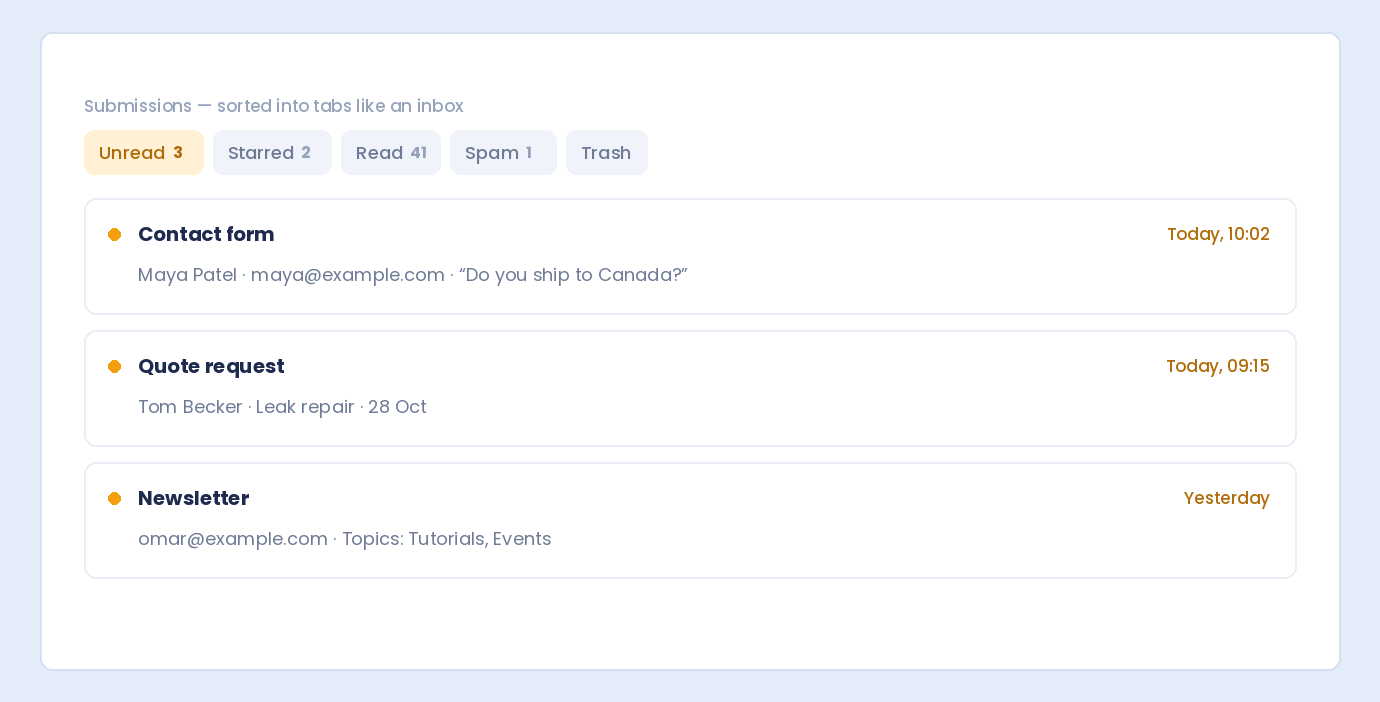
Status tabs at the top of the Submissions page filter entries by workflow state. Each tab shows a count of matching submissions:
Unread badges on tabs show how many unread entries remain in each category — useful for spotting new leads at a glance.
Use the search and filter bar to find specific entries quickly:
Search across all submission data — field values, emails, names, phone numbers, and any text stored in the entry. Matching terms are highlighted in the preview column.
Select a specific form from the dropdown to show only its submissions. Each form option displays its submission count.
Narrow results by time period:
Sort submissions by:
Click Search & Filter to apply your selections. Use Clear All to reset every filter and return to the default inbox view.
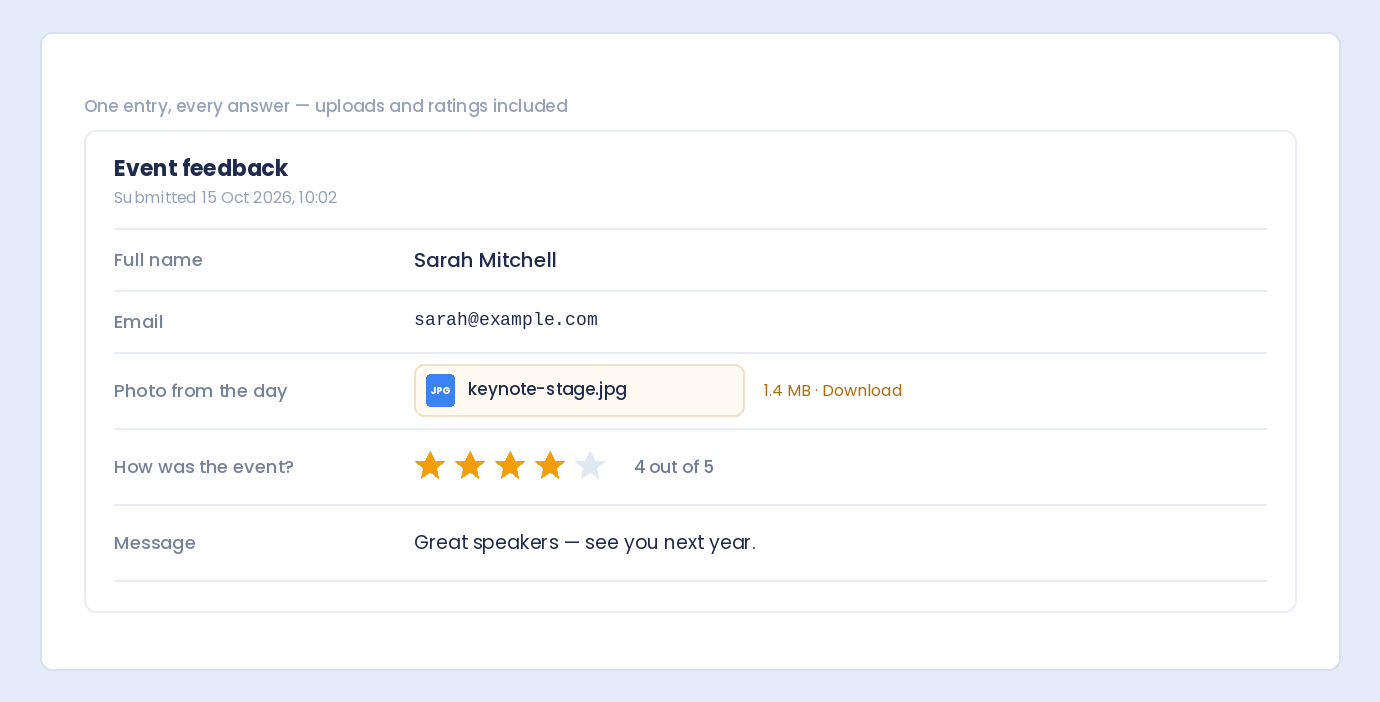
Click any entry to open the full submission detail page. This view shows:
Use Back to Submissions at the top to return to the inbox list.
New submissions arrive as unread. Mark entries as read after you have reviewed them — individually from the list or detail page, or in bulk. Mark as unread again if you need to revisit an entry later.
Click the star icon to flag high-priority submissions — hot leads, urgent support tickets, or entries needing follow-up. Filter the Starred tab to see only flagged entries.
Mark suspicious entries as Spam or move them to Trash. Restore entries from trash or mark spam submissions as “Not Spam” from the detail page quick actions.
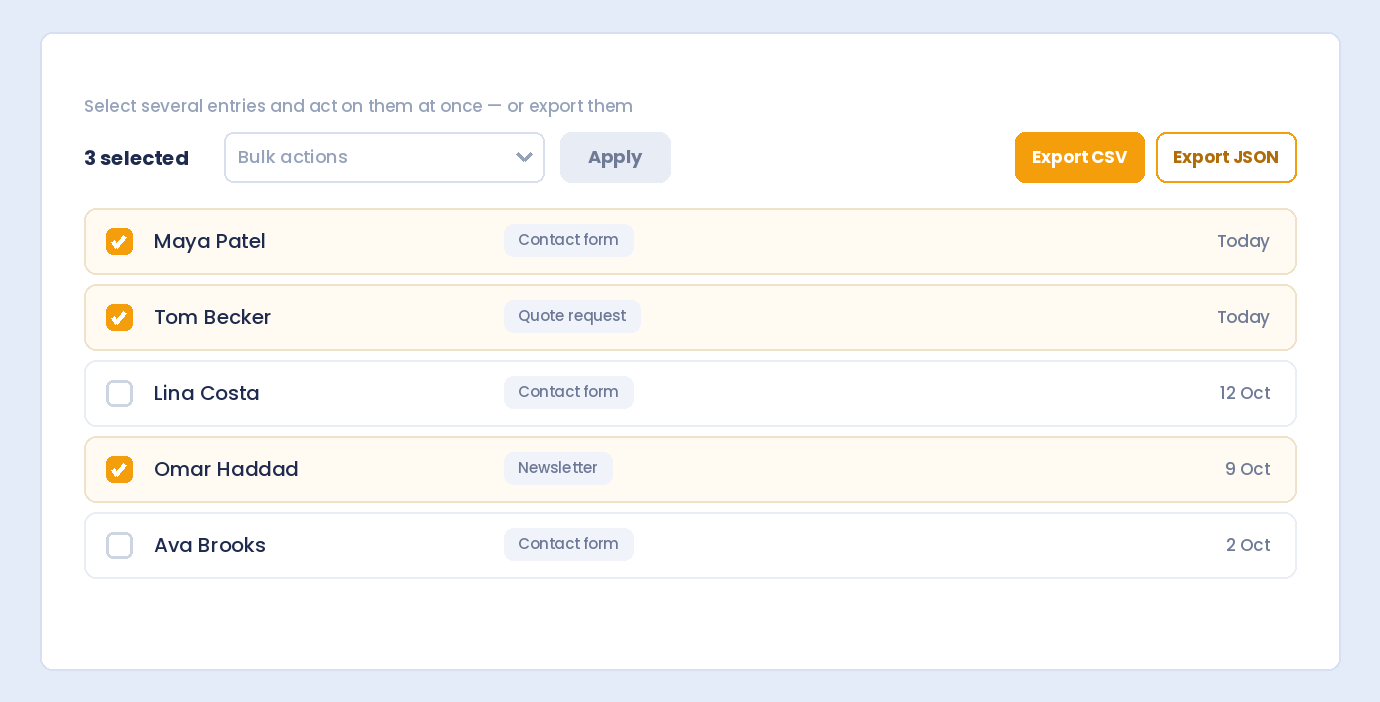
Select multiple submissions using the checkboxes, then choose a bulk action:
Click Apply to process the selected entries at once.
Open a page with your form on the frontend and submit a test entry with sample data.
In WordPress admin, go to Auto Form Builder → Submissions.
Your test submission appears in the Unread tab by default. Use the form filter or search box if you have many entries.
Click the submission row to view all field values, metadata, and status options on the detail page.
Click Mark as Read after reviewing. Star the entry if it needs follow-up.
Two quick ways to see entries from one form only:
Combine the form filter with date filters or status tabs to narrow results further — for example, unread contact form entries from the last 7 days.
Auto Form Builder stores submissions in your WordPress database — on your server, not on third-party cloud storage. Each entry includes:
File uploads, address field components, and signature data are stored and displayed within the submission detail view alongside standard text fields.
Email notifications alert you when a form is submitted — but email is not a database. The submissions inbox is your permanent, searchable record of every entry.
Best practice: enable email notifications in Form Settings for instant alerts, and use the Submissions inbox as your source of truth for reviewing, organizing, and managing entries over time.
For backup, analysis, or migration, use the plugin’s Import/Export tools to export submission data. The submissions inbox remains the primary interface for day-to-day viewing and management.
Optional add-ons can extend submission management — for example, Entry Tags for labeling entries and Form Analytics for tracking views and submission trends over time.
Go to Auto Form Builder → Submissions in the WordPress admin dashboard. You can also click the submission count on any form in All Forms to view entries for that form.
Yes. Use the search box on the Submissions page to search across all field values — including email, name, phone, and any other submitted text.
Select a date range from the Date Filter dropdown — Today, Yesterday, This Week, Last 30 Days, and more — then click Search & Filter.
Unread submissions are new entries you have not reviewed. Mark entries as read after processing them. The Unread tab and badge counts help you track new submissions at a glance.
Yes. Auto Form Builder stores submissions in your WordPress database on your own server. Data stays on your site unless you export it or use an optional integration add-on.
Yes. The Submissions inbox with search, filters, status tabs, read/star management, bulk actions, and full entry detail view is included free in Auto Form Builder from WordPress.org.
Every form submission lands in your WordPress admin — searchable, filterable, and ready to action. Open the Submissions inbox and start reviewing entries today.
Download: Plugin last updated: Last update 18 August Auto Form Builder lets you create multi-step forms, calculators, and lead capture forms in WordPress, then embed them on any site with a single line of code.How to View Form Submissions in WordPress
Where to Find Form Submissions
The Submissions Inbox Overview
Status Tabs: Organize Your Inbox
Search and Filter Submissions
Search
Filter by form
Filter by date
Sort order
View a Single Submission in Detail
Manage Submissions: Read, Star, and Status
Mark as read or unread
Star important entries
Spam and trash
Bulk actions
Step-by-Step: View Your First Submission
Step 1: Submit a test entry
Step 2: Open the Submissions inbox
Step 3: Find your entry
Step 4: Open the full entry
Step 5: Mark as read and star if needed
View Submissions for a Specific Form
What Data Is Stored with Each Submission?
Email Notifications vs the Submissions Inbox
Export and Additional Tools
Tips for Managing Submissions Efficiently
Frequently Asked Questions
Where do I view form submissions in WordPress?
Can I search submissions by email or name?
How do I filter submissions by date?
What is the difference between read and unread submissions?
Are submissions stored on my WordPress site?
Is the submissions inbox included in the free plugin?
Get Started with Auto Form Builder
Auto Form Builder on WordPress.org
Build forms that embed anywhere — free
Table of Contents
Table of Contents
Learn how to bulk delete form submissions in WordPress. Remove multiple entries at once to clean up spam, test data, and old submissions efficiently.
Master WordPress form submission management. Learn to view, filter, search, star, export, and organize form entries like a pro with this complete guide.
Learn how to search and find form submissions in WordPress. Filter by date, form, status, and search across all submission data.
Comparing Auto Form Builder and Contact Form 7 for WordPress. See which form plugin offers better ease of use, features, and value for your website.
Learn how to view, organize, search, filter, and export your WordPress form submissions. Complete guide to submission management.
Learn why storing form data on your own server helps with GDPR compliance. Choose form plugins that keep your user data local and under your control.
Learn how to filter WordPress form submissions by date. Find entries from specific time periods quickly using date range filters.
Learn how to bulk edit, delete, and manage form submissions in WordPress. Save time with mass actions on multiple entries at once.
Learn how to restrict date fields to future dates only for event registration forms. Block past dates and set booking windows in WordPress.
Learn how to create quantity fields in WordPress forms. Collect numbers for guests, items, tickets, and more with proper validation and limits.
Learn how to star and flag important form submissions in WordPress. Prioritize leads, mark urgent requests, and organize your form entries effectively.
Learn how to set up email notifications for your WordPress forms so you never miss a submission. Step-by-step guide with Auto Form Builder.