When your forms receive dozens or hundreds of entries, updating submissions one by one is slow. You need a way to mark many entries as read, flag important leads, clear spam, or clean up old submissions in a single step. Auto Form Builder includes a full submissions inbox with WordPress-style bulk actions — select multiple entries and update their status, read state, starred flag, or delete them in one click. It works like bulk editing posts in WordPress, but built for form data. Last updated: Last update 19 August Bulk editing submissions lets you change organizational properties across multiple entries at once: Bulk actions update how submissions are organized and tracked in your inbox. Submitted field values (name, email, message text, etc.) are preserved as submitted — bulk edit does not change the actual form data inside each entry. To review or print individual submission details, open a single entry from the submissions list. Open your WordPress admin and go to: Auto Form Builder → Submissions The submissions table includes checkboxes on each row, a Bulk actions dropdown at the top and bottom of the list, and an Apply button — the same pattern WordPress uses for posts and comments. Auto Form Builder provides seven bulk actions on the submissions page: Marks selected submissions as read and sets their status to Processed. Use this after reviewing a batch of new entries to clear your unread count. Marks selected submissions as unread so they appear in the Unread tab and stand out visually in the list. Useful when you need to revisit entries later. Stars selected submissions for quick access. Starred entries appear in the Starred tab. Submissions already starred are skipped — they are not double-starred. Removes the star from selected submissions. Only currently starred entries are affected. Moves selected submissions to the Spam tab. Use this to bulk-clear bot submissions or junk entries without deleting them immediately. Sends selected submissions to the Trash tab. Trashed entries can be restored individually or deleted permanently later. Permanently removes selected submissions from your database. This action cannot be undone — use it when you are certain the entries should be gone. Bulk actions apply to the submissions you select on the current page. Use filters to narrow the list before selecting entries: Each tab shows a count badge so you can see how many entries are in each category. Limit the list to submissions from a specific form — useful when one form received a spam wave or when you want to bulk-mark entries from a particular campaign as read. Filter by Today, Yesterday, This Week, Last Week, This Month, Last Month, Last 30 Days, or Last 90 Days to bulk edit entries from a specific time period. Search across submission data to find entries containing specific text — a name, email domain, or keyword — then bulk act on the matching results. Sort by Newest First, Oldest First, Form Name A–Z, or Form Name Z–A to organize the list before selecting entries. Not every change needs bulk actions. Each row in the submissions table includes individual controls: Opening a submission detail page automatically marks unread entries as read for a smoother review workflow. Bulk actions manage submission status inside WordPress. When you need to review or analyze field data outside the admin, export entries instead: Export is for analysis and record-keeping. Import Entries creates new submissions from a file — it does not update existing entries in place. Bulk actions require the manage_options capability — typically site administrators only. Every bulk action request is protected by a WordPress nonce to prevent unauthorized changes. Success messages after bulk operations show exactly how many submissions were affected, so you can confirm the action completed as expected. Bulk actions, status tabs, read/unread tracking, starring, spam filtering, trash, search, filters, and export are all included in the free Auto Form Builder plugin. Install from WordPress.org: https://wordpress.org/plugins/auto-form-builder/ Last updated: Last update 19 August Auto Form Builder lets you create multi-step forms, calculators, and lead capture forms in WordPress, then embed them on any site with a single line of code. Go to Auto Form Builder → Submissions, check the boxes next to the entries you want to update, choose an action from the Bulk actions dropdown, and click Apply. Mark as Read, Mark as Unread, Add to Starred, Remove from Starred, Mark as Spam, Move to Trash, and Delete Permanently. No. Bulk actions update read status, starred status, workflow status, and deletion — not the submitted field data inside each entry. View individual submissions to review field values. Restore is available per submission from the Trash tab using the individual Restore action. There is no bulk restore option — restore entries one at a time or change status via the row-level controls. Bulk actions apply to submissions selected on the current page. Use filters to narrow results, then repeat the bulk action on additional pages if needed. Yes. Select submissions, choose Mark as Read from Bulk actions, and click Apply. This sets them as read and moves them to Processed status. Yes. Go to Settings → Import/Export and use Export Entries to download submissions as CSV, JSON, Excel, or XML before running bulk delete. Yes. All bulk actions, status tabs, filters, search, and export are included in the free Auto Form Builder plugin.How to Bulk Edit Form Submissions in WordPress
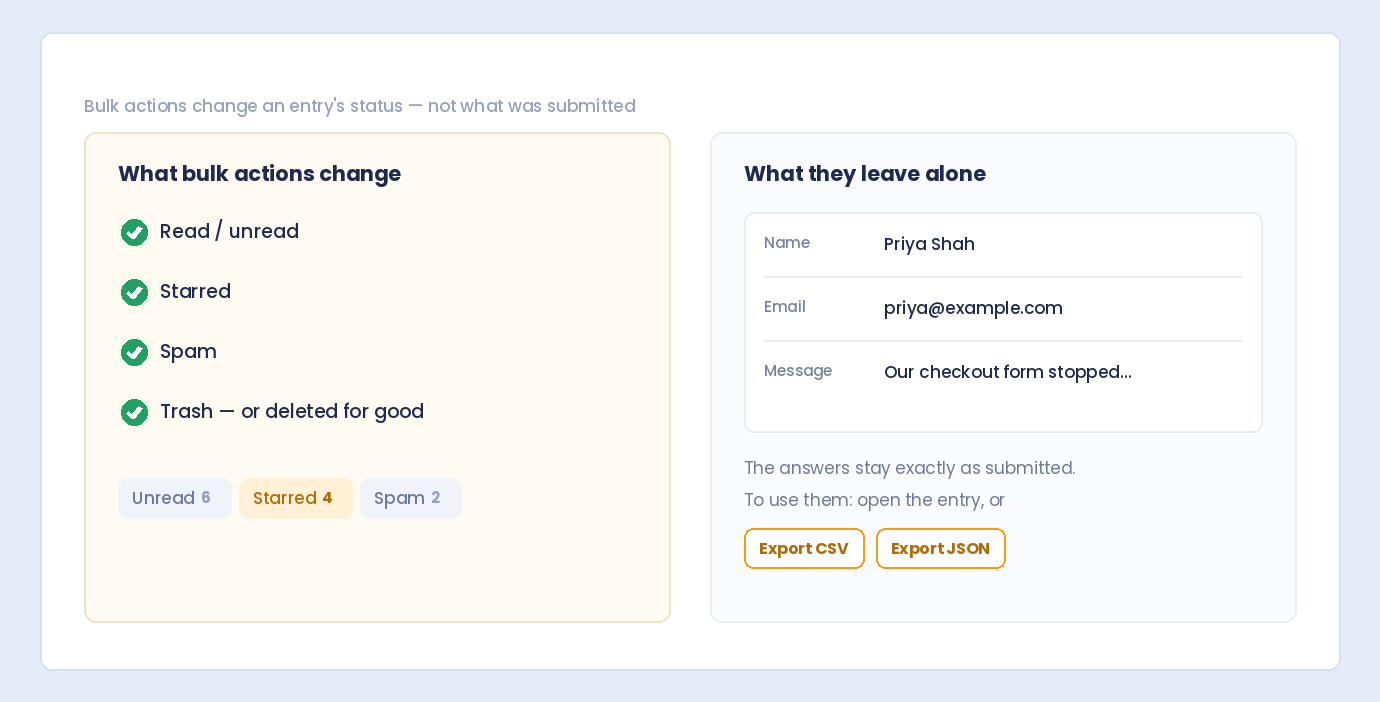
What Bulk Edit Means in Auto Form Builder
Where to Find Bulk Actions
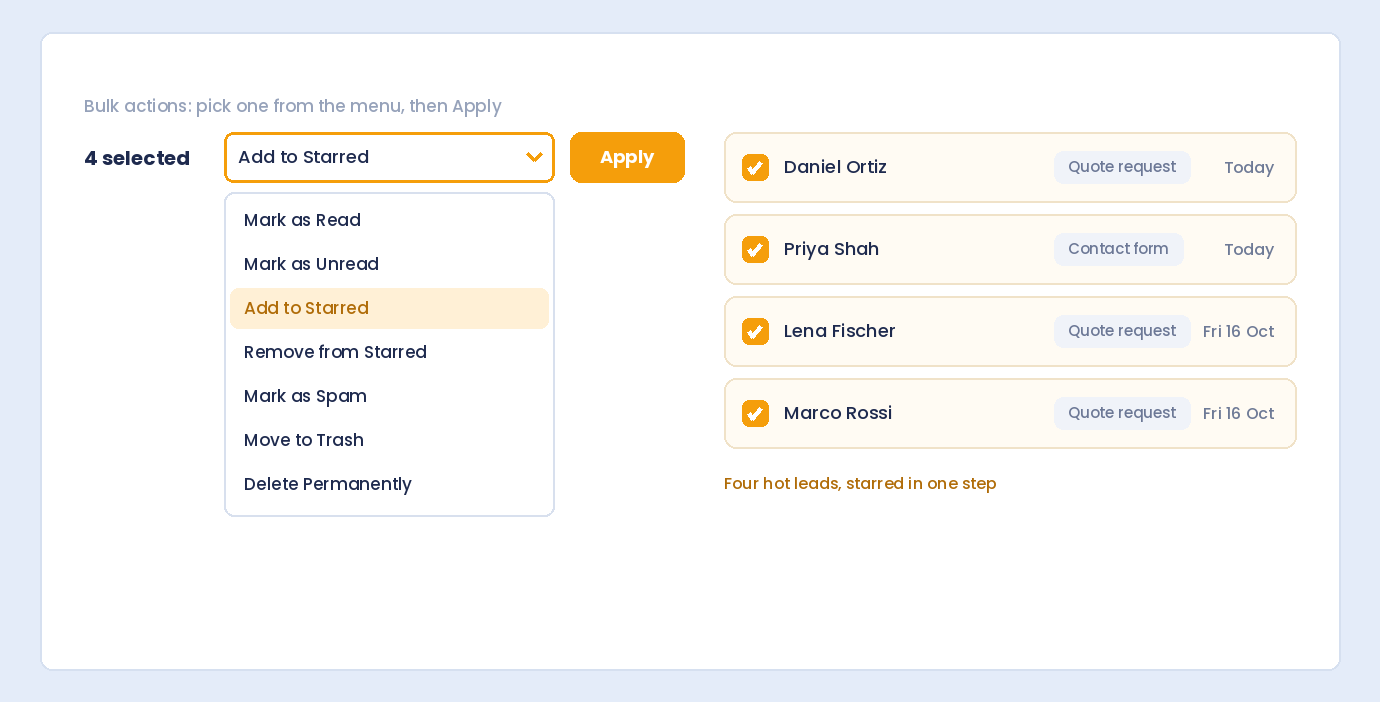
Step-by-Step: Bulk Edit Submissions
Available Bulk Actions
Mark as Read
Mark as Unread
Add to Starred
Remove from Starred
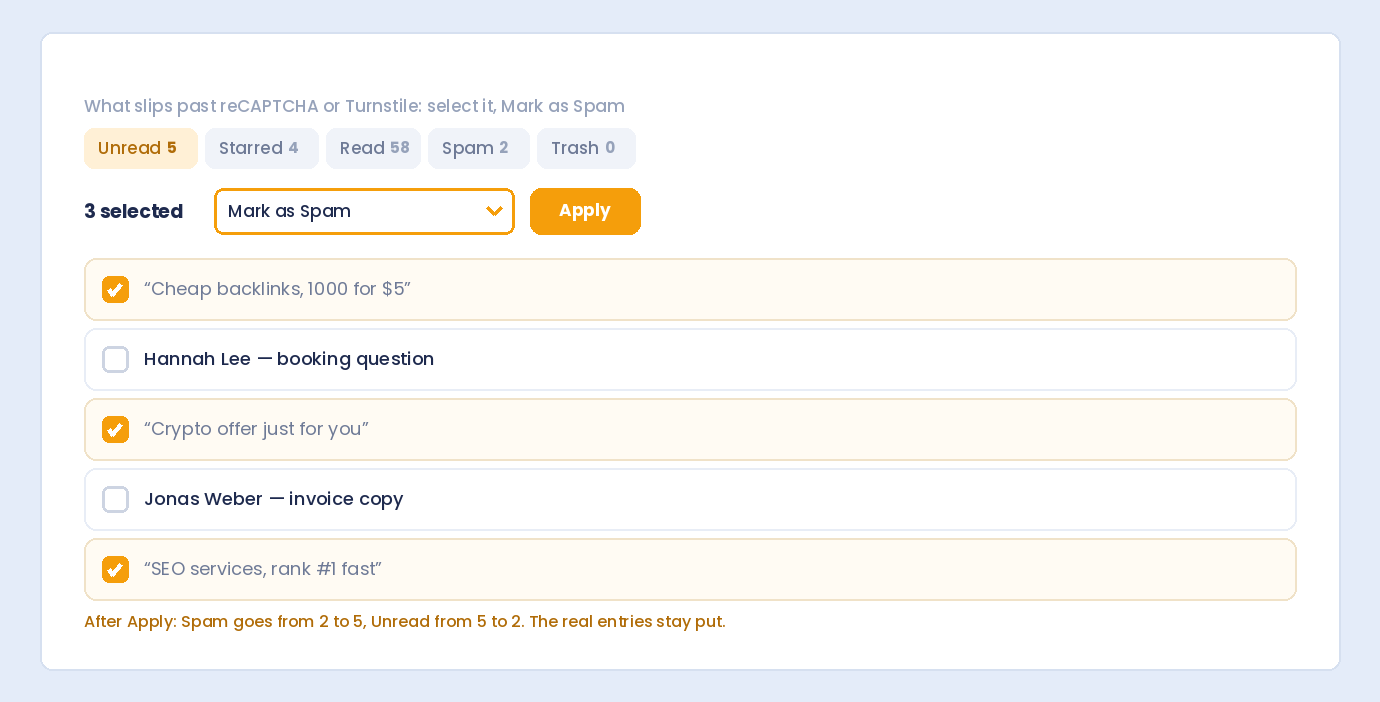
Mark as Spam
Move to Trash
Delete Permanently
Filter Before You Bulk Edit
Status Tabs
Form Filter
Date Filter
Search
Sort Order
Edit a Single Submission Without Bulk Actions
Common Bulk Edit Workflows
Clear Your Unread Inbox
Flag Important Leads
Clean Up Spam
Archive Old Submissions
Export Submissions for Offline Review
Security and Permissions
Tips for Efficient Submission Management
Get Started with Free Submission Management
Build forms that embed anywhere — free
Frequently Asked Questions
How do I bulk edit form submissions in WordPress?
What bulk actions are available for submissions?
Can I bulk edit submission field values?
Can I bulk restore submissions from trash?
Do bulk actions work across all pages of submissions?
Can I bulk mark submissions as read?
Is there a way to export submissions before deleting them?
Are bulk submission actions included in the free plugin?
Table of Contents
Table of Contents
Learn how to bulk delete form submissions in WordPress. Remove multiple entries at once to clean up spam, test data, and old submissions efficiently.
Master WordPress form submission management. Learn to view, filter, search, star, export, and organize form entries like a pro with this complete guide.
Learn how to search and find form submissions in WordPress. Filter by date, form, status, and search across all submission data.
Comparing Auto Form Builder and Contact Form 7 for WordPress. See which form plugin offers better ease of use, features, and value for your website.
Learn how to view, organize, search, filter, and export your WordPress form submissions. Complete guide to submission management.
Learn why storing form data on your own server helps with GDPR compliance. Choose form plugins that keep your user data local and under your control.
Learn how to filter WordPress form submissions by date. Find entries from specific time periods quickly using date range filters.
Learn how to restrict date fields to future dates only for event registration forms. Block past dates and set booking windows in WordPress.
Learn how to create quantity fields in WordPress forms. Collect numbers for guests, items, tickets, and more with proper validation and limits.
Learn how to star and flag important form submissions in WordPress. Prioritize leads, mark urgent requests, and organize your form entries effectively.
Learn how to set up email notifications for your WordPress forms so you never miss a submission. Step-by-step guide with Auto Form Builder.
Learn how to create percentage input fields in WordPress forms for surveys and ratings. Collect satisfaction scores, completion rates, and allocation percentages.