
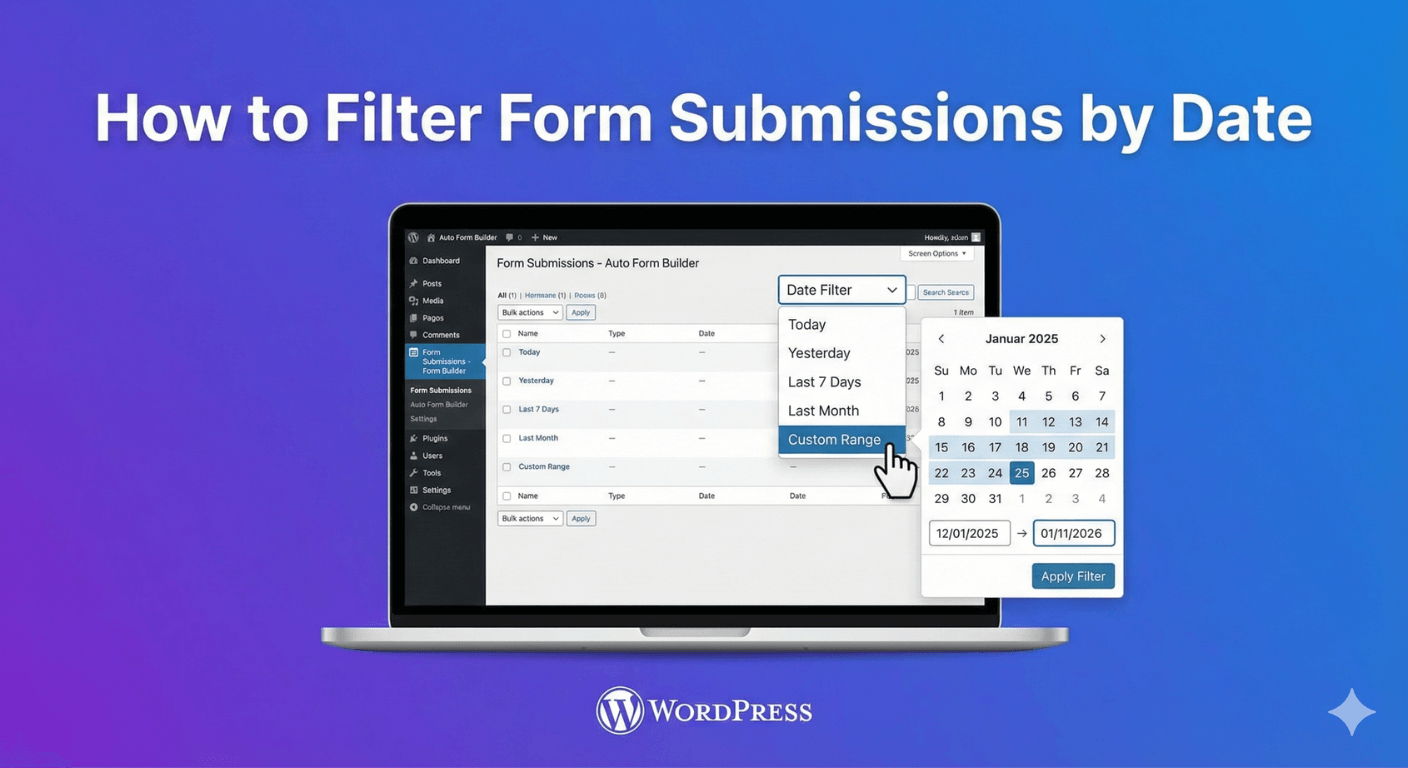
When you have hundreds or thousands of form submissions, finding entries from a specific time period can feel overwhelming. Date filtering lets you instantly narrow down submissions to exactly the timeframe you need—whether that’s today’s entries, last month’s leads, or a custom date range.

In this guide, you’ll learn how to filter form submissions by date in WordPress using Auto Form Builder.

Why Date Filtering Matters

Common Scenarios

  • Daily review: Check today’s submissions
  • Weekly reports: Export last 7 days of entries
  • Monthly analysis: Review a specific month’s data
  • Campaign tracking: Find submissions during a promotion
  • Issue investigation: Locate entries around a specific date

Benefits of Date Filtering

  • Save time—no manual scrolling
  • Focus on relevant entries
  • Generate accurate reports
  • Track trends over time
  • Export specific date ranges

Date Filter Options in Auto Form Builder

Auto Form Builder provides several ways to filter submissions by date:

Quick Date Filters

Filter Shows Submissions From
Today Current day only
Yesterday Previous day only
Last 7 Days Past week including today
Last 30 Days Past month including today
This Month Current calendar month
Last Month Previous calendar month
This Year Current calendar year
All Time All submissions (no filter)

Custom Date Range

For specific periods:

  • Select start date
  • Select end date
  • View submissions within that range

How to Filter Submissions by Date

Step 1: Access Submissions

  1. Go to AFB in your WordPress admin
  2. Click Submissions
  3. You’ll see all form submissions listed

Step 2: Locate Date Filter

Find the date filter dropdown near the top of the submissions list, typically alongside other filters like form selection and search.

Step 3: Select Date Range

Using Quick Filters

  1. Click the date filter dropdown
  2. Select a preset option (Today, Last 7 Days, etc.)
  3. Submissions instantly filter to that period

Using Custom Date Range

  1. Click the date filter dropdown
  2. Select “Custom Range” or similar option
  3. Choose your start date using the date picker
  4. Choose your end date
  5. Apply the filter

Step 4: View Filtered Results

The submissions list updates to show only entries within your selected date range. The count updates to reflect filtered results.

Combining Date Filters with Other Filters

Date + Form Filter

Filter by both date and specific form:

  1. Select the form you want to view
  2. Apply date filter
  3. See only that form’s submissions from that period

Example: “Contact Form submissions from last month”

Date + Search

Combine date range with text search:

  1. Apply date filter
  2. Enter search term
  3. Results show matching entries within date range

Example: “Find all submissions containing ‘urgent’ from this week”

Date + Status Filter

Filter by date and submission status:

  1. Apply date filter
  2. Select status (Read, Unread, Starred)
  3. See matching submissions

Example: “Unread submissions from today”

Multiple Filters Together

Combine all filters for precise results:

  • Form: Contact Form
  • Date: Last 30 Days
  • Status: Unread
  • Search: “quote”

Result: Unread Contact Form submissions from the last 30 days containing “quote”

Practical Use Cases

Use Case 1: Daily Review

Goal: Check all new submissions each morning

Steps:

  1. Go to Submissions
  2. Filter by “Today” or “Yesterday”
  3. Review and respond to each entry
  4. Mark as read when handled

Use Case 2: Weekly Report

Goal: Generate weekly submission report

Steps:

  1. Filter by “Last 7 Days”
  2. Note total count
  3. Export to CSV if needed
  4. Analyze trends

Use Case 3: Monthly Analysis

Goal: Compare submissions month over month

Steps:

  1. Filter by “Last Month”
  2. Export or note count
  3. Filter by “This Month”
  4. Compare numbers

Use Case 4: Campaign Tracking

Goal: See submissions during a specific promotion

Steps:

  1. Select Custom Date Range
  2. Enter campaign start date
  3. Enter campaign end date
  4. View all submissions from that period

Use Case 5: Issue Investigation

Goal: Find submissions around a reported problem

Steps:

  1. Use Custom Date Range
  2. Set range around the issue date
  3. Search for affected user’s email
  4. Locate the specific submission

Exporting Date-Filtered Submissions

Export Specific Date Ranges

After filtering by date:

  1. Apply your date filter
  2. Click Export
  3. Choose format (CSV, JSON, XML)
  4. Export contains only filtered submissions

Export Examples

  • Monthly backup: Filter “Last Month” → Export all
  • Quarterly report: Custom range (3 months) → Export CSV
  • Annual archive: Filter “This Year” → Export all

Date Filtering Best Practices

1. Establish a Routine

Regular filtering habits:

  • Check “Today” each morning
  • Review “Last 7 Days” weekly
  • Analyze “Last Month” for reports

2. Use Quick Filters for Common Tasks

Quick filters are faster than custom ranges:

  • “Today” for daily review
  • “Last 7 Days” for weekly check
  • “This Month” for current period

3. Save Time with Combined Filters

Combine date with other filters:

  • Unread + Today = New items to handle
  • Starred + Last 30 Days = Important recent items

4. Export Before Deleting

When cleaning old submissions:

  1. Filter to date range you’ll delete
  2. Export as backup
  3. Then delete if needed

5. Note Date Filter When Reporting

When sharing data:

  • Always specify the date range
  • “50 submissions (Jan 1-31, 2026)”
  • Prevents confusion about totals

Understanding Submission Dates

What Date Is Recorded?

The submission date reflects:

  • When the user clicked Submit
  • Server timestamp at processing
  • Your WordPress timezone setting

Timezone Considerations

If your visitors are in different timezones:

  • Submissions use server time
  • A visitor at 11 PM their time might show as next day
  • Consider this for international audiences

Date Display Format

Dates typically display:

  • Relative: “2 hours ago”, “Yesterday”
  • Absolute: “Jan 10, 2026 at 3:45 PM”
  • Both for clarity

Troubleshooting Date Filters

No Results Found

Possible causes:

  • No submissions in selected range
  • Combined filters too restrictive
  • Wrong form selected

Solutions:

  • Try broader date range
  • Remove other filters temporarily
  • Select “All Forms” to check

Expected Submission Not Showing

Possible causes:

  • Timezone difference
  • Date range off by one day
  • Submission hasn’t synced yet

Solutions:

  • Expand date range by a day each direction
  • Check timezone settings
  • Refresh the page

Filter Not Applying

Possible causes:

  • Browser caching
  • JavaScript not loading

Solutions:

  • Hard refresh (Ctrl+Shift+R)
  • Clear browser cache
  • Try different browser

Advanced Date Analysis

Identifying Trends

Use date filters to spot patterns:

  • Which days get most submissions?
  • Morning vs. afternoon patterns?
  • Seasonal variations?

Comparing Periods

Compare month to month:

  1. Filter January → Note count
  2. Filter February → Note count
  3. Calculate growth/decline

Tracking Campaign Performance

Before and after campaigns:

  1. Filter week before campaign → Baseline
  2. Filter during campaign → Campaign performance
  3. Filter week after → Lasting effect

Frequently Asked Questions

Can I filter by exact time, not just date?

Most form plugins filter by date only. For time-specific searches, export to CSV and filter in spreadsheet software.

Do deleted submissions appear in date filters?

No, deleted submissions are removed from all views including filtered results.

Can I save custom date filters?

Quick filters are preset. For frequently used custom ranges, note the dates and reapply as needed, or bookmark the filtered URL if supported.

How do I export only filtered submissions?

Apply your date filter first, then use the export function. The export respects active filters.

What timezone are submissions recorded in?

Submissions use your WordPress site’s timezone setting (Settings → General → Timezone).

Summary

Filtering form submissions by date:

  1. Access submissions – Go to AFB → Submissions
  2. Use quick filters – Today, Last 7 Days, This Month, etc.
  3. Use custom ranges – Select specific start and end dates
  4. Combine with other filters – Form, status, search
  5. Export filtered results – Date filter applies to exports
  6. Establish routines – Daily, weekly, monthly reviews

Conclusion

Date filtering transforms submission management from overwhelming to organized. Instead of scrolling through thousands of entries, you can instantly find submissions from any time period—today’s new leads, last month’s data, or a specific campaign window.

Auto Form Builder provides quick date filters for common timeframes and custom date range selection for specific needs. Combine date filters with form, status, and search filters to find exactly what you’re looking for.

Ready for organized submission management? Download Auto Form Builder and take control of your form data.

Leave a Reply

Your email address will not be published. Required fields are marked *