
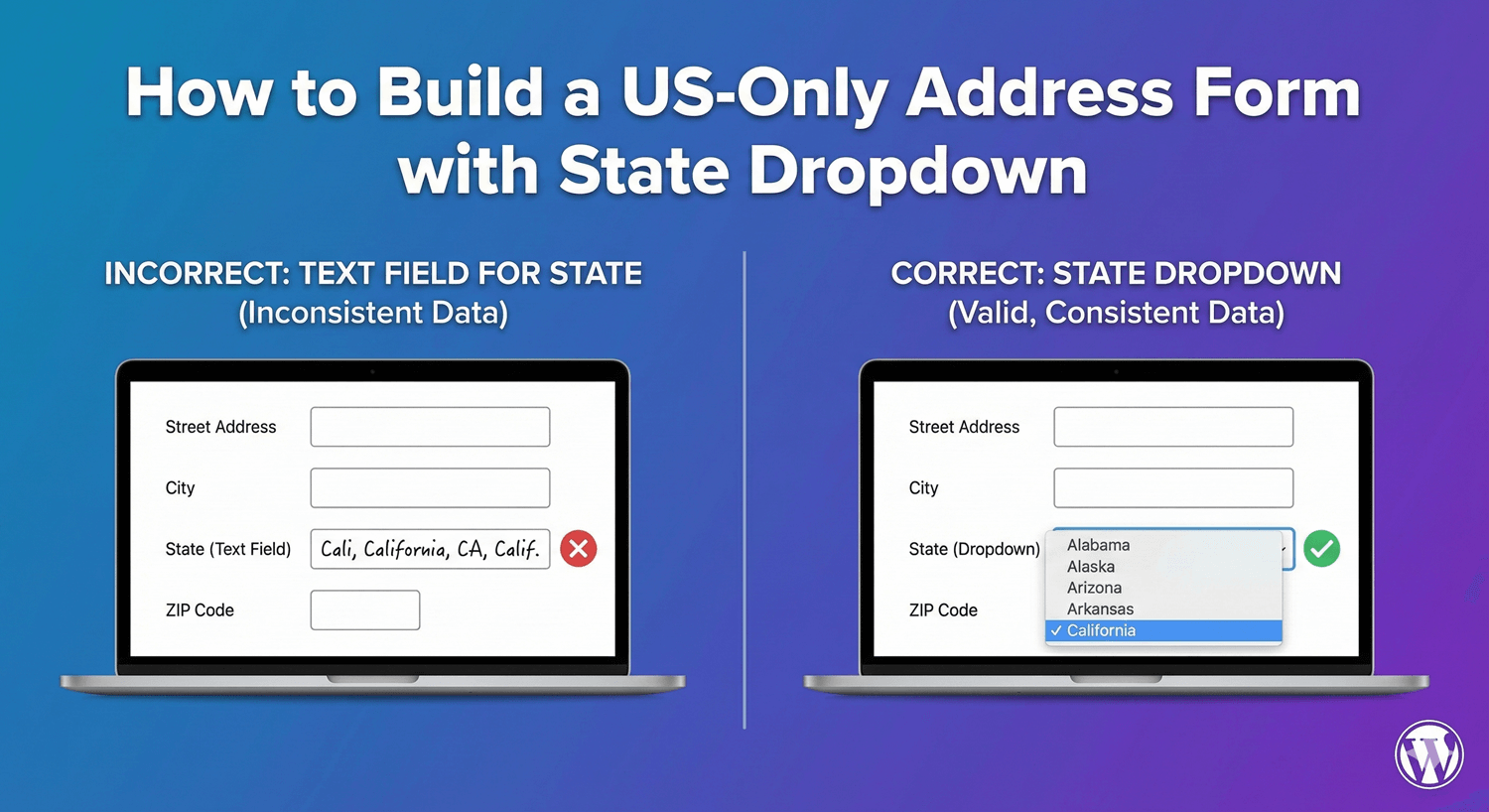
Collecting US addresses requires specific formatting: street address, city, state (from 50 options plus territories), and ZIP code. A properly configured US address form uses a state dropdown—not a text field—ensuring valid state entries and consistent data. No more “California” vs “CA” vs “Cali” variations. In this guide, you’ll learn how to build a US-specific address form with all the right components. A complete US state dropdown includes: When you select the US preset: Set which components are mandatory: Adjust labels if needed: The state dropdown includes all 50 states: Why US-only: Configuration: Why US-only: Configuration: Why US-only: Why US-only: Why US-only: US ZIP codes can be: ZIP codes correspond to states: Note: Advanced validation could verify ZIP matches state, but basic forms typically validate format only. Each component on its own line: City, State, ZIP on same row: Never use a text field for state: Not everyone has an apartment/suite: ZIP is essential for: For critical applications (shipping, legal), consider: After submission, show: The US preset includes all states. For limited service areas, you could use a custom dropdown field with only your served states, though you’d build the address manually. US territories use the same format as states. They’re included in the US preset dropdown and use standard ZIP codes. Abbreviations (CA, NY, TX) are standard for data storage. Dropdowns typically display full names but store abbreviations. No. If you only serve US customers, hide the country field. It’s assumed to be United States. PO Boxes are valid US addresses. Address Line 1 accepts “PO Box 123” format. Some shipping services don’t deliver to PO Boxes—note this if relevant. Building a US-only address form: A US-specific address form collects clean, consistent American addresses. The state dropdown eliminates variations and errors, while proper labeling (ZIP Code, not Postal Code) creates a familiar experience for US users. Auto Form Builder‘s US address preset configures everything automatically: street address fields, city, state dropdown with all 50 states plus territories, and ZIP code. No manual setup required—just select the preset and you’re ready. Ready to collect US addresses? Download Auto Form Builder and create professional US address forms in minutes.How to Build a US-Only Address Form with State Dropdown
Why Use a US-Specific Address Form?
Problems with Generic Address Fields
Benefits of US-Optimized Forms
US Address Structure
Standard US Address Components
Component
Description
Example
Address Line 1
Street address
123 Main Street
Address Line 2
Apt, Suite, Unit (optional)
Apt 4B
City
City name
New York
State
US State (dropdown)
NY
ZIP Code
5-digit or ZIP+4
10001 or 10001-1234
US States and Territories
Creating a US Address Form in Auto Form Builder
Step 1: Add Address Field
Step 2: Select US Preset
What the US Preset Includes
Step 3: Configure Required Fields
Step 4: Customize Labels (Optional)
Step 5: Save and Test
US State Dropdown Options
Full List of US States
Abbreviation
State Name
AL
Alabama
AK
Alaska
AZ
Arizona
AR
Arkansas
CA
California
CO
Colorado
CT
Connecticut
DE
Delaware
FL
Florida
GA
Georgia
HI
Hawaii
ID
Idaho
IL
Illinois
IN
Indiana
IA
Iowa
KS
Kansas
KY
Kentucky
LA
Louisiana
ME
Maine
MD
Maryland
MA
Massachusetts
MI
Michigan
MN
Minnesota
MS
Mississippi
MO
Missouri
MT
Montana
NE
Nebraska
NV
Nevada
NH
New Hampshire
NJ
New Jersey
NM
New Mexico
NY
New York
NC
North Carolina
ND
North Dakota
OH
Ohio
OK
Oklahoma
OR
Oregon
PA
Pennsylvania
RI
Rhode Island
SC
South Carolina
SD
South Dakota
TN
Tennessee
TX
Texas
UT
Utah
VT
Vermont
VA
Virginia
WA
Washington
WV
West Virginia
WI
Wisconsin
WY
Wyoming
Additional US Territories
Abbreviation
Territory
DC
District of Columbia
PR
Puerto Rico
GU
Guam
VI
U.S. Virgin Islands
AS
American Samoa
MP
Northern Mariana Islands
Military Addresses
Abbreviation
Description
AA
Armed Forces Americas
AE
Armed Forces Europe/Middle East/Africa
AP
Armed Forces Pacific
Use Cases for US-Only Address Forms
E-commerce Shipping
Service Area Business
Event Registration
Lead Generation
Warranty Registration
ZIP Code Considerations
ZIP Code Format
Validation Options
ZIP Code and State Correlation
Layout Options
Standard Layout (Stacked)
Compact Layout (Inline)
Which Layout to Choose?
Stacked
Inline
Better for mobile
More compact on desktop
Clearer labels
Familiar postal format
Easier to fill
Fewer vertical space
Mobile Optimization
Mobile Considerations
Testing on Mobile
Data Quality Best Practices
1. Use Dropdown for State
2. Make Address Line 2 Optional
3. Require ZIP Code
4. Consider Address Verification
Example US Address Form
Complete Form Layout
Confirmation Message
Frequently Asked Questions
Can I limit the state dropdown to specific states?
How do I handle Puerto Rico and territories?
Should I store state as abbreviation or full name?
Do I need country field for US-only forms?
What about PO Boxes?
Summary
Conclusion


Learn how to bulk delete form submissions in WordPress. Remove multiple entries at once to clean up spam, test data, and old submissions efficiently.

Master WordPress form submission management. Learn to view, filter, search, star, export, and organize form entries like a pro with this complete guide.

Learn how to search and find form submissions in WordPress. Filter by date, form, status, and search across all submission data.

Learn how to set character limits on WordPress form fields. Configure minimum and maximum length validation for text fields and textareas.
Comparing Auto Form Builder and Contact Form 7 for WordPress. See which form plugin offers better ease of use, features, and value for your website.

Learn how to view, organize, search, filter, and export your WordPress form submissions. Complete guide to submission management.

Learn why storing form data on your own server helps with GDPR compliance. Choose form plugins that keep your user data local and under your control.

Learn the best practices for email collection forms in WordPress. Reduce bounces, prevent typos, and build a quality email list with proper form design.

Learn how to filter WordPress form submissions by date. Find entries from specific time periods quickly using date range filters.
Should you use one field or multiple fields for names? Learn the pros and cons of each approach and how to set up name fields in WordPress.

Learn how to bulk edit, delete, and manage form submissions in WordPress. Save time with mass actions on multiple entries at once.

Learn how to restrict date fields to future dates only for event registration forms. Block past dates and set booking windows in WordPress.
