
How to Capture the Facebook Click ID (fbclid) in WordPress Forms
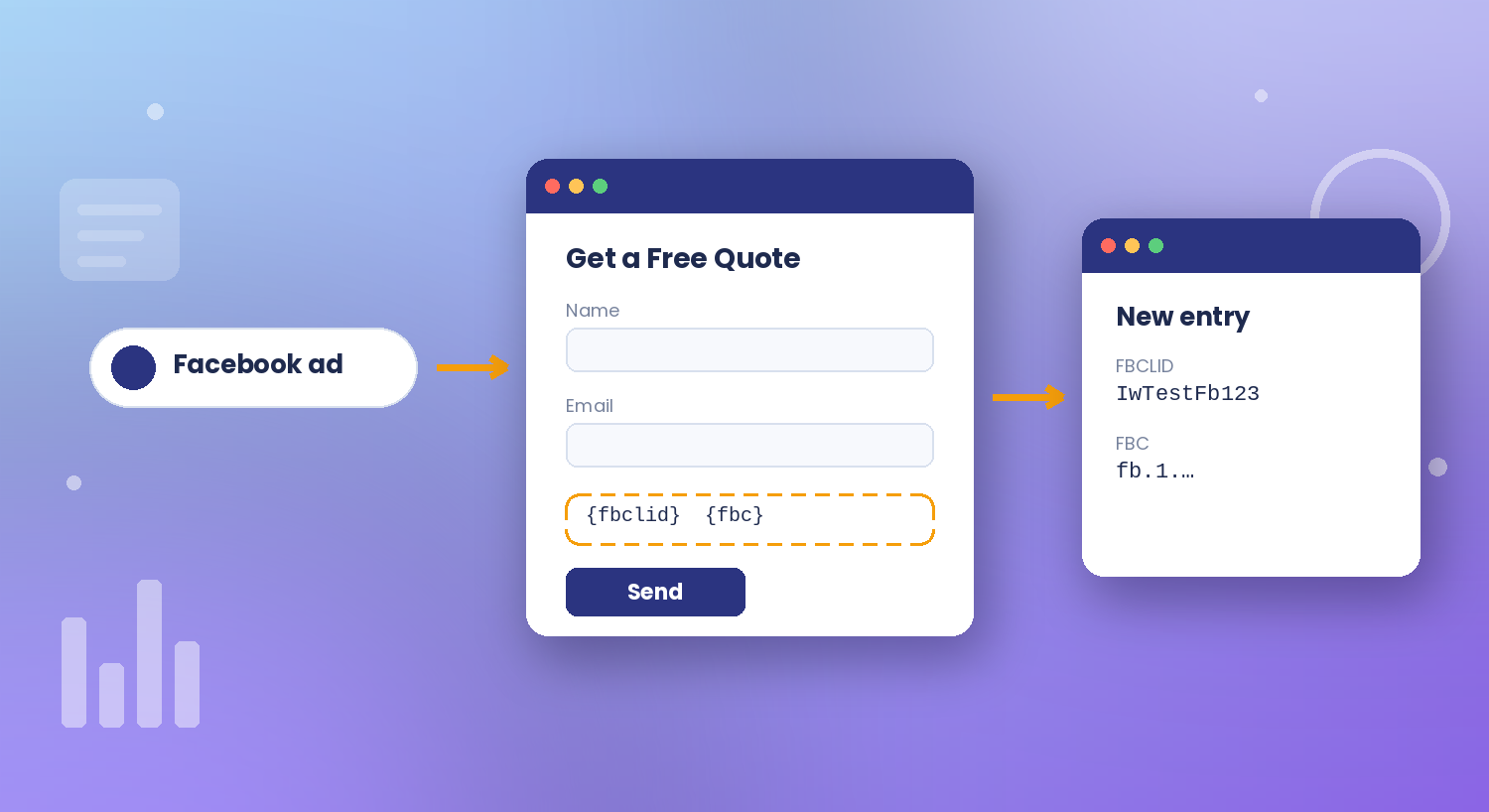
When someone clicks your ad on Facebook or Instagram, Meta adds a click ID called fbclid to the end of the link. Save it with the form the visitor sends, and you’ll know which leads came from your Meta ads. With the free Ad Tracking add-on in Auto Form Builder, you can save the fbclid and also Meta’s ready-made fbc value, using two hidden fields. It takes about five minutes and no code.
Related video: How to Track Which Ad Brought Each WordPress Form Lead
fbclid and fbc: what’s the difference?
- fbclid is the raw click ID that Meta adds to your link, like
yoursite.com/quote/?fbclid=IwAR.... - fbc is the same click in the format Meta uses for its click ID cookie:
fb.1.followed by a time stamp and the fbclid. Tools that send leads back to Meta, such as the Conversions API, usually ask for this format.
You don’t have to build fbc yourself. The add-on reads Meta’s _fbc cookie if your site has one, or builds the value from the fbclid it captured.
Like the gclid from Google Ads, the fbclid only lives in the address bar. Once the visitor moves to another page, it’s gone. Ad Tracking saves it in a small cookie on your own site, so a form on any page can still pick it up.
What you need before you start
- A WordPress site with Auto Form Builder and a form, such as a quote request form
- Facebook or Instagram ads that send people to your site, or just a test link, as shown in Step 3
- About five minutes
Step 1: Activate the Ad Tracking add-on
In your WordPress dashboard, go to Auto Form Builder → Add-Ons, find Ad Tracking and click Activate. Then click Settings on the same card.
Keep Capture ticked: it saves ad click IDs and UTM parameters in a cookie named afb_attr. In Cookie lifetime, choose how many days the values should be kept. Below the settings, a reminder says: “Ask your visitors for consent first where the law requires it.”
Step 2: Add the FBCLID and FBC hidden fields
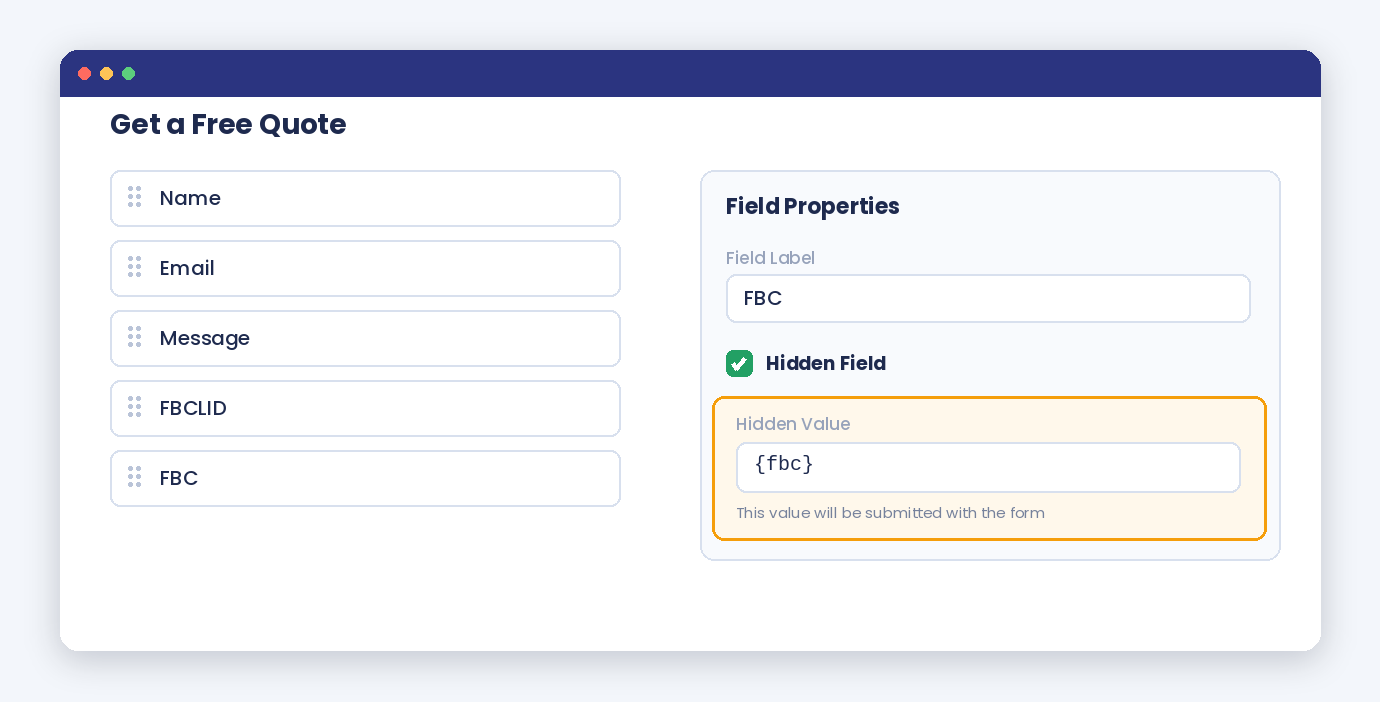
Open your form in the form builder and add a Text Input field. In Field Properties:
- Set Field Label to
FBCLID. - Tick Hidden Field.
- In Hidden Value, type
{fbclid}, with the curly braces.
Add a second Text Input the same way, with the label FBC and the Hidden Value {fbc}.
The Default Value box shows the same tag as the Hidden Value. Leave it as it is: if you clear it, the Hidden Value is cleared too. Click Save Form.
Step 3: Test it with a fake fbclid
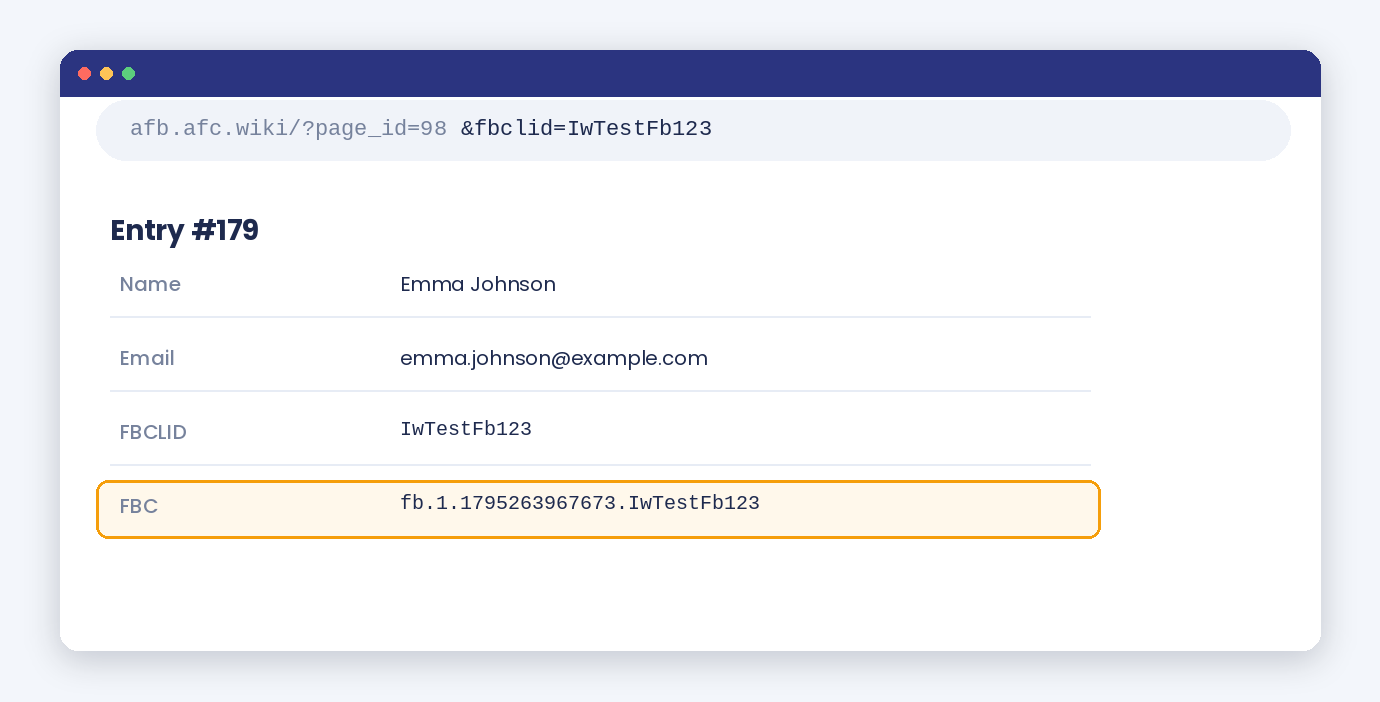
You don’t need a real ad click to test this. Open a private (incognito) window and open your form’s page with a made-up fbclid at the end of the address:
https://yoursite.com/your-form-page/?fbclid=IwTestFb123
If the address already contains a ?, add &fbclid=IwTestFb123 instead. Fill in the form and send it.
Open Auto Form Builder → Submissions and click the new entry. In our test, it showed:
- FBCLID:
IwTestFb123 - FBC:
fb.1.1795263967673.IwTestFb123
The FBC value was built from the fbclid automatically, in Meta’s format.
Latest click or first click?
{fbclid} always holds the latest visit that came from an ad or a campaign link. If the same visitor later comes from a Google ad, that newer visit replaces it. To keep the very first Facebook click instead, add a hidden field with {first_fbclid}. Read more in first-touch vs. last-touch.
You can also add {utm_source} and {utm_campaign} to see the campaign name next to the click ID, if your ad links use UTM parameters.
Send fbclid and fbc to your CRM or to Meta
To pass the values on, use a webhook: the tags {fbclid}, {fbc} and {fbp} also work in webhook JSON templates. From there, your CRM, or a tool like Make, can send the lead back to Meta, so Meta can see which ad clicks turned into real leads.
Troubleshooting
- The entry shows
{fbclid}as text. The Capture option is turned off on the Ad Tracking page. Tick it and click Save Changes. - The FBCLID field is empty. The latest ad visit had no fbclid, for example because it came from a Google ad, or the cookie was cleared. Closing a private window deletes its cookies, so test again in a new one.
- The FBP field is empty.
{fbp}reads the_fbpcookie, which only exists when the Meta Pixel runs on your site.
Summary
To capture the Facebook click ID in a WordPress form, activate the free Ad Tracking add-on, add two hidden fields with {fbclid} and {fbc}, and test with a fake ?fbclid= link. Every new entry then shows the click ID and Meta’s fbc value, even when the visitor sends the form from another page.
Related reading:
FAQ
Is it free?
Yes. The Ad Tracking add-on is built into Auto Form Builder at no cost, like every other add-on.
Does it work for Instagram ads too?
Yes. Meta adds the same fbclid to links clicked in Instagram ads, so the same hidden fields catch both.
Do I need the Meta Pixel?
No. The fbclid and fbc values are saved without it. Only the {fbp} tag needs the _fbp cookie that the Meta Pixel sets. Ad Tracking reads that cookie but never writes it.