How to Add Text Fields to WordPress Forms
Text fields are the building blocks of forms. Names, emails, messages, comments—they all start with a text input. Understanding how to configure text fields properly makes the difference between a good form and a great one.
In this guide, you’ll learn everything about adding and customizing text fields in your WordPress forms.
Types of Text Fields
Text fields come in two main varieties:
Single-Line Text Field
A standard input for short responses:
- Names
- Email addresses
- Phone numbers
- Subjects
- Short answers
Appearance: [________________]
Multi-Line Text Field (Textarea)
An expanded input for longer responses:
- Messages
- Comments
- Descriptions
- Feedback
- Essays
Appearance:
[ ] [ ] [ ]
Adding Text Fields to Your Form
Here’s how to add text fields with Auto Form Builder:
Step 1: Install Auto Form Builder
- Go to Plugins → Add New
- Search for “AFB” (the short name for Auto Form Builder)
- Find “AFB – Auto Form Builder – Drag & Drop Form Creator“
- Click Install Now, then Activate
Step 2: Create or Edit a Form
- Go to Auto Form Builder in your WordPress menu
- Click Add New or edit an existing form
Step 3: Add a Text Field
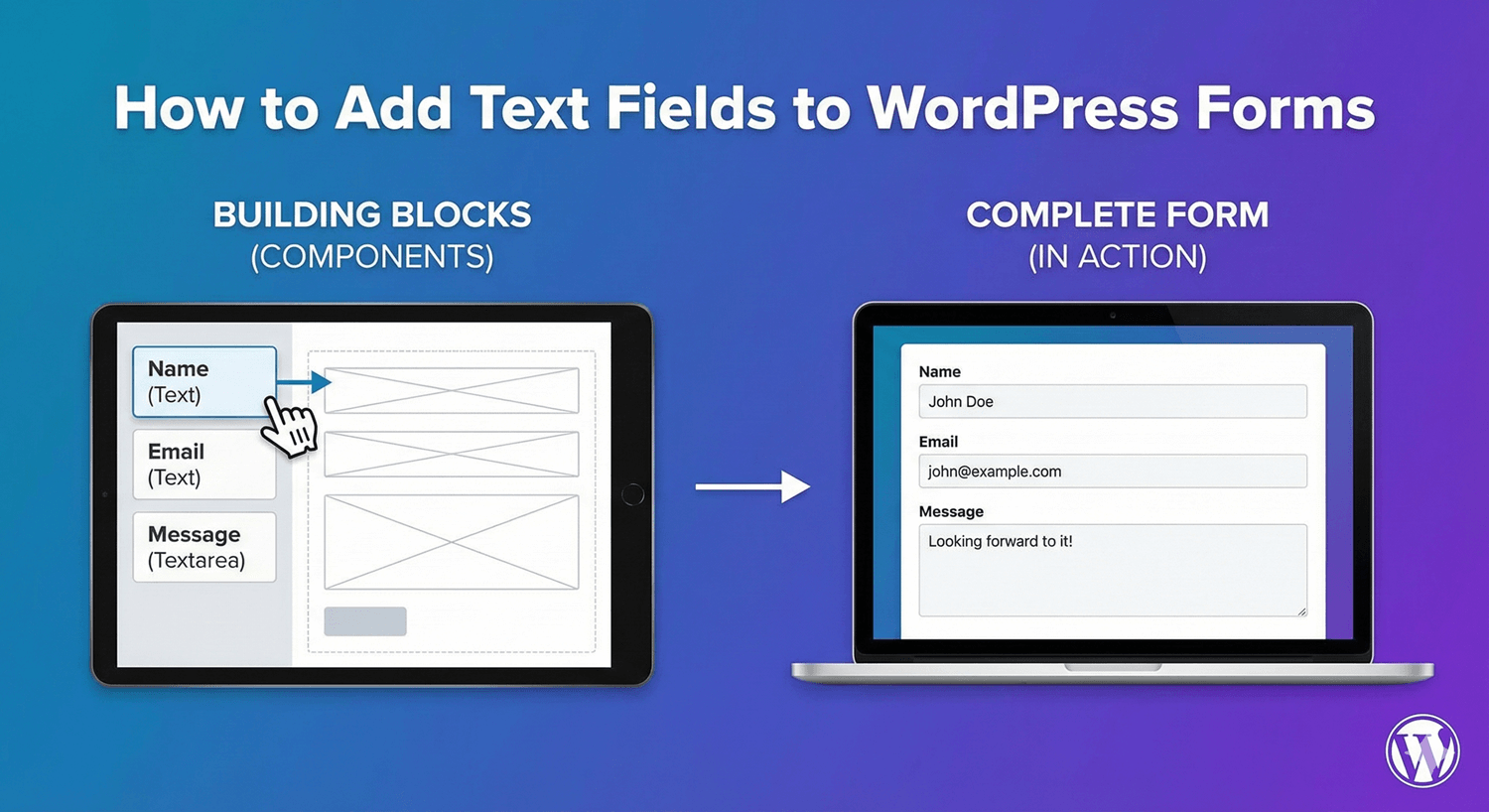
- In the left sidebar, find the Text field
- Drag it onto your form canvas
- Drop it where you want it to appear
Step 4: Add a Textarea Field
- In the left sidebar, find the Textarea field
- Drag it onto your form canvas
- Drop it below your other fields
Step 5: Configure Field Settings
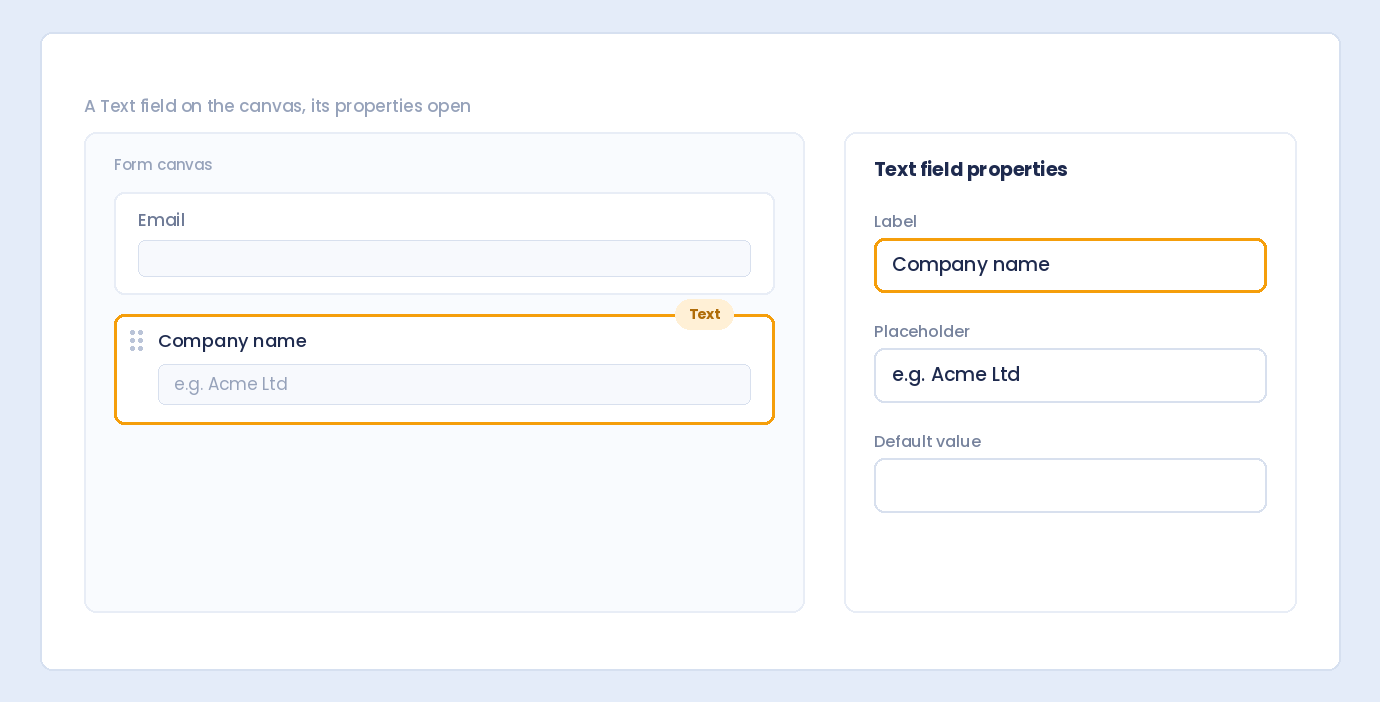
- Click on the field you just added
- The settings panel opens on the right
- Customize the field options (covered below)
Essential Text Field Settings
Field Label
The text that appears above (or beside) the field:
- Purpose: Tells users what to enter
- Examples: “Your Name”, “Email Address”, “Message”
- Tip: Keep labels clear and concise
Placeholder Text
Gray text inside the field that disappears when users type:
- Purpose: Provides hints or examples
- Examples: “John Smith”, “Enter your message here…”
- Tip: Don’t use placeholders as labels—they disappear
Required Field
Whether the field must be filled out:
- Toggle ON: Users cannot submit without completing this field
- Toggle OFF: Field is optional
- Tip: Only require fields you truly need
Help Text
Additional instructions below the field:
- Purpose: Provides guidance, format examples, or additional context
- Examples: “Enter your full legal name”, “Maximum 500 characters”
- Tip: Use for complex fields; skip for obvious ones
Default Value
Pre-filled content when the form loads:
- Purpose: Save users time, suggest common answers
- Examples: Pre-fill country, suggest standard message template
- Tip: Use sparingly—users may not notice pre-filled values
Advanced Text Field Settings
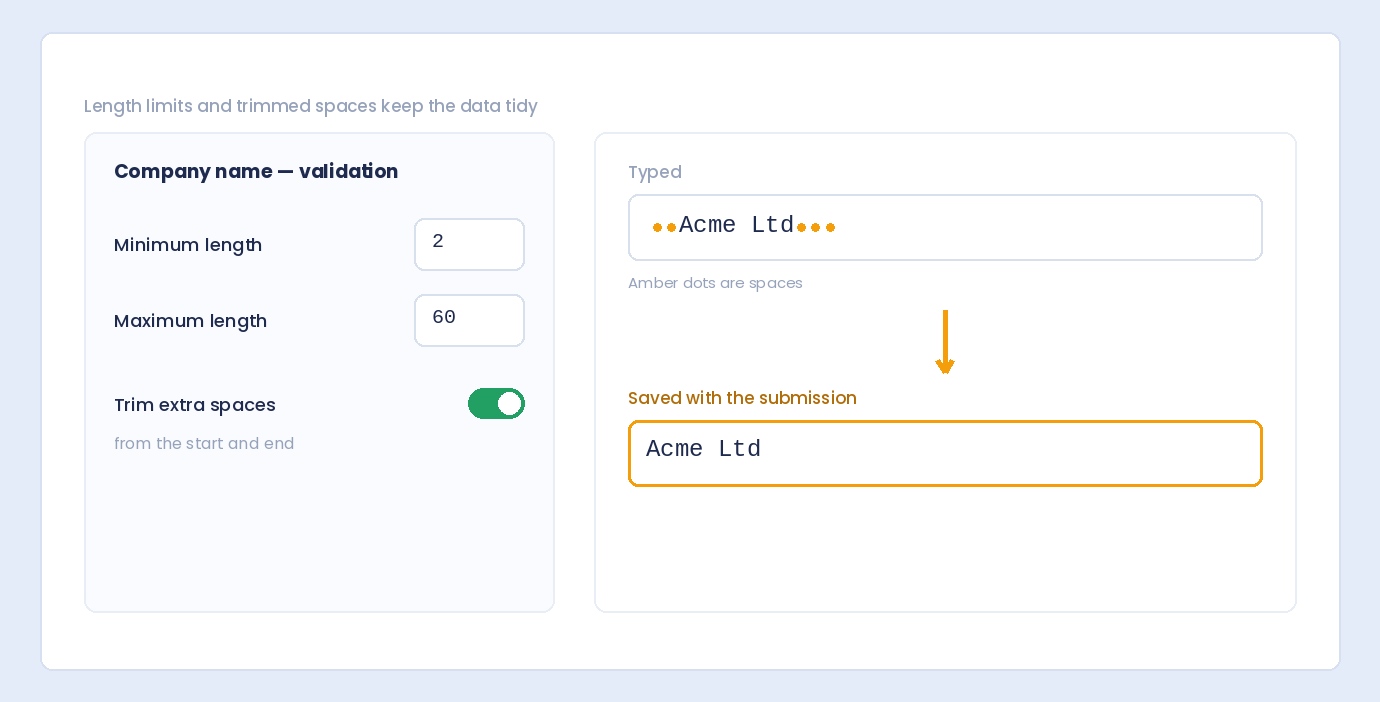
Minimum Length
The minimum number of characters required:
- Use case: Ensure meaningful responses
- Example: Message minimum 20 characters
Maximum Length
The maximum number of characters allowed:
- Use case: Limit response length, database constraints
- Example: Bio maximum 250 characters
Textarea Rows
How tall the textarea appears (for multi-line fields):
- Default: Usually 3-5 rows
- Short responses: 2-3 rows
- Long responses: 5-10 rows
- Tip: Match size to expected response length
Text Transform
Automatically transform text as users type:
- None: Keep as entered
- Uppercase: CONVERT TO ALL CAPS
- Lowercase: convert to all lowercase
- Capitalize: Capitalize First Letter Of Each Word
Use cases:
- Uppercase for codes, serial numbers
- Capitalize for proper names
Trim Whitespace
Remove extra spaces from the beginning and end:
- Toggle ON: ” John Smith ” becomes “John Smith”
- Recommended: Usually keep this ON for cleaner data
Special Input Modes
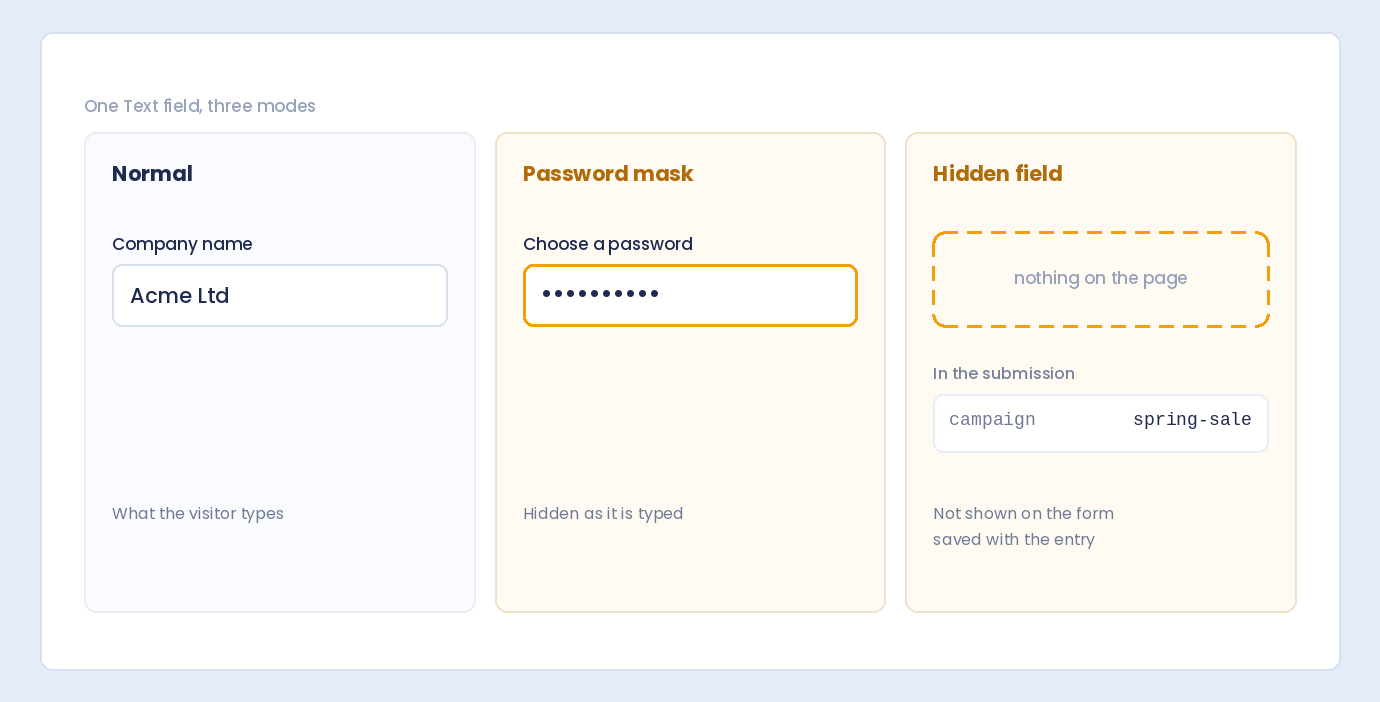
Password Mode
Masks input with dots/asterisks:
- Use for: Passwords, PINs, sensitive codes
- Display: ••••••••
Hidden Field Mode
Field exists but isn’t visible to users:
- Use for: Tracking data, pre-set values, technical info
- Examples: Page URL, campaign source, user ID
Input Type Options
HTML input types affect keyboard display on mobile and browser behavior:
Text (Default)
Standard text input. Works for any content.
Optimized for email addresses:
- Mobile shows @ symbol prominently
- Browser may validate email format
URL
Optimized for web addresses:
- Mobile shows .com and / keys
- Browser may validate URL format
Tel (Phone)
Optimized for phone numbers:
- Mobile shows numeric keypad
- Allows dashes, parentheses, spaces
Number
Numeric input only:
- Mobile shows number keypad
- May include increment/decrement arrows
Validation Patterns
Restrict what users can enter with pattern validation:
Letters Only
Accept only alphabetic characters (A-Z, a-z):
- Use for: Names (first name, last name)
- Rejects: Numbers, special characters
Numbers Only
Accept only numeric characters (0-9):
- Use for: ID numbers, quantities
- Rejects: Letters, special characters
Alphanumeric
Accept letters and numbers only:
- Use for: Usernames, codes
- Rejects: Special characters, spaces
Email Pattern
Validate email format ([email protected]):
- Use for: Email address fields
- Note: Better to use the dedicated Email field type
URL Pattern
Validate web address format:
- Use for: Website, social media links
- Accepts: http://, https://, www.
Custom Pattern (Regex)
Define your own validation pattern:
- Use for: Specific formats (product codes, custom IDs)
- Example:
^[A-Z]{3}-[0-9]{4}$for “ABC-1234” - Requires: Regex knowledge
Common Text Field Configurations
Name Field
- Label: “Your Name” or “Full Name”
- Placeholder: “John Smith”
- Required: Yes
- Min Length: 2
- Max Length: 100
- Text Transform: Capitalize (optional)
Subject Line
- Label: “Subject”
- Placeholder: “What is this regarding?”
- Required: Yes or No (depends on form)
- Max Length: 100
Message/Comments
- Type: Textarea
- Label: “Your Message” or “Comments”
- Placeholder: “Enter your message here…”
- Required: Yes
- Rows: 5
- Min Length: 20 (for meaningful messages)
- Max Length: 2000
Short Bio
- Type: Textarea
- Label: “About You” or “Short Bio”
- Placeholder: “Tell us a bit about yourself…”
- Required: Optional
- Rows: 3
- Max Length: 250-500
- Help Text: “Maximum 250 characters”
Username
- Label: “Username”
- Placeholder: “Choose a username”
- Required: Yes
- Min Length: 3
- Max Length: 20
- Pattern: Alphanumeric
- Help Text: “Letters and numbers only, 3-20 characters”
Website URL
- Label: “Website”
- Placeholder: “https://example.com”
- Required: Optional
- Input Type: URL
- Pattern: URL validation
Text Field Best Practices
1. Use Clear, Specific Labels
Don’t make users guess:
- ✅ “Your Full Name”
- ✅ “Company Email Address”
- ❌ “Name” (which name?)
- ❌ “Input” (input what?)
2. Placeholders Supplement, Not Replace Labels
Placeholders disappear when typing. Always include a label.
- ✅ Label: “Email” + Placeholder: “[email protected]”
- ❌ Placeholder only: “Enter your email”
3. Match Field Size to Expected Input
- Short inputs (name, email): Single-line text field
- Medium inputs (subject, title): Single-line, maybe wider
- Long inputs (message, description): Textarea with appropriate rows
4. Set Sensible Limits
- Don’t require 50-character names (short names exist)
- Don’t limit messages to 100 characters (too restrictive)
- Do set maximums to prevent abuse
5. Use Help Text for Complex Requirements
If there are rules, explain them:
- “Password must be at least 8 characters”
- “Enter numbers only, no dashes”
- “Format: MM/DD/YYYY”
6. Consider Mobile Users
- Use appropriate input types (email, tel, number)
- Don’t make fields too small to tap
- Keep placeholder text short
When to Use Specialized Fields Instead
Text fields are versatile, but specialized fields are often better:
| Instead of Text Field… | Use… | Because… |
|---|---|---|
| Email address (text) | Email field | Built-in validation, confirmation option |
| Phone number (text) | Phone field | Format options, country codes |
| Numbers (text) | Number field | Min/max values, formatting |
| Dates (text) | Date field | Date picker, validation |
| Full name (text) | Name field | First/last separation, prefixes |
| Address (text) | Address field | Structured components, dropdowns |
Use text fields for genuinely free-form text. Use specialized fields when structure matters.
Frequently Asked Questions
What’s the difference between Text and Textarea?
Text is single-line (for short responses). Textarea is multi-line (for longer responses). Content-wise, they both accept text.
Can I make a text field accept only numbers?
Yes, use the “Numbers Only” validation pattern. Or better, use a dedicated Number field.
How do I add a character counter?
Some form builders show character counts automatically when max length is set. Otherwise, it may require custom code.
Should placeholder text be different from the label?
Yes. Labels describe what to enter (“Email Address”). Placeholders show examples or format (“[email protected]”).
Can I pre-fill text fields with URL parameters?
This depends on your form builder’s features. Some support dynamic population from URL query strings.
Summary
Adding text fields to WordPress forms:
- Choose the right type – Text for short, Textarea for long
- Set a clear label – Tell users what to enter
- Add helpful placeholder – Show format or example
- Configure validation – Required, min/max length, patterns
- Include help text – Explain any rules or requirements
- Consider specialized fields – Email, Phone, Number when appropriate
Conclusion
Text fields are simple but foundational. With the right configuration—clear labels, helpful placeholders, appropriate validation—they collect clean, useful data from your users.
Auto Form Builder makes text field configuration easy with visual settings for labels, placeholders, validation, and more. Drag, drop, configure, and you’re ready to collect text responses.
Ready to build your form? Download Auto Form Builder and start adding text fields to your WordPress forms today.