
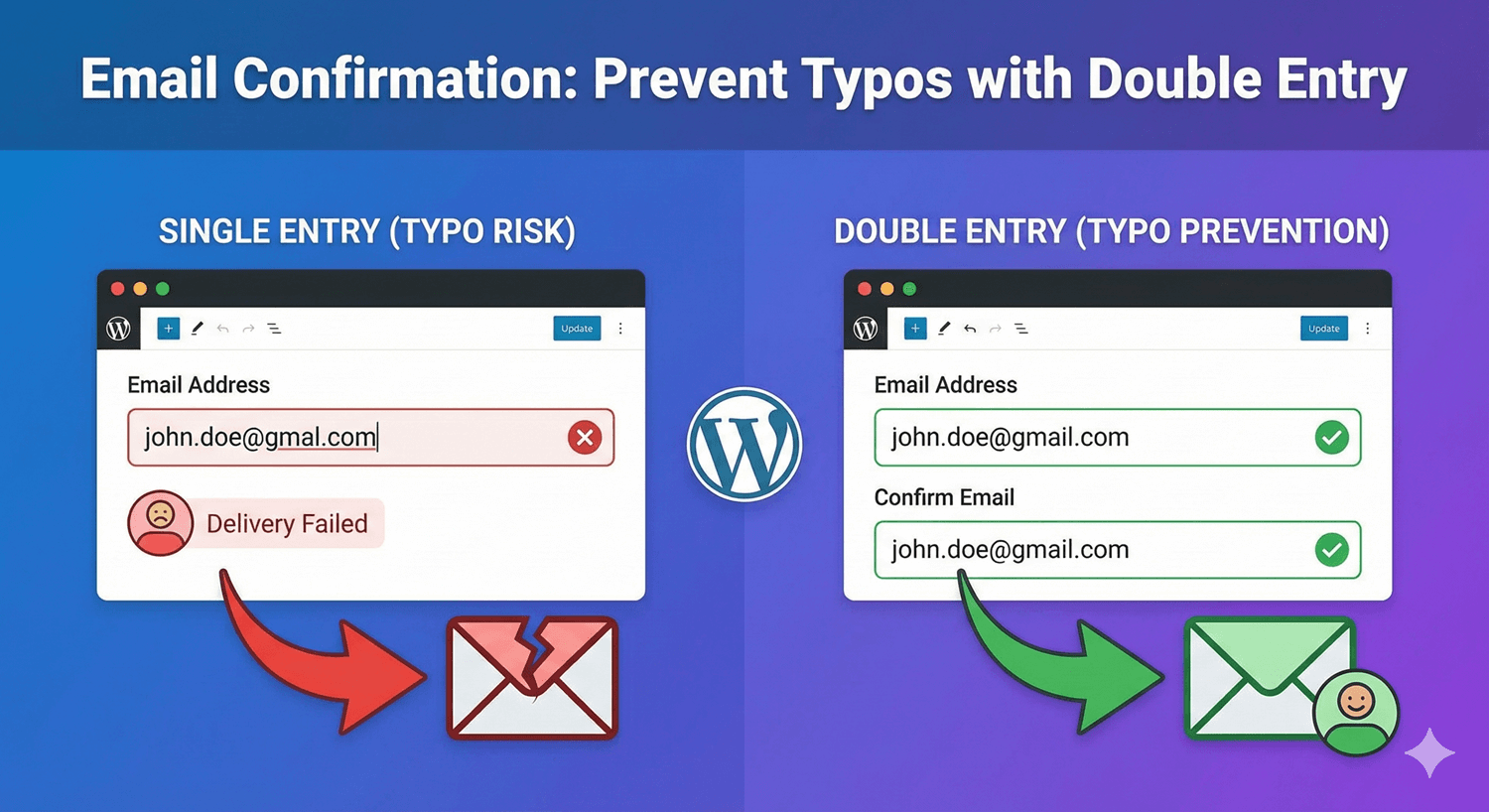
A single typo in an email address means lost customers. They never receive your confirmation, your follow-up, or your newsletter. And you’ll never know why they didn’t respond. Email confirmation fields solve this problem by asking users to enter their email twice. If the entries don’t match, they can’t submit the form. In this guide, you’ll learn why email confirmation matters and how to add it to your WordPress forms. Email typos happen more often than you’d think: Studies suggest that 2-5% of email addresses entered in forms contain errors. For a form with 1,000 submissions per month, that’s 20-50 lost contacts. Email confirmation adds a second email field to your form: The simple act of typing the email twice catches most typos. Users are forced to look at what they’re typing rather than rushing through. Email confirmation adds friction to your form. Use it when the email address is critical: The rule: If a wrong email means lost business or frustrated customers, use confirmation. Here’s how to add email confirmation with Auto Form Builder: In the Email Field settings: That’s it! Auto Form Builder automatically: You can customize the field labels: Or use friendlier language: Add instructions to guide users: Keep the email and confirmation fields next to each other. Don’t separate them with other fields—users should see them as a pair. Make it obvious why there are two fields: When emails don’t match, the error should be clear: Some forms disable pasting in the confirmation field. This forces users to type the email again rather than copy-paste (which would copy any typos too). Note: This can frustrate users with password managers. Use with caution. Typing an email twice on mobile is tedious. For mobile-heavy audiences: Even with confirmation, some typos slip through (users make the same mistake twice). Here are the most common: Auto Form Builder’s email validation catches format errors automatically. Confirmation catches typos that still result in valid-looking addresses. For some use cases, you can restrict which email domains are allowed: Only allow company email addresses: In Auto Form Builder’s Email Field settings: Users with non-whitelisted domains will see an error and cannot submit. You can combine domain restriction with email confirmation for maximum accuracy. Email confirmation works alongside other validation features: Mark the email field as required. Users can’t skip it. Auto Form Builder automatically validates email format (must have @ and domain). Limit to specific domains if needed. For maximum email accuracy: When a user enters mismatched emails: The user experience is smooth—they immediately understand the problem and can fix it. Before launching, test these scenarios: Yes, slightly. Users spend a few extra seconds typing their email twice. But this small friction prevents larger problems (bounced emails, lost contacts). For critical forms, it’s worth it. It depends. Disabling paste forces users to type again (catching more typos), but frustrates users with password managers. Test with your audience. Confirmation can’t catch this. It’s rare, but it happens. For truly critical emails (account creation), consider sending a verification email as an additional check. Email addresses are technically case-insensitive ([email protected] = [email protected]). Auto Form Builder treats them as matching regardless of case. Yes! Confirmation works with required validation, format validation, and domain restrictions. Use them together for maximum accuracy. Email confirmation is a simple feature with big benefits: Use it on forms where email accuracy matters: signups, orders, registrations, and support requests. A wrong email address is a missed opportunity. Email confirmation adds one extra step for users but saves countless lost connections. With Auto Form Builder, enabling email confirmation takes one click. Your users type their email twice, the form checks for matches, and you get accurate contact information. Ready to prevent email typos? Download Auto Form Builder and enable email confirmation on your forms today.Email Confirmation: Prevent Typos with Double Entry
The Cost of Email Typos
What You Lose
How Email Confirmation Works
[email protected][email protected]When to Use Email Confirmation
✅ Use Confirmation For:
❌ Skip Confirmation For:
Setting Up Email Confirmation in WordPress
Step 1: Install Auto Form Builder
Step 2: Add an Email Field
Step 3: Enable Confirmation
Step 4: Customize Labels (Optional)
Step 5: Add Help Text (Optional)
Best Practices for Email Confirmation
1. Place Fields Together
2. Use Clear Labels
3. Show Helpful Error Messages
4. Disable Paste on Confirmation Field
5. Consider Mobile Users
Common Email Typos to Watch For
Domain Typos
Wrong
Correct
@gmial.com
@gmail.com
@gmai.com
@gmail.com
@gamil.com
@gmail.com
@yahho.com
@yahoo.com
@yahooo.com
@yahoo.com
@hotmal.com
@hotmail.com
@outloo.com
@outlook.com
Format Errors
johnexample.comjohn@example [email protected] john@@example.comAlternative: Domain Restriction
Company/Organization Forms
@yourcompany.comHow to Set Domain Restrictions
yourcompany.com)Email Confirmation + Other Validation
Required Field
Format Validation
Domain Restriction
All Together
What Happens When Emails Don’t Match
Testing Your Email Confirmation
Test Cases
Scenario
Expected Result
Matching emails
Form submits successfully
Different emails
Error: “Emails don’t match”
First email empty
Required field error
Confirmation empty
Error: Fields must match
Same typo in both
Form submits (can’t catch this)
Different case (John vs john)
Should match (email is case-insensitive)
Frequently Asked Questions
Does email confirmation slow down form completion?
Should I disable copy-paste on the confirmation field?
What if users make the same typo twice?
Are emails case-sensitive?
Can I use confirmation with other email features?
Summary
Conclusion


Learn how to set character limits on WordPress form fields. Configure minimum and maximum length validation for text fields and textareas.

Learn the best practices for email collection forms in WordPress. Reduce bounces, prevent typos, and build a quality email list with proper form design.
Should you use one field or multiple fields for names? Learn the pros and cons of each approach and how to set up name fields in WordPress.

Learn how to create quantity fields in WordPress forms. Collect numbers for guests, items, tickets, and more with proper validation and limits.

Should you rely on email notifications or store form submissions in your database? Compare both approaches and learn when to use each.

Learn how to add custom validation patterns to WordPress form text fields. Validate URLs, letters only, numbers, and custom formats with regex patterns.

Learn how to add number fields to WordPress forms. Configure min/max values, step sizes, currency formats, and slider mode for better numeric data collection.

Learn how to add password fields to your WordPress forms. Create secure registration forms with masked input and password confirmation.

Learn how to add phone number fields to WordPress forms. Configure formats, validation, auto-formatting, and collect phone numbers the right way.

Learn how to restrict email domains in WordPress forms. Accept only business emails, block free providers, or whitelist specific domains for better lead quality.

Learn how to add email fields to WordPress forms. Configure validation, confirmation fields, and domain restrictions for accurate email collection.

Learn how to limit checkbox selections in WordPress forms. Set minimum and maximum options to control how many choices users can make.
