
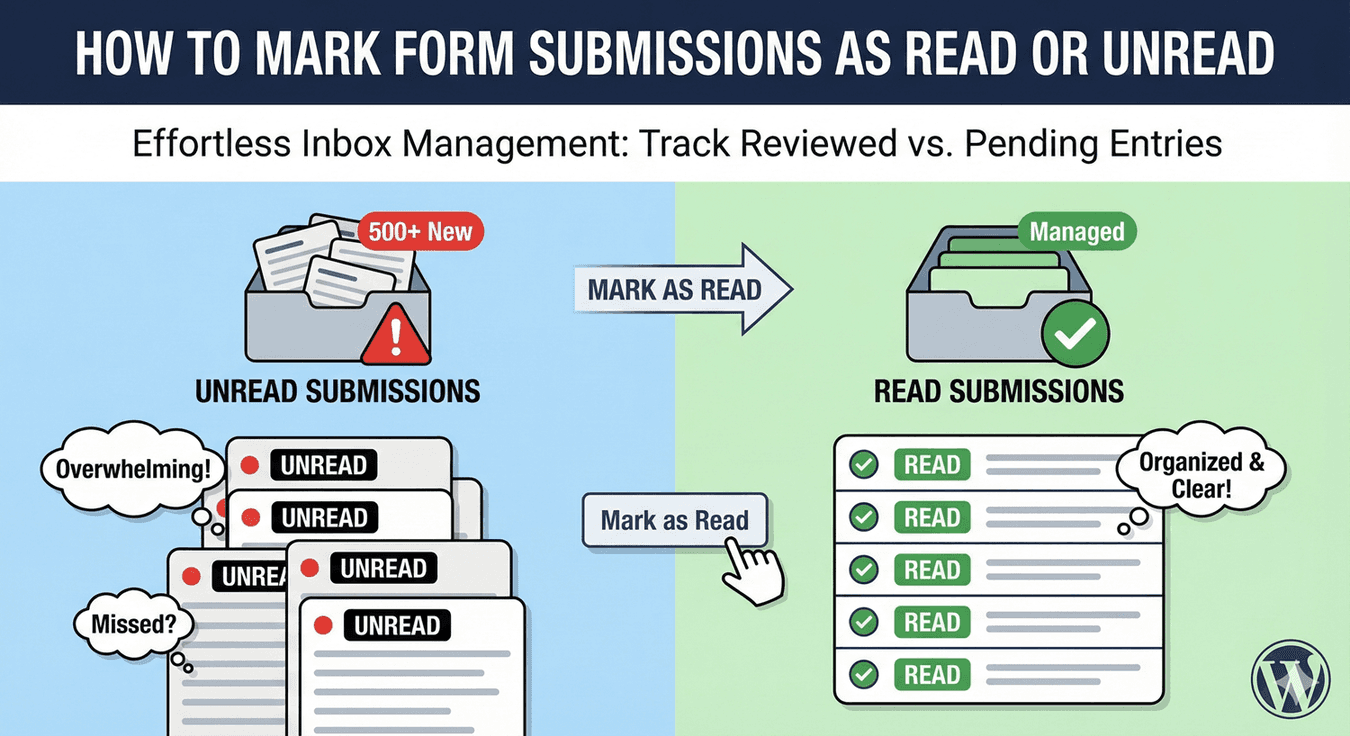
New form submissions pile up fast. Without tracking which ones you’ve reviewed, you’ll waste time re-reading entries or—worse—miss important ones entirely. Read/unread status solves this: new entries arrive as “unread,” and you mark them “read” once reviewed. Simple, effective inbox management for your forms.

In this guide, you’ll learn how to use read/unread status to track and manage your WordPress form submissions.

Why Track Read/Unread Status?

The Problem Without Status Tracking

  • Can’t tell which submissions are new
  • Re-read same entries multiple times
  • Forget which ones need follow-up
  • Miss new entries in long lists
  • No clear workflow for processing

Benefits of Read/Unread Status

  • Clear visibility: Instantly see what’s new
  • Efficient workflow: Process entries systematically
  • No missed entries: Unread items stand out
  • Team coordination: Know what’s been reviewed
  • Progress tracking: See your “inbox” clear out

How Read/Unread Status Works

Default Behavior

  • New submissions arrive as Unread
  • Viewing submission details marks it as Read
  • You can manually toggle status anytime
  • Filter submissions by read/unread

Visual Indicators

In the submissions list:

  • Unread: Bold text, highlighted row, or indicator icon
  • Read: Normal text, standard styling

Status Persistence

  • Status saved to database
  • Persists across sessions
  • Visible to all admin users

Viewing Unread Submissions

Step 1: Access Submissions

  1. Go to AFB in WordPress admin
  2. Click Submissions
  3. View your submission list

Step 2: Identify Unread Entries

Look for visual indicators:

  • Bold entry text
  • Highlighted background
  • Unread badge or icon
  • Different row styling

Step 3: Filter by Unread Only

  1. Find the status filter dropdown
  2. Select Unread
  3. List shows only unread submissions

Result: Focus on entries that need your attention.

Marking Submissions as Read

Method 1: View the Submission

Automatic marking:

  1. Click on a submission to view details
  2. Submission automatically marked as Read
  3. Return to list—entry no longer shows as unread

Method 2: Manual Toggle (Individual)

Without opening submission:

  1. Find the entry in the list
  2. Click the read/unread toggle icon
  3. Status changes immediately

Method 3: Bulk Mark as Read

For multiple entries:

  1. Check boxes next to entries
  2. Select Mark as Read from Bulk Actions
  3. Click Apply
  4. All selected entries marked as Read

Marking Submissions as Unread

Why Mark as Unread?

  • Need to revisit later
  • Accidentally viewed but didn’t process
  • Want teammate to review
  • Flag for follow-up
  • Undo accidental “read” marking

Method 1: Manual Toggle

  1. Find the entry in submission list
  2. Click the read/unread toggle
  3. Entry returns to Unread status

Method 2: Bulk Mark as Unread

  1. Select multiple entries via checkboxes
  2. Choose Mark as Unread from Bulk Actions
  3. Click Apply
  4. Selected entries return to Unread

Filtering by Read Status

View Only Unread

  1. Go to Submissions
  2. Find status filter
  3. Select Unread
  4. See only new/unreviewed entries

Use case: Daily processing—start with unread, work through list.

View Only Read

  1. Find status filter
  2. Select Read
  3. See entries you’ve already reviewed

Use case: Find a previously reviewed submission.

View All

  1. Select All in status filter
  2. See both read and unread together

Use case: Overview of all submissions.

Combining Status with Other Filters

Unread + Specific Form

See unread entries for one form:

  1. Filter by form: “Contact Form”
  2. Filter by status: “Unread”
  3. Result: Unread Contact Form submissions only

Unread + Date Range

See today’s unread entries:

  1. Filter by date: “Today”
  2. Filter by status: “Unread”
  3. Result: Today’s new submissions

Unread + Search

Find specific unread entry:

  1. Filter by status: “Unread”
  2. Search for email or name
  3. Result: Matching unread submissions

Daily Workflow with Read/Unread

Recommended Daily Process

Morning Check

  1. Go to Submissions
  2. Filter: Unread only
  3. See count of new entries

Process Each Entry

  1. Click first unread submission
  2. Review details
  3. Take action (respond, note, delegate)
  4. Entry automatically marked Read
  5. Return to list
  6. Repeat for next unread

End of Day

  • Goal: Zero unread submissions
  • All entries reviewed and actioned
  • Clear inbox, clear mind

The “Inbox Zero” Approach

Treat unread submissions like emails:

  • Process regularly (daily or more)
  • Handle each entry once
  • Mark read only when truly processed
  • Aim for zero unread at day’s end

Team Workflow Considerations

Shared Read Status

Important to understand:

  • Status is shared across all admin users
  • If one person marks read, everyone sees it as read
  • Coordinate to avoid confusion

Team Coordination Options

Assign by Form

  • Person A handles Contact Form
  • Person B handles Quote Requests
  • Each filters to their form

Time-Based

  • Morning shift processes overnight submissions
  • Evening shift processes daytime submissions

Use Stars for Assignment

  • Star entries assigned to specific person
  • That person filters by starred
  • Read/unread tracks processing

Using Read Status with Stars

Complementary Features

Read/unread and stars serve different purposes:

Read/Unread Stars
Have you seen it? Is it important?
Processing workflow Priority flagging
Daily inbox management Special attention items

Combined Workflow

  1. Review unread submissions
  2. Star important/urgent ones
  3. Mark all as read once reviewed
  4. Work through starred items first
  5. Unstar when completed

Best Practices

1. Process Regularly

Don’t let unread pile up:

  • Check at least daily
  • More frequent for high-volume forms
  • Set reminders if needed

2. Mark Read Intentionally

Only mark as read when you’ve actually:

  • Reviewed the content
  • Taken necessary action
  • Or decided no action needed

3. Use “Mark Unread” Strategically

Return to unread if:

  • Accidentally clicked without processing
  • Need to revisit later
  • Want colleague to review

4. Combine with Filters

Power users combine:

  • Status + Form for focused work
  • Status + Date for recent items
  • Status + Search for specific entries

5. Team Communication

When sharing responsibilities:

  • Agree on who handles what
  • Communicate when processing
  • Use stars for handoffs

Common Scenarios

Scenario 1: Vacation Catch-Up

Situation: Back from vacation, many unread submissions.

Approach:

  1. Filter: Unread only
  2. Sort by date (oldest first)
  3. Process chronologically
  4. Star urgent ones for immediate attention
  5. Work through systematically

Scenario 2: High-Priority Detection

Situation: Need to quickly identify urgent submissions.

Approach:

  1. Filter: Unread only
  2. Scan for urgent keywords/senders
  3. Star urgent items
  4. Handle starred first
  5. Then process remaining unread

Scenario 3: Delegation

Situation: Need team member to handle certain submissions.

Approach:

  1. Review unread submissions
  2. Mark entries for delegation as Unread again (or star them)
  3. Notify team member
  4. They filter to unread/starred
  5. Process and mark read when done

Scenario 4: Quick Scan

Situation: Just want to see what came in, not process now.

Approach:

  1. View unread submissions in list (don’t click into details)
  2. Scan preview info
  3. Leave as unread for later processing
  4. Or star important ones to remember

Troubleshooting

Entry Not Marking as Read

Causes:

  • Viewing from list preview, not detail view
  • Cache issue
  • JavaScript not loading

Solutions:

  • Click into full detail view
  • Refresh page
  • Manually toggle status

Can’t Find Unread Filter

Check:

  • Filter dropdown location (usually near top)
  • Status column in list view
  • May need to scroll on mobile

All Entries Showing as Read

Causes:

  • Another user already reviewed
  • Bulk action was applied
  • Auto-read on list view (if configured)

Solutions:

  • Check with team members
  • Use date filter to find recent entries
  • Bulk mark as unread if needed

Frequently Asked Questions

Does viewing the list mark entries as read?

Usually no—just viewing the list doesn’t mark as read. You typically need to click into the detail view. Check your specific setup.

Can I have personal read status separate from team?

Standard implementations use shared status. For personal tracking, consider using stars or external notes.

What’s the difference between unread and starred?

Unread = haven’t reviewed yet. Starred = flagged as important. An entry can be read but still starred (reviewed but needs follow-up).

Can I automatically mark all as read?

Use bulk actions: select all on page, choose “Mark as Read,” apply. Useful for clearing test entries or catching up.

Is there an unread count somewhere?

Many implementations show unread count in menu or on submissions page header. Provides quick visibility of new entries.

Summary

Managing read/unread status:

  1. New submissions arrive unread – Visual indicator shows they’re new
  2. View details to mark read – Or toggle manually
  3. Filter by status – Focus on unread for efficient processing
  4. Bulk actions – Mark multiple entries at once
  5. Mark unread to revisit – Flag for later attention
  6. Combine with other filters – Form, date, search
  7. Aim for inbox zero – Process all unread daily

Conclusion

Read/unread status is simple but powerful. It transforms form submission management from chaotic to organized, ensuring you never miss new entries and always know what needs attention. Combined with filtering and stars, it creates an efficient workflow for any volume of submissions.

Auto Form Builder includes read/unread status tracking with visual indicators, filtering, and bulk actions. Stay on top of your form submissions with clear visibility into what’s new and what’s been processed.

Ready for organized submission management? Download Auto Form Builder and never lose track of a form entry again.

Leave a Reply

Your email address will not be published. Required fields are marked *