
As your forms collect more entries, scrolling through every submission becomes impractical. You need to quickly find today’s leads, last week’s signups, or entries from a specific campaign period. Auto Form Builder includes built-in date filtering on the submissions inbox — preset ranges from Today to Last 90 Days, combinable with form, status, and search filters, all based on your WordPress site timezone. Last updated: Last update 21 August Date filters are available on the submissions management page: Auto Form Builder → Submissions At the top of the page, the search and filter bar includes a date dropdown alongside form selection and sort options. Choose a date range and click Search & Filter to update the submissions list. Auto Form Builder provides nine preset date ranges: Default view — shows every submission regardless of date. Select this to remove the date restriction without clearing other filters. Submissions received today, based on your WordPress site timezone (Settings → General → Timezone). Submissions from the previous calendar day. Submissions from the current week, Monday through Sunday. Submissions from the previous complete week (Monday through Sunday). Submissions from the first day of the current month through today. Submissions from the entire previous calendar month. Submissions from the past 30 days, including today. Useful for rolling monthly reviews. Submissions from the past 90 days. Ideal for quarterly reporting and longer-term analysis. Date filters use the submission timestamp — the date and time recorded when the form was submitted and saved to your database. Each submission’s exact submission time appears in the Submitted column — date (e.g., “Apr 16, 2026”) and time (e.g., “2:30 PM”). Date filtering works alongside every other submissions filter: Select a specific form to see date-filtered entries from that form only — for example, Contact Form submissions from Last 30 Days. Filter by status and date together — view Unread submissions from Today, or Starred entries from This Month. Status tab selection is preserved when you apply date filters. Search within a date range — find submissions containing a specific email, name, or keyword submitted in the Last 7 days (use This Week) or any other preset range. Sort filtered results by Newest First, Oldest First, Form Name A–Z, or Form Name Z–A while keeping your date filter active. If you use the Entry Tags add-on, tag filters combine with date filtering for precise submission management. When results span multiple pages, your date filter stays active as you navigate. Pagination links preserve the current date filter, form filter, search query, status tab, and sort order in the URL. Status tabs also keep your date filter when switching between Unread, Starred, Read, and other views — so you can move between status categories without losing your date range. The submissions inbox date filter controls what you see in the admin table. To export submission data: Export includes a timestamp for each entry. Filter by date in your spreadsheet application after export, or use the inbox date filter to review entries before exporting a specific form’s data. Date filtering with nine preset ranges, combined form/status/search filters, sort options, and pagination is included in the free Auto Form Builder plugin. Install from WordPress.org: https://wordpress.org/plugins/auto-form-builder/ Last updated: Last update 21 August Auto Form Builder lets you create multi-step forms, calculators, and lead capture forms in WordPress, then embed them on any site with a single line of code. Go to Auto Form Builder → Submissions, select a date range from the date dropdown, and click Search & Filter. All Time, Today, Yesterday, This Week, Last Week, This Month, Last Month, Last 30 Days, and Last 90 Days. The submissions inbox uses preset date ranges. For custom analysis, export entries and filter by the timestamp column in your spreadsheet application. Your WordPress site timezone setting under Settings → General. Yes. Date, form, status tab, search, and sort filters all work together on the submissions page. Yes. This Week covers Monday through Sunday of the current week. Yes. Pagination and status tab links preserve your active date filter. Yes. All date filter options are included in the free Auto Form Builder plugin.How to Filter Form Submissions by Date
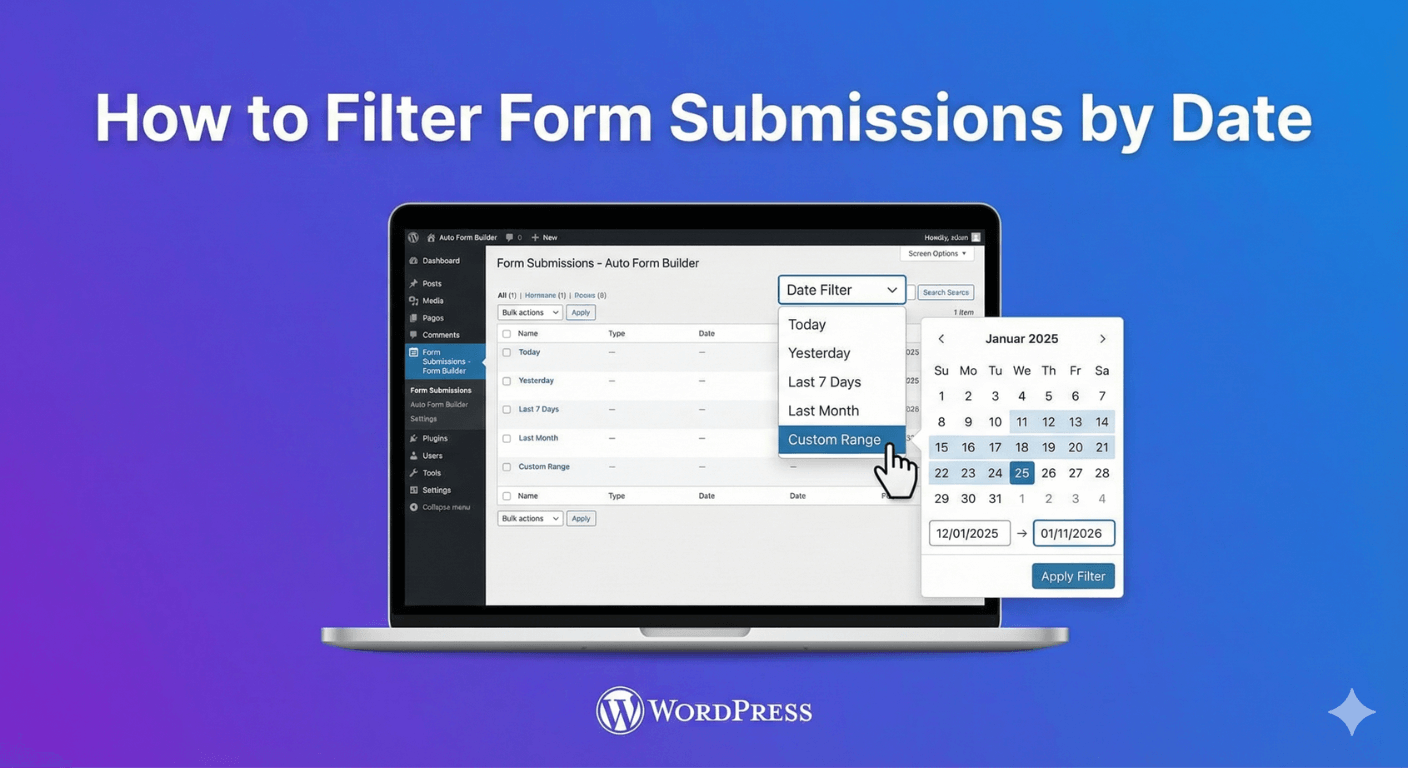
Where to Find Date Filtering
Step-by-Step: Filter Submissions by Date
Available Date Filter Options
All Time
Today
Yesterday
This Week
Last Week
This Month
Last Month
Last 30 Days
Last 90 Days
How Date Filtering Works
current_time()Combine Date Filters with Other Filters
Form Filter
Status Tabs
Search
Sort Order
Tag Filters
Practical Date Filter Workflows
Daily Inbox Check
Weekly Lead Review
Monthly Report Preparation
Clean Up Old Spam
Find a Recent Submission
Pagination and Filter Persistence
Exporting Date-Filtered Data
Tips for Effective Date Filtering
Get Started with Free Submission Filtering
Build forms that embed anywhere — free
Frequently Asked Questions
How do I filter form submissions by date in WordPress?
What date ranges are available?
Can I filter by a custom date range?
What timezone do date filters use?
Can I combine date filters with form and status filters?
Does This Week include weekends?
Do date filters persist when I change pages?
Is date filtering included in the free plugin?
Table of Contents
Table of Contents


Learn how to bulk delete form submissions in WordPress. Remove multiple entries at once to clean up spam, test data, and old submissions efficiently.

Master WordPress form submission management. Learn to view, filter, search, star, export, and organize form entries like a pro with this complete guide.

Learn how to search and find form submissions in WordPress. Filter by date, form, status, and search across all submission data.

Comparing Auto Form Builder and Contact Form 7 for WordPress. See which form plugin offers better ease of use, features, and value for your website.

Learn how to view, organize, search, filter, and export your WordPress form submissions. Complete guide to submission management.

Learn why storing form data on your own server helps with GDPR compliance. Choose form plugins that keep your user data local and under your control.

Learn how to bulk edit, delete, and manage form submissions in WordPress. Save time with mass actions on multiple entries at once.

Learn how to restrict date fields to future dates only for event registration forms. Block past dates and set booking windows in WordPress.

Learn how to create quantity fields in WordPress forms. Collect numbers for guests, items, tickets, and more with proper validation and limits.

Learn how to star and flag important form submissions in WordPress. Prioritize leads, mark urgent requests, and organize your form entries effectively.

Learn how to set up email notifications for your WordPress forms so you never miss a submission. Step-by-step guide with Auto Form Builder.
Learn how to create percentage input fields in WordPress forms for surveys and ratings. Collect satisfaction scores, completion rates, and allocation percentages.
