
How to Star Important Form Submissions
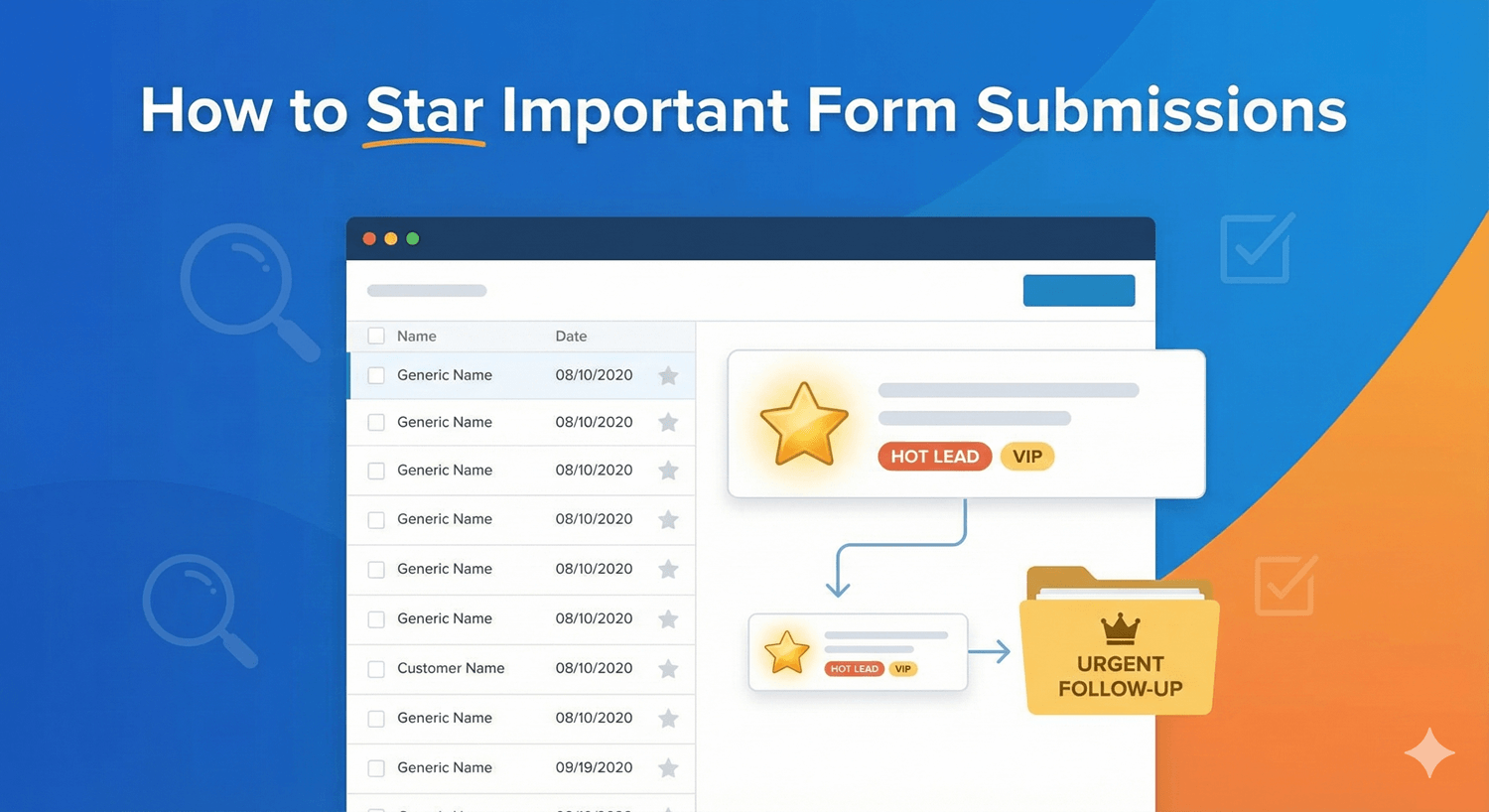
Not all form submissions are equal. Some are hot leads that need immediate follow-up. Others are urgent support requests. Some are VIP customers. Starring lets you mark these important entries so they stand out from the rest.
In this guide, you’ll learn how to star important form submissions and use this feature to organize your workflow.
Why Star Form Submissions
Prioritize Follow-ups
- Hot leads get attention first
- Urgent requests stand out
- Important contacts don’t get lost
Organize Your Workflow
- Quick visual identification
- Filter to see only starred items
- Separate high-priority from routine
Team Collaboration
- Flag for team member attention
- Mark items needing review
- Shared understanding of priorities
Never Miss Important Entries
- VIP customers marked
- Big opportunities flagged
- Critical issues highlighted
What to Star
Sales & Leads
- Hot leads – Ready to buy, high intent
- Big opportunities – Large potential deals
- Enterprise inquiries – Corporate contacts
- Referrals – Warm introductions
- Repeat customers – Returning buyers
Support & Service
- Urgent issues – Critical problems
- VIP customers – High-value accounts
- Escalations – Needs manager attention
- Complex cases – Requires special handling
Applications & Registrations
- Qualified candidates – Strong applications
- Priority registrations – Early bird, VIP
- Special requests – Accommodations needed
Feedback & Reviews
- Testimonials – Great feedback to share
- Complaints – Need immediate response
- Suggestions – Ideas worth considering
How to Star Submissions
Here’s how to star form submissions with Auto Form Builder:
Step 1: Access Submissions
- Go to Auto Form Builder in your WordPress admin
- Click Submissions
- You’ll see a list of all form entries
Step 2: Find the Star Icon
Each submission row has a star icon:
- ☆ Empty star = Not starred
- ★ Filled star = Starred/Important
Step 3: Click to Star
- Find the submission you want to mark
- Click the star icon
- Star fills in to indicate it’s marked
Step 4: Click Again to Unstar
Toggle off when no longer needed:
- Click the filled star
- Star empties
- Submission returns to normal status
Filtering Starred Submissions
View Only Starred
- Go to Submissions list
- Find the filter options
- Select “Starred” or “Important”
- Only starred submissions display
Benefits of Filtering
- Focus on priorities
- Quick access to important items
- Clean view without noise
Combine with Other Filters
Stack filters for precise results:
- Starred + Contact Form = Important contact inquiries
- Starred + This Week = Recent priorities
- Starred + Unread = New important submissions
Creating a Starring Workflow
Daily Review Process
- Morning: Review new submissions
- Identify: Star anything important
- Prioritize: Work through starred items first
- Complete: Unstar when handled
- End of day: Check remaining starred items
Triage System
When reviewing submissions:
| Assessment | Action |
|---|---|
| Urgent/Important | Star immediately, handle first |
| Normal priority | Don’t star, process in order |
| Low priority | Process when time permits |
| Spam/Invalid | Delete |
Team Workflow
When multiple people manage submissions:
- Star for escalation: Flag for manager review
- Star for handoff: Mark for specific team member
- Star for discussion: Needs team input
Star + Read Status Combination
Using Both Together
| Status | Meaning |
|---|---|
| Unread + Unstarred | New, not yet reviewed |
| Unread + Starred | New and already flagged as important |
| Read + Unstarred | Reviewed, normal priority |
| Read + Starred | Reviewed, marked for follow-up |
Workflow Example
- New submission arrives (Unread, Unstarred)
- You review it → Mark as Read
- It’s a hot lead → Star it
- Now it’s (Read + Starred)
- You follow up and close the deal
- Unstar when complete
Best Practices for Starring
1. Star Sparingly
If everything is starred, nothing is:
- Reserve for truly important items
- 5-10% of submissions at most
- Too many stars defeats the purpose
2. Unstar When Complete
Don’t let starred items pile up:
- Remove star after handling
- Keeps starred list actionable
- Shows true current priorities
3. Define What Deserves a Star
Create clear criteria:
- “Star all enterprise leads”
- “Star urgent support tickets”
- “Star orders over $1000”
4. Review Starred Daily
Don’t let starred items go stale:
- Check starred list daily
- Act on or reassess each item
- Stale stars lose meaning
5. Use Consistently
Same criteria every time:
- Document your star criteria
- Train team on when to star
- Consistent meaning = useful system
Starring vs. Other Organization Methods
Stars vs. Tags
| Feature | Stars | Tags |
|---|---|---|
| Purpose | Priority/Importance | Categorization |
| Options | Binary (on/off) | Multiple categories |
| Use case | “This needs attention” | “This is a sales lead” |
| Best for | Quick flagging | Detailed organization |
Stars vs. Read/Unread
| Feature | Stars | Read/Unread |
|---|---|---|
| Purpose | Importance level | Viewed status |
| Indicates | “Pay attention to this” | “Have I seen this?” |
| Manual | Yes, you star it | Auto on view, manual reset |
Using Together
Stars, tags, and read status complement each other:
- Read/Unread: What’s new
- Stars: What’s important
- Tags: What type it is
Real-World Starring Scenarios
Sales Team
Star when:
- Lead mentions large budget
- Request is time-sensitive
- Contact is decision-maker
- Referral from existing customer
- Enterprise company inquiry
Unstar when:
- Initial contact made
- Moved to CRM
- Disqualified as lead
Support Team
Star when:
- Issue is critical/urgent
- VIP customer affected
- Multiple customers reporting same issue
- Potential security concern
- Manager escalation needed
Unstar when:
- Issue resolved
- Ticket closed
- Escalation complete
HR/Recruiting
Star when:
- Strong candidate application
- Perfect skill match
- Impressive portfolio
- Referral candidate
- Executive-level applicant
Unstar when:
- Interview scheduled
- Moved to ATS
- Position filled
Event Management
Star when:
- VIP registration
- Special accommodation needed
- Speaker/sponsor registration
- Large group booking
- Dietary/accessibility requirements
Unstar when:
- Accommodations confirmed
- Special handling complete
- Event concluded
Keyboard Shortcuts
If supported, use shortcuts for faster workflow:
- S – Toggle star on selected submission
- J/K – Navigate up/down submissions
- Enter – Open submission details
Check your form plugin’s documentation for available shortcuts.
Reporting on Starred Submissions
Track Your Priorities
- How many starred items right now?
- Average time starred items stay open?
- What percentage of submissions get starred?
Export Starred Submissions
- Filter to show only starred
- Select all
- Export to CSV
- Analyze in spreadsheet
Insights from Starred Data
- What types of submissions become priorities?
- Peak times for important submissions?
- Team response time on starred items?
Troubleshooting
Star Not Saving
Check:
- Page fully loaded before clicking
- No JavaScript errors
- Proper permissions to edit submissions
Can’t Find Starred Submissions
Check:
- Filter set correctly
- Not filtering by other criteria that excludes them
- Stars weren’t accidentally removed
Too Many Starred Items
Solutions:
- Review and unstar completed items
- Tighten criteria for what gets starred
- Process starred items more frequently
Frequently Asked Questions
How many submissions should I star?
Keep it to 5-10% maximum. If you star too many, the feature loses its value. Reserve stars for truly important items that need priority attention.
Should I unstar after handling?
Yes! Unstar submissions once you’ve completed the follow-up action. This keeps your starred list current and actionable.
Can multiple team members star the same submission?
Stars are typically shared—if one person stars it, everyone sees it starred. This helps teams coordinate on priorities.
What’s the difference between starring and marking as read?
Read/unread tracks whether you’ve viewed the submission. Starring marks importance regardless of whether you’ve read it. Use both together for complete organization.
Can I bulk star multiple submissions?
This depends on your form plugin. Some support bulk actions for starring; others require individual clicks. Check your plugin’s features.
Summary
Starring important form submissions:
- Click the star icon to mark important entries
- Filter to starred to focus on priorities
- Star sparingly – Reserve for truly important items
- Unstar when complete – Keep the list actionable
- Define clear criteria – What deserves a star
- Review daily – Don’t let starred items go stale
- Combine with other tools – Read status, tags, filters
Conclusion
Starring transforms chaotic submission lists into organized priority queues. Hot leads, urgent issues, VIP customers—one click marks them for immediate attention. Combined with filtering, you can focus exclusively on what matters most.
Auto Form Builder includes submission starring in its management dashboard. Mark important entries, filter to see only starred items, and build efficient workflows around your priorities.
Ready to prioritize your submissions? Download Auto Form Builder and start starring your important form entries today.