
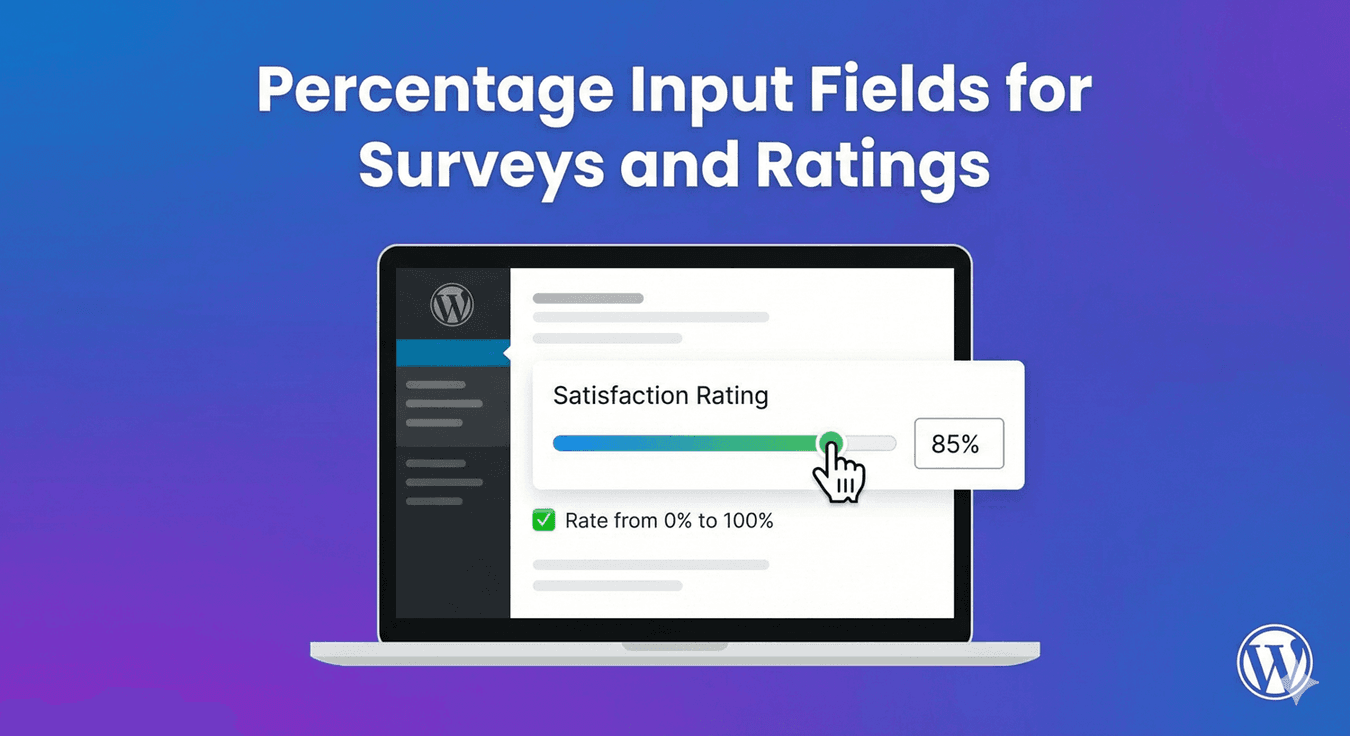
Percentage Input Fields for Surveys and Ratings
Sometimes a 1-5 scale isn’t precise enough. You need users to rate their satisfaction at 85%, estimate project completion at 72%, or allocate budget percentages across categories. Percentage input fields capture this granular data naturally—users think in percentages, and your data reflects exactly what they mean.
In this guide, you’ll learn how to create percentage input fields for surveys, ratings, and allocation forms in WordPress.
When to Use Percentage Fields
Perfect For
- Satisfaction surveys: “How satisfied are you? ____%”
- Completion estimates: “Project completion: ____%”
- Confidence levels: “How confident are you? ____%”
- Allocation questions: “Allocate 100% across options”
- Likelihood ratings: “Likelihood to recommend: ____%”
- Progress tracking: “Current progress: ____%”
- Discount requests: “Requested discount: ____%”
Percentage vs. Scale (1-10)
| Percentage Field | Scale (1-10) |
|---|---|
| 100 possible values | 10 possible values |
| More precise data | Simpler to answer |
| Natural for some questions | Universal understanding |
| Better for estimates | Better for opinions |
| Can use slider | Often radio buttons |
When Scale is Better
- Simple satisfaction (1-5 stars)
- Agreement scale (Strongly Agree to Strongly Disagree)
- Quick surveys where precision isn’t needed
- When users might overthink percentage
Creating Percentage Input Fields
Step 1: Add Number Field
- Open your form in AFB
- Drag the Number field to your form
- Click to configure settings
Step 2: Set Format to Percentage
- Find “Format” or “Number Format” option
- Select Percentage
- This adds % symbol and appropriate formatting
Step 3: Configure Range
- Minimum: 0 (usually)
- Maximum: 100 (standard percentage)
- Step: 1 (whole numbers) or 0.1 (decimal precision)
Step 4: Set Label and Help Text
- Label: Clear question with percentage context
- Placeholder: “0-100” or example value
- Help text: “Enter a value between 0 and 100”
Step 5: Consider Slider Mode
For better UX, enable slider:
- Visual percentage selection
- Drag to set value
- Shows current value
- More engaging than text input
Configuration Examples
Customer Satisfaction
Label: “How satisfied are you with our service?”
Format: Percentage
Min: 0
Max: 100
Step: 5 (increments of 5%)
Default: None or 50
Help text: “0% = Not at all satisfied, 100% = Completely satisfied”
Project Completion
Label: “Current project completion”
Format: Percentage
Min: 0
Max: 100
Step: 1
Slider: Enabled
Help text: “Estimate how much of the project is complete”
Likelihood to Recommend (NPS Alternative)
Label: “How likely are you to recommend us?”
Format: Percentage
Min: 0
Max: 100
Step: 10
Help text: “0% = Not at all likely, 100% = Extremely likely”
Confidence Level
Label: “How confident are you in this estimate?”
Format: Percentage
Min: 0
Max: 100
Step: 5
Help text: “Your confidence level in the accuracy of your response”
Time Allocation
Label: “What percentage of your time is spent on this task?”
Format: Percentage
Min: 0
Max: 100
Step: 5
Help text: “Approximate percentage of your work time”
Discount Request
Label: “Requested discount percentage”
Format: Percentage
Min: 0
Max: 50 (cap the maximum)
Step: 5
Help text: “Maximum discount available is 50%”
Using Slider for Percentages
Why Slider Works Well
- Visual representation of percentage
- Intuitive dragging interaction
- Prevents invalid entries
- Shows progress visually
- More engaging than text input
Slider Configuration
- Enable slider mode
- Show current value: Display the number
- Slider color: Match your brand
- Step size: How fine the increments
Slider Visual
How satisfied are you? [========|--------] 65%
When to Use Slider
- Single percentage questions
- Visual forms
- Mobile-friendly designs
- When exact precision isn’t critical
When to Use Text Input
- Need precise values (72.5%)
- Multiple percentage fields
- Data entry forms
- When users have specific numbers in mind
Allocation Questions (Must Sum to 100%)
The Challenge
Multiple percentage fields that should total 100%:
- “Allocate your budget across these categories”
- “How do you split your time?”
- “Distribute importance across factors”
Simple Approach: Help Text
Question: “Allocate your marketing budget (must total 100%)”
Fields:
- Digital Marketing: ____%
- Print Advertising: ____%
- Events: ____%
- Other: ____%
Help text: “Please ensure all percentages add up to 100%”
Display Running Total
Show current sum to help users:
Digital Marketing: [30]% Print Advertising: [20]% Events: [35]% Other: [15]% ------------------- Total: 100% ✓
Validation
Advanced forms can validate the sum:
- Calculate total on the fly
- Show warning if not 100%
- Block submission until correct
Step Size Options
Step 1 (Default)
Every whole number: 0, 1, 2, 3… 100
Best for: Precise estimates, completion tracking
Step 5
Increments of 5: 0, 5, 10, 15… 100
Best for: Quick surveys, general ratings
Step 10
Increments of 10: 0, 10, 20, 30… 100
Best for: Simple surveys, rough estimates
Step 25
Quarter increments: 0, 25, 50, 75, 100
Best for: Very simple questions, quarter-based thinking
Decimal Steps (0.1, 0.5)
For precise measurements: 72.5%, 33.3%
Best for: Scientific, financial, precise data needs
Survey Use Cases
Employee Satisfaction Survey
Questions:
- Overall job satisfaction: ____%
- Work-life balance satisfaction: ____%
- Manager relationship satisfaction: ____%
- Career growth satisfaction: ____%
- Compensation satisfaction: ____%
Settings: 0-100%, step 5, slider recommended
Product Feedback Survey
Questions:
- How well does the product meet your needs? ____%
- Likelihood to purchase again: ____%
- Value for money rating: ____%
Settings: 0-100%, step 5
Project Status Report
Questions:
- Overall completion: ____%
- Design phase: ____%
- Development phase: ____%
- Testing phase: ____%
Settings: 0-100%, step 1 for precision
Skills Assessment
Questions:
- JavaScript proficiency: ____%
- React proficiency: ____%
- CSS proficiency: ____%
- Database skills: ____%
Settings: 0-100%, step 10, help text explaining scale
Rating Scale Alternatives
Percentage vs. 1-5 Stars
1-5 Stars:
- Quick and familiar
- Limited granularity (5 options)
- Good for simple satisfaction
Percentage:
- More data points
- Better for analysis
- Takes slightly longer
Percentage vs. 1-10 Scale
1-10 Scale:
- NPS standard
- Easy to group (0-6, 7-8, 9-10)
- Familiar benchmark
Percentage:
- 10x more granular
- Natural for some questions
- No standard benchmarks
When to Choose Percentage
- Completion or progress questions
- Allocation questions
- When users think in percentages naturally
- When you need precise data
- Slider-based visual surveys
Display and Formatting
With % Symbol
Show the percentage symbol:
- Input shows: 75%
- Or input + label: [75] %
- Clear that it’s a percentage
Decimal Places
- 0 decimals: 75% (most common)
- 1 decimal: 75.5%
- 2 decimals: 75.25% (rarely needed)
In Submissions
Data stored and displayed:
- “Satisfaction: 85%”
- Numeric value for calculations
- Easy to analyze and compare
Validation Options
Range Validation
- Min: 0 (can’t be negative)
- Max: 100 (can’t exceed 100%)
- Or custom range (0-50% for discounts)
Required Validation
- Must enter a value
- Can’t submit blank
Step Validation
- Must match step increments
- If step=5, reject 73 (not multiple of 5)
Error Messages
- “Please enter a percentage between 0 and 100”
- “Percentage cannot exceed 100%”
- “Please enter a value in increments of 5”
Mobile Considerations
Slider on Mobile
- Touch-friendly dragging
- Large enough touch target
- Shows value while dragging
Number Input on Mobile
- Numeric keyboard appears
- Easy to type numbers
- Validation on blur
Responsive Design
- Full-width sliders on mobile
- Adequate spacing
- Large enough to interact
Analyzing Percentage Data
Average Scores
Calculate average satisfaction:
- Sum all percentages
- Divide by number of responses
- “Average satisfaction: 78%”
Distribution Analysis
Group responses:
- 0-25%: Very low
- 26-50%: Low
- 51-75%: Moderate
- 76-100%: High
Trends Over Time
Track changes:
- Q1 satisfaction: 72%
- Q2 satisfaction: 78%
- Q3 satisfaction: 81%
Frequently Asked Questions
Should I use percentage or a 1-10 scale?
Use percentage for completion estimates, allocations, and when precision matters. Use 1-10 for quick opinions and when you want benchmark comparisons (like NPS).
What step size should I use?
Step 5 works for most surveys (0, 5, 10… 100). Use step 1 for precise estimates like project completion. Use step 10 for very quick surveys.
Should I use a slider or text input?
Slider for single questions, visual surveys, and mobile. Text input for multiple fields, precise values, and data entry forms.
How do I handle allocation questions totaling 100%?
Add help text requesting the total equal 100%. Display a running total if possible. Advanced validation can enforce the sum.
Can percentages exceed 100%?
For standard ratings, no—set max to 100. For special cases like “percentage increase,” you might allow higher values with a different max.
Summary
Creating percentage input fields:
- Add Number field – Base field type
- Set percentage format – Adds % formatting
- Configure range – Usually 0-100
- Choose step size – 1, 5, or 10 typically
- Consider slider mode – Visual and engaging
- Write clear labels – Include context
- Add help text – Explain the scale
- Test on mobile – Ensure usability
Conclusion
Percentage fields capture granular data that scales and stars can’t match. They’re natural for completion estimates, satisfaction ratings, time allocation, and any question where users think in percentages. Use sliders for visual engagement, text inputs for precision, and always provide clear help text so users understand the scale.
Auto Form Builder supports percentage formatting in Number fields, including slider mode for visual percentage selection. Create surveys and rating forms that capture exactly the data you need.
Ready for percentage fields? Download Auto Form Builder and build surveys with precise percentage inputs.