
Free-text fields accept almost anything — which is a problem when you need product codes, membership IDs, formatted reference numbers, or domain-specific input. Without validation, bad data slips into your submissions inbox, breaks integrations, and wastes time on manual cleanup.
Auto Form Builder lets you define custom validation patterns on Text Input and Textarea fields using regular expressions — plus built-in presets for common formats, minimum and maximum length rules, and server-side validation that mirrors HTML5 pattern behavior.
Last updated: Last update 23 August
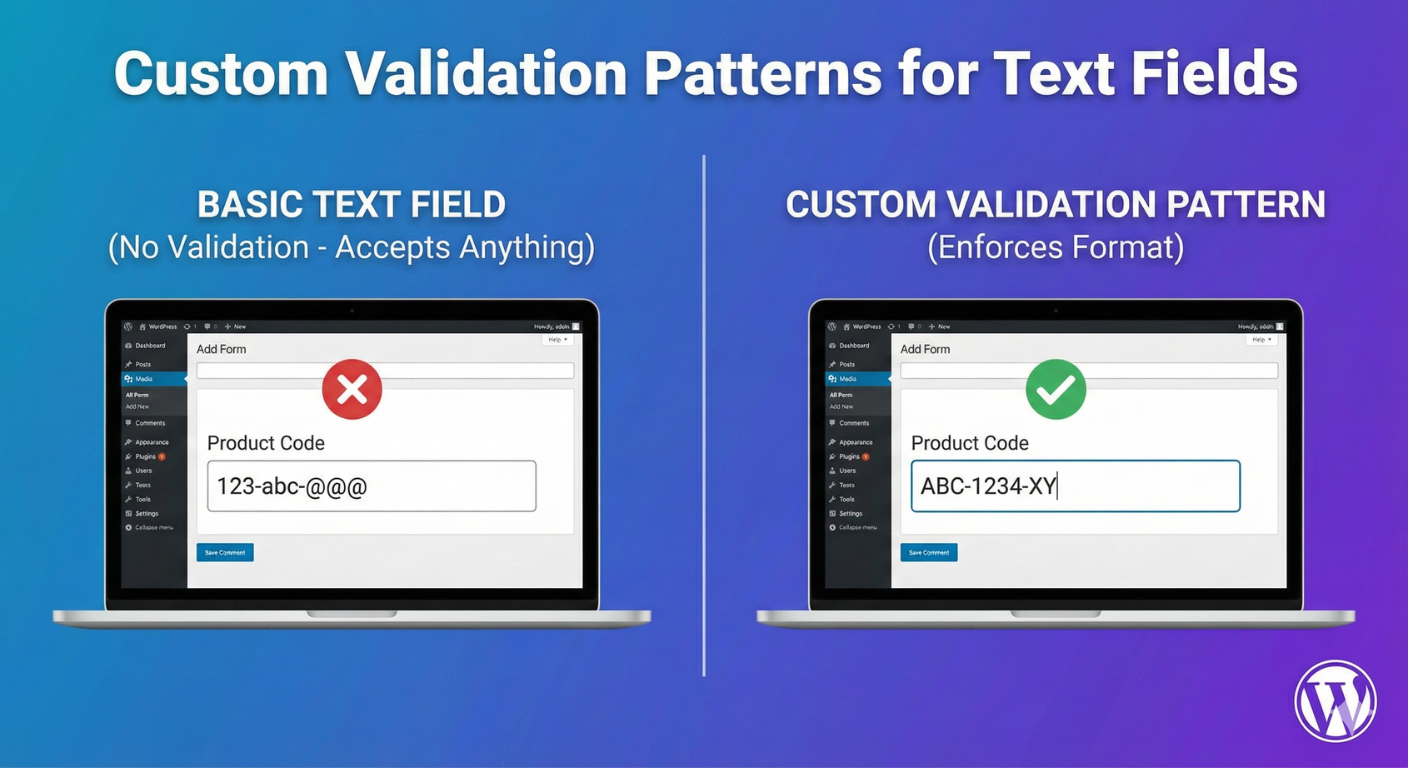
A validation pattern is a rule that defines what input is acceptable before a form can be submitted. In Auto Form Builder, patterns use regular expressions (regex) — compact formulas that describe allowed character combinations, lengths, and structures.
For example, a product code pattern might require two uppercase letters, a hyphen, and four digits:
Patterns validate on two levels:
Before writing custom regex, check whether a built-in preset fits your need. In Text Field Options, the Validation dropdown includes:
Selecting a preset automatically sets the underlying regex pattern. Choose Custom Pattern when you need a format the presets do not cover — formatted IDs, codes with hyphens, usernames, or industry-specific identifiers.
Note: For email collection, the dedicated Email field type includes confirmation fields and domain restrictions — use that instead of a Text Input with the email preset when collecting addresses.
Drag Text Input from the Basic category into your form (or use a Textarea if you need multi-line input with the same validation rules).
Select the field and scroll to the Validation dropdown under Text Field Options.
Select Custom Pattern from the Validation dropdown. A Custom Pattern text box appears below.
Type your regular expression in the Custom Pattern field — for example,
Set Minimum Length and Maximum Length alongside your pattern for an extra layer of control. Length is checked independently of the regex.
Use Help Text in base field settings to tell visitors the expected format — for example, “Enter your ID as XX-0000 (two letters, hyphen, four digits).” Clear instructions reduce validation errors and abandonment.
Preview the form and submit both valid and invalid test entries. Invalid entries should show: “Please enter a value in the correct format.”
Auto Form Builder follows HTML5 pattern semantics: the entire submitted value must match the regex — not just part of it. The server wraps your pattern the same way the browser does, so client and server results stay consistent.
Pattern validation runs only when:
Empty optional fields skip pattern validation. Required fields must contain a value that matches the pattern.
If a custom regex is malformed, the server fails open — it does not block submissions — so a misconfigured pattern in the builder cannot permanently break your form. Always test patterns after saving.
Pattern:
Pattern:
Pattern:
Pattern:
Pattern:
Pattern:
Pattern:
Set character limits independently of regex. A username pattern
Enable Trim Whitespace to remove leading and trailing spaces before validation and submission — preventing accidental spaces from causing pattern mismatches.
Apply UPPERCASE, lowercase, Capitalize First Letter, or Title Case on submission to normalize input before it is stored — useful when patterns expect a specific case.
Set Input Type to Telephone or URL for mobile-friendly keyboards. For phone numbers with format validation, use the dedicated Phone field type instead of a text pattern when possible.
Mark fields as required in base settings. Use conditional logic to show pattern-validated fields only when relevant — hidden conditional fields skip validation when not visible.
Textarea fields share the same Validation and Custom Pattern settings. Maximum length renders as an HTML attribute on the frontend; pattern and minimum length are validated server-side on submission.
Select the Text Input field, open Text Field Options, set Validation to Custom Pattern, and enter your regular expression in the Custom Pattern field. Add help text so visitors know the expected format.
Auto Form Builder includes presets for Email, URL, Letters only, Numbers only, and Letters and numbers. Each preset sets an appropriate regex automatically. Choose Custom Pattern for formats not covered by presets.
Yes. Text fields output the HTML5 pattern attribute for browser validation, and the same pattern is re-validated server-side on submission. The entire value must match the pattern, following HTML5 semantics.
Yes. Textarea fields use the same Validation and Custom Pattern settings. Maximum length applies in the browser; pattern and minimum length are validated server-side when the form is submitted.
Visitors see “Please enter a value in the correct format.” Add help text below the field to explain the expected format and reduce confusion.
Yes. Custom patterns, built-in validation presets, and min/max length validation on Text Input and Textarea fields are included free in Auto Form Builder from WordPress.org.
Add a Text Input field, choose a validation preset or enter a custom regex, and collect formatted data the first time — without manual cleanup in your submissions inbox.
Download: Plugin last updated: Last update 23 August Auto Form Builder lets you create multi-step forms, calculators, and lead capture forms in WordPress, then embed them on any site with a single line of code.Custom Validation Patterns for Text Fields
What Are Custom Validation Patterns?
^[A-Z]{2}-[0-9]{4}$. A visitor who enters AB-1234 passes; ab-123 does not.
pattern attribute for instant feedback before submissionBuilt-In Validation Presets
How to Set a Custom Validation Pattern
Step 1: Add a Text Input field
Step 2: Open Text Field Options
Step 3: Choose Custom Pattern
Step 4: Enter your regex
[A-Za-z]{2,10} for 2–10 letters. Do not wrap the pattern in forward slashes; enter the raw regex only.
Step 5: Add length limits (optional)
Step 6: Add help text
Step 7: Test submissions
How Pattern Matching Works
Common Custom Pattern Examples
Product or SKU code (two letters, hyphen, four digits)
[A-Z]{2}-[0-9]{4}
Matches: AB-1234, XY-9876
Use case: Order forms, inventory requests, warranty registration
Username (3–20 alphanumeric characters and underscores)
[a-zA-Z0-9_]{3,20}
Matches: user_name, Account123
Use case: Registration forms, community signup
US ZIP code (5 digits or ZIP+4)
[0-9]{5}(-[0-9]{4})?
Matches: 90210, 90210-1234
Use case: Shipping or location forms (consider the Address field for full address collection)
Social media handle (starts with @)
@[A-Za-z0-9_]{1,15}
Matches: @username, @Brand_Name
Use case: Influencer applications, social profile collection
Hex color code
#[A-Fa-f0-9]{6}
Matches: #FF5733, #1a2b3c
Use case: Design brief forms, brand asset requests
Invoice or reference number (letters, numbers, hyphens only)
[A-Za-z0-9-]+
Matches: INV-2024-001, REF12345
Use case: Support tickets, billing inquiries
Two-letter state or country code
[A-Z]{2}
Matches: CA, NY, GB
Use case: Simple regional identifiers when a full Address field is not needed
Combining Patterns with Other Text Field Options
Minimum and maximum length
[a-zA-Z0-9_]{3,20} already enforces length in the regex, but explicit Min/Max Length settings add HTML minlength and maxlength attributes on Text Input fields for browser-level feedback.
Trim whitespace
Text transform
Input type
Required fields and conditional logic
Textarea fields
Recommended Setups by Use Case
Support ticket with order reference
[A-Za-z0-9-]+Event registration with dietary code
Partner application with company website
Membership form with member ID
M-[0-9]{6}Best Practices for Custom Patterns
Custom Patterns vs Other Validation Methods
Frequently Asked Questions
How do I add a custom validation pattern to a text field?
What validation presets are available besides custom patterns?
Is pattern validation checked on the server?
Can I use custom patterns on textarea fields?
What error message do visitors see when a pattern fails?
Is custom pattern validation included in the free plugin?
Get Started with Auto Form Builder
Auto Form Builder on WordPress.org
Build forms that embed anywhere — free
Table of Contents
Table of Contents


Learn how to bulk delete form submissions in WordPress. Remove multiple entries at once to clean up spam, test data, and old submissions efficiently.

Master WordPress form submission management. Learn to view, filter, search, star, export, and organize form entries like a pro with this complete guide.

Learn how to search and find form submissions in WordPress. Filter by date, form, status, and search across all submission data.

Learn how to set character limits on WordPress form fields. Configure minimum and maximum length validation for text fields and textareas.

Comparing Auto Form Builder and Contact Form 7 for WordPress. See which form plugin offers better ease of use, features, and value for your website.

Learn how to view, organize, search, filter, and export your WordPress form submissions. Complete guide to submission management.

Learn why storing form data on your own server helps with GDPR compliance. Choose form plugins that keep your user data local and under your control.

Learn the best practices for email collection forms in WordPress. Reduce bounces, prevent typos, and build a quality email list with proper form design.

Learn how to filter WordPress form submissions by date. Find entries from specific time periods quickly using date range filters.

Learn how to bulk edit, delete, and manage form submissions in WordPress. Save time with mass actions on multiple entries at once.

Learn how to restrict date fields to future dates only for event registration forms. Block past dates and set booking windows in WordPress.

Learn how to create quantity fields in WordPress forms. Collect numbers for guests, items, tickets, and more with proper validation and limits.
