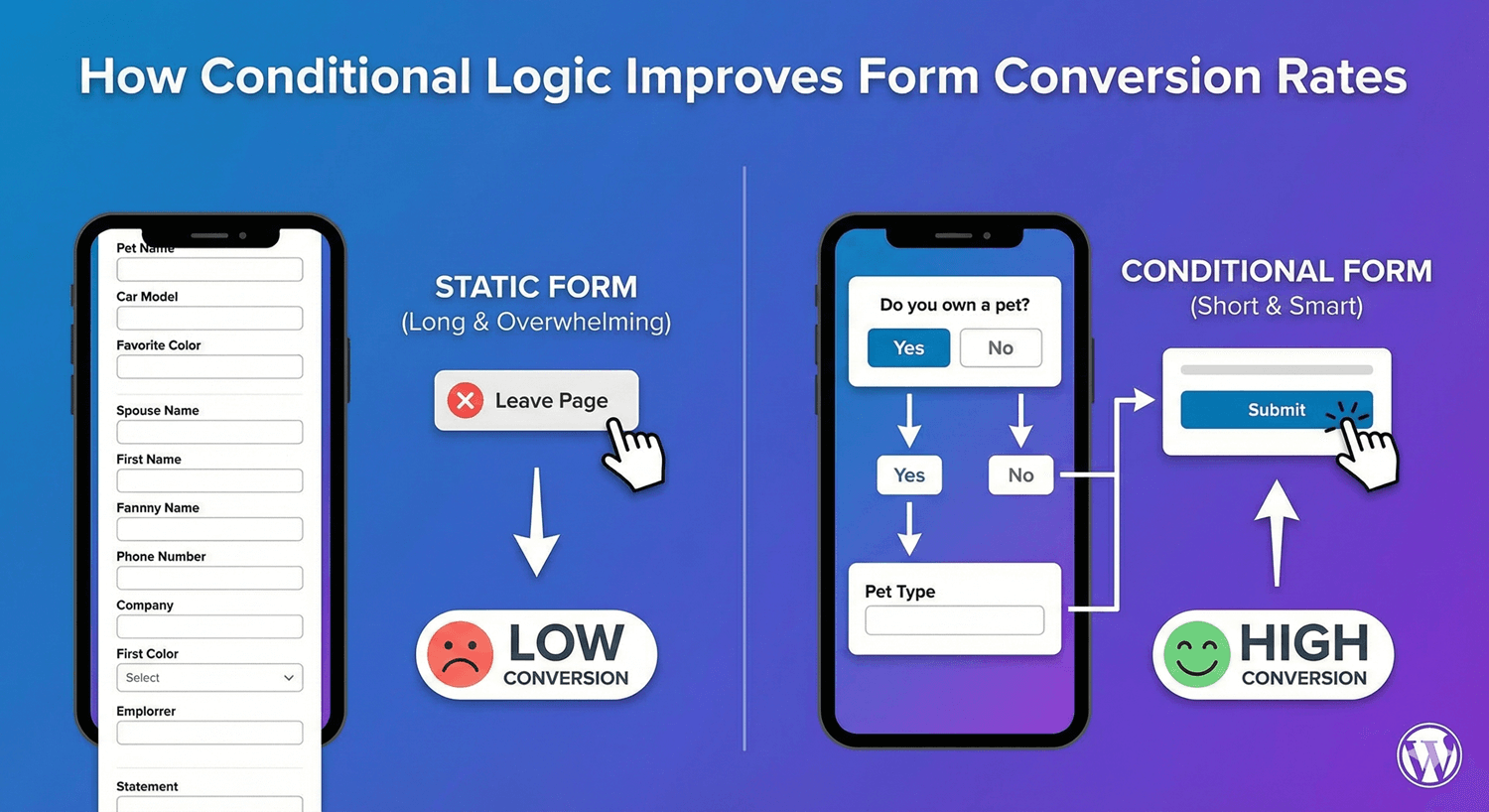
Long forms kill conversions. Every additional field drops completion rates. But what if you need detailed information? Conditional logic solves this paradox—show fields only when relevant, hide everything else. Users see shorter forms, you get complete data, and everyone wins. Studies consistently show conditional forms outperform static ones, often by significant margins.

In this guide, you’ll learn how conditional logic improves form conversion rates and how to apply it to your own forms.

The Form Length Problem

The Data

  • Reducing form fields from 11 to 4 can increase conversions by 120%
  • Each additional field decreases conversion rate by ~4-7%
  • Forms with 3 fields average 25% conversion
  • Forms with 6+ fields average 15% conversion

Why Users Abandon Long Forms

  • Time perception: Long forms look time-consuming
  • Effort estimate: More fields = more work
  • Privacy concerns: More data requested feels invasive
  • Decision fatigue: Too many questions overwhelm
  • Unclear relevance: “Why are they asking this?”

The Paradox

You need information to serve customers well. But asking for it drives them away. Conditional logic resolves this tension.

How Conditional Logic Solves This

Before: Static 15-Field Form

Name
Email
Phone
Company
Job Title
Industry
Company Size
Are you an existing customer?
Customer ID (if yes)
What services interest you?
Budget range
Timeline
How did you hear about us?
Preferred contact method
Additional comments

Result: Everyone sees 15 fields. Many abandon.

After: Conditional 4-15 Field Form

Name ← Always shown
Email ← Always shown
Are you an existing customer? ← Always shown
  → IF YES: Customer ID appears
  → IF NO: Company, Job Title appear
What services interest you? ← Always shown
  → IF "Enterprise": Company Size, Budget appear
  → IF "Consulting": Timeline, Project Details appear

Result: Most users see 4-6 fields. Only complex inquiries see more.

Why Conditional Forms Convert Better

1. Shorter Perceived Length

First impression matters:

  • User sees 4 fields, not 15
  • Thinks “This will be quick”
  • Starts filling out instead of leaving
  • Already invested when new fields appear

2. Only Relevant Questions

Every field feels purposeful:

  • Existing customers don’t see “How did you hear about us?”
  • Personal inquiries don’t see “Company Size”
  • Users understand why each question is asked
  • No “this doesn’t apply to me” frustration

3. Progressive Disclosure

Information revealed gradually:

  • Simple questions first
  • Complex questions only if needed
  • Matches natural conversation flow
  • Feels personalized, not bureaucratic

4. Reduced Cognitive Load

Fewer decisions at once:

  • Brain processes fewer options
  • Less overwhelming
  • Faster completion
  • Fewer errors

5. Better Mobile Experience

Crucial for mobile users:

  • Less scrolling
  • Fewer fields to tap through
  • Faster on mobile keyboards
  • Higher mobile conversion

Conversion Impact by Form Type

Lead Generation Forms

Static form: Name, Email, Phone, Company, Title, Size, Industry, Budget, Timeline

Conditional form: Name, Email + conditional fields based on interest

Expected improvement: 20-40% higher completion

How:

  • Show Company fields only for B2B interest
  • Show Budget only for qualified services
  • Show Timeline only if project-based

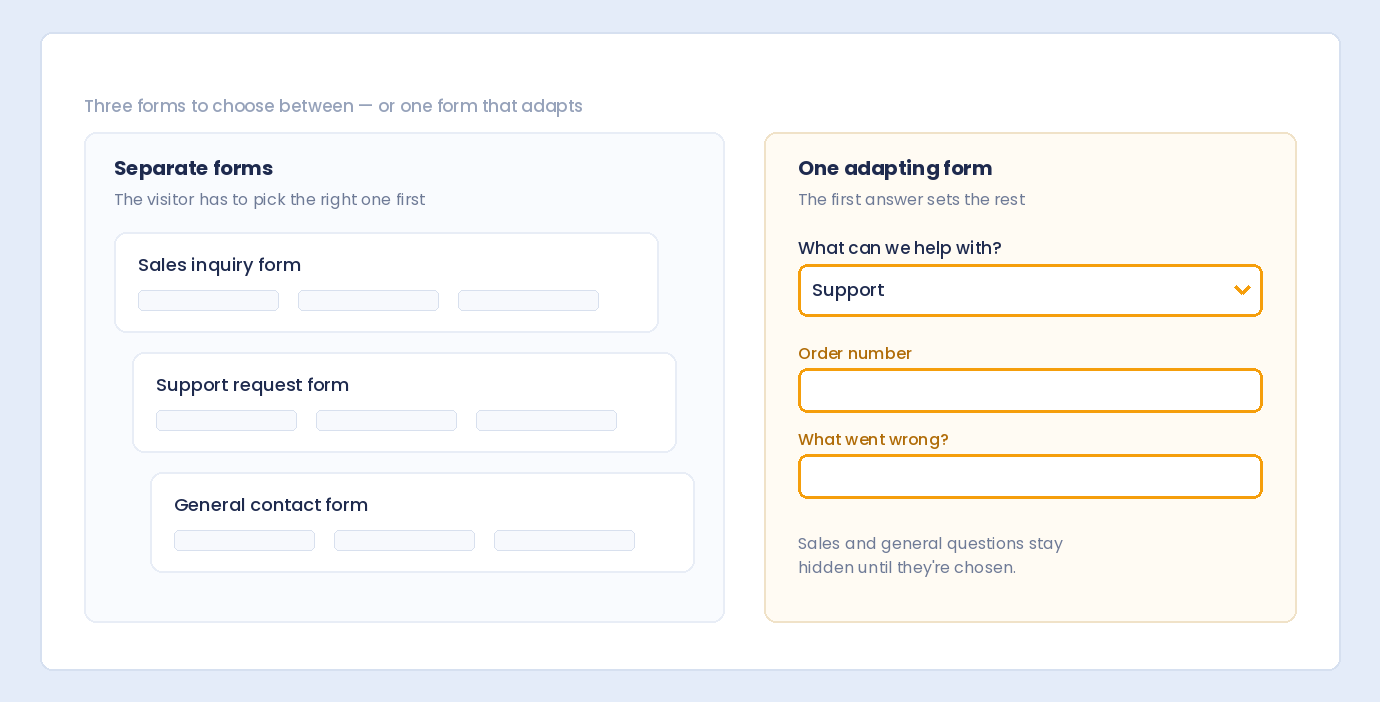
Contact Forms

Static form: Name, Email, Phone, Subject, Department, Order Number, Message

Conditional form: Name, Email, Subject + relevant fields

Expected improvement: 15-30% higher completion

How:

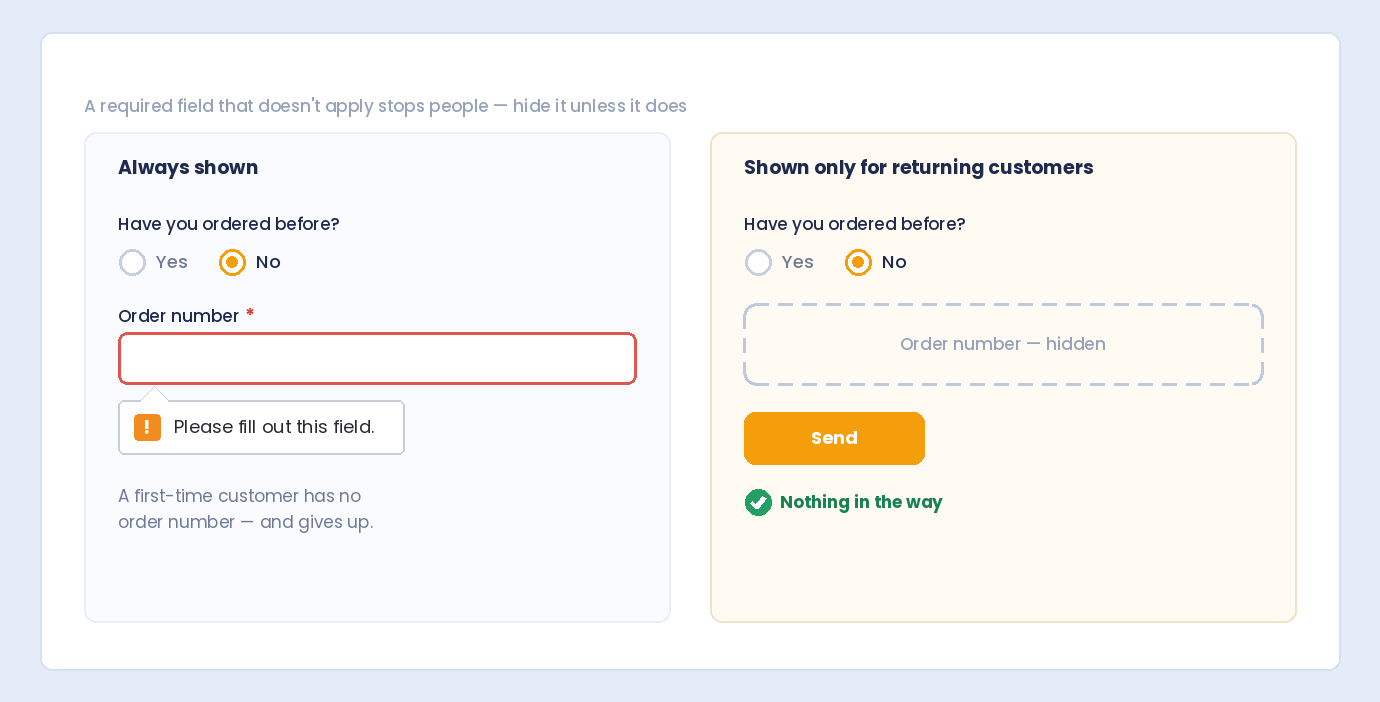
  • Show Order Number only for support/order issues
  • Show Department only for specific routing
  • Show Phone only for callback requests

Registration Forms

Static form: All member information upfront

Conditional form: Essential info first, details based on type

Expected improvement: 25-50% higher completion

How:

  • Show Professional fields only for business accounts
  • Show Student verification only for student plans
  • Show Billing info only for paid tiers

Survey Forms

Static form: All possible questions

Conditional form: Branching based on answers

Expected improvement: 30-60% higher completion

How:

  • Skip irrelevant sections
  • Deep-dive only on relevant topics
  • Exit early if disqualified

Real-World Examples

Example 1: Service Inquiry Form

Base fields (always shown):

  • Name
  • Email
  • Service interested in (dropdown)

Conditional fields:

  • IF “Web Design” → Show: Current website URL, Design preferences
  • IF “SEO” → Show: Current traffic estimate, Target keywords
  • IF “Consulting” → Show: Company size, Project timeline

Result: Each user sees 5-6 fields instead of 10.

Example 2: Support Ticket Form

Base fields:

  • Name
  • Email
  • Issue type (dropdown)

Conditional fields:

  • IF “Billing” → Show: Order number, Invoice number
  • IF “Technical” → Show: Product version, Error message, Screenshot upload
  • IF “Account” → Show: Username, Last 4 digits of payment

Result: Users provide exactly what support needs, no more.

Example 3: Event Registration

Base fields:

  • Name
  • Email
  • Attendance type (In-person / Virtual / Both)

Conditional fields:

  • IF “In-person” → Show: Dietary restrictions, T-shirt size, Emergency contact
  • IF “Virtual” → Show: Time zone, Platform preference
  • IF “Both” → Show all relevant fields

Result: Virtual attendees don’t answer about T-shirts.

The Psychology Behind Higher Conversions

Commitment and Consistency

Once users start, they want to finish:

  • Small initial commitment (4 fields)
  • Already invested when more appear
  • Feel obligated to complete
  • Sunk cost psychology

Personalization Effect

Conditional logic feels personal:

  • “This form understands my situation”
  • Questions feel tailored
  • Not a generic interrogation
  • Builds positive impression of brand

Reduced Friction

Every unnecessary field is friction:

  • Conditional removes irrelevant friction
  • Keeps necessary friction
  • Smooth path to submission

Reciprocity

Users appreciate thoughtful forms:

  • “They didn’t waste my time”
  • More willing to provide information
  • Better relationship starting point

Data Quality Improvements

Beyond Completion Rates

Conditional logic also improves data quality:

More Accurate Responses

  • Users answer questions that apply to them
  • No guessing on irrelevant fields
  • No “N/A” or dummy data

Better Qualified Leads

  • Relevant follow-up questions pre-qualify
  • Budget shown only to serious inquiries
  • Timeline indicates purchase readiness

Cleaner Database

  • No empty fields for non-applicable questions
  • Data structure matches user type
  • Easier to segment and analyze

Faster Follow-Up

  • Sales has relevant information immediately
  • No back-and-forth for missing details
  • Support tickets pre-categorized

Implementation Strategy

Step 1: Audit Current Forms

  • Count total fields
  • Identify which apply to everyone
  • Note which are situational
  • Check current completion rate

Step 2: Identify Trigger Questions

Good triggers:

  • “What type of inquiry?” → Different follow-ups
  • “Are you a customer?” → Customer vs prospect path
  • “Which service?” → Service-specific questions

Step 3: Map Conditional Logic

IF [Trigger Value] THEN SHOW [Fields]

Example:
IF Service = "Enterprise" THEN SHOW:
  - Company Size
  - Annual Budget
  - Decision Timeline

Step 4: Design the Short Default

Most users should see minimal fields:

  • Essential contact info
  • Primary question/intent
  • One trigger question

Step 5: Test and Measure

  • A/B test static vs conditional
  • Track completion rates
  • Monitor data quality
  • Gather user feedback

Common Mistakes That Hurt Conversions

Mistake 1: Too Many Conditions

Problem: 20 fields with 15 conditions = confusing

Solution: Keep logic simple, 3-5 condition groups max

Mistake 2: Fields Appearing Far Below

Problem: Conditional field appears at form bottom, user misses it

Solution: Show fields immediately after trigger

Mistake 3: No Visual Feedback

Problem: Fields pop in jarringly

Solution: Smooth animations, gentle transitions

Mistake 4: Hidden Required Fields

Problem: Required field hidden, form can’t submit

Solution: Required only when visible

Mistake 5: Testing Only Happy Path

Problem: Only test one condition path

Solution: Test all trigger combinations

Measuring Success

Key Metrics

  • Completion rate: Started vs submitted
  • Abandonment rate: Started but not submitted
  • Time to complete: Average submission time
  • Error rate: Validation failures
  • Lead quality: Conversion to customer

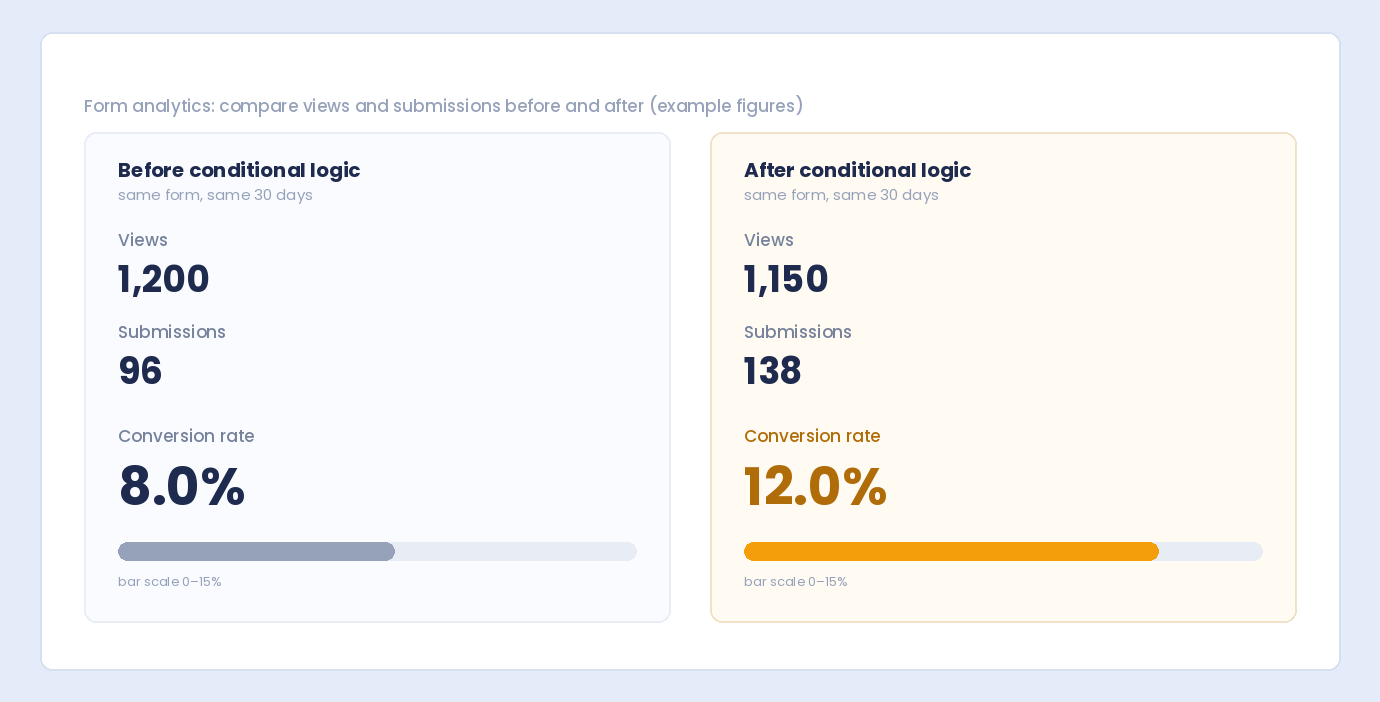
Before/After Comparison

Track these before implementing conditional logic:

  1. Current completion rate
  2. Average completion time
  3. Lead quality score

Then compare after 2-4 weeks of conditional form.

Expected Improvements

  • Completion rate: +15-40%
  • Time to complete: -20-40%
  • Lead quality: Maintained or improved

Frequently Asked Questions

Will I lose valuable data by hiding fields?

No—you’re not removing fields, just showing them when relevant. Users who need those fields still see them. You lose irrelevant noise, not valuable data.

How many fields should I start with?

Aim for 3-5 visible fields initially. The trigger question determines what else appears. Most users should complete in under a minute.

What if I need all the information?

You still get it—conditional logic just shows it progressively. Complex inquiries reveal more fields. Simple ones stay simple.

Does this work on mobile?

Especially well on mobile. Shorter initial forms are crucial for mobile users who abandon more quickly.

How do I know which fields to hide?

Ask: “Does everyone need to answer this?” If no, it’s a conditional candidate. If only certain user types need it, trigger based on user type.

Summary

Improving form conversions with conditional logic:

  1. Start short – Show minimal fields initially
  2. Use smart triggers – Questions that determine relevance
  3. Show only relevant fields – Hide what doesn’t apply
  4. Position logically – New fields appear after their trigger
  5. Animate smoothly – Gentle transitions, not jarring pops
  6. Test all paths – Every condition combination works
  7. Measure results – Compare before and after

Conclusion

Conditional logic isn’t just a feature—it’s a conversion optimization strategy. By showing shorter forms initially and revealing complexity only when needed, you reduce abandonment, improve user experience, and collect better data. The math is simple: fewer visible fields = higher completion rates. Conditional logic lets you collect comprehensive information without the conversion penalty of long forms.

Auto Form Builder‘s Conditional Logic add-on makes it easy to create smart, dynamic forms that adapt to each user. Show the right fields to the right people and watch your completion rates improve.

Ready to boost conversions? Download Auto Form Builder and implement conditional logic to improve your form conversion rates.

Leave a Reply

Your email address will not be published. Required fields are marked *