How to Create Appointment Booking Forms with Date Restrictions
Appointment booking forms need smart date restrictions. You can’t let users book yesterday. You probably don’t want weekend appointments. And you likely need a booking window—not too soon, not too far out. Date restrictions prevent invalid bookings, reduce back-and-forth, and create a smooth scheduling experience for everyone.
In this guide, you’ll learn how to create appointment booking forms with proper date restrictions using Auto Form Builder.
Why Date Restrictions Matter
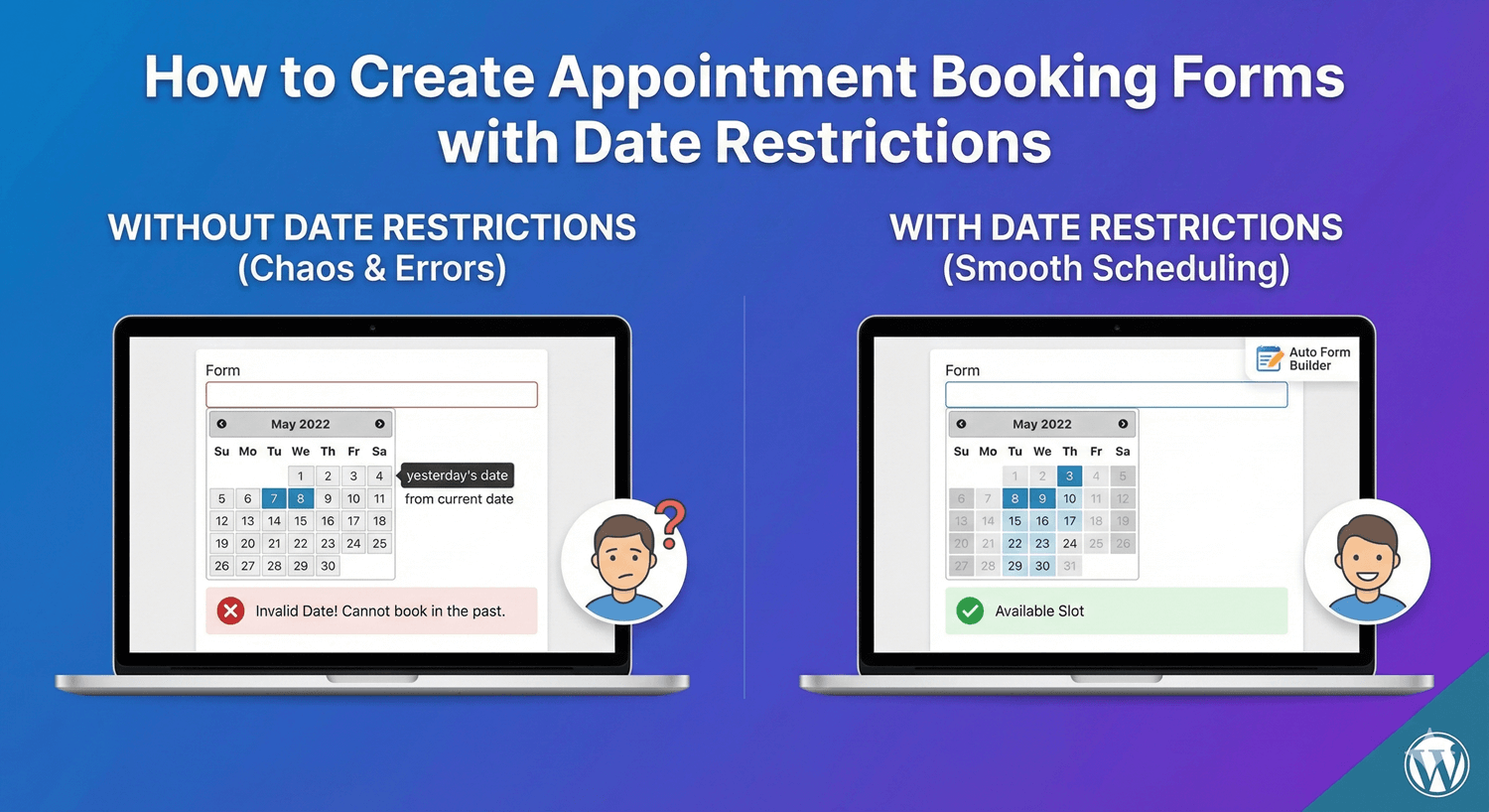
Without Restrictions
- Users book dates in the past
- Weekend bookings when you’re closed
- Same-day requests with no prep time
- Bookings months out you can’t confirm
- Manual follow-up to correct invalid dates
With Restrictions
- Only valid dates selectable
- Closed days automatically blocked
- Minimum lead time enforced
- Booking window clearly defined
- Every submission is actionable
Common Date Restrictions
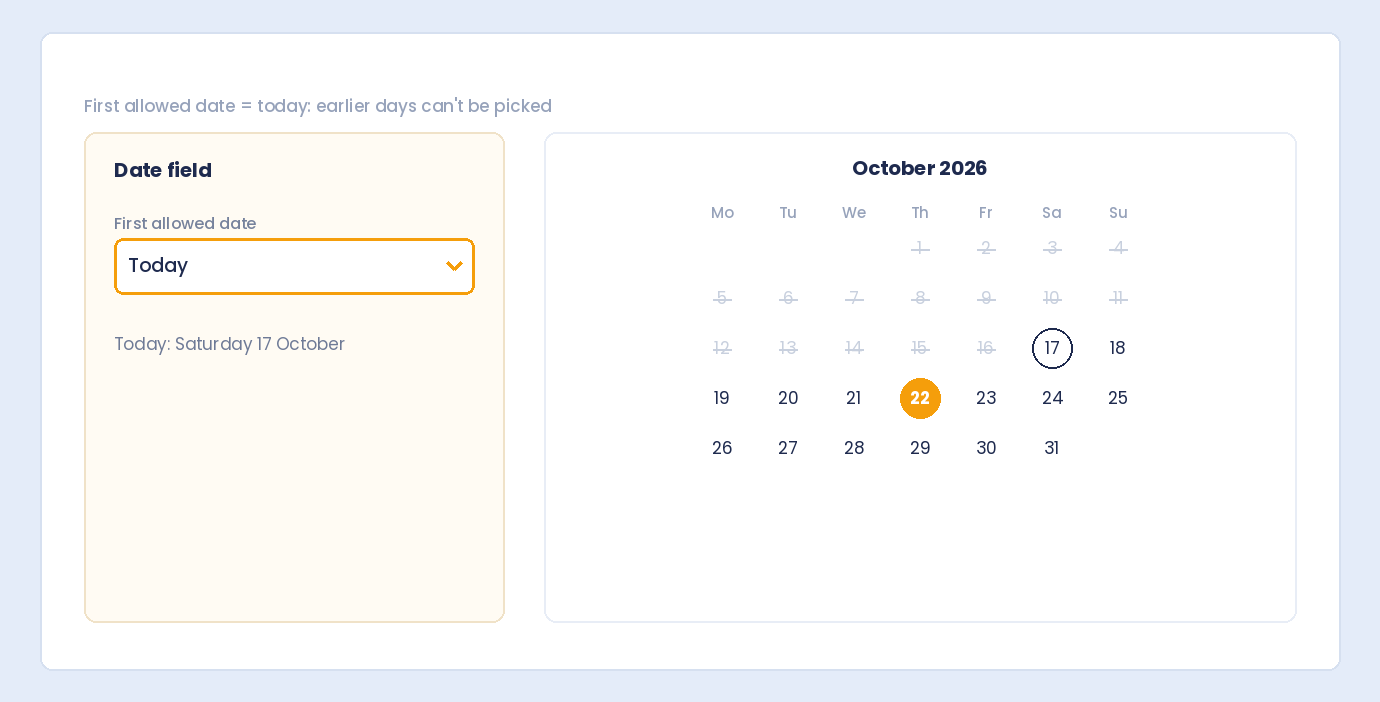
Block Past Dates
What it does: Prevents selecting dates before today
Use case: All appointment bookings—you can’t schedule the past
Block Future Dates
What it does: Prevents selecting dates after today
Use case: Date of birth fields, historical dates (not for booking)
Disable Weekends
What it does: Blocks Saturday and Sunday
Use case: Business hours appointments, office visits
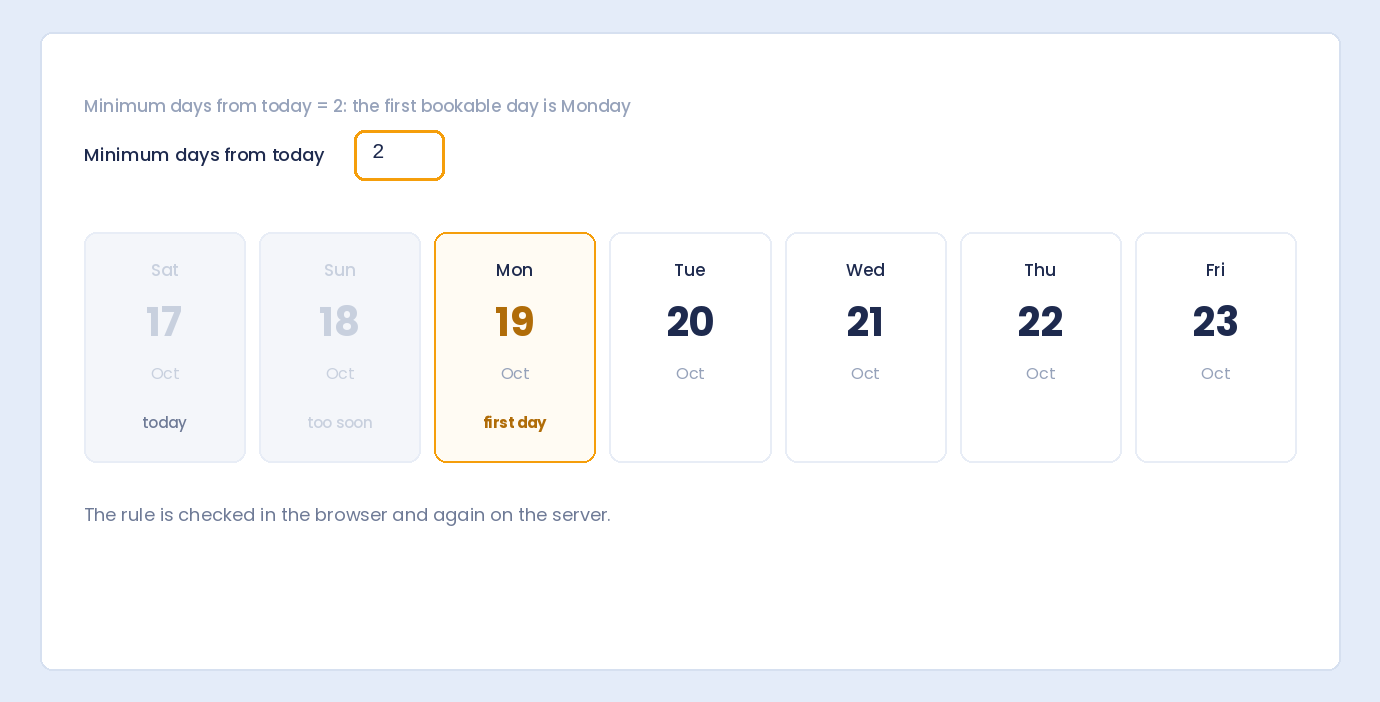
Minimum Date
What it does: Sets earliest selectable date
Use case: Require 24-48 hour lead time
Maximum Date
What it does: Sets latest selectable date
Use case: Limit booking window to 30/60/90 days
Building Your Appointment Booking Form
Step 1: Create Basic Form Structure
Start with essential fields:
- Name – Who’s booking
- Email – Confirmation contact
- Phone – Day-of contact
- Appointment Date – When (with restrictions)
- Preferred Time – Time slot selection
- Service Type – What they’re booking (optional)
- Notes – Additional information (optional)
Step 2: Add Date Field
- Open your form in AFB
- Drag Date field to your form
- Click to configure settings
Step 3: Configure Date Restrictions
Block Past Dates
- Find “Block Past Dates” option
- Toggle ON
- All past dates become unselectable
Disable Weekends
- Find “Disable Weekends” option
- Toggle ON
- Saturday and Sunday grayed out
Set Minimum Date (Lead Time)
- Find “Minimum Date” option
- Set to tomorrow or specific lead time
- Example: “Tomorrow” or “+2 days”
Set Maximum Date (Booking Window)
- Find “Maximum Date” option
- Set your booking window
- Example: “+30 days” or “+3 months”
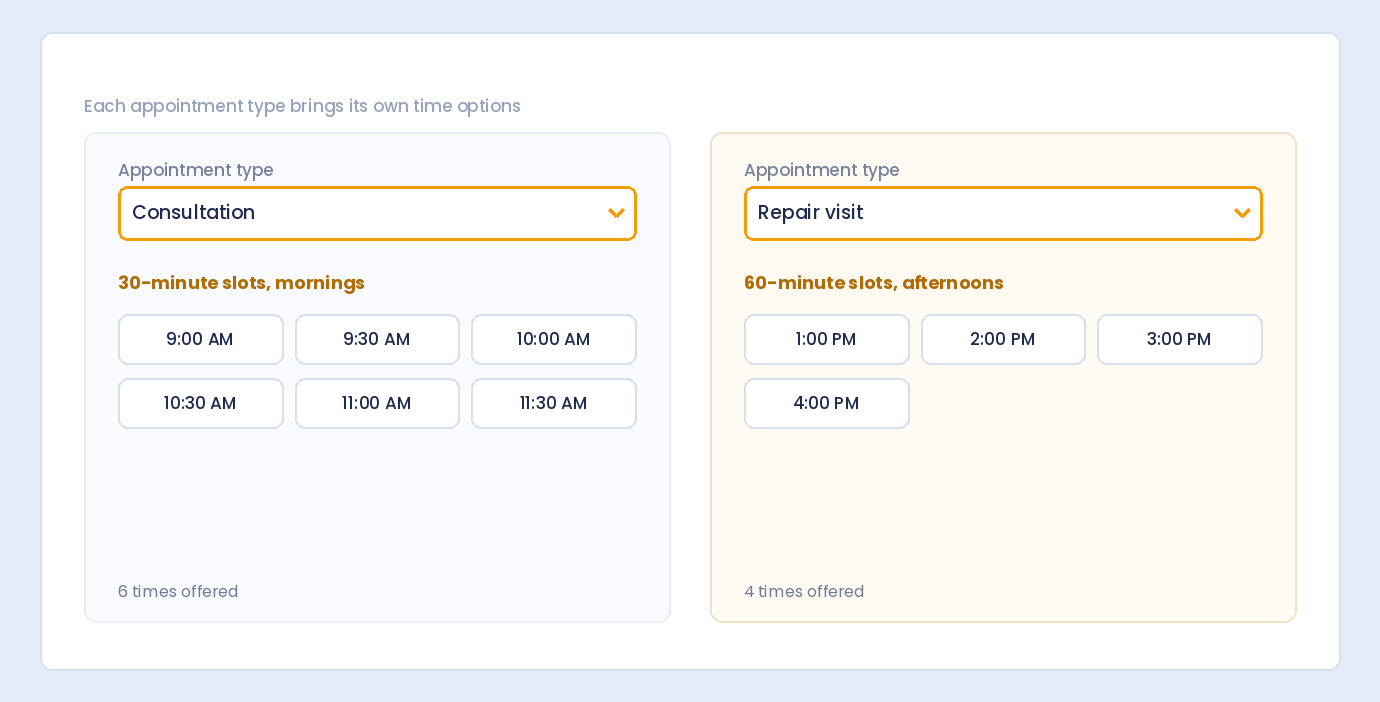
Step 4: Add Time Field
- Add Time field or Dropdown with time slots
- Configure available hours
- Set time intervals (15 min, 30 min, 1 hour)
Step 5: Configure Form Settings
- Set confirmation message
- Configure email notifications
- Add to your booking page
Date Restriction Scenarios
Scenario 1: Standard Business Appointments
Business: Consulting, professional services
Hours: Monday-Friday, 9am-5pm
Date Restrictions:
- ✓ Block past dates
- ✓ Disable weekends
- ✓ Minimum: Tomorrow (+1 day lead time)
- ✓ Maximum: +60 days
Time Options: 9:00 AM, 10:00 AM, 11:00 AM, 1:00 PM, 2:00 PM, 3:00 PM, 4:00 PM
Scenario 2: Medical/Healthcare Appointments
Business: Doctor’s office, clinic, dental
Hours: Monday-Friday, some Saturdays
Date Restrictions:
- ✓ Block past dates
- ✓ Disable Sundays only (if open Saturdays)
- ✓ Minimum: +2 days (processing time)
- ✓ Maximum: +90 days
Time Options: 30-minute intervals from 8:00 AM – 4:30 PM
Scenario 3: Same-Day Service Appointments
Business: Hair salon, spa, quick services
Hours: Tuesday-Saturday
Date Restrictions:
- ✓ Block past dates
- ✓ Disable Sunday and Monday
- ✓ Minimum: Today (same-day OK)
- ✓ Maximum: +30 days
Time Options: 15-minute intervals during business hours
Scenario 4: Event/Venue Booking
Business: Event space, conference rooms
Availability: Any day
Date Restrictions:
- ✓ Block past dates
- ✗ Don’t disable weekends (events happen weekends)
- ✓ Minimum: +7 days (planning time)
- ✓ Maximum: +6 months
Time Options: Morning (9am-12pm), Afternoon (1pm-5pm), Evening (6pm-10pm), Full Day
Scenario 5: Consultation Calls
Business: Sales calls, discovery calls
Hours: Flexible, multiple time zones
Date Restrictions:
- ✓ Block past dates
- ✓ Disable weekends
- ✓ Minimum: +1 day
- ✓ Maximum: +14 days (keep pipeline moving)
Time Options: 30-minute slots, limited availability per day
Setting Lead Time (Minimum Date)
Why Lead Time Matters
- Time to prepare for appointment
- Staff scheduling needs
- Confirmation email delivery
- Client preparation requirements
Common Lead Times
| Lead Time | Best For |
|---|---|
| Same day (today) | Walk-in style, quick services |
| Next day (+1) | Standard appointments |
| 2-3 days | Appointments needing prep |
| 1 week (+7) | Complex consultations, events |
| 2 weeks (+14) | Major events, extensive prep |
Setting Dynamic Minimum
Instead of fixed date, use relative:
- “Tomorrow” – Always one day ahead
- “+2 days” – Two days from today
- “+1 week” – Seven days out
Setting Booking Window (Maximum Date)
Why Limit How Far Ahead
- Schedule changes over time
- Can’t confirm availability far out
- Keeps bookings manageable
- Reduces no-shows (closer dates = more committed)
Common Booking Windows
| Window | Best For |
|---|---|
| 2 weeks | High-demand, quick turnover |
| 30 days | Standard services |
| 60 days | Professional services |
| 90 days | Medical, recurring appointments |
| 6 months | Events, venues, weddings |
| 1 year | Major events, annual planning |
Handling Weekends and Holidays
Disable Weekends
Simple toggle blocks Saturday and Sunday. Perfect for:
- Office-based businesses
- Professional services
- B2B appointments
Weekend-Only Bookings
Some businesses only operate weekends:
- Disable weekdays instead
- Or use custom available dates
Specific Days Closed
For businesses with non-standard schedules:
- Closed Monday-Tuesday, open Wed-Sun
- May need custom configuration
- Or clear help text about availability
Holidays
Options for handling holidays:
- Note in help text: “Excluding holidays”
- Follow up manually if holiday selected
- Advanced: Block specific dates
Combining Date and Time
Option 1: Separate Fields
Date picker + Time dropdown
Pros:
- Clear separation
- Easy to configure each
- More control over options
Cons:
- Two fields to fill
- Can’t show date-specific availability
Option 2: Date + Time Slot Dropdown
Date picker + Predefined time slots
Preferred Time: - Morning (9:00 AM - 12:00 PM) - Afternoon (1:00 PM - 5:00 PM) - Evening (6:00 PM - 8:00 PM)
Option 3: Time Field with Restrictions
Use Time field with min/max time and intervals
Settings:
- Min time: 9:00 AM
- Max time: 5:00 PM
- Interval: 30 minutes
Form Field Configuration Examples
Appointment Date Field
Label: “Preferred Appointment Date”
Required: Yes
Date Format: MM/DD/YYYY
Block Past Dates: Yes
Disable Weekends: Yes
Minimum Date: Tomorrow
Maximum Date: +60 days
Help Text: “Select a weekday within the next 60 days”
Time Slot Dropdown
Label: “Preferred Time”
Required: Yes
Options:
- 9:00 AM
- 10:00 AM
- 11:00 AM
- 1:00 PM
- 2:00 PM
- 3:00 PM
- 4:00 PM
Help Text: “Appointments are 1 hour. Final slot is 4:00 PM.”
Service Type Dropdown
Label: “Service Type”
Required: Yes
Options:
- Initial Consultation (30 min)
- Follow-up Appointment (15 min)
- Extended Session (1 hour)
- Other
User Experience Tips
Clear Visual Feedback
- Disabled dates should look obviously unselectable
- Grayed out, strikethrough, or removed
- Today should be highlighted
- Selected date clearly marked
Helpful Labels
- “Select a date (weekdays only)”
- “Choose appointment date (next 30 days)”
- “Available Monday-Friday”
Informative Help Text
- “We’re open Monday-Friday, 9am-5pm”
- “Please book at least 24 hours in advance”
- “Appointments available up to 60 days out”
Confirmation Message
After submission, confirm the details:
Thank you! Your appointment request: Date: [selected date] Time: [selected time] We'll confirm within 24 hours.
Mobile Considerations
Native Date Picker
- Mobile browsers show native date picker
- Restrictions still apply
- Easy scrolling through dates
Touch-Friendly
- Large enough tap targets
- Easy to select dates
- Dropdown time slots work well
Responsive Layout
- Date and time fields stack on mobile
- Full-width fields for easy selection
After the Booking
Email Notifications
Send confirmation with:
- Date and time selected
- Service type
- Location/address or video link
- Contact information
- Cancellation/reschedule instructions
Admin Notification
Alert your team with:
- New booking details
- Client contact info
- Any notes provided
Follow-Up
- Confirm booking (if not auto-confirmed)
- Send reminder before appointment
- Request feedback after
Troubleshooting
Users Can Still Select Past Dates
- Verify “Block Past Dates” is enabled
- Check for caching issues
- Test in incognito mode
Weekends Not Disabled
- Confirm “Disable Weekends” is toggled on
- Save and refresh form
- Check theme conflicts
Wrong Date Range
- Verify min/max date settings
- Check if using relative or fixed dates
- Relative dates update daily
Date Format Confusion
- Set clear date format (MM/DD/YYYY vs DD/MM/YYYY)
- Match your audience’s expectations
- US: MM/DD/YYYY
- International: DD/MM/YYYY or YYYY-MM-DD
Frequently Asked Questions
Can I block specific dates like holidays?
Basic date restrictions handle ranges and weekends. For specific dates (Christmas, Thanksgiving), note them in help text or follow up manually. Advanced implementations may support date blacklists.
How do I handle different time zones?
Add a time zone selector or note your time zone clearly: “All times are Eastern Time (ET)”. For international clients, consider showing multiple time zone options.
Can users book multiple appointments at once?
Standard forms collect one date/time. For multiple bookings, users submit multiple forms, or you create a more complex multi-date field setup.
What if they need to reschedule?
Include rescheduling instructions in your confirmation email. Link to contact form or booking page with note about existing appointment.
Should I require both date AND time?
Usually yes—an appointment needs both. Make both fields required for complete booking information.
Summary
Creating appointment booking forms with date restrictions:
- Add Date field – Core of appointment booking
- Block past dates – Can’t book yesterday
- Disable weekends – If closed Sat/Sun
- Set minimum date – Lead time (tomorrow, +2 days)
- Set maximum date – Booking window (+30, +60, +90 days)
- Add time selection – Dropdown or time field
- Clear help text – Explain availability
- Configure notifications – Confirm bookings
Conclusion
Date restrictions transform a simple date picker into a proper appointment booking tool. Block past dates, disable closed days, set lead time, and define your booking window—every submission becomes a valid, actionable appointment request. No more back-and-forth about unavailable dates.
Auto Form Builder includes date fields with built-in restrictions: block past dates, disable weekends, and set min/max date ranges. Create professional appointment booking forms that only accept valid dates.
Ready to build booking forms? Download Auto Form Builder and create appointment forms with smart date restrictions.