
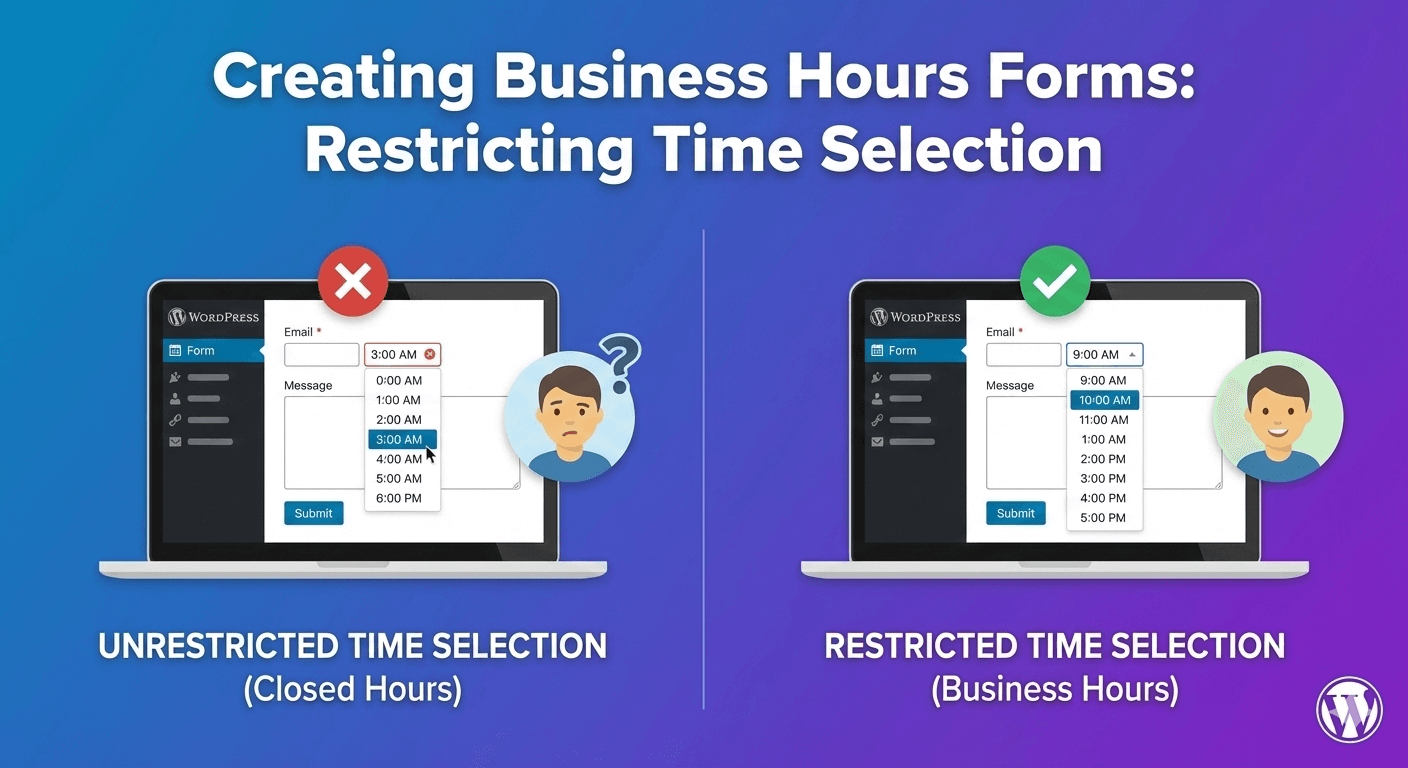
When customers book appointments online, you don’t want them selecting 3 AM or Sunday evening. Time restrictions ensure users can only choose times when you’re actually available. No more awkward “sorry, we’re closed then” emails—just clean, valid appointment requests within your business hours.

In this guide, you’ll learn how to create forms that restrict time selection to your operating hours.

Why Restrict Time Selection?

Problems Without Restrictions

  • Users book outside business hours
  • Staff must manually reject invalid times
  • Back-and-forth communication wastes time
  • Poor customer experience
  • Scheduling conflicts and confusion

Benefits of Time Restrictions

  • Only valid times available: Users see what’s actually possible
  • Reduced admin work: No manual filtering needed
  • Better UX: Clear expectations from the start
  • Fewer errors: Impossible times can’t be selected
  • Professional appearance: Shows you’ve thought it through

Time Field Features in Auto Form Builder

Auto Form Builder’s time field includes:

Feature Description
Time Format 12-hour (AM/PM) or 24-hour
Time Intervals Step increments (15 min, 30 min, 1 hour)
Minimum Time Earliest selectable time
Maximum Time Latest selectable time
Default Time Pre-selected time on load
Show Seconds Include seconds in selection

Setting Up Business Hours Restrictions

Step 1: Add Time Field

  1. Create or edit your form in AFB
  2. Drag the Time field onto your form
  3. Click to open settings

Step 2: Set Minimum Time (Opening Hour)

Configure when your business opens:

  • Find Minimum Time setting
  • Set to your opening time (e.g., 9:00 AM)
  • Users cannot select times before this

Step 3: Set Maximum Time (Closing Hour)

Configure when your business closes:

  • Find Maximum Time setting
  • Set to your closing time (e.g., 5:00 PM)
  • Users cannot select times after this

Step 4: Choose Time Format

Select display format:

  • 12-hour: 9:00 AM, 2:30 PM (common in US)
  • 24-hour: 09:00, 14:30 (common internationally)

Step 5: Set Time Intervals

Control time slot increments:

Interval Available Times (9 AM – 12 PM example)
15 minutes 9:00, 9:15, 9:30, 9:45, 10:00…
30 minutes 9:00, 9:30, 10:00, 10:30, 11:00…
1 hour 9:00, 10:00, 11:00, 12:00

Step 6: Set Default Time (Optional)

Pre-select a time:

  • Leave empty for no default
  • Set to common booking time
  • Set to first available slot

Common Business Hours Configurations

Standard 9-to-5 Business

Settings:

  • Minimum Time: 9:00 AM
  • Maximum Time: 5:00 PM
  • Interval: 30 minutes
  • Format: 12-hour

Available slots: 9:00 AM, 9:30 AM, 10:00 AM… 4:30 PM, 5:00 PM

Extended Hours Retail

Settings:

  • Minimum Time: 8:00 AM
  • Maximum Time: 9:00 PM
  • Interval: 30 minutes
  • Format: 12-hour

Medical Office

Settings:

  • Minimum Time: 8:00 AM
  • Maximum Time: 4:00 PM
  • Interval: 15 minutes
  • Format: 12-hour

Note: Last appointment at 4:00 PM allows time for final consultations before closing.

Restaurant Reservations

Lunch Service:

  • Minimum Time: 11:30 AM
  • Maximum Time: 2:00 PM
  • Interval: 30 minutes

Dinner Service:

  • Minimum Time: 5:30 PM
  • Maximum Time: 9:00 PM
  • Interval: 30 minutes

Note: For separate lunch/dinner, you might use dropdown with predefined slots or two separate forms.

24-Hour Service (Night Shift)

Settings:

  • Minimum Time: Not set (or 12:00 AM)
  • Maximum Time: Not set (or 11:59 PM)
  • Interval: 1 hour
  • Format: 24-hour

Morning Only Service

Settings:

  • Minimum Time: 6:00 AM
  • Maximum Time: 12:00 PM
  • Interval: 30 minutes

Afternoon/Evening Service

Settings:

  • Minimum Time: 1:00 PM
  • Maximum Time: 8:00 PM
  • Interval: 30 minutes

Combining Date and Time Restrictions

Complete Appointment Form

For full scheduling, combine both fields:

Date Field Settings

  • Block past dates: Yes
  • Disable weekends: Yes (if closed)
  • Maximum date: 3 months ahead (optional limit)

Time Field Settings

  • Minimum: 9:00 AM
  • Maximum: 5:00 PM
  • Interval: 30 minutes

Result: Users select a future weekday and a time within business hours.

Example Form Layout

  1. Name (required)
  2. Email (required)
  3. Phone (optional)
  4. Appointment Date (required, weekdays only, future only)
  5. Preferred Time (required, 9 AM – 5 PM)
  6. Service Type (dropdown)
  7. Notes (optional textarea)

Handling Different Time Zones

The Challenge

If visitors are in different time zones:

  • Your 9 AM might be their 6 AM
  • Confusion about which timezone applies

Solutions

Option 1: Clearly State Your Timezone

Add help text: “All times are Eastern Time (ET)”

Option 2: Use Business Location

Label clearly: “Select your preferred time (New York time)”

Option 3: Let Users Specify

Add a timezone dropdown if serving multiple regions

Alternative: Predefined Time Slots

When to Use Dropdown Instead

Sometimes a dropdown with specific slots works better than a time picker:

  • Limited specific appointment times
  • Complex schedules (lunch break gaps)
  • Named time slots (“Morning”, “Afternoon”)

Example: Time Slot Dropdown

Create a Dropdown field with options:

  • 9:00 AM – 9:30 AM
  • 9:30 AM – 10:00 AM
  • 10:00 AM – 10:30 AM
  • … (skip lunch) …
  • 1:00 PM – 1:30 PM
  • 1:30 PM – 2:00 PM

Dropdown vs. Time Picker

Use Dropdown When Use Time Picker When
Few specific slots Many possible times
Gaps in schedule (lunch) Continuous availability
Duration matters Start time only
Named slots needed Numeric times work

Industry-Specific Examples

Salon/Spa Appointments

Typical hours: 9 AM – 7 PM

Interval: 15 minutes (services vary in length)

Add: Service type field (affects duration)

Consulting/Professional Services

Typical hours: 9 AM – 5 PM

Interval: 30 minutes or 1 hour

Add: Meeting type, duration preference

Fitness Classes

Best approach: Dropdown with class times

Example: “6:00 AM Yoga”, “7:00 AM Spin”, “12:00 PM Pilates”

Home Services (Plumber, Electrician)

Typical hours: 8 AM – 6 PM

Interval: 1-2 hour windows

Better approach: Dropdown with ranges

Example: “8-10 AM”, “10 AM-12 PM”, “1-3 PM”, “3-5 PM”

Call Back Request

Typical hours: Business hours

Interval: 30 minutes

Add: “Best time to reach you” with flexible options

User Experience Tips

1. Show Available Range

Add help text showing hours:

“Select a time between 9:00 AM and 5:00 PM”

2. Use Appropriate Intervals

  • Don’t offer 5-minute slots for 1-hour meetings
  • Match intervals to actual service duration
  • Fewer options = faster selection

3. Consider Last Appointment Time

If appointments last 30 minutes and you close at 5 PM:

  • Set maximum time to 4:30 PM
  • Ensures appointments finish by closing

4. Default to Popular Times

Pre-select commonly chosen times:

  • 10:00 AM (popular morning slot)
  • 2:00 PM (popular afternoon slot)

5. Mobile-Friendly Selection

  • Larger touch targets
  • Scroll wheels work well
  • Test on mobile devices

Validation and Error Messages

Built-in Validation

Time field validates:

  • Time is within min/max range
  • Valid time format
  • Required field is filled

Clear Error Messages

  • “Please select a time”
  • “Please select a time between 9:00 AM and 5:00 PM”
  • “Selected time is not available”

Troubleshooting Time Restrictions

Times Outside Range Still Showing

Check:

  • Min/max settings are saved
  • Format matches (12-hour vs 24-hour)
  • Clear cache and refresh

Wrong Time Format Displaying

Check:

  • Format setting (12-hour vs 24-hour)
  • Browser/device locale settings

Intervals Not Working

Check:

  • Interval setting is saved
  • Test with different interval values

Frequently Asked Questions

Can I have different hours for different days?

A single time field can’t vary by day. For different hours (like Saturday 10-2), consider conditional logic to show different time options based on selected date, or use a dropdown with predefined slots.

How do I block lunch hours?

Standard min/max creates a continuous range. For gaps (like 12-1 PM lunch), use a dropdown with specific time slots that skip the lunch hour.

Can users type any time or must use picker?

Depends on configuration. Forcing picker selection ensures times match your intervals and restrictions.

What if I have multiple locations with different hours?

Add a location dropdown first, then use conditional logic (Pro feature) to show appropriate time restrictions based on selected location.

Should I use 12-hour or 24-hour format?

12-hour (AM/PM) is standard in US. 24-hour is common in Europe and professional/military contexts. Match your audience’s expectation.

Summary

Creating business hours forms:

  1. Add Time field – Drag to your form
  2. Set minimum time – Your opening hour
  3. Set maximum time – Your closing hour
  4. Choose interval – 15 min, 30 min, or 1 hour
  5. Select format – 12-hour or 24-hour
  6. Combine with Date field – For complete booking forms
  7. Add help text – Clarify available hours

Conclusion

Time restrictions eliminate scheduling headaches. Users only see times when you’re available, reducing back-and-forth and creating a smoother booking experience for everyone.

Auto Form Builder’s time field makes it easy to set business hours with minimum/maximum time settings, customizable intervals, and flexible format options. Combine with date restrictions for a complete appointment booking solution.

Ready to create business hours forms? Download Auto Form Builder and start collecting appointments within your operating hours.

Leave a Reply

Your email address will not be published. Required fields are marked *