
Your email list is one of your most valuable marketing assets. Unlike social media followers, you own your email list—and it’s the most direct way to reach your audience. But first, you need to collect those email addresses. A newsletter signup form makes it easy for visitors to subscribe. In this guide, you’ll learn how to create effective newsletter signup forms for your WordPress site. The minimum for a newsletter form: Consider adding: Fewer fields = more signups. Every additional field reduces conversion rates. Only ask for what you’ll actually use. Here’s how to build a newsletter signup form with Auto Form Builder: Install Auto Form Builder Create a New Form For personalized emails: Add Email Field Set a clear confirmation: “Thanks for subscribing! Check your inbox for a confirmation email.” Use action-oriented text: Enable notifications to receive alerts when someone subscribes (optional—you may prefer to manage in your email marketing tool). Configure Form Settings Make it visually appealing: Style Your Form Embed your form where visitors will see it: Above the fold or in a prominent section. First-time visitors should see it. Visible on every blog post. Readers engaged with content are likely to subscribe. Place at the end of articles. Readers who finish are interested—capture them. Persistent visibility across all pages. Usually a compact inline form. Catches visitors before they leave. Good for site-wide presence. A page focused solely on newsletter signup. Link from social media, emails. Trigger when visitors are about to leave. Last chance to capture. Appear after reading a certain percentage. Engaged readers see it. Inline forms mid-article. Natural pause point for subscription offer. “Get our free guide” with email signup. Value exchange. One field (email) converts best. Add name only if you’ll use it for personalization. Why should someone subscribe? Tell them: Above your form, use headlines that speak to benefits: Build trust: Tell subscribers what they’ll get: A lead magnet is something valuable you offer in exchange for an email: Form submissions need to reach your email marketing platform: Works for low volume but tedious at scale. For automated subscriber management, consider: If you have EU visitors, comply with GDPR: Add a required checkbox: ☐ I agree to receive email updates. View our Privacy Policy. Consider requiring email confirmation: This is handled by your email marketing platform, not the form itself. Signups ÷ Form Views × 100 Raw number of signups over time. New subscribers per week/month. Every field reduces signups. Email-only is often best. “Subscribe to our newsletter” doesn’t tell visitors why they should. If visitors can’t find it, they can’t sign up. Make it visible. “Submit” is boring. Use action words that excite. Half your visitors are on mobile. Test on phones. EU visitors need proper consent. Add checkbox and privacy info. Confirm the signup worked. Set expectations for what comes next. Email-only converts best. Add name only if you’ll use it for personalization. Make it optional if included. Set expectations upfront. Weekly is common. Monthly works for some niches. Don’t disappear—consistent contact keeps engagement high. Multiple places: sidebar, after posts, footer. Test different placements to see what works for your audience. It’s recommended for GDPR compliance and list quality. Your email marketing tool handles this. Export CSV and import, use Zapier integration, or check if direct integration is available. Creating a newsletter signup form: A newsletter signup form is your gateway to building an email list—one of the most valuable assets for any website. Keep it simple, offer clear value, and place it where visitors will see it. Auto Form Builder makes creating newsletter forms easy. Use the Newsletter Signup template or build your own with just an email field. Style it to match your brand, embed it anywhere, and start growing your list. Ready to build your email list? Download Auto Form Builder and create your newsletter signup form today.How to Add a Newsletter Signup Form to Your WordPress Site

Why Newsletter Signup Forms Matter
Direct Communication
Higher Conversion Rates
Ownership
Revenue Potential
Newsletter Form Basics
Essential Fields
Optional Fields
The Golden Rule
Creating Your Newsletter Form
Step 1: Install Auto Form Builder

Step 2: Create a New Form

Step 3: Add Email Field
Step 4: Add Name Field (Optional)
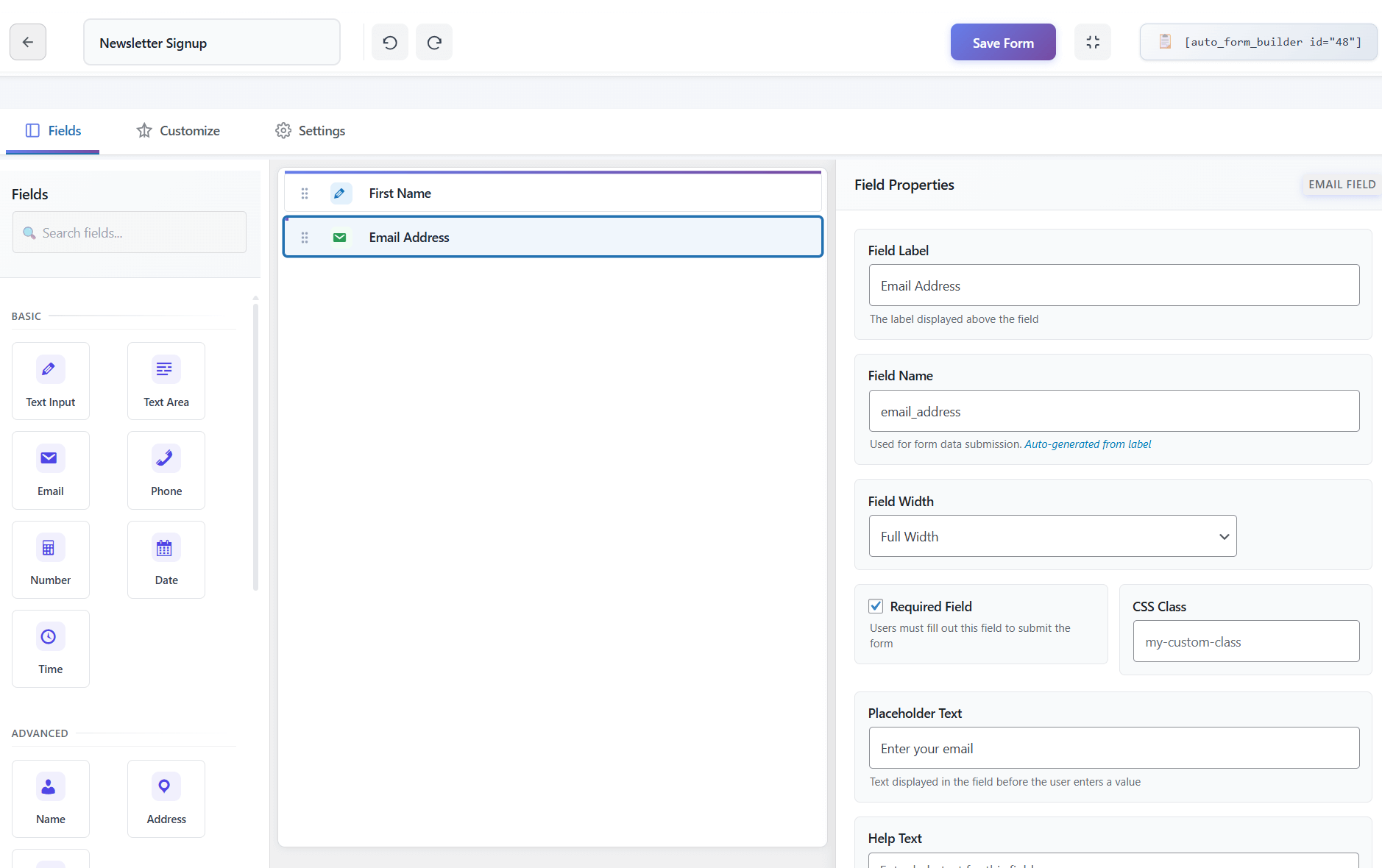
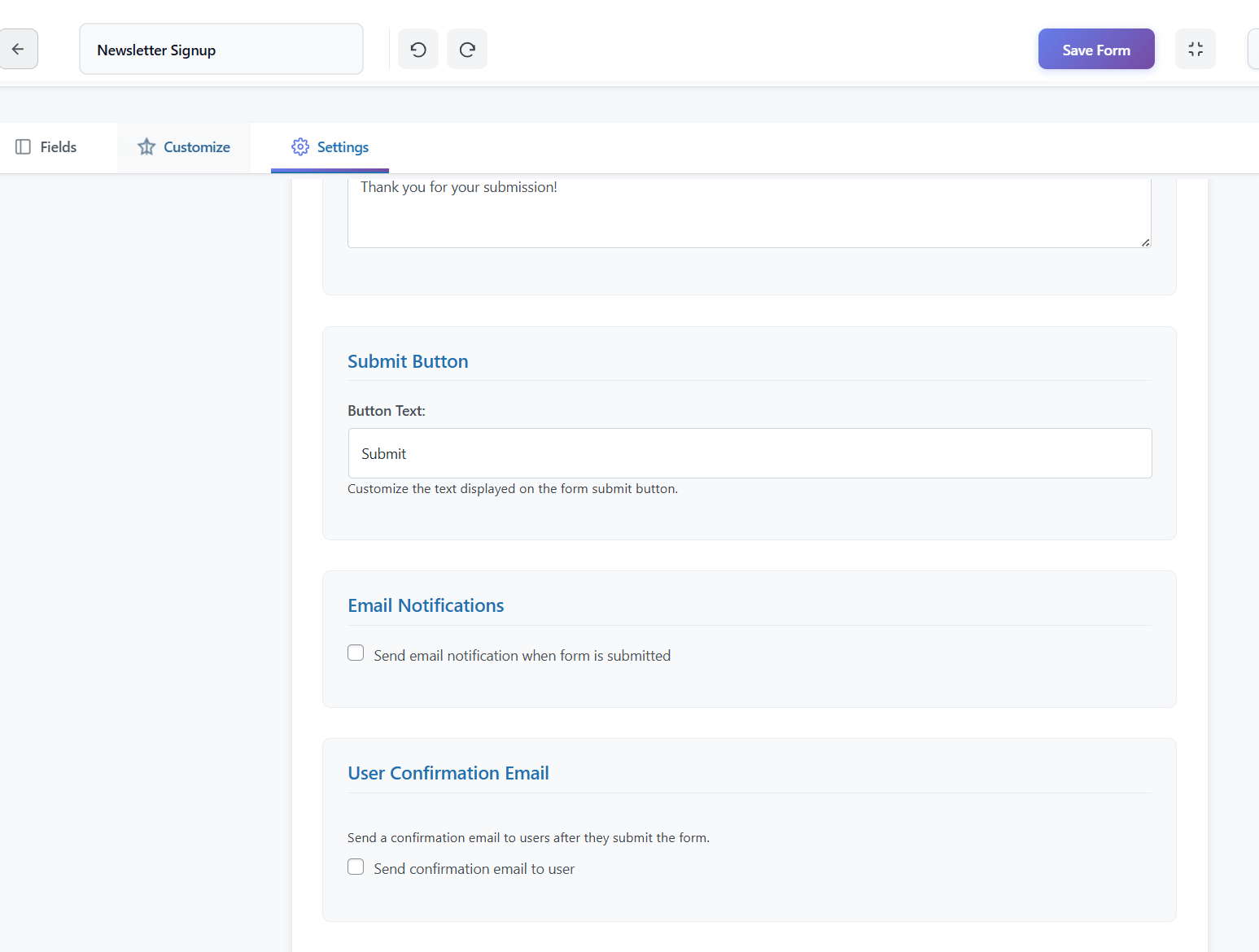
Step 5: Configure Form Settings
Success Message
Submit Button
Email Notifications
Step 6: Style Your Form

Step 7: Place the Form
Where to Place Newsletter Forms
High-Visibility Locations
Homepage
Blog Sidebar
After Blog Posts
Header/Navigation Area
Footer
Dedicated Landing Page
Strategic Placements
Exit-Intent Popups
Scroll-Triggered Forms
Within Content
Resource Pages
Newsletter Form Best Practices
1. Keep It Short
Fields
Typical Conversion Rate
Email only
Highest
Email + First Name
Slightly lower
Email + Name + Other
Significantly lower
2. Offer Value
3. Use Compelling Headlines
4. Make the Button Stand Out
5. Include Social Proof
6. Set Expectations
7. Ensure Mobile-Friendliness
Lead Magnets: Boosting Signups
Common Lead Magnets
Lead Magnet Form Setup
Connecting to Email Marketing Tools
Manual Method
Integration Options
Popular Email Platforms
GDPR and Privacy Compliance
Consent Checkbox
Clear Privacy Information
Double Opt-In
Measuring Newsletter Form Success
Key Metrics
Conversion Rate
Submission Count
List Growth Rate
Improving Performance
A/B Test Elements
Analyze Drop-Off
Common Newsletter Form Mistakes
❌ Too Many Fields
❌ No Value Proposition
❌ Hidden Form
❌ Generic Button Text
❌ No Mobile Optimization
❌ Ignoring GDPR
❌ No Thank You Message
Newsletter Form Examples
Minimalist (Email Only)
📧 Get Weekly Tips

[[email protected]        ] [Subscribe]

No spam. Unsubscribe anytime.
With Name
Join 5,000+ Subscribers

[First Name            ]
[Email Address         ]
[    Get Free Updates    ]

Weekly insights on marketing. No spam ever.
Lead Magnet Style
🎁 FREE: The Ultimate SEO Checklist

Get our 50-point checklist that helped
1,000+ sites improve their rankings.

[Email Address         ]
[  Download Free Checklist  ]

Plus weekly SEO tips. Unsubscribe anytime.
Inline/Compact
Newsletter: [[email protected]] [Join]
Frequently Asked Questions
Should I require name or just email?
How often should I email subscribers?
Where’s the best place for a newsletter form?
Do I need double opt-in?
How do I get submissions into Mailchimp/ConvertKit?
Summary
Conclusion


Learn how to bulk delete form submissions in WordPress. Remove multiple entries at once to clean up spam, test data, and old submissions efficiently.

Master WordPress form submission management. Learn to view, filter, search, star, export, and organize form entries like a pro with this complete guide.

Learn how to search and find form submissions in WordPress. Filter by date, form, status, and search across all submission data.
Comparing Auto Form Builder and Contact Form 7 for WordPress. See which form plugin offers better ease of use, features, and value for your website.

Learn how to view, organize, search, filter, and export your WordPress form submissions. Complete guide to submission management.

Learn why storing form data on your own server helps with GDPR compliance. Choose form plugins that keep your user data local and under your control.

Learn how to filter WordPress form submissions by date. Find entries from specific time periods quickly using date range filters.

Learn how to bulk edit, delete, and manage form submissions in WordPress. Save time with mass actions on multiple entries at once.

Learn how to restrict date fields to future dates only for event registration forms. Block past dates and set booking windows in WordPress.

Learn how to create quantity fields in WordPress forms. Collect numbers for guests, items, tickets, and more with proper validation and limits.

Learn how to star and flag important form submissions in WordPress. Prioritize leads, mark urgent requests, and organize your form entries effectively.

Learn how to set up email notifications for your WordPress forms so you never miss a submission. Step-by-step guide with Auto Form Builder.
