
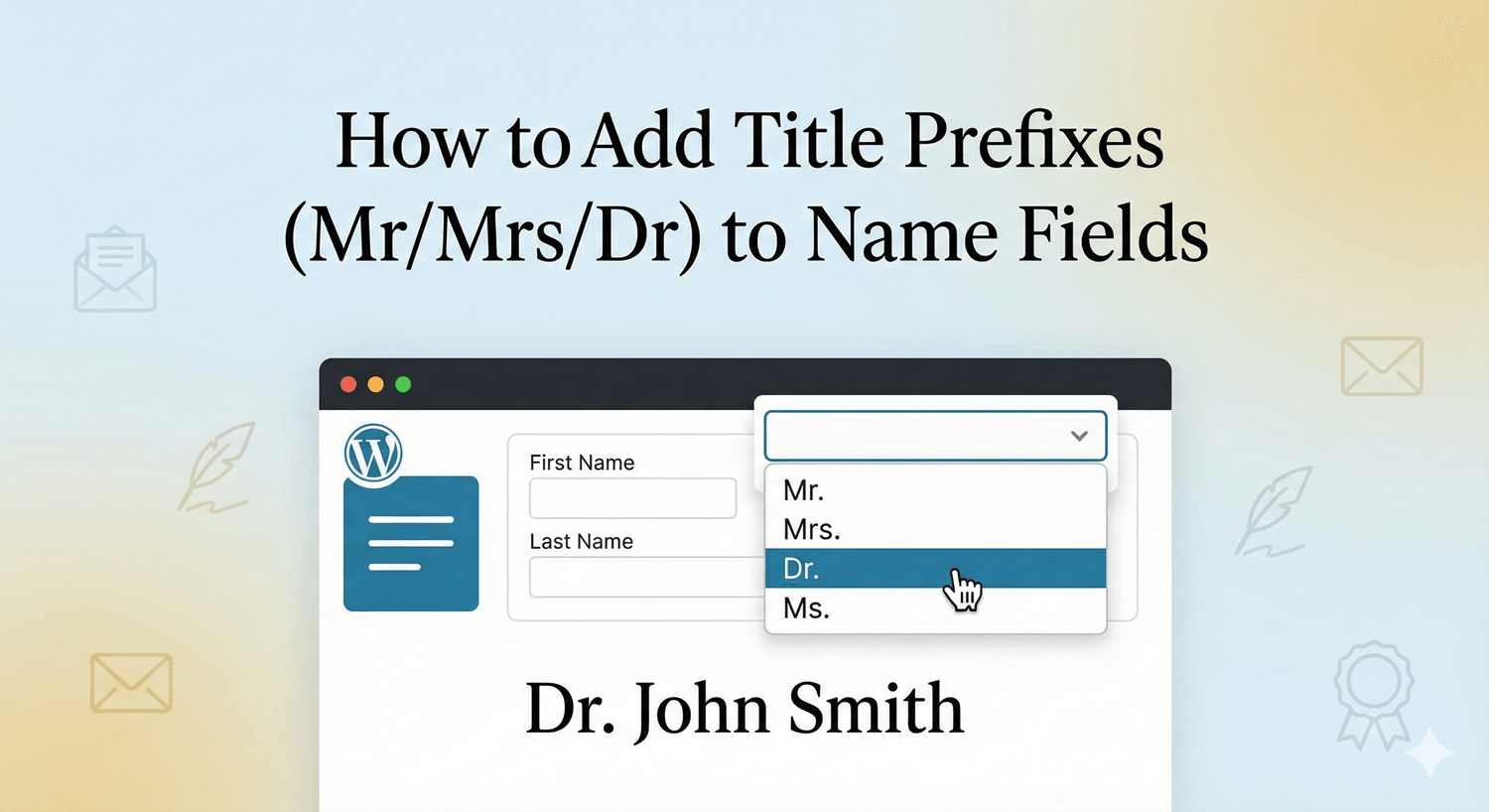
Sometimes “John Smith” isn’t formal enough. Professional correspondence, official documents, and respectful communication often require “Dr. John Smith” or “Mrs. Jane Smith.” Title prefixes—also called honorifics or salutations—add that professional touch to name collection. In this guide, you’ll learn how to add title prefix options to your WordPress form name fields. Here’s how to add title prefixes with Auto Form Builder: Customize available titles: Most name fields include standard options: Add industry-specific titles as needed: Decide if prefix is mandatory: Set up the full name structure: Prefix options: Settings: Prefix options: Settings: Prefix options: Settings: Prefix options: Suffix options (also useful): Prefix options: Prefix options: Settings: Not everyone uses titles: First option should allow skipping: Be inclusive: Too many options overwhelm users: Standardize with or without periods: Match titles to who’s filling the form: Prefix (before name) + Suffix (after name) captures full formal identity: Personalize communication: Formal letters and certificates: Store complete formal names: Automated document personalization: Solutions: Check: Solutions: Solutions: Be aware that titles may indicate: Optional for most forms. Only require it for formal/official purposes where proper addressing is essential (legal documents, academic correspondence). For general forms: Mr., Mrs., Ms., Mx., Dr. Add industry-specific titles (Prof., Rev., military ranks) only when relevant to your audience. It’s traditional but increasingly rare. “Ms.” serves as a universal option for women regardless of marital status. Include “Miss” if your audience expects it. Mx. (pronounced “mix” or “mux”) is a gender-neutral title. Including it shows inclusivity and respects users who don’t identify with traditional gendered titles. Keep the dropdown to common options (5-8). For specialized forms with many titles, use a searchable dropdown or group options by category. Adding title prefixes to name fields: Title prefixes add a layer of professionalism and respect to your forms. Whether you need “Dr.” for a medical registration or “Mr./Ms.” for business correspondence, properly configured name fields capture complete formal identities. Auto Form Builder’s name field includes a prefix component that’s easy to enable and customize. Add titles, make it optional, include gender-neutral options—all with a few clicks. Ready for formal name collection? Download Auto Form Builder and add title prefixes to your name fields today.How to Add Title Prefixes (Mr/Mrs/Dr) to Name Fields
Why Include Title Prefixes
Professional Communication
Personalization
Required for Certain Industries
User Preference
Common Title Prefixes
Standard Titles
Title
Usage
Mr.
Adult males
Mrs.
Married women (traditional)
Ms.
Women (marital status neutral)
Miss
Unmarried women (traditional)
Mx.
Gender-neutral option
Professional Titles
Title
Usage
Dr.
Doctors (medical or PhD)
Prof.
Professors
Rev.
Religious leaders
Hon.
Judges, politicians
Sir/Dame
Knighted individuals (UK)
Military Ranks
Academic Titles
Adding Title Prefixes to Name Fields
Step 1: Install Auto Form Builder
Step 2: Add a Name Field
Step 3: Enable Prefix Component
Step 4: Configure Prefix Options
Default Options
Add Custom Options
Step 5: Set Required/Optional
Step 6: Configure Other Name Components
Title Prefix Examples by Industry
General Business Form
Healthcare/Medical Form
Academic/University Form
Legal Form
Military/Government Form
Inclusive/Modern Form
Best Practices for Title Prefixes
1. Make It Optional (Usually)
2. Include a Blank/Skip Option
3. Offer Gender-Neutral Options
4. Keep the List Manageable
5. Use Consistent Formatting
6. Consider Your Audience
Prefix + Suffix: Complete Formal Names
When to Include Both
Common Suffixes
Suffix
Meaning
Jr.
Junior (same name as father)
Sr.
Senior
II, III, IV
Generational (second, third, fourth)
PhD
Doctor of Philosophy
MD
Medical Doctor
Esq.
Esquire (attorney)
CPA
Certified Public Accountant
Form Structure with Both
[Prefix ▼] [First Name    ] [Middle    ] [Last Name    ] [Suffix ▼]
   Dr.        Jane            Marie        Smith          PhD
Using Collected Titles
Email Greetings
Document Generation
CRM Records
Mail Merge
International Considerations
Different Cultures, Different Titles
UK/Commonwealth
German-Speaking Countries
Spanish-Speaking Countries
Japan
For International Forms
Troubleshooting Title Fields
Users Skipping Title When Required
Title Not Saving with Submission
Title Dropdown Too Long
Users Want Title Not Listed
Privacy and Sensitivity
Title Can Reveal Personal Information
Respecting Preferences
Data Usage
Frequently Asked Questions
Should title be required or optional?
What titles should I include?
Should I include “Miss”?
What is “Mx.” and should I include it?
How do I handle very long title lists?
Summary
Conclusion


Learn how to bulk delete form submissions in WordPress. Remove multiple entries at once to clean up spam, test data, and old submissions efficiently.

Master WordPress form submission management. Learn to view, filter, search, star, export, and organize form entries like a pro with this complete guide.

Learn how to search and find form submissions in WordPress. Filter by date, form, status, and search across all submission data.
Comparing Auto Form Builder and Contact Form 7 for WordPress. See which form plugin offers better ease of use, features, and value for your website.

Learn how to view, organize, search, filter, and export your WordPress form submissions. Complete guide to submission management.

Learn why storing form data on your own server helps with GDPR compliance. Choose form plugins that keep your user data local and under your control.

Learn how to filter WordPress form submissions by date. Find entries from specific time periods quickly using date range filters.

Learn how to bulk edit, delete, and manage form submissions in WordPress. Save time with mass actions on multiple entries at once.

Learn how to restrict date fields to future dates only for event registration forms. Block past dates and set booking windows in WordPress.

Learn how to create quantity fields in WordPress forms. Collect numbers for guests, items, tickets, and more with proper validation and limits.

Learn how to star and flag important form submissions in WordPress. Prioritize leads, mark urgent requests, and organize your form entries effectively.

Learn how to set up email notifications for your WordPress forms so you never miss a submission. Step-by-step guide with Auto Form Builder.
