
How to Build a Birthday Form Field in WordPress
A birthday field looks trivial, but collect it carelessly and you get a mess: dates in five different formats, ambiguous day/month order, and entries you can’t trust. A good date-of-birth field gives people a clean picker and gives you consistent, usable dates. Auto Form Builder’s Date field does exactly that. Here’s how to build one.
Use a proper date picker
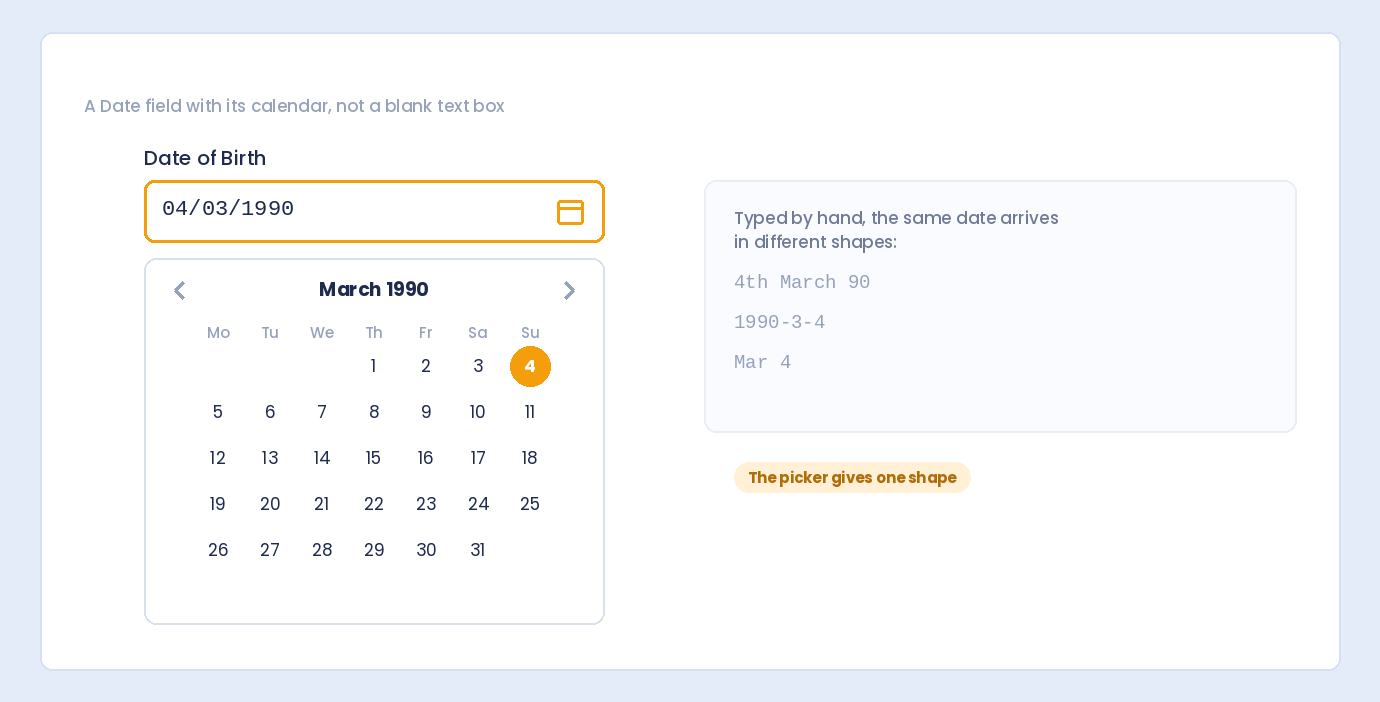
The first rule of collecting dates is to never make people type them freehand. A free-text date invites every format under the sun and endless ambiguity. The Date field provides a date picker, so people select their date of birth from a calendar rather than typing it — which means the value arrives clean and unambiguous every time. Label it clearly (“Date of Birth”) so there’s no confusion about what you’re asking.
Choose the right display format
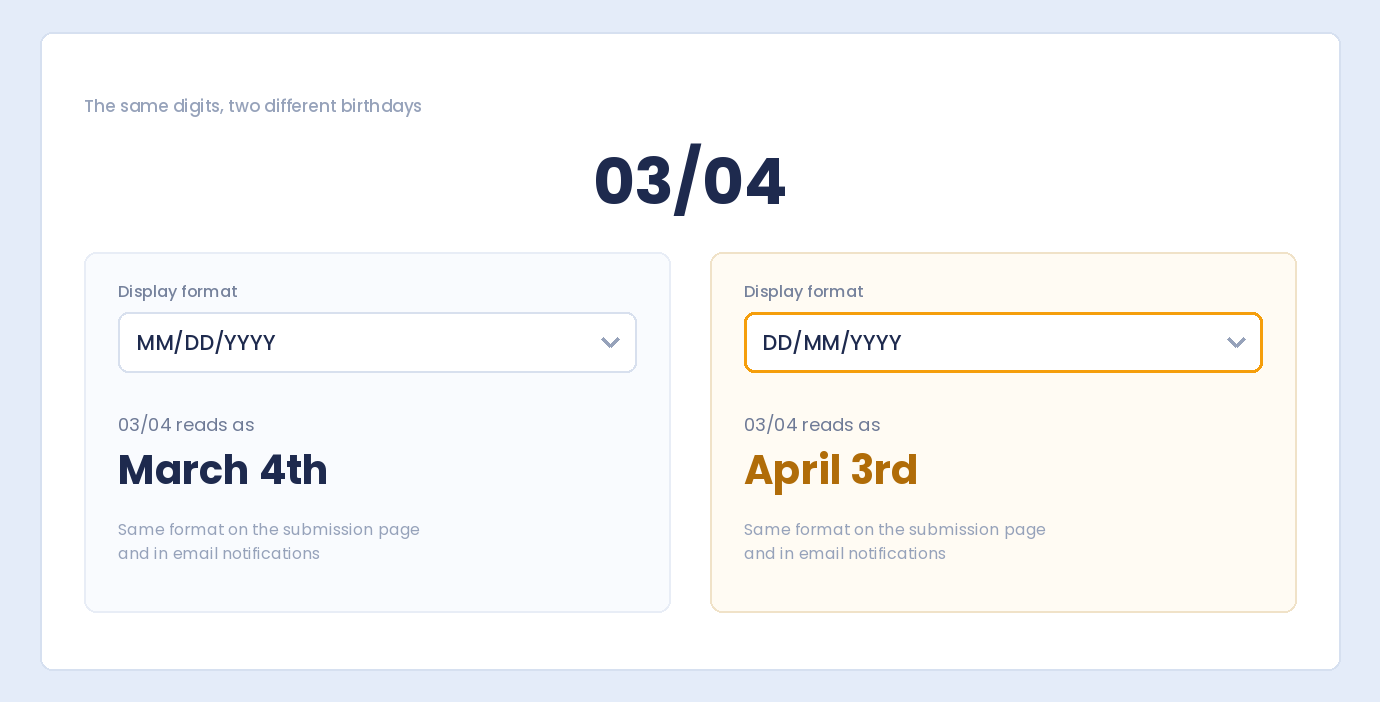
Different audiences read dates differently — 03/04 means March 4th in some countries and April 3rd in others. The Date field lets you set the display format (DD/MM/YYYY, MM/DD/YYYY, and more) to match your audience, and that format shows consistently on the submission detail page and in email notifications. Pick the format your visitors expect and your data stays readable and unambiguous everywhere it appears.
Decide how much of the date you need
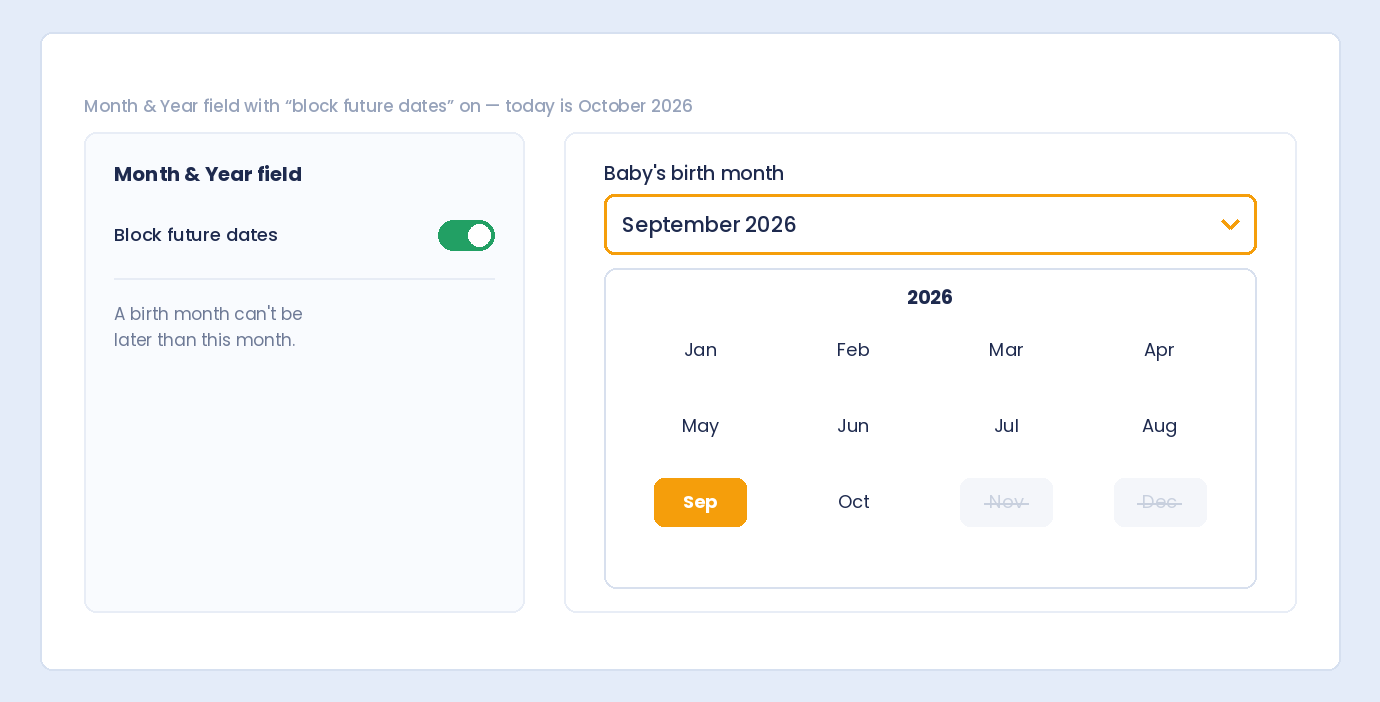
Sometimes you don’t need the exact day. If you only want the month and year — for an age bracket, a membership month, or a “when did you join” question — the Month & Year field collects just that with a simple picker (or year only). Asking for less is easier for people to complete, so match the field to what you actually need.
Set sensible limits
A date of birth can’t be in the future, and you may want to bound it in other ways too. The Date field supports limits like a first allowed date, so you can keep entries within a reasonable range. For a Month & Year field there’s a “block future dates” option, ideal for questions like “when were you born” where a future date makes no sense. Setting limits stops obviously wrong entries before they reach you.
Put it to work with conditional logic
Because it’s a normal field, a date of birth can drive conditional logic — for example, showing an additional field only when a birthday falls in a certain range, or tailoring a follow-up based on the answer. The date becomes not just data you store, but something the form can react to.
Clean birthdays, every time
Building a good birthday field comes down to a few choices: use the picker so nobody types a date by hand, set the display format your audience expects, ask only for as much of the date as you need, and add sensible limits. Do that and every date of birth arrives consistent and ready to use — no code required.
Related reading: How to add a date picker and US vs UK vs international date formats.
Ready to collect dates the clean way? Install Auto Form Builder free from WordPress.org.
FAQ
Can I set the date format for a birthday field?
Yes. The Date field lets you choose the display format (like DD/MM/YYYY or MM/DD/YYYY), and it shows consistently in entries and email notifications.
Do I need the full date for a birthday?
Not always. If you only need month and year, the Month & Year field collects that with a simple picker — useful when the exact day isn't required.