
How to Send Lead Source Data to Google Sheets
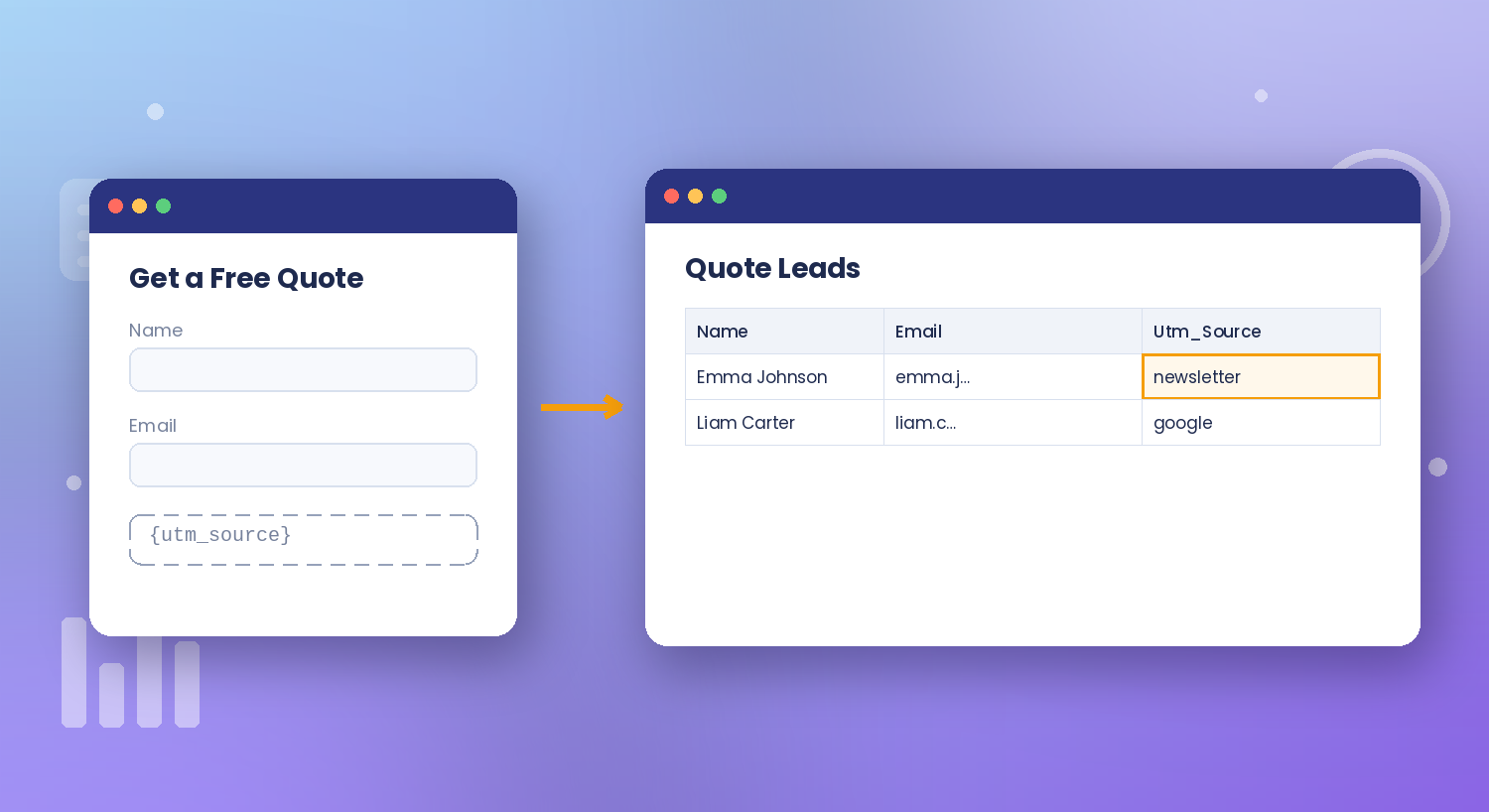
A spreadsheet of leads is much more useful when every row also says where the lead came from. Then you can sort by source, count leads per campaign, or share the list with your sales team. In this guide, you’ll send each lead’s UTM source, campaign and ad click ID from your WordPress form to Google Sheets automatically, using two free add-ons in Auto Form Builder: Ad Tracking and Google Sheets. It’s part of a bigger setup to track leads from your WordPress forms.
Related video: How to Track Which Ad Brought Each WordPress Form Lead
How it works
- Ad Tracking remembers the UTM parameters and ad click IDs a visitor arrived with.
- Hidden fields in your form pick up those values when the visitor sends the form.
- Google Sheets adds each submission as a new row in your spreadsheet, and hidden fields get their own columns, just like the visible ones.
What you need before you start
- Auto Form Builder with the Google Sheets add-on already connected to your Google account. If it isn’t, follow our guide to connect WordPress forms to Google Sheets first.
- A spreadsheet shared with your connection, with an empty worksheet (tab) for these leads.
- About ten minutes
Step 1: Add hidden source fields to your form
Activate Ad Tracking on the Add-Ons screen and keep Capture ticked on its settings page. Then open your form in the form builder and, for each value you want in the sheet:
- Add a Text Input field and give it a clear label, such as
UTM Source. - Tick Hidden Field.
- In Hidden Value, type the tag, such as
{utm_source}.
Good fields for a lead sheet are {utm_source}, {utm_campaign}, {first_utm_source} and, if you run ads, {gclid} or {fbclid}. Click Save Form.
Step 2: Map the form to your sheet
- Go to Auto Form Builder → Google Sheets and find your form under Enable Forms.
- Click Configure Mapping.
- In Step 1: Choose Spreadsheet, pick your Spreadsheet and the empty Worksheet, then click Next: Map Fields.
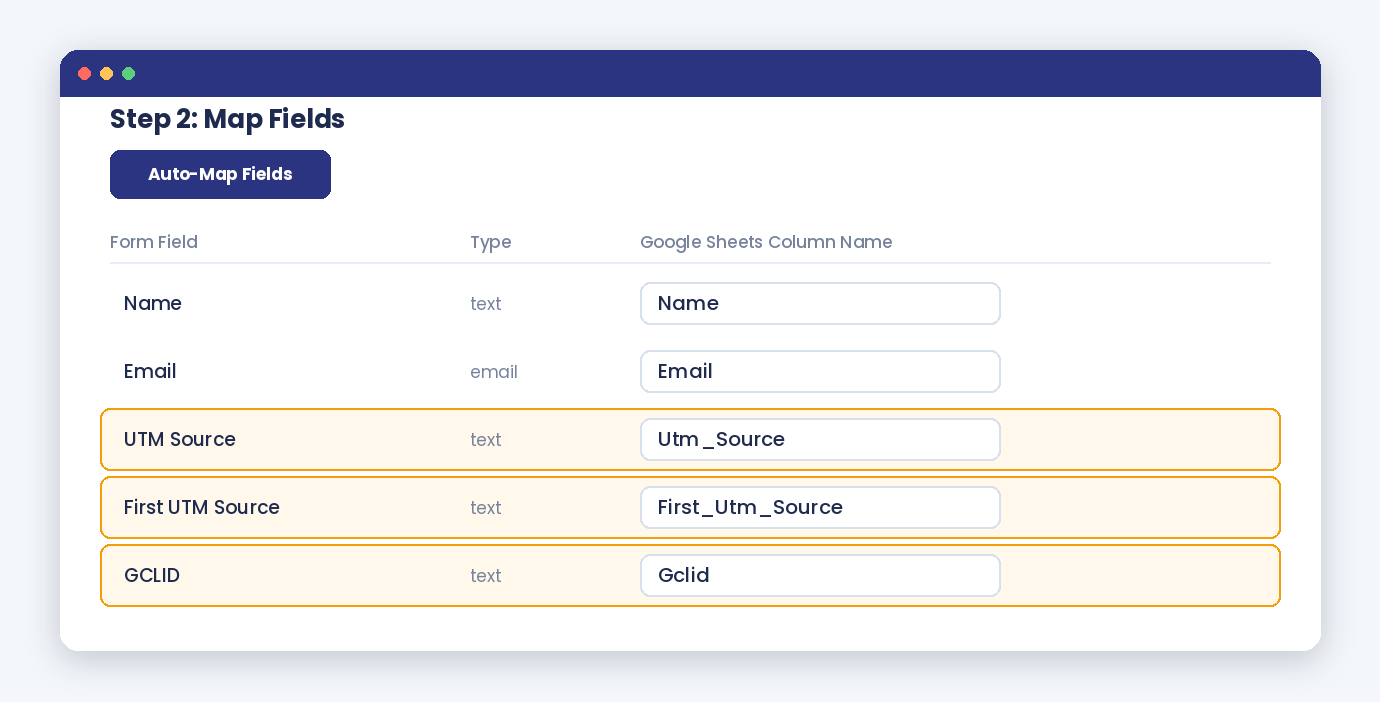
- Click Auto-Map Fields. Every field gets a column name, including your hidden fields. In our test, the add-on reported “10 fields auto-mapped successfully!” for a form with three visible and seven hidden fields.
- Change any Google Sheets Column Name you like, then click Save Configuration.
- Turn your form’s switch ON and click Save Settings.
Under Spreadsheet Options, Create column headers automatically adds the column names in the first row, and Include submission timestamp adds the time of each submission.
Step 3: Test it
Open your form’s page with a test link like this one, fill in the form and send it:
https://yoursite.com/your-form-page/?utm_source=newsletter&utm_campaign=sheets_test&gclid=SheetsTest456
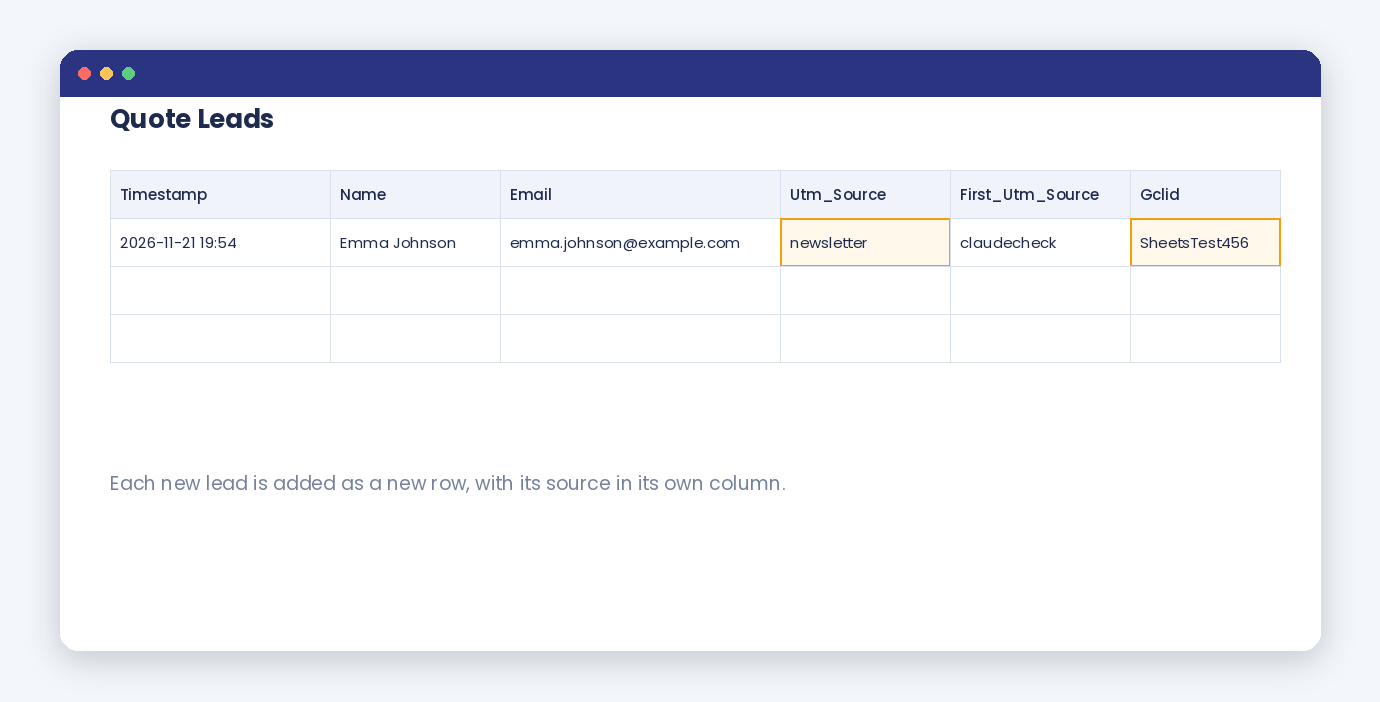
In our test, a new row appeared in the worksheet within seconds. It had the timestamp, the form ID, the visitor’s name, email and message, and then the source values: newsletter under Utm_Source and SheetsTest456 under Gclid.
What to do with your lead sheet
- Count leads per source. Add a pivot table on the Utm_Source column to see how many leads each channel brings.
- Compare campaigns. Filter by Utm_Campaign to see which campaign is worth more budget.
- Share it. Give your sales team or an agency access to the sheet, so they see new leads and their source without a WordPress login.
Tips
- Use an empty worksheet for each form. Different forms have different fields, so mixing them in one tab makes the columns hard to read.
- Adding fields later? If the form already sends to a sheet, check that the new columns have a header in the first row, and add it yourself if needed.
- Some cells are empty? That’s normal. A visit without a gclid, for example, leaves the Gclid cell empty. The “latest” values always come from the latest visit with campaign parameters. See first-touch vs. last-touch.
- Ask your visitors for consent first where the law requires it.
Summary
To send lead source data to Google Sheets, add hidden fields with Ad Tracking tags like {utm_source} and {gclid} to your form, map the form to an empty worksheet with Auto-Map Fields, and turn the form on. Every new lead then arrives in your sheet with its source and campaign, ready to sort, count and share. Both add-ons are free.
Related reading:
FAQ
Do I need Zapier or Make for this?
No. The free Google Sheets add-on sends each submission to your sheet directly, including hidden fields, so you don't need a paid connector.
Can I send different forms to different sheets?
Yes. Each form has its own mapping, so you can choose a different spreadsheet and worksheet for every form.
Is it free?
Yes. Both the Ad Tracking and Google Sheets add-ons come free with Auto Form Builder.