
Address forms aren’t one-size-fits-all. A US preset asks for “State” and “ZIP Code”—perfect for American customers, confusing for a UK visitor who has “County” and “Postcode.” The right preset matches your audience: local presets for regional businesses, international for global reach. Choose wrong, and you’ll frustrate users or collect incomplete data. In this guide, you’ll learn when to use international versus local address presets and how to choose the right one for your forms. Presets are pre-configured address field setups that include: Build your own address format: Best preset: US Why: State dropdown for accurate selection, ZIP validation, no unnecessary country field. Best preset: International (or Custom) Why: Need to serve both countries. Could also use custom with just US/Canada in country dropdown. Best preset: EU Why: Covers multiple EU countries, European address format, limited country list. Best preset: International Why: Users from anywhere in the world, flexibility is key. Best preset: Custom (minimal) Why: Might only need street address and city, no country needed. Best preset: UK Why: Proper UK format, postcode validation, familiar to customers. Best preset: Custom or International Why: Custom with US + Canada country dropdown and dynamic state/province based on selection. Simple, works for everyone, less specific validation. Advanced: Change address format based on country selection: Requires conditional logic or advanced configuration. Different pages for different regions: If you start US-only and expand: If you stop international shipping: Use International preset with a custom country dropdown containing just US and Canada. Or use conditional logic to switch between state/province dropdowns based on country selection. International works for everyone but loses some UX benefits of local presets (state dropdowns, specific validation). If 95% of your users are from one country, use that country’s preset. Yes, but existing submissions stay in their original format. New submissions use the new format. Consider migration for historical data if needed. Local presets with state dropdowns make shipping zone calculation easier. International addresses may need more complex zone mapping. Data is stored as entered. Preset affects input format and validation, not how data is stored in your database. Choosing the right address preset: The right address preset matches your business reality. US-only business? Use the US preset for state dropdowns and ZIP validation. Global reach? International handles everyone. The preset choice impacts user experience, data quality, and form completion rates. Choose based on who your users actually are, not who they might theoretically be. Auto Form Builder offers multiple address presets including International, US, Canada, UK, EU, and Custom configurations. Select the preset that matches your audience or build your own custom address format. Ready to set up your address form? Download Auto Form Builder and choose the address preset that fits your business.International vs Local Address Forms: Which Preset to Use?

Understanding Address Presets
What Are Address Presets?
Available Presets
International Preset
What It Includes
Key Features
When to Use International
Pros
Cons
US Preset
What It Includes
Key Features
When to Use US Preset
Pros
Cons
Canada Preset
What It Includes
Key Features
When to Use Canada Preset
Pros
Cons
UK Preset
What It Includes
Key Features
When to Use UK Preset
Pros
Cons
EU Preset
What It Includes
Key Features
When to Use EU Preset
Pros
Cons
Custom Preset
What It Does
When to Use Custom
Custom Configuration Options
Comparison Table
Feature
International
US
Canada
UK
EU
Countries Served
All
US only
Canada only
UK only
EU members
Country Field
Yes (required)
No
No
No
Yes
State/Region
Text field
Dropdown
Dropdown
Optional text
Varies
Postal Label
Postal/ZIP
ZIP Code
Postal Code
Postcode
Postal Code
Validation
Flexible
ZIP format
A1A 1A1
UK postcode
Flexible
Best For
Global
US business
Canadian business
UK business
European business
Decision Guide
Choose International If:
Choose US If:
Choose Canada If:
Choose UK If:
Choose EU If:
Choose Custom If:
Common Scenarios
Scenario 1: US E-commerce, US Shipping Only
Scenario 2: US Company, Ships to US and Canada
Scenario 3: European E-commerce, EU Shipping
Scenario 4: Global SaaS Company
Scenario 5: Local Service Business (One City)
Scenario 6: UK Business, Ships UK Only
Scenario 7: Canadian Company, US and Canada
Handling Multiple Countries
Option 1: International Preset
Option 2: Country-Specific Logic
Option 3: Separate Forms
User Experience Considerations
Familiarity Matters
Validation Trade-offs
Field Count
Migration Considerations
Expanding from Local to International
Narrowing from International to Local
Frequently Asked Questions
What if I serve US and Canada only?
Should I always use International to be safe?
Can I switch presets later?
What about shipping rate calculations?
Do presets affect data storage?
Summary
Conclusion


Learn how to bulk delete form submissions in WordPress. Remove multiple entries at once to clean up spam, test data, and old submissions efficiently.

Master WordPress form submission management. Learn to view, filter, search, star, export, and organize form entries like a pro with this complete guide.

Learn how to search and find form submissions in WordPress. Filter by date, form, status, and search across all submission data.
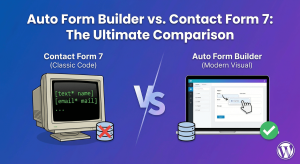
Comparing Auto Form Builder and Contact Form 7 for WordPress. See which form plugin offers better ease of use, features, and value for your website.

Learn how to view, organize, search, filter, and export your WordPress form submissions. Complete guide to submission management.

Learn why storing form data on your own server helps with GDPR compliance. Choose form plugins that keep your user data local and under your control.

Learn how to filter WordPress form submissions by date. Find entries from specific time periods quickly using date range filters.

Learn how to bulk edit, delete, and manage form submissions in WordPress. Save time with mass actions on multiple entries at once.

Learn how to restrict date fields to future dates only for event registration forms. Block past dates and set booking windows in WordPress.

Learn how to create quantity fields in WordPress forms. Collect numbers for guests, items, tickets, and more with proper validation and limits.

Learn how to star and flag important form submissions in WordPress. Prioritize leads, mark urgent requests, and organize your form entries effectively.

Learn how to set up email notifications for your WordPress forms so you never miss a submission. Step-by-step guide with Auto Form Builder.
