
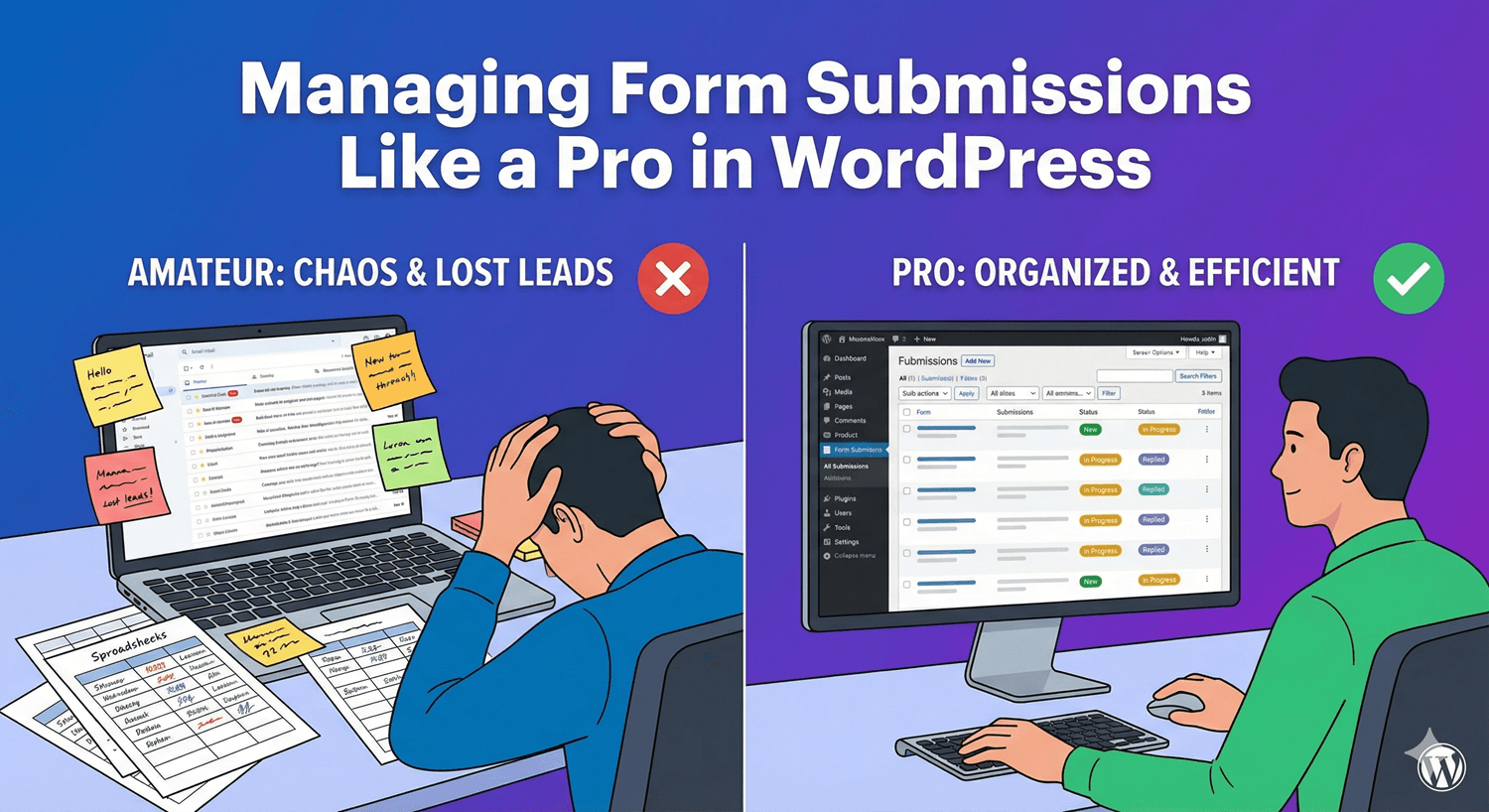
Receiving form submissions is just the beginning. What separates amateurs from pros is how efficiently they manage those submissions—finding entries quickly, prioritizing important ones, keeping track of follow-ups, and maintaining clean data. Poor submission management means lost leads, missed opportunities, and hours of unnecessary work.

In this guide, you’ll learn professional techniques for managing WordPress form submissions efficiently.

The Submission Management Challenge

Common Problems

  • Hundreds of entries with no organization
  • Can’t find specific submissions
  • No way to track which entries need follow-up
  • Duplicate handling by team members
  • Important submissions buried in spam
  • Manual export processes eating up time

What Pro Management Looks Like

  • Find any submission in seconds
  • Clear system for prioritization
  • Track status through workflow
  • Quick bulk actions for efficiency
  • Clean exports when needed
  • No missed or duplicate follow-ups

Submission Management Features Overview

Auto Form Builder provides comprehensive submission management:

Feature What It Does
Submission List View all entries in sortable table
Detail View See complete submission data
Search Find entries by any content
Filters Form, date, status, tags
Sorting By date, form, status
Starring Mark important submissions
Read/Unread Track viewed entries
Bulk Actions Handle multiple entries at once
Export CSV, JSON, XML formats
Delete Remove unwanted entries

Setting Up Your Workflow

Step 1: Access Submissions

  1. Go to AFB in WordPress admin
  2. Click Submissions
  3. View all form entries in one place

Step 2: Understand the Interface

The submissions page includes:

  • Filter bar: Form selector, date filter, search, status
  • Submission list: Table of entries
  • Bulk actions: Checkbox selection + action dropdown
  • Pagination: Navigate through pages
  • Export button: Download submissions

Step 3: Establish Daily Routine

Professional submission management starts with routine:

Morning Check

  1. Filter by “Today” or “Since Yesterday”
  2. Review new submissions
  3. Star urgent ones for immediate action
  4. Mark as read when reviewed

Weekly Review

  1. Filter by “Last 7 Days”
  2. Check starred items are handled
  3. Export for reports if needed
  4. Clean up spam/test entries

Mastering Search and Filters

Search Techniques

Basic Search

Type any text to find matching submissions:

  • Email address: “[email protected]
  • Name: “John Smith”
  • Phone: “555-1234”
  • Any field content: “urgent”

Search Tips

  • Search is usually case-insensitive
  • Partial matches often work
  • Search across all fields

Filter Combinations

By Form

Select specific form to see only its submissions:

  • “Contact Form” entries only
  • “Quote Request” entries only
  • Compare volume between forms

By Date

Narrow to time periods:

  • Today, Yesterday
  • Last 7 Days, Last 30 Days
  • This Month, Last Month
  • Custom date range

By Status

Filter by entry status:

  • Unread (new entries)
  • Read (already viewed)
  • Starred (marked important)

Combined Filters

Stack filters for precise results:

  • Contact Form + Last 7 Days + Unread
  • Quote Request + This Month + Starred
  • All Forms + Today + Contains “urgent”

Using Stars for Prioritization

What Starring Does

  • Marks submission as important
  • Visual indicator (★) in list
  • Filterable—see only starred items
  • Persists until you unstar

Starring Strategies

Strategy 1: High-Value Leads

Star submissions that indicate:

  • Large potential deal
  • Enterprise customer
  • Urgent request
  • VIP contact

Strategy 2: Needs Follow-Up

Star when:

  • You can’t respond immediately
  • Waiting for information
  • Requires team discussion
  • Scheduled for later action

Strategy 3: Quality Examples

Star to save:

  • Great testimonial quotes
  • Interesting use cases
  • Reference for training

Managing Starred Items

  1. Regularly filter to see starred only
  2. Work through starred items
  3. Unstar when handled
  4. Keep starred list manageable

Read/Unread Status Management

How Read Status Works

  • New submissions start as Unread
  • Viewing details marks as Read
  • Can manually toggle status
  • Filter by read/unread

Using Read Status Effectively

Unread = Needs Attention

Keep unread until:

  • You’ve reviewed the submission
  • Initial response sent
  • Delegated to team member

Daily Goal: Zero Unread

Professional approach:

  1. Start day filtering unread
  2. Process each submission
  3. Mark read when handled
  4. End day with zero unread

Bulk Actions for Efficiency

Available Bulk Actions

Action Use Case
Mark as Read Clear multiple reviewed entries
Mark as Unread Flag for re-review
Star Mark multiple as important
Unstar Clear completed priorities
Delete Remove spam/test entries
Export Selected Download specific entries

How to Use Bulk Actions

  1. Check boxes next to entries (or “Select All”)
  2. Choose action from dropdown
  3. Click Apply
  4. Confirm if prompted

Bulk Action Scenarios

Cleaning Up Test Submissions

  1. Search for your test email
  2. Select all test entries
  3. Bulk delete

Processing a Batch

  1. Filter: Today + Unread
  2. Review each entry
  3. Select all reviewed
  4. Bulk mark as read

Exporting Client Entries

  1. Search for client’s email/company
  2. Select their submissions
  3. Export selected to CSV

Exporting Submissions

Export Formats

Format Best For
CSV Excel, Google Sheets, most tools
JSON Developers, API integrations
XML Specific integrations, archives

Export Scope

  • All submissions: Complete data dump
  • Filtered results: Current filter applied
  • Selected entries: Only checked items
  • Single form: One form’s data

Export Best Practices

Regular Backups

  • Export monthly as backup
  • Store exports securely
  • Include date in filename

Reporting

  • Filter date range first
  • Export to CSV
  • Analyze in spreadsheet

CRM Import

  • Export CSV with needed fields
  • Map columns to CRM fields
  • Import to CRM system

Organizing Multiple Forms

When You Have Many Forms

  • Contact Form
  • Quote Request
  • Support Ticket
  • Newsletter Signup
  • Event Registration

Management Strategies

Form-Specific Review

Review each form separately:

  1. Filter to one form
  2. Process all its submissions
  3. Move to next form

Priority-Based Review

Process by urgency:

  1. Support tickets first (urgent)
  2. Quote requests second (revenue)
  3. Contact forms third (general)
  4. Newsletter last (batch process)

Team Assignment

Different people handle different forms:

  • Support team → Support tickets
  • Sales team → Quote requests
  • Marketing → Newsletter signups

Data Retention and Cleanup

Why Clean Up?

  • Database performance
  • GDPR compliance
  • Easier to find recent entries
  • Reduced storage

Cleanup Strategies

Regular Deletion

  • Delete spam immediately
  • Remove test submissions
  • Purge old entries (after export)

Retention Policy

Example policy:

  • Keep 90 days by default
  • Export before deleting
  • Keep starred indefinitely
  • Delete spam immediately

Before Deleting

  1. Export the entries first
  2. Store export securely
  3. Then delete from database

Pro Tips and Techniques

1. Process, Don’t Just View

When you open a submission:

  • Take action (respond, delegate, note)
  • Don’t just read and close
  • Mark status appropriately

2. Use Consistent Starring

Define what stars mean for your team:

  • Everyone uses same criteria
  • Stars have clear meaning
  • Regular starred review

3. Filter Before Export

Don’t export everything when you need a subset:

  • Apply filters first
  • Export only what’s needed
  • Smaller, cleaner files

4. Bookmark Filtered Views

If your filtered URLs persist:

  • Bookmark common filter combinations
  • “My daily unread” bookmark
  • “This month’s quotes” bookmark

5. Mobile Management

When away from desk:

  • Check WordPress admin on mobile
  • Star urgent items for later
  • Quick responses when possible

Troubleshooting Common Issues

Can’t Find a Submission

  • Remove all filters first
  • Search by email address
  • Check date range is broad enough
  • Try partial search terms

Too Many Submissions

  • Use filters to narrow down
  • Process in batches (by date, by form)
  • Set up regular cleanup routine

Accidentally Deleted Entry

  • Check if there’s a trash/recovery option
  • Restore from backup export
  • Check email notifications for copy

Frequently Asked Questions

How long should I keep submissions?

Depends on your needs and regulations. Common approach: 90 days active, export older data, delete after export. Check GDPR requirements if applicable.

Can multiple team members manage submissions?

Yes. Anyone with WordPress admin access can view submissions. Coordinate who handles what to avoid duplicates.

Should I respond via submission system or email?

Typically respond via your email. The submission system stores entries; your email handles communication. Use submission data to craft responses.

How do I handle spam submissions?

Delete immediately. Consider adding CAPTCHA to forms. Look for patterns and block if systematic.

Can I edit submissions?

Most systems keep submissions as submitted for data integrity. Add notes if needed rather than editing original data.

Summary

Managing submissions like a pro:

  1. Establish routine – Daily checks, weekly reviews
  2. Master search/filters – Find anything quickly
  3. Use starring – Prioritize what matters
  4. Track read/unread – Know what’s processed
  5. Leverage bulk actions – Handle efficiently
  6. Export regularly – Backup and report
  7. Clean up – Maintain manageable data

Conclusion

Professional submission management transforms form data from overwhelming to actionable. With proper filtering, starring, status tracking, and bulk actions, you’ll never lose a lead or miss an important entry again.

Auto Form Builder provides all the tools you need: powerful search and filters, starring system, read/unread tracking, bulk actions, and flexible exports. Everything in one organized interface.

Ready to manage submissions like a pro? Download Auto Form Builder and take control of your form data.

Leave a Reply

Your email address will not be published. Required fields are marked *