US Phone Number Format: Setting Up (123) 456-7890 in Forms
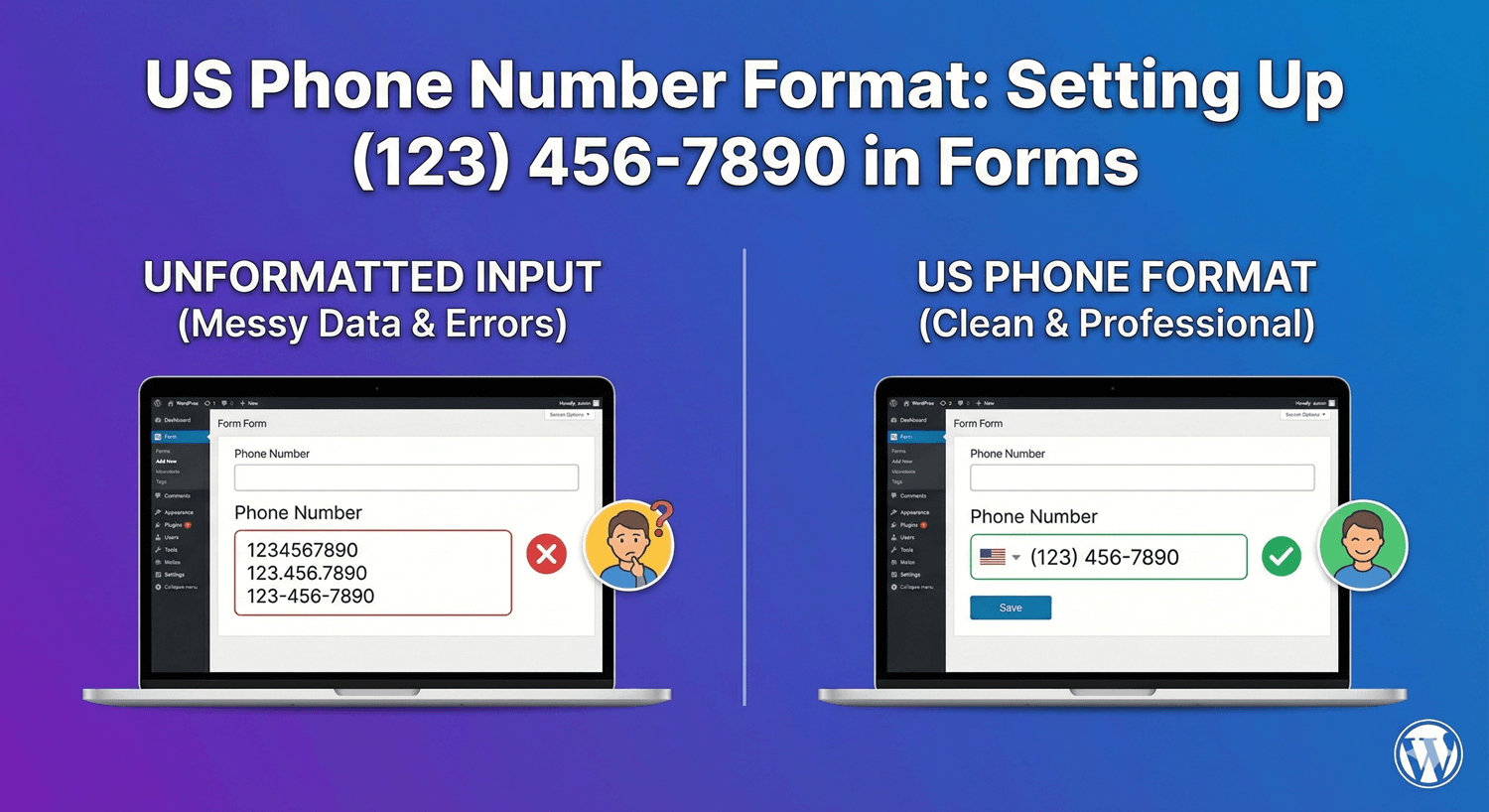
American phone numbers follow a specific format: (123) 456-7890. Ten digits, area code in parentheses, hyphen between the exchange and subscriber number. When your forms collect US phone numbers, proper formatting ensures consistent data, reduces errors, and looks professional. No more “1234567890” versus “123-456-7890” versus “123.456.7890”—just one clean format.
In this guide, you’ll learn how to configure phone fields for the standard US format with automatic formatting as users type.
Understanding US Phone Number Format
The Standard Format
(123) 456-7890
- (123) – Area code (3 digits in parentheses)
- 456 – Exchange/central office code (3 digits)
- 7890 – Subscriber number (4 digits)
Total: 10 Digits
US phone numbers are exactly 10 digits:
- 3 digits: Area code
- 3 digits: Exchange
- 4 digits: Subscriber
Common Format Variations
| Format | Example | Usage |
|---|---|---|
| (123) 456-7890 | Standard | Most common, professional |
| 123-456-7890 | Hyphenated | Common alternative |
| 123.456.7890 | Dotted | Less common |
| 1234567890 | No formatting | Database storage |
| +1 (123) 456-7890 | International | With country code |
Setting Up US Phone Format in Auto Form Builder
Step 1: Add Phone Field
- Open your form in AFB
- Find Phone field in the sidebar
- Drag it onto your form canvas
- Click to configure settings
Step 2: Select US Format
- Look for Phone Format option
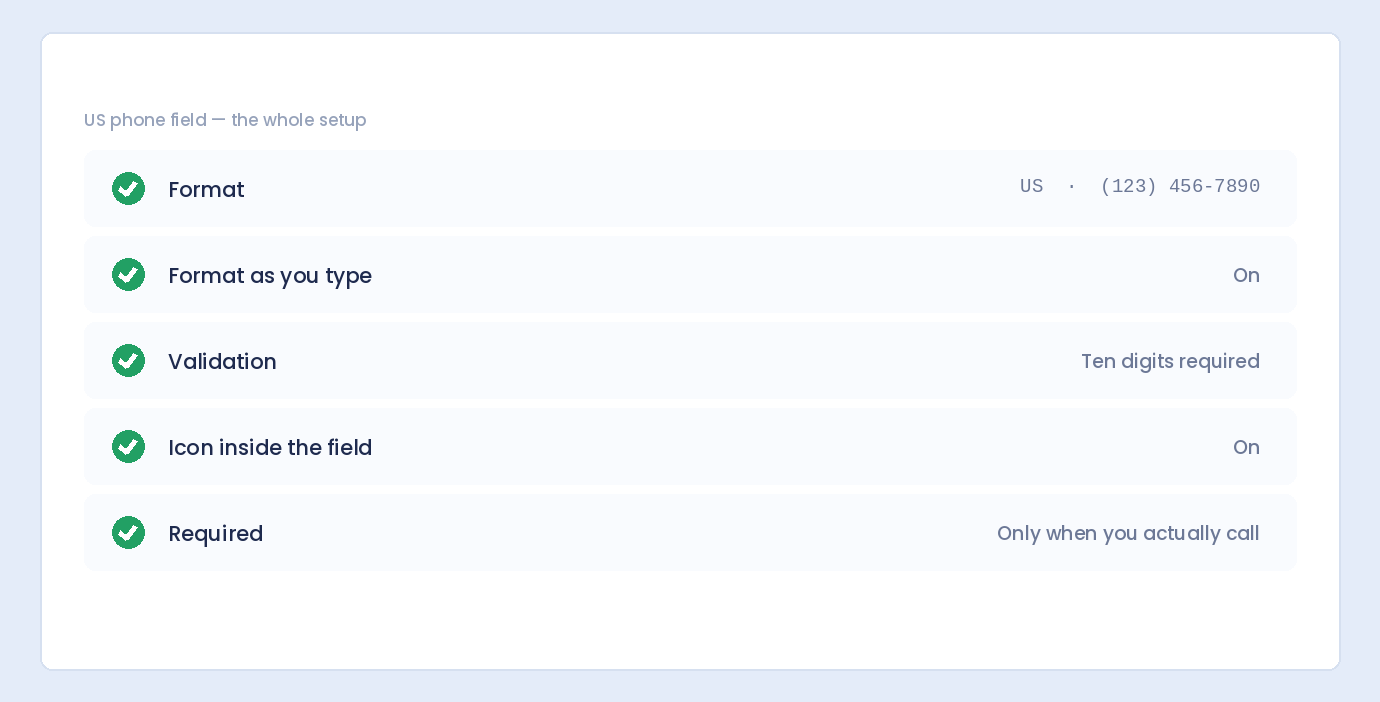
- Select US or (123) 456-7890
- This sets the standard American format
Step 3: Enable Auto-Format
- Turn on Auto-format option
- Numbers format automatically as users type
- Parentheses and hyphens added automatically
Step 4: Set Label and Placeholder
- Label: “Phone Number” or “Mobile Phone”
- Placeholder: “(123) 456-7890”
Step 5: Configure Validation
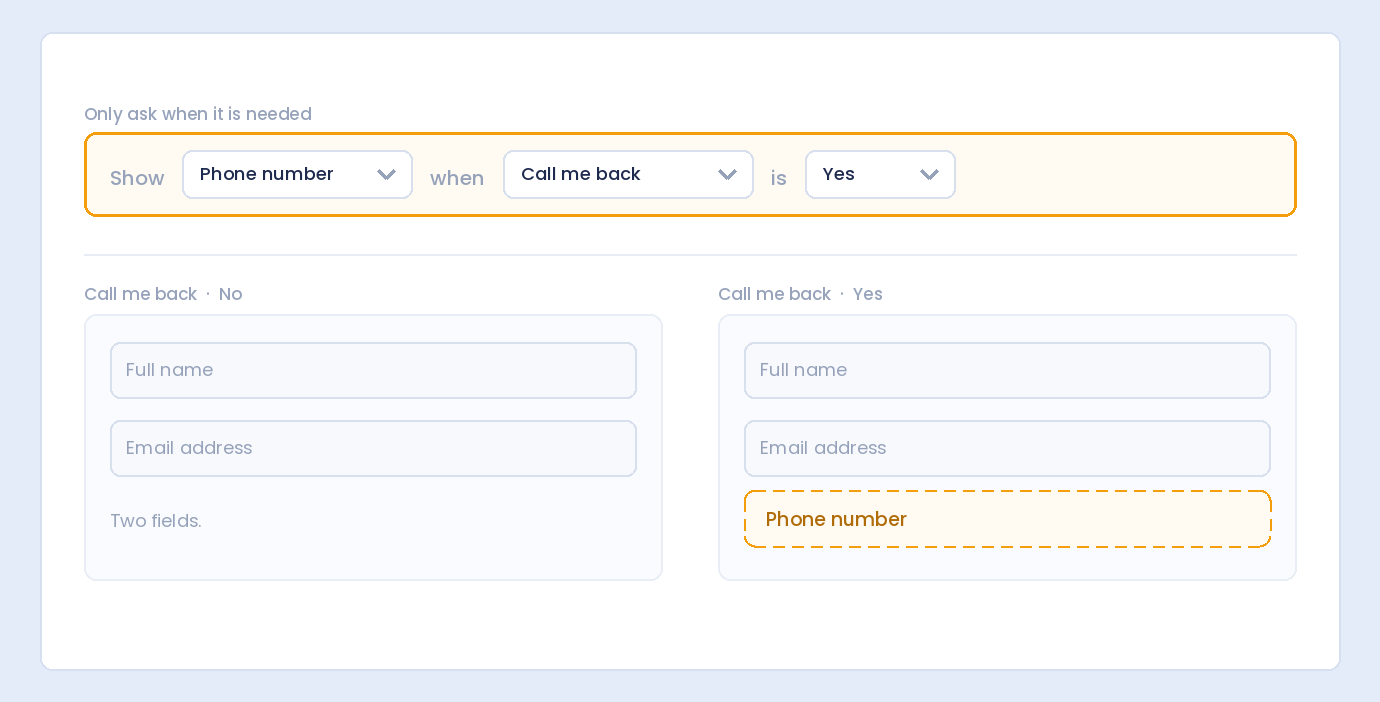
- Required: Toggle on if phone is mandatory
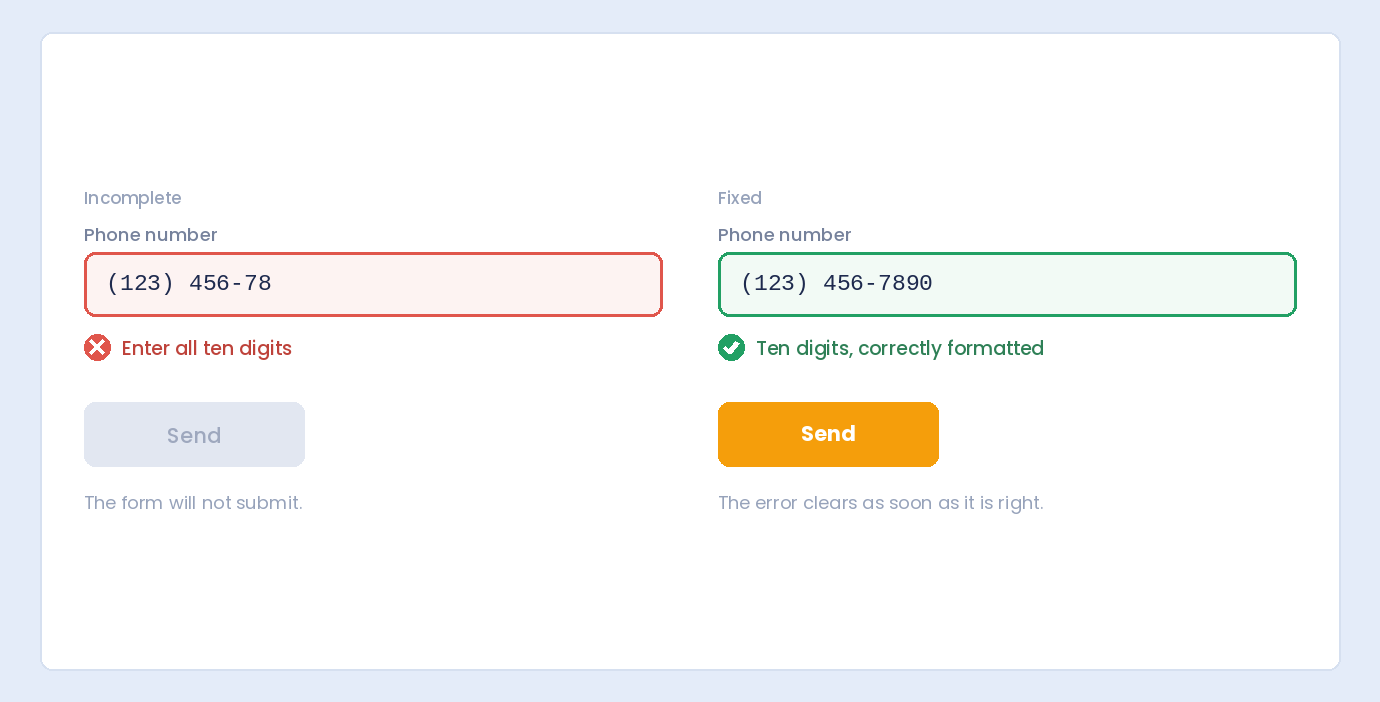
- Validation: Ensures 10 digits entered
How Auto-Format Works
As Users Type
| User Types | Field Shows |
|---|---|
| 1 | (1 |
| 12 | (12 |
| 123 | (123) |
| 1234 | (123) 4 |
| 12345 | (123) 45 |
| 123456 | (123) 456 |
| 1234567 | (123) 456-7 |
| 12345678 | (123) 456-78 |
| 123456789 | (123) 456-789 |
| 1234567890 | (123) 456-7890 |
Benefits of Auto-Format
- Users see familiar format immediately
- Confirms they’re entering correctly
- No confusion about format expected
- Consistent data storage
- Professional appearance
Handling Pasted Numbers
When users paste a phone number:
- Non-digits stripped automatically
- Reformatted to (123) 456-7890
- Works with any input format
Validation Rules
What Gets Validated
- Exactly 10 digits required
- Only numbers accepted
- Area code can’t start with 0 or 1
- Exchange can’t start with 0 or 1
Valid Examples
- (212) 555-1234 ✓
- (415) 867-5309 ✓
- (800) 555-0199 ✓
- (310) 555-4567 ✓
Invalid Examples
- (123) 456-789 ✗ (only 9 digits)
- (012) 345-6789 ✗ (area code starts with 0)
- (123) 056-7890 ✗ (exchange starts with 0)
- (123) 456-78901 ✗ (11 digits)
Error Messages
- “Please enter a valid 10-digit phone number”
- “Phone number is required”
- “Invalid phone number format”
Use Cases for US Phone Format
Contact Forms
When to use: US-based businesses serving American customers
Field setup:
- Label: “Phone Number”
- Format: US (123) 456-7890
- Required: Usually optional
- Placeholder: “(123) 456-7890”
Order Forms
When to use: Shipping within US, customer service callbacks
Field setup:
- Label: “Phone Number (for delivery updates)”
- Format: US (123) 456-7890
- Required: Yes
- Help text: “We’ll text shipping updates to this number”
Appointment Booking
When to use: Confirmation calls, reminders
Field setup:
- Label: “Contact Phone”
- Format: US (123) 456-7890
- Required: Yes
- Help text: “For appointment confirmations and reminders”
Lead Generation
When to use: Sales callbacks, qualification
Field setup:
- Label: “Best Phone to Reach You”
- Format: US (123) 456-7890
- Required: Yes
- Help text: “Our team will call within 24 hours”
Event Registration
When to use: Emergency contact, event updates
Field setup:
- Label: “Mobile Phone”
- Format: US (123) 456-7890
- Required: Yes
- Help text: “For event day communications”
Mobile vs. Landline Considerations
Same Format, Different Uses
Both mobile and landline US numbers use the same 10-digit format:
- Mobile: (415) 555-1234
- Landline: (415) 555-5678
When to Ask for Mobile Specifically
- SMS notifications needed
- Text updates for delivery/appointments
- Two-factor authentication
Label Suggestions
- General: “Phone Number”
- Mobile only: “Mobile Phone” or “Cell Phone”
- Either: “Phone (mobile preferred)”
- Both: Separate fields for home and mobile
Country Code Considerations
When to Include +1
- International audience might submit
- Data exports to systems requiring it
- Calling from outside US
When to Skip +1
- US-only audience
- Domestic calling only
- Simpler user experience
Format with Country Code
+1 (123) 456-7890
- +1 is the US/Canada country code
- Total: 11 digits including country code
- Use international format if needed
Data Storage
What Gets Stored
Depending on settings, phone might be stored as:
- Formatted: (123) 456-7890
- Digits only: 1234567890
- With country code: +11234567890
Best Practice
- Store digits only for consistency
- Format for display when needed
- Easier for integrations and exports
Common Mistakes to Avoid
Mistake 1: No Format Guidance
Problem: Users guess the format, inconsistent data
Solution: Use placeholder showing (123) 456-7890 format
Mistake 2: Not Using Auto-Format
Problem: Users enter numbers differently
Solution: Enable auto-format to standardize input
Mistake 3: Wrong Validation Length
Problem: Accepting 7 digits (local) or 11 digits (with 1 prefix)
Solution: Validate exactly 10 digits for US format
Mistake 4: Blocking Legitimate Numbers
Problem: Over-strict validation rejects valid numbers
Solution: Accept all valid 10-digit combinations
Mistake 5: Not Handling Paste
Problem: Pasted numbers include formatting that breaks validation
Solution: Strip non-digits and reformat on paste
Testing Your Phone Field
Test Cases
Valid Inputs (Should Accept)
- Type: 2125551234 → (212) 555-1234
- Paste: (415) 867-5309 → (415) 867-5309
- Paste: 415-867-5309 → (415) 867-5309
- Paste: 415.867.5309 → (415) 867-5309
- Paste: 4158675309 → (415) 867-5309
Invalid Inputs (Should Reject)
- 123456789 (9 digits)
- 12345678901 (11 digits)
- abcdefghij (letters)
- Empty (if required)
Testing Checklist
- ☐ Auto-format works while typing
- ☐ Pasted numbers reformat correctly
- ☐ Validation catches incomplete numbers
- ☐ Error message is clear
- ☐ Required validation works
- ☐ Data saves correctly
- ☐ Works on mobile devices
Accessibility
Input Type
- Use
type="tel"for phone inputs - Shows numeric keypad on mobile
- Includes phone-specific characters
Screen Readers
- Clear label: “Phone Number”
- Format hint in help text or placeholder
- Error messages announced
Autocomplete
- Enable browser autocomplete for phone
- Attribute:
autocomplete="tel" - Fills from saved contact info
Integration Considerations
CRM Systems
- Check expected format
- May need digits only
- Or specific format with/without country code
SMS/Calling Services
- Twilio, etc. often want +1XXXXXXXXXX
- Store with country code for integrations
- Or add programmatically before sending
Export Formats
- CSV: Usually formatted is fine
- API: Often needs digits only or E.164 format
- Consider your export needs
Frequently Asked Questions
Should I include the country code +1?
For US-only forms, skip it—simpler for users. Include +1 if you have international visitors or need it for integrations like SMS services.
What if someone enters a 7-digit local number?
Modern US phone systems require 10 digits (area code + number). Validate for 10 digits and show an error asking for area code.
How do I handle extensions?
Add a separate optional field for extensions, or allow “ext.” after the main number. Main field should validate 10 digits only.
What about toll-free numbers (800, 888, etc.)?
Toll-free numbers use the same 10-digit format: (800) 555-1234. They work with standard US format validation.
Should phone be required?
Depends on use case. Required for appointments, orders, callbacks. Optional for general contact forms where email is primary.
Summary
Setting up US phone format:
- Add Phone field – Drag to form
- Select US format – (123) 456-7890
- Enable auto-format – Format as users type
- Set placeholder – Show expected format
- Configure validation – 10 digits required
- Add helpful label – “Phone Number” or “Mobile Phone”
- Test thoroughly – Typing, pasting, validation
Conclusion
The (123) 456-7890 format is the American standard. When your forms auto-format phone numbers as users type, you get consistent data, fewer errors, and a professional user experience. Users immediately see they’re entering correctly, and you receive clean, standardized phone numbers ready for callbacks, SMS, or CRM integration.
Auto Form Builder includes US phone format with auto-formatting, making it easy to collect properly formatted American phone numbers. Set it once, and every submission arrives in the same clean format.
Ready to collect US phone numbers? Download Auto Form Builder and configure professional phone fields with auto-formatting.