
Single conditions are simple: IF this, THEN that. But real forms often need more complexity. What if a field should appear when BOTH conditions are true? Or when EITHER condition is true? That’s where AND and OR logic come in. In this guide, you’ll learn how to combine multiple conditions using AND and OR logic to create sophisticated, intelligent forms. ALL conditions must be true Show field IF Condition A is true AND Condition B is true Example: Both must be true. If either is false, the field stays hidden. ANY condition can be true Show field IF Condition A is true OR Condition B is true Example: If either (or both) is true, the field appears. Show “Parental Consent” IF Age < 18 AND Activity = “Contact Sports” Only minors in contact sports need consent. Show “State/Province” IF Country = “USA” AND Shipping = “Domestic” Only US domestic shipping needs state. Show “Bulk Discount Code” IF Member = “Yes” AND Quantity > 10 Only members ordering 10+ items see discount field. Show “Premium Options” IF Service = “Custom” AND Budget > $5000 Premium upsells only for high-budget custom projects. Show “Student ID” IF Role = “Student” OR Role = “Faculty” OR Role = “Staff” Anyone affiliated with institution needs ID. Show “Phone Number” IF Contact = “Phone” OR Contact = “Text” Either preference requires phone number. Show “Special Instructions” IF Order = “Fragile” OR Order = “Perishable” OR Order = “Hazardous” Any special order type needs instructions. Show “Discount Application” IF Status = “Veteran” OR Status = “Senior” OR Status = “Student” Multiple groups qualify for discounts. Real scenarios often need both: Show field IF: Express shipping for North America only. Like math, logic has order of operations: Scenario: Show “Priority Support” field Conditions: Logic: Priority support only for premium plans with urgent issues. With Auto Form Builder’s Conditional Logic : Position: Software Developer Show “Years of Experience” IF: Show “Management Experience” IF: Show “Additional Driver Details” IF: Show “Young Driver Surcharge Notice” IF: Show “Dietary Requirements” IF: Show “VIP Parking Pass” IF: Show “Callback Number” IF: Show “Account Manager Assignment” IF: Show “Co-signer Information” IF: Show “Collateral Details” IF: Same field, multiple acceptable values: Any North American country triggers the field. Two different fields must both match: Both conditions required. Category selection plus additional criteria: High-value electronics only. Field appears for multiple exception cases: Any non-standard status triggers review field. Combined logic with grouping: Either type, but must be active. Begin with single conditions, add complexity as needed: Complex conditions need documentation: With multiple conditions, combinations multiply: Test them all! If logic is too complex: Complex logic affects users: Check: Check: Check: AND requires ALL conditions to be true. OR requires ANY condition to be true. Use AND when you need multiple criteria met simultaneously. Use OR when any of several options should trigger the action. Yes, but it gets complex. Use parentheses to group conditions and be clear about order of operations. Test thoroughly. Technically, many—but practically, keep it under 5-6 conditions per field. More than that becomes hard to test and maintain. With AND logic, check that ALL conditions are being met. One false condition hides the field. Test each condition individually to find the culprit. In Auto Form Builder, conditional logic is a Pro add-on. The free version has all essential form features, with conditional logic available as an upgrade. Using AND and OR logic in form conditions: AND and OR logic transform simple conditional fields into sophisticated, intelligent forms. AND narrows down when fields appear by requiring multiple criteria. OR expands possibilities by accepting any of several triggers. Combined thoughtfully, they create forms that adapt precisely to each user’s situation. Auto Form Builder’s Conditional Logic add-on supports multiple conditions with AND/OR logic, letting you build forms as simple or complex as your needs require. Ready for advanced conditional logic? Download Auto Form Builder and explore the Conditional Logic add-on for powerful multi-condition forms.Using Multiple Conditions: AND vs OR Logic in Forms

Understanding AND vs OR
AND Logic
Show “Spouse Details” IF Marital Status = “Married” AND Filing Status = “Joint”OR Logic
Show “Emergency Contact” IF Role = “Student” OR Role = “Minor”Quick Comparison
Logic
Requirement
Result
AND
All conditions true
More restrictive
OR
Any condition true
More inclusive
AND Logic in Detail
How AND Works
Condition A
Condition B
A AND B Result
True
True
✅ True (field shows)
True
False
❌ False (field hidden)
False
True
❌ False (field hidden)
False
False
❌ False (field hidden)
When to Use AND
AND Examples
Example 1: Age + Activity
Example 2: Country + Shipping
Example 3: Membership + Quantity
Example 4: Service + Budget
OR Logic in Detail
How OR Works
Condition A
Condition B
A OR B Result
True
True
✅ True (field shows)
True
False
✅ True (field shows)
False
True
✅ True (field shows)
False
False
❌ False (field hidden)
When to Use OR
OR Examples
Example 1: Multiple Roles
Example 2: Contact Preference
Example 3: Special Handling
Example 4: Eligibility
Combining AND and OR
Complex Conditions
(Country = “USA” OR Country = “Canada”) AND Shipping = “Express”Order of Operations
Complex Example
(Plan = “Enterprise” OR Plan = “Business”) AND (Issue = “Critical” OR Issue = “Urgent”)Setting Up Multiple Conditions
Step 1: Access Conditional Logic
Step 2: Add First Condition
Step 3: Add Additional Conditions
Step 4: Choose AND or OR
Step 5: Test All Combinations
Real-World Scenarios
Scenario 1: Job Application
Scenario 2: Insurance Quote
Scenario 3: Event Registration
Scenario 4: Support Ticket
Scenario 5: Loan Application
Common Patterns
Pattern 1: Multiple Values (OR)
Show IF Country = "USA" OR Country = "Canada" OR Country = "Mexico"
Pattern 2: Dual Requirements (AND)
Show IF Account = "Premium" AND Support = "Priority"
Pattern 3: Category + Qualifier (AND)
Show IF Category = "Electronics" AND Price > $500
Pattern 4: Exception Handling (OR)
Show IF Status = "Exception" OR Status = "Pending Review" OR Status = "Flagged"
Pattern 5: Nested Groups
Show IF (Type = "A" OR Type = "B") AND (Status = "Active")
Best Practices
1. Start Simple
2. Document Your Logic
3. Test All Paths
4. Keep It Understandable
5. Consider User Experience
Troubleshooting Multiple Conditions
Field Never Appears
Field Always Appears
Unexpected Behavior
Debugging Steps
Performance Considerations
Keep Conditions Reasonable
Avoid Circular Dependencies
Frequently Asked Questions
What’s the difference between AND and OR?
Can I mix AND and OR in one rule?
How many conditions can I have?
Why doesn’t my field appear when it should?
Is conditional logic available in the free version?
Summary
Conclusion


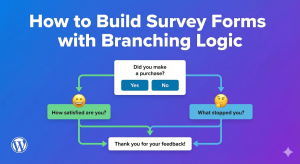
Learn how to create dynamic surveys with branching logic. Show different questions based on previous answers for better survey experiences.
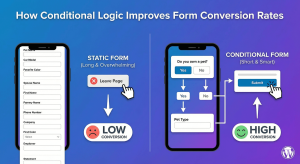
Learn how conditional logic improves form conversion rates. Discover why shorter, personalized forms get more completions and better quality leads.

Learn conditional logic best practices for WordPress forms. Create better user experiences by showing relevant fields and hiding unnecessary ones.

Learn how to create a quote request form with conditional logic in WordPress. Build dynamic forms that show relevant questions based on service selection.
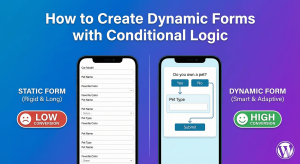
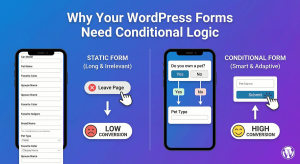
Discover why conditional logic is essential for WordPress forms. Boost conversions, collect better data, and create personalized user experiences.
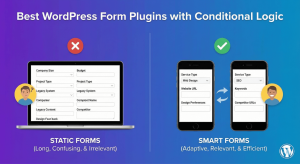
Discover the best WordPress form plugins with conditional logic. Compare features, pricing, and ease of use to find the right dynamic form solution.
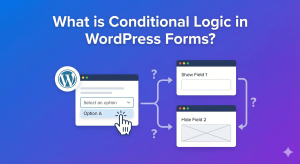
Learn what conditional logic is and how it works in WordPress forms. Understand how smart forms show and hide fields based on user responses.
