
Ever taken a survey that asked irrelevant questions? “How satisfied are you with your purchase?” when you never bought anything. Frustrating, right? Branching logic (also called skip logic or conditional logic) solves this by showing different questions based on previous answers. The result: shorter, smarter surveys that feel personalized. In this guide, you’ll learn how to build professional surveys with branching logic in WordPress. Branching logic creates dynamic forms that adapt based on user responses: Question 1: “Have you used our product?” Each respondent sees only relevant questions. Long, irrelevant surveys get abandoned. Branching keeps surveys focused: Branch Point: “Overall, how satisfied are you?” Branch Point: “Which products do you use?” Branch Point: “Did you attend the event in person or virtually?” Branch Point: “What is your department?” Branch Point: “What is your budget?” Before building, sketch your survey paths: Good branch points are questions where: Good branch questions: Organize questions into logical sections: For each section or question, define when it shows: Here’s how to create branching surveys: For each conditional field: “Show satisfaction questions IF ‘Have you purchased?’ equals ‘Yes'” Critical: Test every possible path through your survey: Start with simple branching: Avoid nested branching (branches within branches) when possible. It’s hard to manage and test. Every respondent should reach the end. Don’t create paths that dead-end or loop infinitely. Some questions should appear for everyone: Put these outside branch points. Help respondents understand context: Before launching: Keep notes on your branching rules: Best as first questions in a section: Shown conditionally based on branch: Analyze each branch separately: Look for differences between groups: With branching, not everyone answers every question: When exporting to CSV: Complex branching creates: Every path must reach a logical end. Don’t leave respondents stranded. If one path has 20 questions and another has 3, it feels unbalanced. Aim for similar lengths. Branching that works in your head may break in reality. Always test every path. Dynamic surveys must work on mobile. Test on phone and tablet. Start with 2-3 paths maximum. Complex branching (5+ paths) becomes difficult to manage and analyze. Yes, with advanced conditional logic you can create rules like “Show IF Q1=Yes AND Q2=Product A”. Skipped questions appear blank/empty in submissions. This is expected—respondents didn’t see those questions. Usually at the end. Get core survey data first while engagement is high. Demographics can go after. Standard forms allow this. If they change a branch answer, conditional fields update accordingly. Building surveys with branching logic: Branching logic transforms static questionnaires into intelligent, adaptive surveys. Respondents see only relevant questions, complete surveys faster, and provide higher-quality data. Auto Form Builder with the Conditional Logic add-on gives you the tools to create professional branching surveys. Define conditions, show and hide questions dynamically, and deliver personalized survey experiences. Ready to build smarter surveys? Download Auto Form Builder and start creating dynamic surveys with branching logic.How to Build Survey Forms with Branching Logic
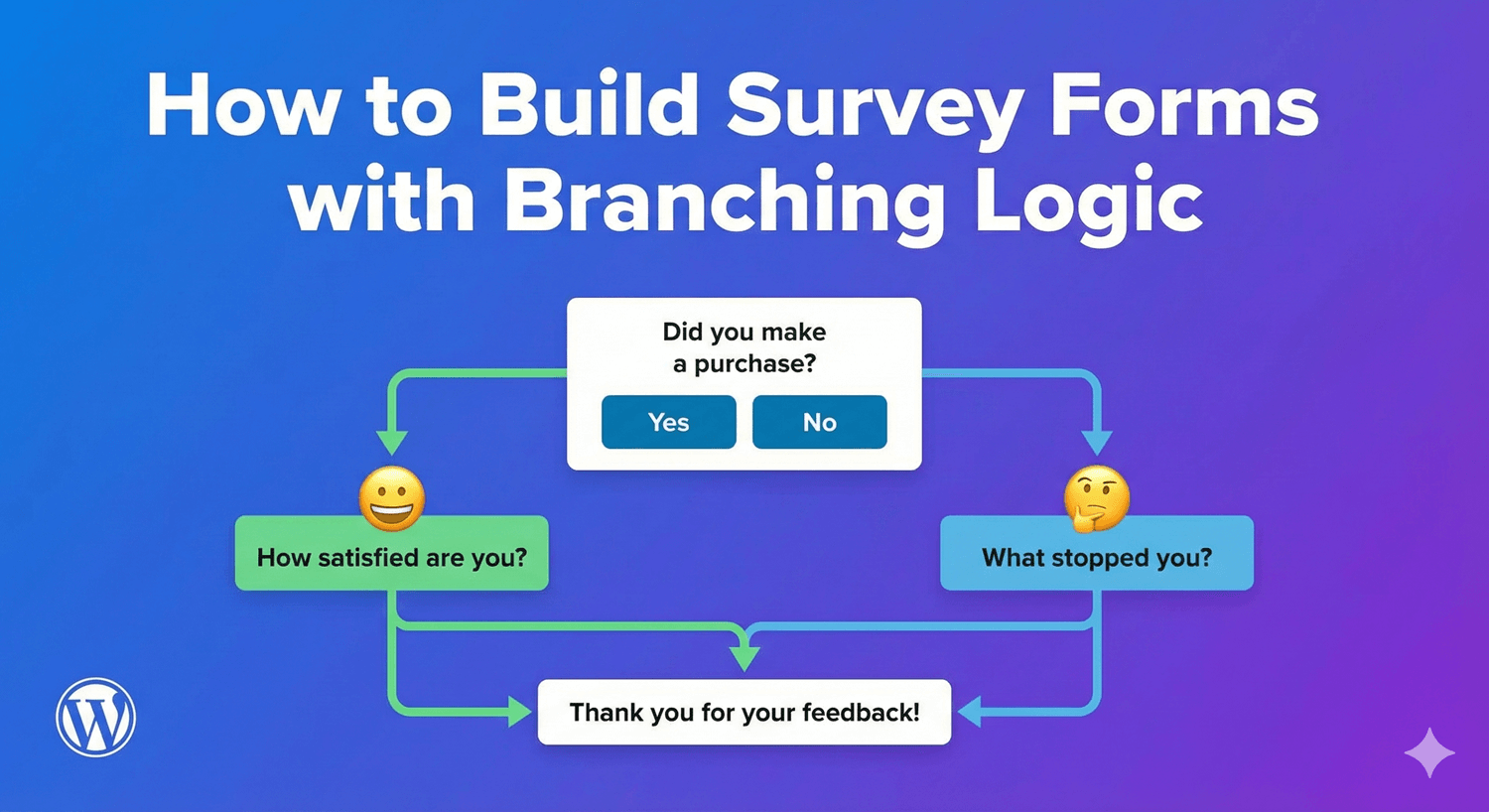
What Is Branching Logic?
Simple Example
Also Known As
Why Use Branching Logic in Surveys
Better User Experience
Higher Completion Rates
Better Data Quality
More Detailed Insights
Common Branching Scenarios
Customer Satisfaction Survey
Response
Next Questions
Very Satisfied / Satisfied
“What did you like most?” + “Would you recommend us?”
Neutral
“What could we improve?” + “What would make you more satisfied?”
Dissatisfied / Very Dissatisfied
“What went wrong?” + “How can we make it right?” + Contact request
Product Usage Survey
Event Feedback Survey
Employee Survey
Lead Qualification Survey
Designing Branching Surveys
Step 1: Map Your Survey Flow
Example Flow Map
START
  │
  ▼
Q1: Have you purchased from us?
  │
  ├── YES ──► Q2: How satisfied? ──► Q3: What did you like?
  │                                        │
  │                                        ▼
  │                                   Q4: Would recommend?
  │                                        │
  │                                        ▼
  │                                      END
  │
  └── NO ───► Q5: How did you hear about us?
                   │
                   ▼
              Q6: What prevented purchase?
                   │
                   ▼
                 END
Step 2: Identify Branch Points
Step 3: Create Question Groups
Step 4: Define Conditions
Building Surveys with Auto Form Builder
Step 1: Install Auto Form Builder
Step 3: Create Your Survey Form
Step 4: Set Up Conditional Rules
Example Rule
Step 5: Test All Paths
Branching Logic Best Practices
1. Keep It Simple
2. One Branch Point at a Time
3. Always Have an Exit Path
4. Keep Core Questions Universal
5. Label Sections Clearly
6. Test with Real Users
7. Document Your Logic
Survey Question Types
Branch Point Questions
Yes/No Questions
Have you used our service before?
○ Yes  ○ No
Multiple Choice (Single Select)
What best describes your role?
○ Decision Maker
○ Influencer
○ End User
○ Evaluator
Rating with Threshold
How satisfied are you? (1-5)
○ 1  ○ 2  ○ 3  ○ 4  ○ 5
→ If 1-2: Show improvement questions
→ If 4-5: Show testimonial request
Follow-Up Questions
Open-Ended
What specifically disappointed you?
[                              ]
Multi-Select
Which features did you use? (Select all)
☐ Feature A
☐ Feature B
☐ Feature C
Scale/Rating
Rate the checkout process:
○ Very Difficult  ○ Difficult  ○ Neutral  ○ Easy  ○ Very Easy
Analyzing Branching Survey Data
Segment Your Analysis
Compare Segments
Handle Missing Data
Export Considerations
Common Mistakes to Avoid
❌ Too Many Branches
❌ Dead-End Paths
❌ Inconsistent Experiences
❌ No Testing
❌ Forgetting Mobile
Frequently Asked Questions
How many branches should a survey have?
Can I branch based on multiple questions?
What happens to data from skipped questions?
Should demographic questions come before or after branches?
Can respondents go back and change answers?
Summary
Conclusion



Learn the difference between AND and OR logic in form conditions. Create complex conditional rules that show fields based on multiple criteria.
Learn how to create percentage input fields in WordPress forms for surveys and ratings. Collect satisfaction scores, completion rates, and allocation percentages.
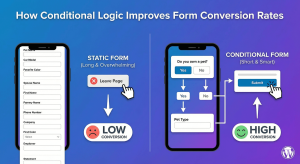
Learn how conditional logic improves form conversion rates. Discover why shorter, personalized forms get more completions and better quality leads.

Learn how to create rating scales, satisfaction surveys, and NPS forms using radio buttons in WordPress. Step-by-step guide with examples.

Learn conditional logic best practices for WordPress forms. Create better user experiences by showing relevant fields and hiding unnecessary ones.

Learn how to create a quote request form with conditional logic in WordPress. Build dynamic forms that show relevant questions based on service selection.
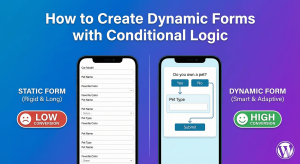
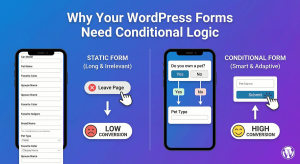
Discover why conditional logic is essential for WordPress forms. Boost conversions, collect better data, and create personalized user experiences.

Learn how to build a feedback form with star ratings and scales in WordPress. Collect customer opinions and measure satisfaction effectively.
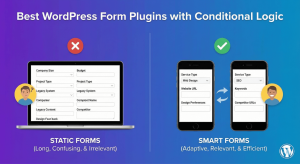
Discover the best WordPress form plugins with conditional logic. Compare features, pricing, and ease of use to find the right dynamic form solution.
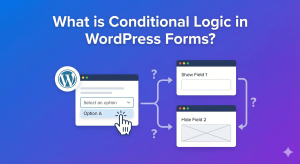
Learn what conditional logic is and how it works in WordPress forms. Understand how smart forms show and hide fields based on user responses.
