
Help center for Auto Form Builder
Funnels and Quizzes
A funnel is a multi-step form that shows one question per screen, with large answer cards that visitors can tap. It can also work as a quiz: each answer adds points, and visitors see a result that fits their score. Funnels are free, like the rest of Auto Form Builder. For an overview, see Quiz and Lead Funnels.
Start from a funnel template
- Go to Auto Form Builder → Create Form.
- In the template list, click Funnels on the left. There are four templates: Consultation Funnel, Home Services Quote Funnel, Plan Finder Funnel and Real Estate Buyer & Seller Funnel.
- Click a template to see its fields on the right, then click Use this template.
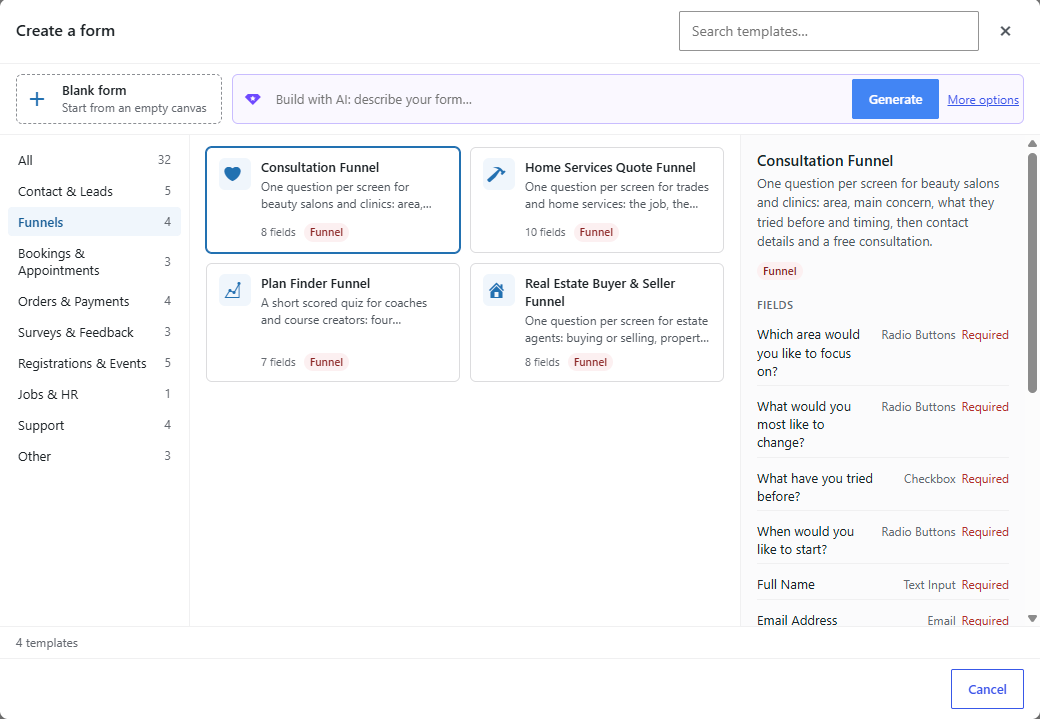
Plan Finder Funnel is a short scored quiz. The other three are lead funnels that ask a few questions and then the visitor’s contact details.
Turn any form into a funnel
- Open your form in the builder and click the Settings tab.
- Open Multi-Step Form.
- Turn on Funnel mode. This also turns on Enable multi-step form.
- Click One question per screen. It adds a Page Break between questions that share a step. The last step, with the contact details, stays together. Undo reverts it.
- Click Save Form.
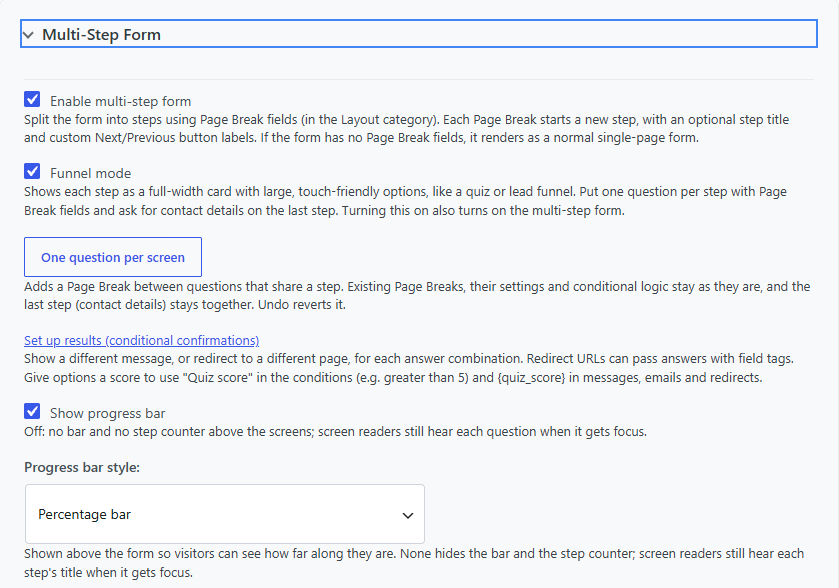
In the same section you can turn Show progress bar on or off and choose a Progress bar style. You can also turn on Capture partial entries to save what a visitor has filled each time they move to the next step.
Add pictures to the answers
- On the Fields tab, click a question with Radio Buttons or Checkboxes.
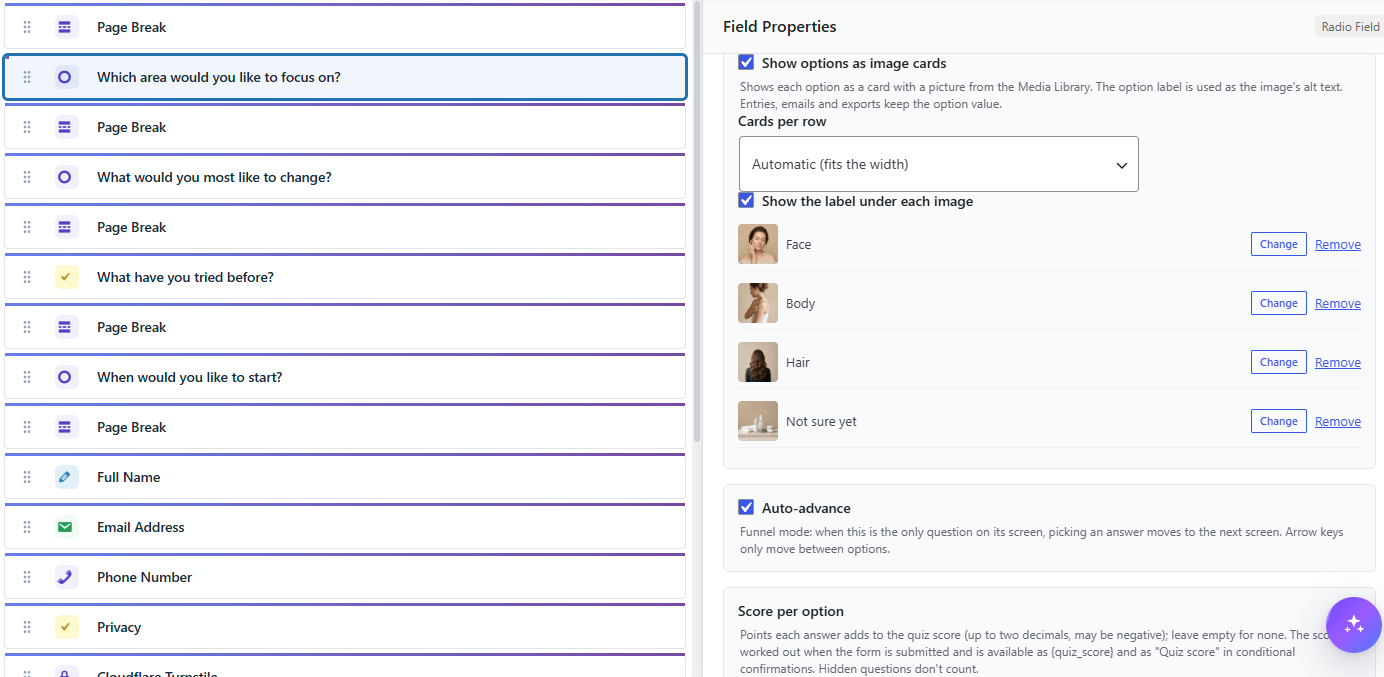
- In Field Properties, turn on Show options as image cards. Use Image shape to choose how the pictures are cropped: Landscape 4:3 (the default), Square 1:1, Portrait 3:4, or Original to show the whole image. Cards in a row keep the same height.
- Click Change next to each option and choose a picture from the Media Library. Remove takes the picture away from that option only.
- Optional: choose Cards per row, and turn Show the label under each image on or off.
The option label is used as the picture’s alt text. Entries, emails and exports keep the option value.
Move on automatically
Turn on Auto-advance for a question. When it is the only question on its screen, picking an answer moves the visitor to the next screen. Arrow keys move between the options, and Space or Enter picks one. Turn Auto-advance off if you want visitors to click Next instead.
Score answers for a quiz
- Click a question and find Score per option.
- Enter the points for each answer. Scores can have up to two decimals and can be negative. Leave a box empty for no points.
- Repeat for each scored question.
The score is worked out when the form is submitted. Hidden questions don’t count. The score is saved with the entry as “Quiz score”.
Show a result based on the score
- On the Settings tab, open Submission Behavior.
- Under conditional confirmations, click + Add confirmation rule.
- Set the condition to Quiz score, for example “Quiz score Less than 8”, and write the message for that result. You can also redirect to a different page instead of showing a message.
- Add one rule for each score range, for example a second rule for “Quiz score Greater than 7”.
- Click Save Form.
Rules are checked from top to bottom, and the first matching rule is used. Add {quiz_score} to a message to show the visitor their score. It also works in emails and redirect URLs.

Let visitors check their answers
To show all answers before the visitor submits, go to Settings → Submission Behavior and turn on Show a review step before submitting. Visitors can edit any answer from the review screen.
Spam protection
If the form has a Cloudflare Turnstile field, it appears only on the last screen, so visitors don’t see it while they answer the questions.
See where visitors stop
- Go to Auto Form Builder → Add-Ons and activate Form Analytics, if it isn’t active yet.
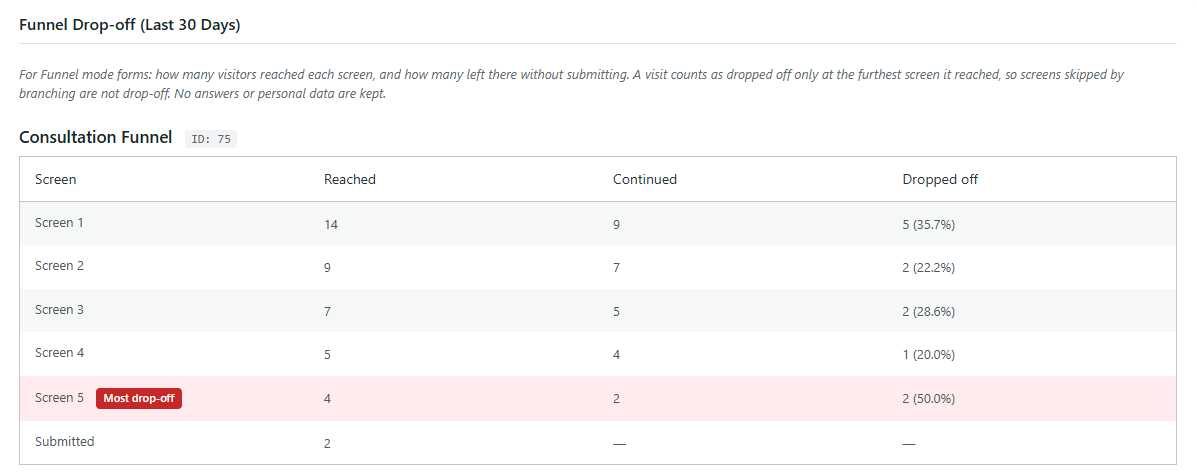
- Go to Auto Form Builder → Analytics and scroll to Funnel Drop-off (Last 30 Days).
For each funnel, the table shows how many visitors reached each screen, how many continued and how many left. The screen with the most drop-off is marked. A visit counts as dropped off only at the furthest screen it reached. No answers or personal data are kept in this report.
Related
Updated
Was this helpful?