Creating Country/State Dropdowns in WordPress Forms
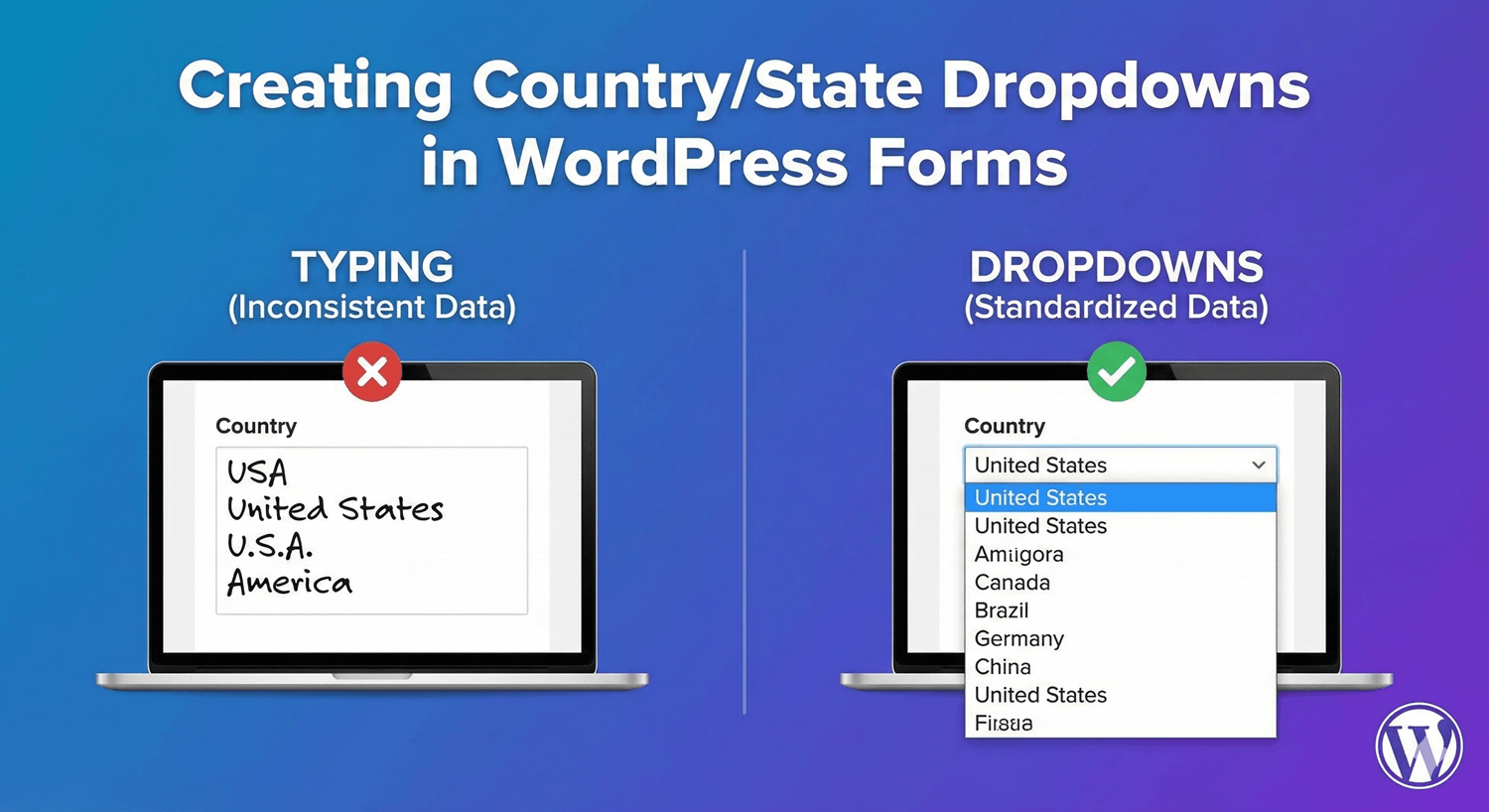
Typing country and state names leads to inconsistent data. “United States,” “USA,” “U.S.A.,” “America”—all mean the same thing but create chaos in your database. Dropdowns solve this by providing standardized options users select from. Here’s how to add country and state dropdowns to your WordPress forms.
Why Use Dropdowns for Location?
Problems with Text Fields
- Inconsistent spelling (“Califronia” vs “California”)
- Multiple formats (“NY” vs “New York”)
- Typos and errors
- Difficult to filter/sort data
- Can’t validate against known locations
Benefits of Dropdowns
- Standardized, consistent data
- No spelling errors
- Faster form completion
- Easy to filter and analyze
- Professional appearance
- Mobile-friendly selection
Types of Location Dropdowns
Country Only
Country: [Select a country ▼]
         - United States
         - Canada
         - United Kingdom
         - ... (195+ countries)
Use for: International forms where region detail isn’t needed.
State/Province Only
State: [Select a state ▼]
       - Alabama
       - Alaska
       - Arizona
       - ... (50 states)
Use for: US-only forms where country is assumed.
Country + State/Province
Country: [United States ▼]
State:   [California ▼]
Use for: Complete address collection with regional detail.
Dependent/Cascading Dropdowns
Country: [Canada ▼]
Province: [Ontario ▼]  ← Options change based on country

Country: [United States ▼]
State: [New York ▼]    ← Different options appear
Use for: Smart forms that show relevant regions per country.
Setting Up Country/State Dropdowns in AFB
Method 1: Use the Address Field
The fastest way—Address field includes built-in location dropdowns.
- Drag Address field to your form
- Select a preset:
- Toggle components on/off as needed
Method 2: Standalone Dropdown Field
For just a country or state field without full address:
- Add Dropdown field
- Label it “Country” or “State”
- Add options manually or paste a list
Pre-Built Address Presets
International Preset
Includes:
- Address Line 1
- Address Line 2 (optional)
- City
- State/Province/Region (text or dropdown)
- Postal Code
- Country dropdown (195+ countries)
Country List Sample:
Afghanistan
Albania
Algeria
...
United States
...
Zimbabwe
US Preset
Includes:
- Street Address
- Address Line 2
- City
- State dropdown (50 states + DC + territories)
- ZIP Code
State List:
Alabama (AL)
Alaska (AK)
Arizona (AZ)
Arkansas (AR)
California (CA)
...
Wyoming (WY)
Canada Preset
Includes:
- Street Address
- Address Line 2
- City
- Province dropdown (13 provinces/territories)
- Postal Code
Province List:
Alberta (AB)
British Columbia (BC)
Manitoba (MB)
New Brunswick (NB)
Newfoundland and Labrador (NL)
Northwest Territories (NT)
Nova Scotia (NS)
Nunavut (NU)
Ontario (ON)
Prince Edward Island (PE)
Quebec (QC)
Saskatchewan (SK)
Yukon (YT)
UK Preset
Includes:
- Address Line 1
- Address Line 2
- City/Town
- County (optional)
- Postcode
Creating Custom Country Lists
When to Customize
- You only serve specific countries
- Want to highlight primary markets
- Need to exclude certain regions
- Want custom ordering
Example: Limited Country List
Label: "Country"
Options:
- United States
- Canada
- United Kingdom
- Australia
- Germany
- France
- Other
Example: Regional Focus
Label: "Country"
Options:
--- North America ---
- United States
- Canada
- Mexico
--- Europe ---
- United Kingdom
- Germany
- France
- Spain
- Italy
Adding Option Groups
Group countries by region for easier navigation:
[Select a country           ▼]
  North America
    ├ United States
    ├ Canada
    └ Mexico
  Europe
    ├ United Kingdom
    ├ Germany
    └ France
Creating Custom State/Province Lists
US States
Alabama
Alaska
Arizona
Arkansas
California
Colorado
Connecticut
Delaware
Florida
Georgia
Hawaii
Idaho
Illinois
Indiana
Iowa
Kansas
Kentucky
Louisiana
Maine
Maryland
Massachusetts
Michigan
Minnesota
Mississippi
Missouri
Montana
Nebraska
Nevada
New Hampshire
New Jersey
New Mexico
New York
North Carolina
North Dakota
Ohio
Oklahoma
Oregon
Pennsylvania
Rhode Island
South Carolina
South Dakota
Tennessee
Texas
Utah
Vermont
Virginia
Washington
West Virginia
Wisconsin
Wyoming
US States with Abbreviations
Alabama (AL)
Alaska (AK)
Arizona (AZ)
...
Canadian Provinces
Alberta
British Columbia
Manitoba
New Brunswick
Newfoundland and Labrador
Northwest Territories
Nova Scotia
Nunavut
Ontario
Prince Edward Island
Quebec
Saskatchewan
Yukon
Australian States
Australian Capital Territory
New South Wales
Northern Territory
Queensland
South Australia
Tasmania
Victoria
Western Australia
Dependent Dropdowns (Cascading)
How It Works
1. User selects Country: "United States"
2. State dropdown updates to show US states
3. User selects Country: "Canada"
4. State dropdown changes to Canadian provinces
Setting Up with Conditional Logic
Using conditional logic (Pro feature):
- Create Country dropdown
- Create separate State dropdowns for each country
- Set conditions:
- Show “US States” if Country = “United States”
- Show “Canadian Provinces” if Country = “Canada”
- Show “UK Counties” if Country = “United Kingdom”
Example Setup
Field 1: Country (Dropdown)
- United States
- Canada
- United Kingdom
- Other

Field 2: US State (Dropdown)
- Condition: Show if Country = "United States"
- Options: [50 US states]

Field 3: Canadian Province (Dropdown)
- Condition: Show if Country = "Canada"
- Options: [13 provinces/territories]

Field 4: UK County (Dropdown)
- Condition: Show if Country = "United Kingdom"
- Options: [UK counties]

Field 5: Region (Text field)
- Condition: Show if Country = "Other"
- User types their region
Searchable Dropdowns for Long Lists
The Problem
195 countries in a dropdown is overwhelming. Users must scroll extensively to find their country.
The Solution
Enable searchable dropdown:
- User types to filter options
- Type “Ger” → shows “Germany”
- Type “United” → shows “United States,” “United Kingdom,” “United Arab Emirates”
Enabling Search
- Select your dropdown field
- Enable “Searchable” option
- Users can now type to filter
Best Practices
1. Put Common Options First
Country:
- United States ← Most common first
- Canada
- United Kingdom
---
- Afghanistan
- Albania
- Algeria
...
2. Use Placeholder Text
[Select your country...]
[Choose a state...]
3. Match Label to Region
- US: “State”
- Canada: “Province”
- UK: “County”
- Australia: “State/Territory”
- International: “State/Province/Region”
4. Consider Your Audience
- US-only business? Use US preset
- North American? US + Canada
- Global? International preset
5. Include “Other” Option
For limited country lists, always include “Other” for edge cases.
6. Enable Search for Long Lists
Any dropdown with 20+ options should be searchable.
Common Use Cases
Shipping Address Form
Street Address: [_________________]
City: [_________________]
State: [Select state ▼]
ZIP Code: [_____]
Country: [United States ▼]
Event Registration (US)
Where are you traveling from?
State: [Select your state ▼]
International Lead Form
Country: [Select your country ▼]
(Searchable, 195+ countries)
Regional Sales Form
Which region are you located in?
○ Northeast
○ Southeast
○ Midwest
○ Southwest
○ West Coast

OR

State: [Select state ▼]
(Groups assigned automatically based on state)
Store Locator
Find a store near you:
Country: [United States ▼]
State: [California ▼]
City: [Los Angeles ▼] ← Optional third level
Data Consistency Tips
Store Codes or Full Names?
Option 1: Full Names
Stored value: "California"
Display value: "California"
Pros: Human-readable, clear in exports
Option 2: Codes
Stored value: "CA"
Display value: "California"
Pros: Compact, standard format, API-friendly
Recommendation
Use full names for readability unless integrating with systems that require codes.
Mobile Considerations
Native Dropdowns
- Mobile browsers show native picker
- Large touch targets
- Easy scrolling through options
Searchable on Mobile
- Type to filter works well
- Faster than scrolling long lists
- Virtual keyboard appears
Testing
- Test on actual mobile devices
- Verify dropdown opens properly
- Check scrolling behavior
- Ensure selection registers
Troubleshooting
Missing States/Countries
- Check if using correct preset
- Verify options list is complete
- Custom list may be missing entries
Wrong Region Type Showing
- Verify conditional logic settings
- Check country value matches condition exactly
- Test each country option
Dropdown Not Searchable
- Ensure searchable option is enabled
- Check if feature is supported
- May need to save and refresh
Data Not Consistent
- Check if old entries used text field
- Standardize historical data manually
- Ensure dropdown is required to prevent blanks
Summary
Creating country/state dropdowns:
- Use Address field – Built-in presets with dropdowns
- Choose preset – US, Canada, UK, International, Custom
- Or create standalone – Dropdown field with manual options
- Enable search – For long lists (countries)
- Use conditional logic – For dependent dropdowns
- Put common options first – Better UX
- Match labels to region – State vs Province vs County
- Test on mobile – Ensure usability
Conclusion
Country and state dropdowns transform messy location data into clean, consistent information. No more “Califronia” or “U.S.A.” variations—just standardized options that make filtering, analyzing, and exporting a breeze. Whether you need a simple state selector for a US form or a comprehensive international address field, dropdowns are the answer.
Auto Form Builder includes pre-built address presets with country and state/province dropdowns ready to use. Choose your region, toggle the components you need, and start collecting clean location data.
Ready to add location dropdowns? Download Auto Form Builder and create professional address forms today.