
Custom Phone Formats: Creating Your Own Phone Pattern

Custom Phone Formats

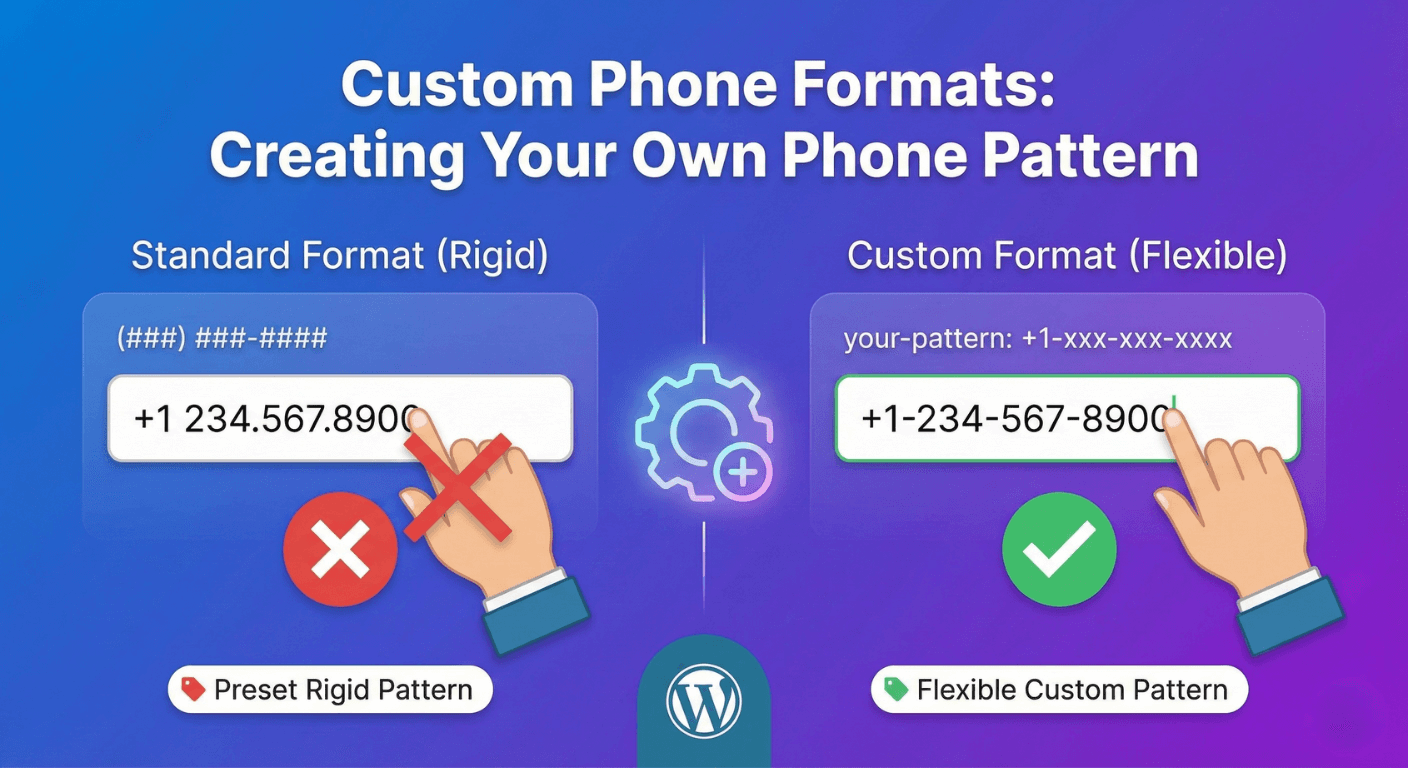
Standard phone formats don’t fit every situation. Your industry might need specific formats. Your region might have unique patterns. Your use case might require something the presets don’t offer. Custom phone patterns let you define exactly how phone numbers should be entered and validated.

In this guide, you’ll learn how to create custom phone number formats that match your specific requirements.

Why Custom Phone Formats?

Standard Presets Don’t Cover Everything

  • Regional variations within countries
  • Industry-specific formats (extensions, direct lines)
  • Legacy system requirements
  • Internal numbering schemes

Consistency Matters

  • Uniform data entry
  • Easier database searches
  • Clean data for integrations
  • Professional appearance

Validation Requirements

  • Ensure correct digit count
  • Enforce specific prefixes
  • Block invalid patterns
  • Reduce errors

Understanding Phone Patterns

Pattern Components

Symbol Meaning Example
# Any digit (0-9) ### = 123
9 Any digit (alternative) 999 = 456
X Any digit (alternative) XXX = 789
( ) Literal parentheses (###)
Literal hyphen ###-####
. Literal period ###.###.####
space Literal space ### ### ####
+ Literal plus sign +1 ###

Common Pattern Examples

Format Pattern Result
US Standard (###) ###-#### (555) 123-4567
US with Country +1 (###) ###-#### +1 (555) 123-4567
UK #### ### #### 0123 456 7890
International +## ### ### #### +44 123 456 7890
Simple 10-digit ########## 5551234567
With Extension (###) ###-#### x#### (555) 123-4567 x1234

Creating Custom Phone Patterns

Here’s how to create custom phone formats with Auto Form Builder:

Step 1: Add Phone Field

  1. Create or edit your form
  2. Drag the Phone field onto your form
  3. Click to open settings

Step 2: Select Custom Format

  1. Find the Format setting
  2. Select Custom from the options
  3. A pattern input field appears

Step 3: Enter Your Pattern

Type your desired format using pattern symbols:

  • Use # for each digit position
  • Add separators (spaces, hyphens, dots) where needed
  • Include country code if required

Step 4: Test the Pattern

  1. Preview your form
  2. Try entering phone numbers
  3. Verify formatting applies correctly
  4. Test validation on submit

Custom Patterns by Region

United States Variations

Standard US

Pattern: (###) ###-####

Example: (555) 123-4567

US with Dashes Only

Pattern: ###-###-####

Example: 555-123-4567

US with Dots

Pattern: ###.###.####

Example: 555.123.4567

US with Country Code

Pattern: +1 (###) ###-####

Example: +1 (555) 123-4567

US Toll-Free

Pattern: 1-800-###-####

Example: 1-800-555-1234

United Kingdom Variations

UK Mobile

Pattern: 07### ######

Example: 07123 456789

UK Landline

Pattern: 0#### ######

Example: 01onal 123456

UK with Country Code

Pattern: +44 #### ######

Example: +44 7123 456789

European Variations

Germany

Pattern: +49 ### #######

Example: +49 123 4567890

France

Pattern: +33 # ## ## ## ##

Example: +33 1 23 45 67 89

Spain

Pattern: +34 ### ### ###

Example: +34 612 345 678

Other International

Australia

Pattern: +61 # #### ####

Example: +61 4 1234 5678

Japan

Pattern: +81 ##-####-####

Example: +81 90-1234-5678

India

Pattern: +91 ##### #####

Example: +91 98765 43210

Brazil

Pattern: +55 ## #####-####

Example: +55 11 98765-4321

Industry-Specific Patterns

Business with Extension

Basic Extension

Pattern: (###) ###-#### ext. ####

Example: (555) 123-4567 ext. 1234

Short Extension

Pattern: (###) ###-#### x###

Example: (555) 123-4567 x123

Direct Dial

Pattern: ###-###-####,####

Example: 555-123-4567,1234

Internal Phone Systems

4-Digit Internal

Pattern: ####

Example: 1234

5-Digit Internal

Pattern: #####

Example: 12345

Prefix + Extension

Pattern: 8-####

Example: 8-1234

Special Number Types

Emergency Services

Pattern: ###

Example: 911

Short Codes

Pattern: #####

Example: 12345

Auto-Formatting Behavior

How Auto-Format Works

  1. User types digits
  2. System inserts formatting characters automatically
  3. User sees formatted result

Example: US Format

Pattern: (###) ###-####

User Types Display Shows
5 (5
55 (55
555 (555)
5551 (555) 1
555123 (555) 123-
5551234567 (555) 123-4567

Benefits of Auto-Formatting

  • Consistent data entry
  • Reduces user confusion
  • Visual feedback during typing
  • Prevents format errors

Validation with Custom Patterns

What Gets Validated

  • Digit count: Must match pattern
  • Format: Must follow specified pattern
  • Required: If field is required, must have value

Validation Messages

Clear error messages help users:

  • “Please enter a valid phone number”
  • “Phone number must be 10 digits”
  • “Please use format: (555) 123-4567”

Flexible vs. Strict Validation

Strict Validation

  • Must exactly match pattern
  • All digits required
  • Good for consistent data

Flexible Validation

  • Accepts variations
  • Strips non-digits and validates count
  • Better for user experience

Building Complex Patterns

Multiple Acceptable Lengths

Some regions have variable-length numbers:

  • Set minimum/maximum length instead of exact pattern
  • Allow range of digits

Optional Components

Extensions may be optional:

  • Base pattern validates main number
  • Extension added only if provided

Country Code Options

Make country code optional or required:

  • Required: Include in pattern
  • Optional: Validate with or without

Testing Custom Patterns

Test Valid Numbers

  • Enter correctly formatted numbers
  • Verify they’re accepted
  • Check stored value is correct

Test Invalid Numbers

  • Too few digits
  • Too many digits
  • Wrong format
  • Letters instead of numbers

Test Edge Cases

  • Numbers starting with 0
  • Numbers with leading country code
  • Copy-pasted numbers with extra characters

Test User Experience

  • Is auto-formatting smooth?
  • Can users correct mistakes easily?
  • Is the format clear?

Common Custom Pattern Scenarios

Scenario 1: Regional US Business

Need: Only accept local area code (555)

Pattern: (555) ###-####

Result: Only 555 area code numbers accepted

Scenario 2: European Multi-Country

Need: Accept various European formats

Solution: Use flexible international format or allow free-form with min/max length

Scenario 3: Corporate Directory

Need: Internal extension only

Pattern: ####

Result: 4-digit internal numbers

Scenario 4: Contact Center

Need: Full number plus extension

Pattern: +1 (###) ###-#### x#####

Result: Full international with 5-digit extension

Best Practices for Custom Patterns

1. Know Your Audience

Match patterns to users:

  • Local audience = local format
  • International = flexible format
  • Business = include extensions

2. Show the Expected Format

Include placeholder or help text:

  • Placeholder: “(555) 123-4567”
  • Help text: “Enter 10-digit phone number”

3. Be Forgiving on Input

Accept various input styles:

  • With or without separators
  • Strip non-digits before validation
  • Auto-format for display

4. Store Consistently

Regardless of input format, store uniformly:

  • All digits only (5551234567)
  • Or with standard format (+15551234567)

5. Test Thoroughly

Before launch:

  • Test valid numbers
  • Test invalid numbers
  • Test on mobile (numeric keyboard)
  • Test with real users

Troubleshooting Custom Patterns

Pattern Not Applying

Check:

  • Custom format selected
  • Pattern syntax is correct
  • Auto-format is enabled

Validation Too Strict

Solutions:

  • Use min/max length instead of exact pattern
  • Allow format variations
  • Check if you’re blocking valid numbers

Users Confused by Format

Solutions:

  • Add clear placeholder example
  • Include help text
  • Consider more common format

Numbers Not Storing Correctly

Check:

  • How numbers are saved (with/without formatting)
  • Database field length
  • Character encoding for + sign

Frequently Asked Questions

What symbol represents a digit in patterns?

Typically # (hash), 9, or X depending on the system. Auto Form Builder uses # for digit placeholders.

Can I have optional parts in a pattern?

Strict patterns require all parts. For optional extensions, consider using min/max length validation instead, or separate fields.

Should I include the country code?

For international forms, yes. For local/regional forms, it’s often unnecessary and may confuse users.

How do I handle multiple valid formats?

Use flexible validation (min/max digits) rather than strict pattern, or use international format which accommodates most numbers.

What if users paste numbers with extra characters?

Good form plugins strip non-digits before validation. Test paste behavior with your configuration.

Summary

Creating custom phone patterns:

  1. Understand pattern symbols – # for digits, literals for separators
  2. Match your audience – Regional, international, or industry-specific
  3. Enable auto-formatting – Helps users enter correctly
  4. Show expected format – Placeholder and help text
  5. Test thoroughly – Valid, invalid, and edge cases
  6. Be flexible when possible – Accept variations, store consistently

Conclusion

Custom phone patterns let you collect phone numbers exactly how your business needs them. Whether you’re enforcing regional formats, capturing extensions, or accommodating international numbers, the right pattern ensures consistent, valid data.

Auto Form Builder’s phone field supports custom patterns along with preset formats for common regions. Define your pattern, enable auto-formatting, and collect phone numbers that fit your requirements.

Ready for custom phone formats? Download Auto Form Builder and create phone fields that match your exact specifications.

Leave a Reply

Your email address will not be published. Required fields are marked *